Notepad++ release 8.9
-
Notepad++ release 8.9 is available:
https://notepad-plus-plus.org/news/v89-released/Notepad++ v8.9 new security enhancement, features, regression fixes & bug-fixes:
- Remove Notepad++ self-signed certificate signature, use only the certificate issued by GlobalSign. (Fix #16806)
- Security enhancement: Log security errors automatically in “%LOCALAPPDATA%\Notepad++\log\securityError.log” (Implement #17305, #WinGUp)
- Fix jarring color regression in dark mode (introduced in v8.8.9). (Fix #17289)
- Fix “/noUpdater” installer option not working if updater was previously installed. (Fix #17287)
- Fix column mode edit undo regression (introduced in v8.8.9). (Fix #17295, #17272, #16784)
- Fix issue where an empty file opened without encoding under a UTF-8 system codepage. (Fix #17258)
- Add makefile function list parser. (Fix #17293)
- Improve performance & add missing file ext. from langs.model.xml to langs.xml.(Fix #17290, implement #17314, implement #17306)
- Improve “Open containing folder in Explorer” command to avoid creating Explorer process. (Fix #17060)
- Allow updating mouse scroll amount according to OS settings changes. (Implement #17300)
Auto-update will be triggered for this release in 1 week, if no critical issues found.
-
JavaScript highlighting does not work in dark themes and there are 2 entries named “JavaScript” in the Style Configurator’s language list.
-
@D-Lix said in Notepad++ release 8.9:
JavaScript highlighting does not work in dark themes and there are 2 entries named “JavaScript” in the Style Configurator’s language list.
Yes it does.
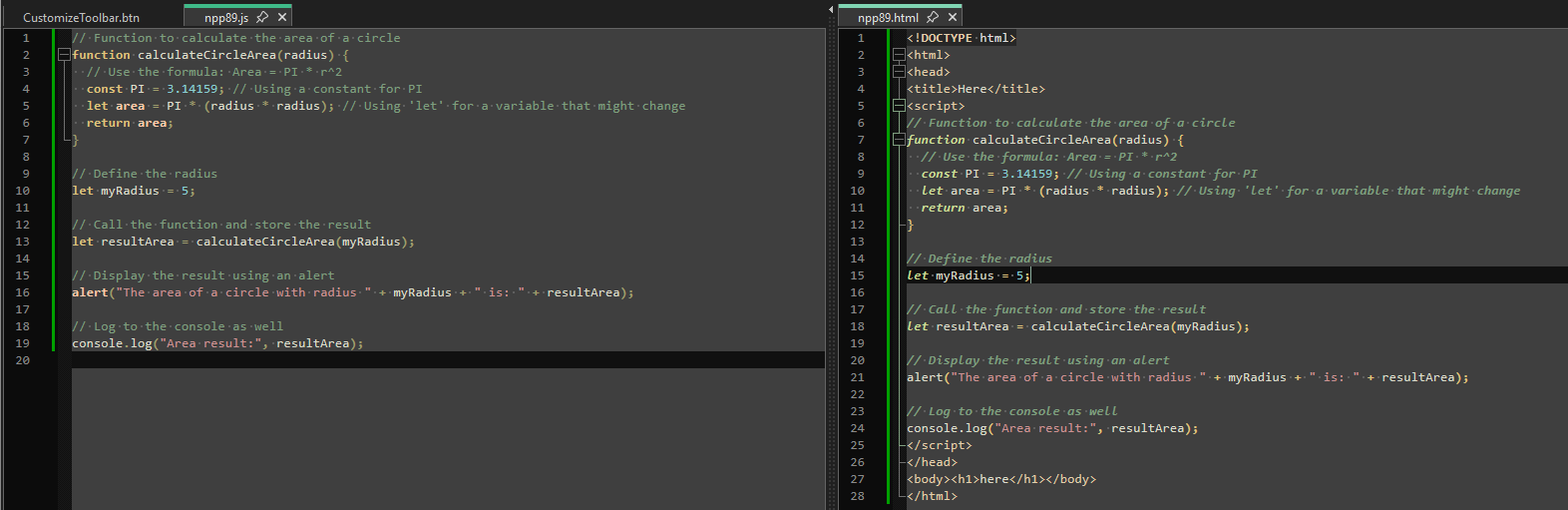
What theme(s) are you using? What version of Notepad++ did you upgrade from? What version of Notepad++ did you originally install years ago?
There are intentionally two copies of Javascript: in the Style Configurator, one should be called
JavaScriptand the other should be calledJavaScript (embedded):
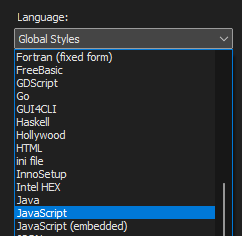
The first is for JavaScript files (*.js). The second (with “(embedded)” in the name) is for JS embedded in HTML. Those were made separate in 2015 with v7.2.2. So for a decade now, it’s had two entries…
For you to have never seen that before your upgrade to v8.9 is mind-boggling. For you to still have a theme that only had one entry called “JavaScript” would mean that one of your themes was on the order of 10 years old… which shows why the feature of the automatic update of themes is so important – because if you’ve really only had one entry all these years, then either your *.js weren’t highlighting or any javascript embedded in HTML wasn’t highlighting. Now both can and will.
-
If both entries in Style Configurator claim
JavaScriptwithout one beingJavaScript (embedded), then:- Close all copies of Notepad++
- Run one copy of Notepad++ and open
%AppData%\Notepad++\langs.xmland%AppData%\Notepad++\stylers.xml(or%AppData%\Notepad++\themees\<ThemeName>.xmlif you are using a “dark theme”) - In
langs.xml, there should be two copies, one calledname="javascript"for the embedded JavaScript and one calledname="javascript.js"for the *.js JavaScript files:
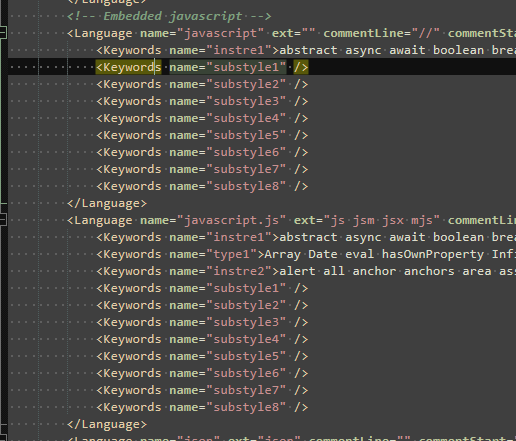
yours might not be right next to each other like in my screenshot; order doesn’t matter; just confirm they both exist
javascript.jsshould have some values in theext="..."attribue; the other should not- You probably won’t have to do anything with that one, I just wanted you to confirm it existed and looked reasonable.
- In
stylers.xmlorthemes\<ThemeName>.xml, you should also find two entries
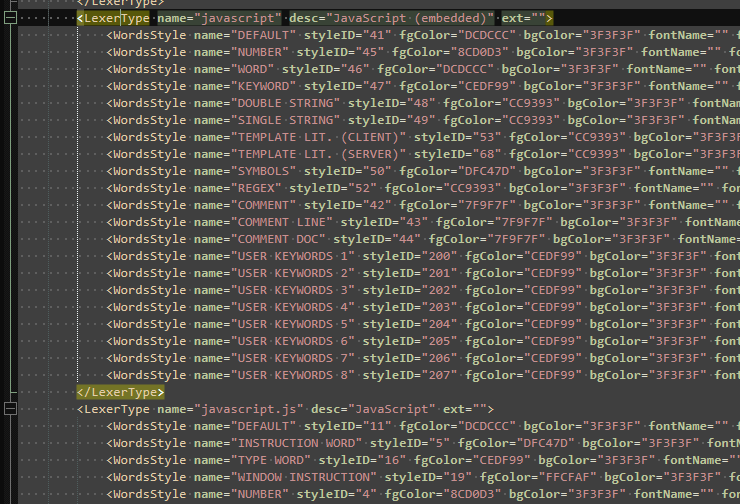
- The
name="javascript"should havedesc="JavaScript (embedded)"and the WordsStyle entries should have styleID values above40 - The
name="javascript.js"should havedesc="JavaScript", and the WordsStyle entires should have styleID values between1and20(except the USER KEYWORDS, which will have128-135 - If both of your name entries have just
desc="JavaScript", then change the one that hasname="javascript"and StyleID’s above40to havedesc="JavaScript (embedded)"
- The
- Save any changes you made. Exit Notepad++. Restart. It should now have
JavaScriptvsJavaScript (embedded)in the Style Configurator Languages choices
-
If you don’t like the colors that were chosen when the second javascript was populated (it will have populated with the default foreground/background for your theme), then you can edit the colors to your liking… or you can compare your copy of the theme XML file to the official version, and copy over the colors from the official version of the theme (as described in the in the Update Theme(s) in User Config Directory section of the v8.8.9 Themes FAQ)
-
-
@PeterJones
I use 32-bit Notepad++ Portable version 8.9
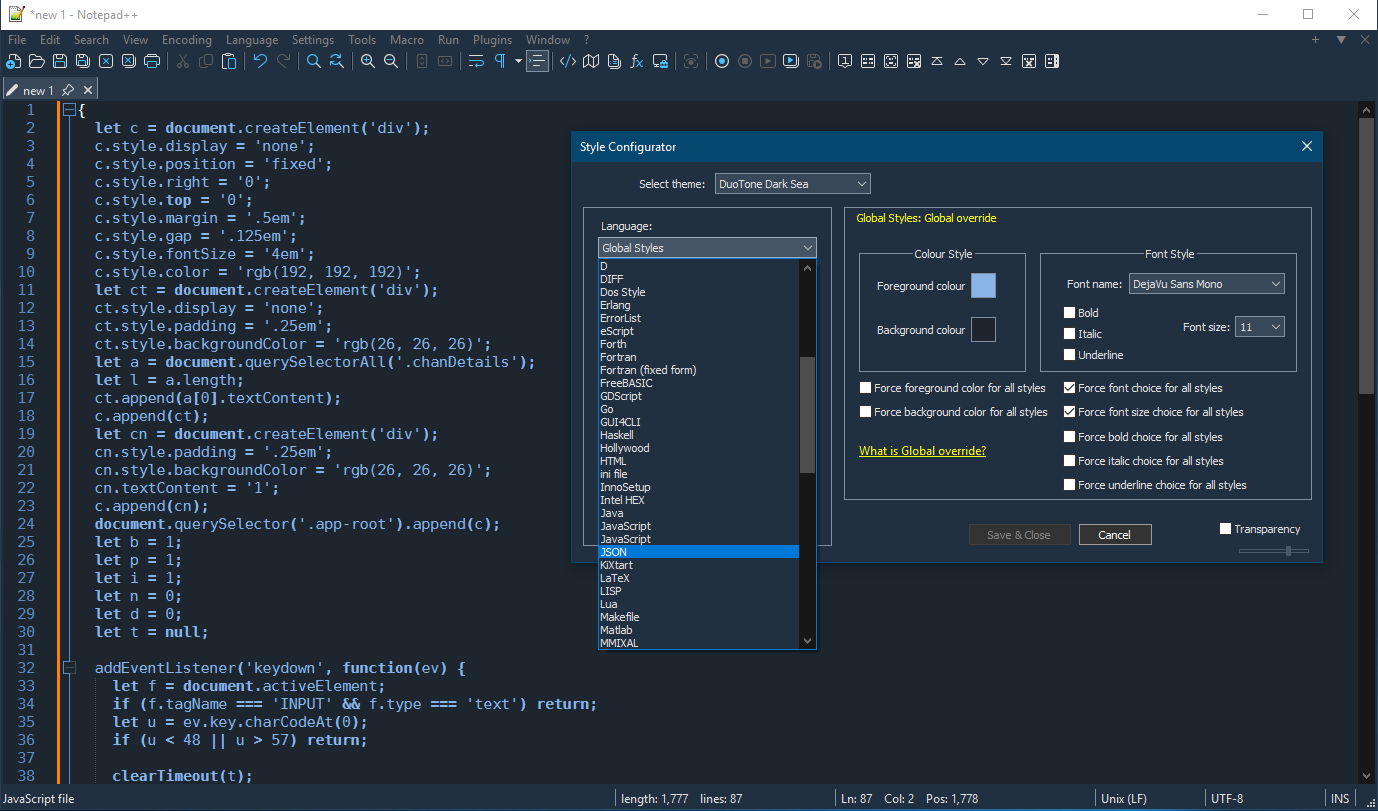
The theme whereJavaScriptentry is duplicated in the Style Configurator’s “Language” list isDuoTone Dark Sea, which is too old and no longer standard compliant, for all the other standard themes there are 2 entriesJavaScriptandJavscript (embedded). Javascript highlighting does not work even for those standard dark themes.
-
@D-Lix said in Notepad++ release 8.9:
@PeterJones
I use 32-bit Notepad++ Portable version 8.9
The theme whereJavaScriptentry is duplicated in the Style Configurator’s “Language” list isDuoTone Dark Sea, which is too old and no longer standard compliant,Since it doesn’t come with Notepad++, it doesn’t surprise me if it’s out-of-date. When I searched for it, I found this Topic and the website it links to. For whatever reason, the author of that family of themes chose to start from an outdated theme for generating their family of themes, because despite the fact that the separate JS languages have existed since 2015, they didn’t have it when they announced it in 2019, and even the latest 2020 release didn’t use separate ones
for all the other standard themes there are 2 entries
JavaScriptandJavscript (embedded). Javascript highlighting does not work even for those standard dark themes.Yes it does. I showed you a screenshot of Dark Mode Default, with obvious highlighting of JS in both *.js file and *.html file.
… But, as I said in my previous post, if a theme was missing a language and was upgraded by v8.9, then it used the default foreground and background color for every style in that new language, but you as the user can change the color for each style in that theme to whatever you think looks good. There is no way for an automated procedure to “guess” a good color that will make every user of a theme happy when filling in a missing style, so using the default color and letting the user change it if they want highlighting is the best choice. In terms of the fact that older Notepad++ versions, with outdated themes, wouldn’t syntax highlight those files, and wouldn’t let you change the colors with Style Configurator, the fact that in v8.9 you now can change those colors with Style Configurator is a drastic improvement – and exactly the improvement that was intended with the v8.9 release.
Looking in detail, Dark Mode Default and Solarized and Zenburn all have full colorization for JavaScript *.js files. Many of the others have Bold for keywords, though the foreground and background colors are default; and a few have just default foreground and background colors. But all of them allow you to change the color using Style Configurator, if you want it.
The historical problem is that the users who originally created any given Theme mostly stopped contributing updates to their themes a decade or more ago. As new languages are added to Notepad++, most themes didn’t get them at all (until v8.9), so people using those outdated themes couldn’t use Style Configurator to change their colors, and got no syntax highlighting for those new languages. Now, in v8.9, they are all available in the Style Configurator, no matter what theme they started from… but a user who wants to use one of those themes will have to set their own colors. So it went from being default foreground/background with it being impossible to change that for a given theme without digging into XML, to being default foreground/background colors but being really easy to change it using the Style Configurator – so a drastic improvement.
-
@PeterJones
Just one more question, whyGlobal overrideis now missing in thestylelist whenGlobal Stylesis selected inLanguagelist in case of all the standard themes butGlobal overrideis still there for myDuoTone Dark Seatheme? -
@D-Lix said in Notepad++ release 8.9:
@PeterJones
Just one more question, whyGlobal overrideis now missing in thestylelist whenGlobal Stylesis selected inLanguagelist in case of all the standard themes butGlobal overrideis still there for myDuoTone Dark Seatheme?It’s not missing in any of them. It’s just been moved to the end of the list, not the beginning, since there’s very little reason to ever use Global Override, and by putting it at the beginning, people were accidentally encouraged to use the Global Override when they should have been changing the Default color instead. (That change of order was made in all distributed themes in v8.7.1.)
-
@PeterJones
I should have noticed it myself. Thank you. -
There is a character issue in v8.9:
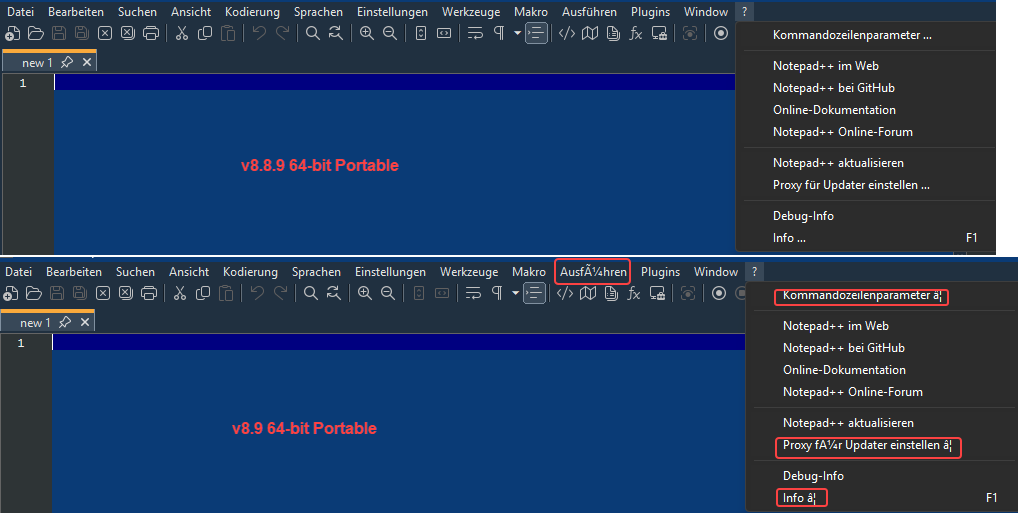
As you can see it ok in v8.8.9
-
@wimasoft
I guess it was you who deleted your post, because there’s no issue.
Do you confirm? -
@donho
yes, it was me, but I thought it would make more sense to post on GitHub.
It is an issue for German language. -
-
@donho
This is indeed strange. I have extracted v8.9 zip to my existing portable folder. Then it happen. If I extract this version to a new folder everything is ok. Must be my fault…Update: I’ve switched to English, extract new version and switched back to German. No it’s ok.
So, no issue any more. Should we delete my posts? -
@wimasoft said in Notepad++ release 8.9:
Should we delete my posts?
No, it is considered bad form to delete posts made here.
-
@PeterJones said in Notepad++ release 8.9:
(as described in the in the Update Theme(s) in User Config Directory section of the v8.8.9 Themes FAQ)
The Themes FAQ has been updated to include instructions for explaining and fixing the JavaScript if you upgraded to v8.9 and it messed up your JavaScript syntax highlighting.
-
P PeterJones forked this topic on
-
Hi guys, the screen of my laptop doesn’t work anymore, and I am away from home for a few days.
I just got the following email :just wanted you to know that at least since 8.9.9 and including 8.9,
the yellow link saying " Home: https://notepad-plus-plus.org/ "
in the “about” dialog actually points to notepad-plus-plus.com
instead of .org.Win11 32bit version
Though It seems improbable, could anyone check v8.9 binaries for me please? Thanks.
-
@donho said in Notepad++ release 8.9:
Though It seems improbable, could anyone check v8.9 binaries for me please?
I tried both portable and installed (via exe installer) 8.8.9 and 8.9 binary, and the About dialog in all of those says and goes to the .org URL.
update: on re-read, I saw it said “32bit version”, so I also grabbed the 32-bit portable 8.9, and the About link was right (.org) there, as well.
-
It’s ok for both x86 and x64 v8.8.9 and v8.9 (checked portable eds).
That “h…ps://notepad-plus-plus.com” currently redirects to a parked domain:
“h…ps://ww38 . notepad-plus-plus . com”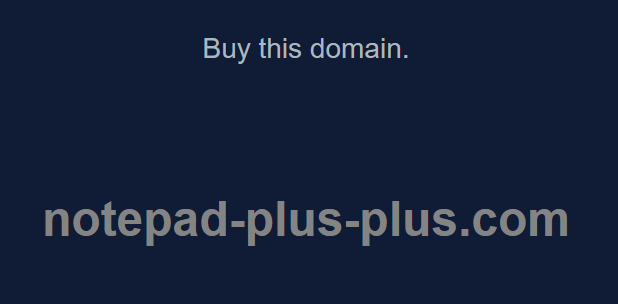
Maybe it was used for some attack before?
-
Thank you for checking it.
Maybe it was used for some attack before?
No idea. But I think this domain cheats people to download their malwares passively rather than hack the victim actively
-
@donho
Yes, this time by “attack” I meant a phishing campaign or similar.




Hello! It looks like you're interested in this conversation, but you don't have an account yet.
Getting fed up of having to scroll through the same posts each visit? When you register for an account, you'll always come back to exactly where you were before, and choose to be notified of new replies (either via email, or push notification). You'll also be able to save bookmarks and upvote posts to show your appreciation to other community members.
With your input, this post could be even better 💗
Register Login