All of a sudden cannot type anything in Notepad++ 8.8.8
-
This morning, all of a sudden, I switched to NP++ to type but I had a blue square blinking, I type nothing happens, on my keyboard pressed on “Insert” blue square transformed on a dash still cant type.
This happened after I tested the NPP string random generator 5 minutes earlier.
I visited the edit menu, chose Clear read-only on all documents but it did not help.
Thanks for your help -
@Salam-Elias said in All of a sudden cannot type anything in Notepad++ 8.8.8:
This happened after I tested the NPP string random generator 5 minutes earlier.
Notepad++ doesn’t have a random string generator natively. If that is a plugin that you have, it is my guess that something about the plugin is incompatible with modern Notepad++.
To fix Notepad++ typing for now, my guess is that all you have to do is to completely exit Notepad++ then run the application again. If that doesn’t work, try a reboot. If one of those works, then grab the ?-menu’s Debug Info and paste it here. Also, see if running the random text generator again causes the problem again (and let us know) – if it does, the exit/restart or reboot should fix it again.
If the plugin continues to cause problems, I suggest not using it until there’s an updated version of the plugin available – maybe even uninstalling the plugin so you don’t accidentally use it.
-
@PeterJones I did peter, relaunched NPP did not help, rebooted the machine, did not help neither. Here is the debug info (I have alrady removed the plugin for random string generator)
- Notepad++ v8.8.8 (64-bit)
- Build time: Nov 16 2025 - 20:55:01
- Scintilla/Lexilla included: 5.5.7/5.4.5
- Boost Regex included: 1_85
- Path: C:\Program Files\Notepad++\notepad++.exe
- Command Line:
- Admin mode: OFF
- Local Conf mode: OFF
- Cloud Config: OFF
- Periodic Backup: ON
- Placeholders: OFF
- Scintilla Rendering Mode: SC_TECHNOLOGY_DEFAULT (0)
- Multi-instance Mode: monoInst
- asNotepad: OFF
- File Status Auto-Detection: cdEnabledNew (for current file/tab only)
- Dark Mode: OFF
- Display Info:
-
primary monitor: 2560x1440, scaling 125% -
visible monitors count: 1 -
installed Display Class adapters: -
0000: Description - NVIDIA GeForce GTX 1050 -
0000: DriverVersion - 32.0.15.6094 - OS Name: Windows 10 Enterprise (64-bit)
- OS Version: 22H2
- OS Build: 19045.6456
- Current ANSI codepage: 1252
- Plugins:
-
AutoSave (2) -
ColumnsPlusPlus (1.3) -
ColumnTools (1.4.5.1) -
ComparePlus (2.2) -
CSVLint (0.4.7) -
CsvQuery (1.2.7) -
CustomLineNumbers (1.1.10) -
DSpellCheck (1.5) -
Explorer (1.9.3) -
FileFinder (0.3) -
FWDataViz (2.6.6) -
GotoLineCol (2.4.5.1) -
HexEditor (0.9.14) -
JsMapParser.NppPlugin (4.2) -
JsonTools (8.4) -
Linefilter3 (1) -
Linter (0.1) -
MarkdownViewerPlusPlus (0.8.2) -
mimeTools (3.1) -
NppConverter (4.7) -
nppcrypt (1.0.1.6) -
NppExport (0.4) -
NppFTP (0.29.14) -
NPPJSONViewer (1.40) -
NppMarkdownPanel (0.9) -
NppScripts (2) -
NppTextFX (1.4.1) -
NppTextViz (0.4.2) -
NppVim (1.4) -
NppXmlTreeviewPlugin (2) -
PlanetCNCNpp64 (3001.21.1125.1) -
PoorMansTSqlFormatterNppPlugin (1.6.13.31508) -
pork2sausage (2.6) -
PreviewHTML (1.3.3.3) -
PythonScript (2.1) -
qkNppReverseLines (1) -
QuickText (0.2.5.1) -
RandomValuesNppPlugin (0.3) -
RedisPlugin (1.0.2) -
RegexTrainer (1) -
Remove Duplicate Lines (1.3) -
RunMe (1.6.1) -
SelectQuotedText (1.1) -
SessionMgr (1.4.4) -
SpeechPlugin (0.4) -
SQLinFormNpp64 (6.25.8.28) -
urlPlugin (1.1) -
WakaTime (4.2.1) -
XMLNavigator (1.4) -
XMLTools (3.1.1.13)
-
Anytime you have that many plugins, and have a problem, the first thing to try is to exit Notepad++ and run
notepad++ -noPluginand see if the problem still occurs with no plugins.To then narrow it down to which plugin is the culprit, follow “Possible Culprit: Plugin” in this FAQ
Also, make sure you don’t have a UAC icon on your taskbar (the little shield icon) – if you do, it might be prompting you to do something in the background, and won’t give up control until you do.
But in general, there is nothing in Notepad++ that would prevent you from typing… unless the file is locked. I know that in your original post, you tried “Clear Read-only for All Documents” – but that only affects Notepad++'s Read Only flag, not the windows OS / filesystem Read-Only flag. On the file you are editing, if there is the lock icon (or the grayed-out disk, if you’re still using the old, ugly, 90s-based tab bar icons), then you should also look at the Edit menu and see if "Read-Only Attribute in Windows** is checkmarked; if it is, you have to uncheckmark it (which will have Notepad++ ask the OS to clear the filesystem read-only flag).
-
@PeterJones Thanks, I removed all newly installed pluging and now I am able to type. I will install 1 by one and see, I will let uou know
-
@Salam-Elias said in All of a sudden cannot type anything in Notepad++ 8.8.8:
I removed all newly installed pluging and now I am able to type. I will install 1 by one and see,
Looking back through your huge list of plugins, I see that you have the NppVim plugin. I don’t know how that one plugin works (if I want Vim features on Windows, I will use gVim, not a plugin for Notepad++, because if I want Vim, I want 100% vim, not a weird amalgamation), but I know in the real Vim editor that you have to change into typing mode in order to be able to edit the file. If NppVim gives that functionality to Notepad++, then you’d obviously have to follow that plugin’s method of changing into “insert” or “typing” mode (or whatever that plugin calls that mode) before you can type. So if installing NppVim plugin is what triggers your problem again, then it’s probably just you didn’t understand all the implications of that plugin.
-
@PeterJones said in All of a sudden cannot type anything in Notepad++ 8.8.8:
I don’t know how that one plugin works
I just grabbed a copy on a portable N++ to experiment. So yes, when you first install NppVim, it starts Notepad++ in “Vim” mode. So, just in Vim, in order to add text, you need to use the
a(append) ori(insert) oro(add new line) or the capital versions thereof. NppVim hijacks the status bar, and will list--NORMAL--when it’s in the mode that accepts thehjklnavigation keys (and similar) or--INSERT--when it’s in the insert/append mode. It’s only when you are in--INSERT--mode that the Notepad++ INS/OVRINS-key toggle has any meaning, and it’s only when you are--INSERT--mode that you can type text in the editor.
vs

and now, just a few seconds of using Vim-style editing commands, just to prove that’s how it works, my brain has already reverted to vi keys, and I tried to edit this post with vi keystrokes. so thanks for that 😜
update:
If you don’t want to have to use the Vim keys with that plugin, you can use Plugins > NppVim > Toggle Vim Mode to toggle off that plugin’s features temporarily.
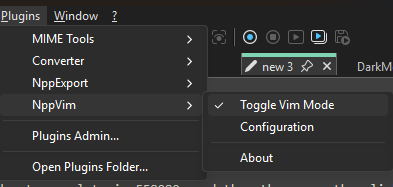
So, as of now, my working theory is that @Salam-Elias had the NppVim plugin installed without understanding the implications, and the problems with typing, mentioned in the original post, were 100% due to user error and that plugin.
-
@PeterJones Thanks for your efforts, yes, I think that was the issue.


Hello! It looks like you're interested in this conversation, but you don't have an account yet.
Getting fed up of having to scroll through the same posts each visit? When you register for an account, you'll always come back to exactly where you were before, and choose to be notified of new replies (either via email, or push notification). You'll also be able to save bookmarks and upvote posts to show your appreciation to other community members.
With your input, this post could be even better 💗
Register Login