Open container folder in cmd but as a toolbar button ?
-
Hello,
I would like to have a toolbar button for this action
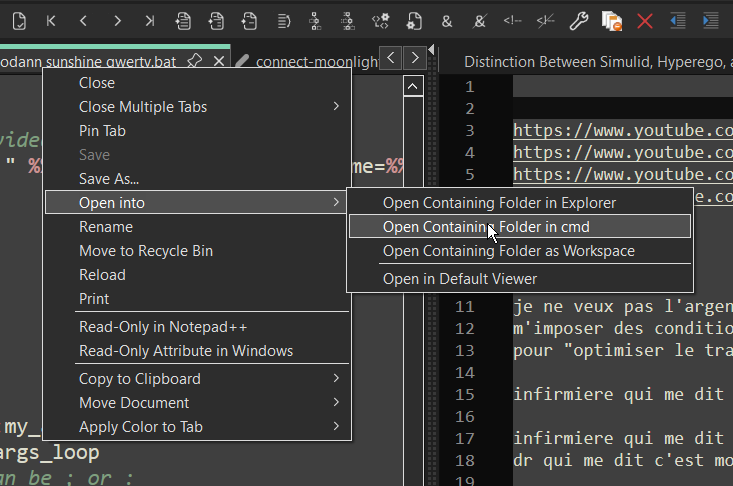
Is it possible to have that ?
thanks
-
One way would be using the PythonScript plugin.
Create a new script, give it a meaningful name and add something like thisfrom Npp import notepad, MENUCOMMAND notepad.menuCommand(MENUCOMMAND.FILE_OPEN_CMD)Add it, via the
Configuration...menu item to the toolbar section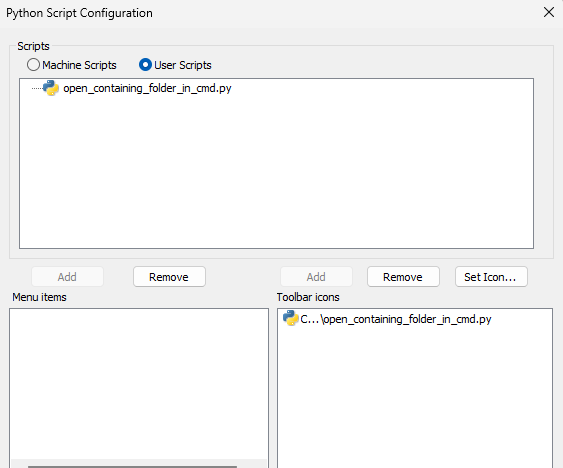
and restart npp.
-
Alternately, install the Customize Toolbar plugin, enable Plugins > Customize Toolbar > Custom Buttons, then edit
...\plugins\Config\CustomizeToolbar.btnto include something like the following:File,Open Containing Folder,cmd,,onion.bmp,onion.ico,onion.ico File,Open Containing Folder,Explorer,,*R:Ex,*G:Ex,*B:ExThe first line uses a pair of BMP (16x16, 256 color) and ICO files I had readily available to do the open-containing-folder-in-cmd, and the second line does the explorer version: it uses a RED-background
Exif using Standard Icons, a GREEN-backgroundExif using Fluent icons in Light Mode, and a BLUE-backgroundExif using Fluent icons in Dark Mode: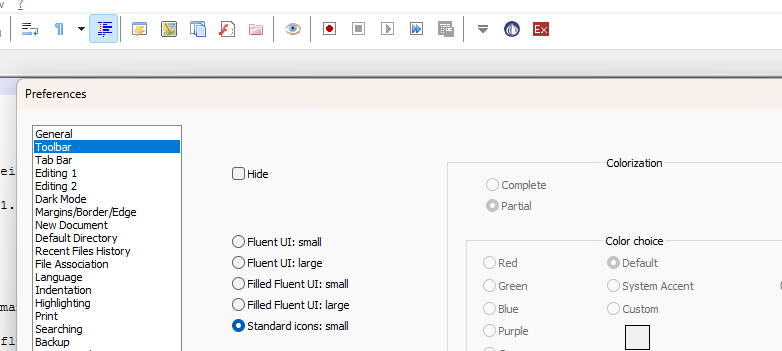
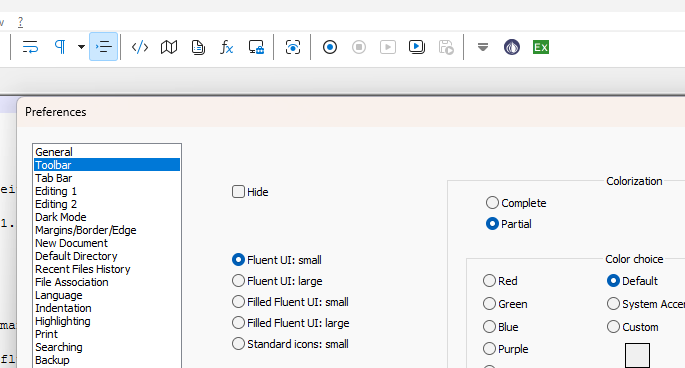
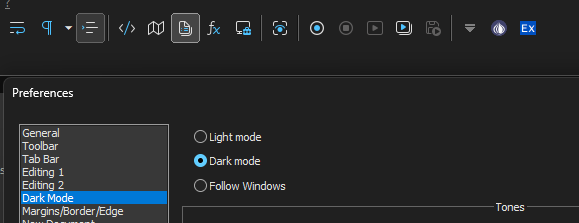
As mentioned here, the extra spaces around the buttons are due to an unfixed bug in the CustomizeToolbar plugin. The workaround is to also define a replacement icon for the Show Symbol default toolbar entry using
View,Show Symbol,Show All Characters,,Icons\allChars.bmp,Icons\allChars_off.ico,Icons\allChars_off_dark.icoThat issue-comment has links to where you can get the BMP and two ICO files for that button.
But using that in addition to the commands I showed earlier will make the button toolbar more compact:

-
Hello
Thank you for the responses !
I have tried this method
After installing PythonScript, it was unclear where I could add the script
open_containing_folder_in_cmd.py
I tried
C:\Users\user\AppData\Roaming\Notepad++ (no)
C:\Users\user\AppData\Roaming\Notepad++\plugins (no)
C:\Program Files\Notepad++\plugins\PythonScript\scripts (maybe)It still wouldn’t appear, until restart (this should, auto refresh I believe, when you open configuration at least ?)
It appeared in the menu
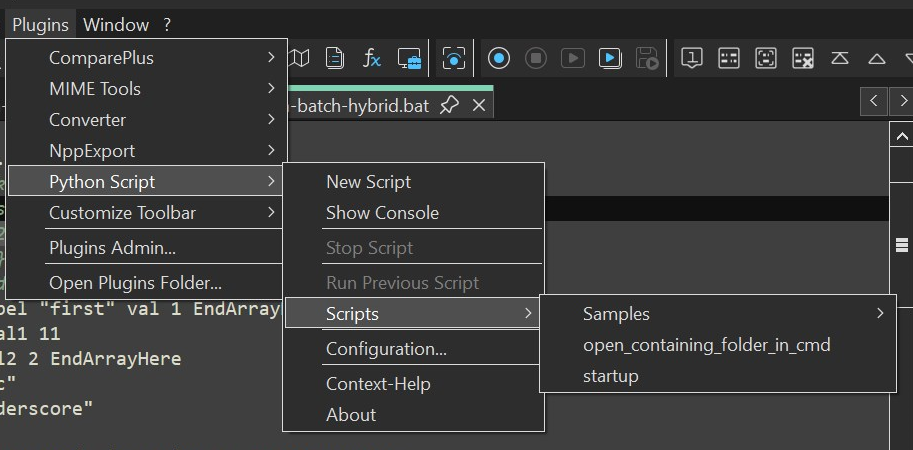
But not in the configuration page
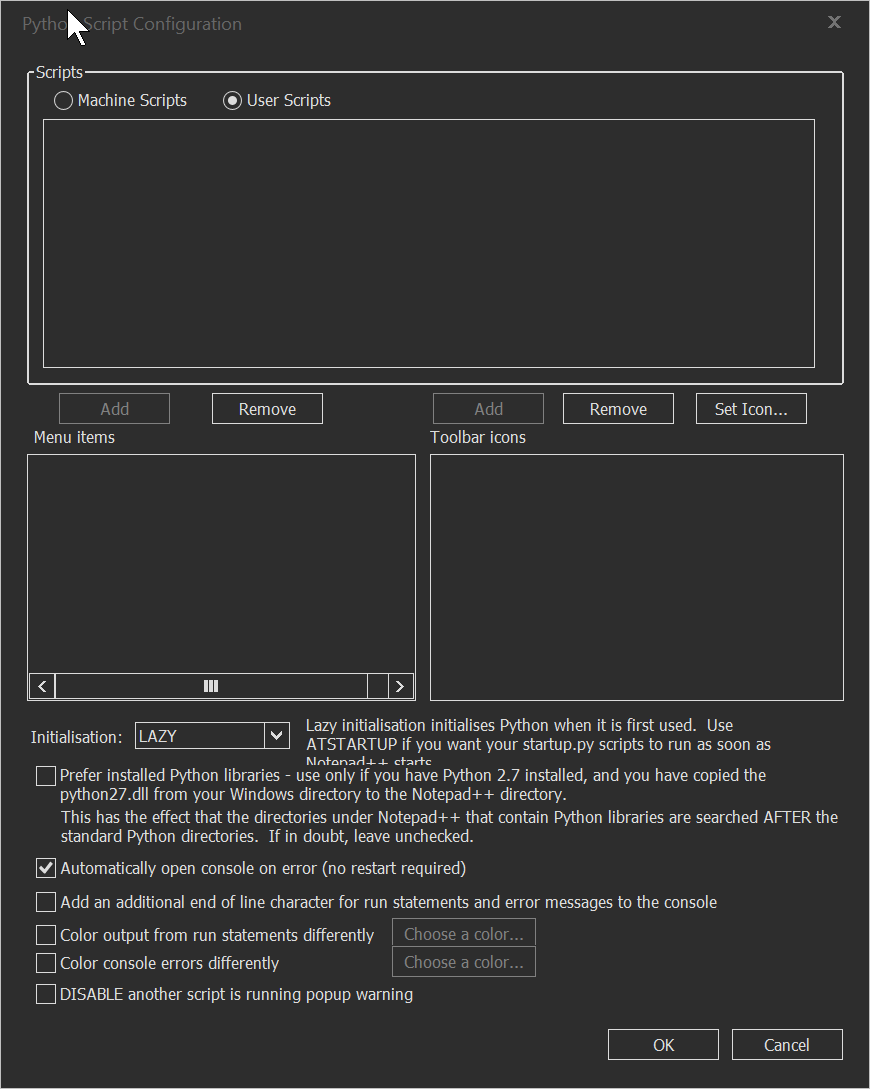
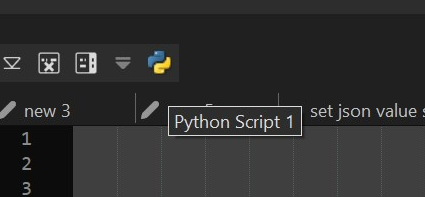
Click on Plugins->Python Script-> Scripts -> open_containing_folder_in_cmd.py
Did open cmd.exe in the right locationAh ok, from clicking the “new” script button
The path is
C:\Users\user\AppData\Roaming\Notepad++\plugins\config\PythonScript\scripts
The folder was not created during installation apparently !Now it does appear !
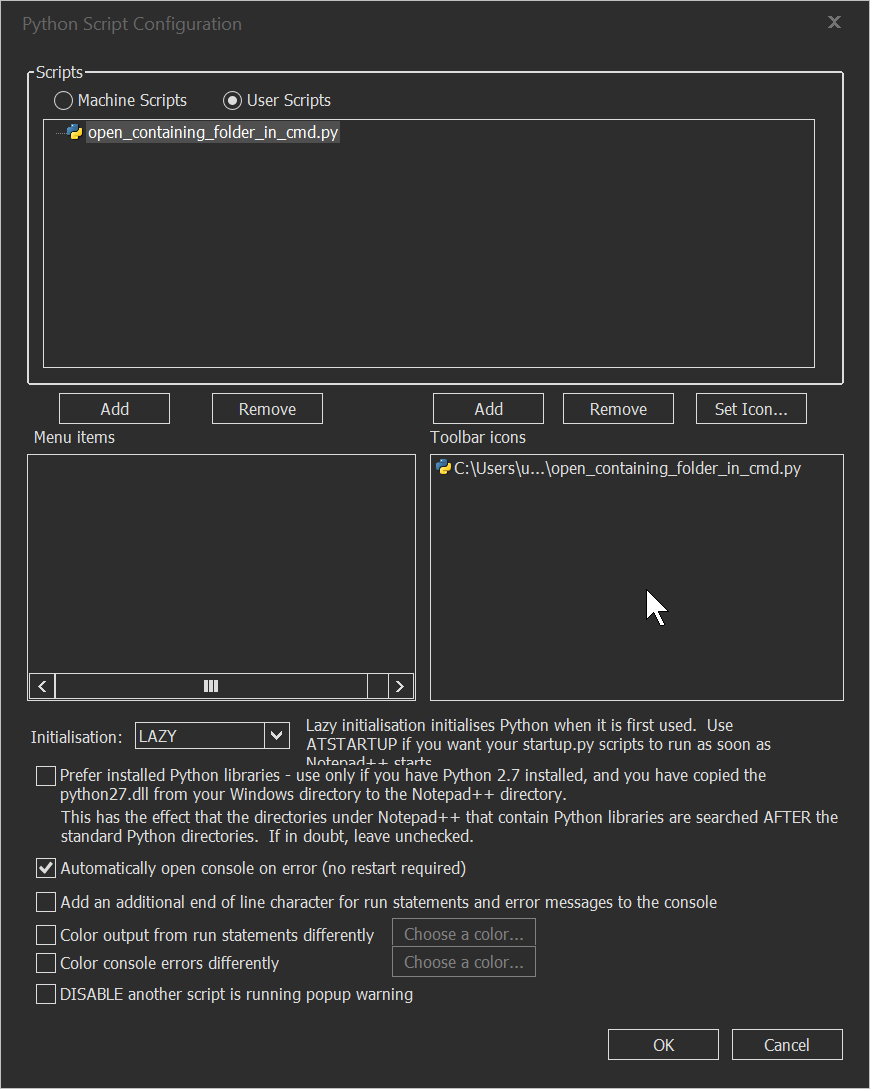
And yes this works !
Thanks !
Thanks for this suggestion
I gave this a try as well
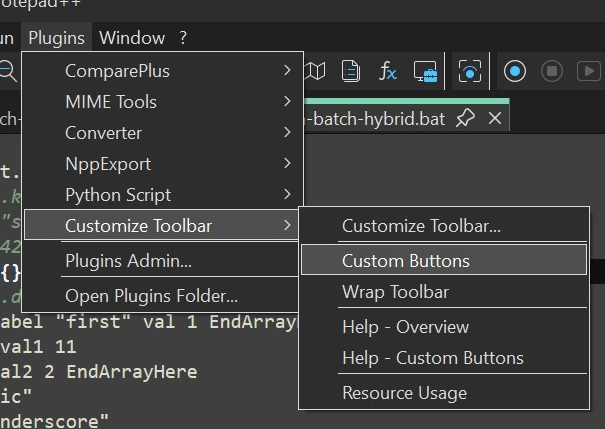
Then I edited
C:\Users\user\AppData\Roaming\Notepad++\plugins\config\CustomizeToolbar.btn
I pasted your suggested command
changed the file to a screenshot of the cmd.exe icon I took
I also added you suggested extra space fixFile,Open Containing Folder,cmd,,fRgHGCzWpi.png,fRgHGCzWpi.png,fRgHGCzWpi.png View,Show Symbol,Show All Characters,,Icons\allChars.bmp,Icons\allChars_off.ico,Icons\allChars_off_dark.icoThis did not work yet
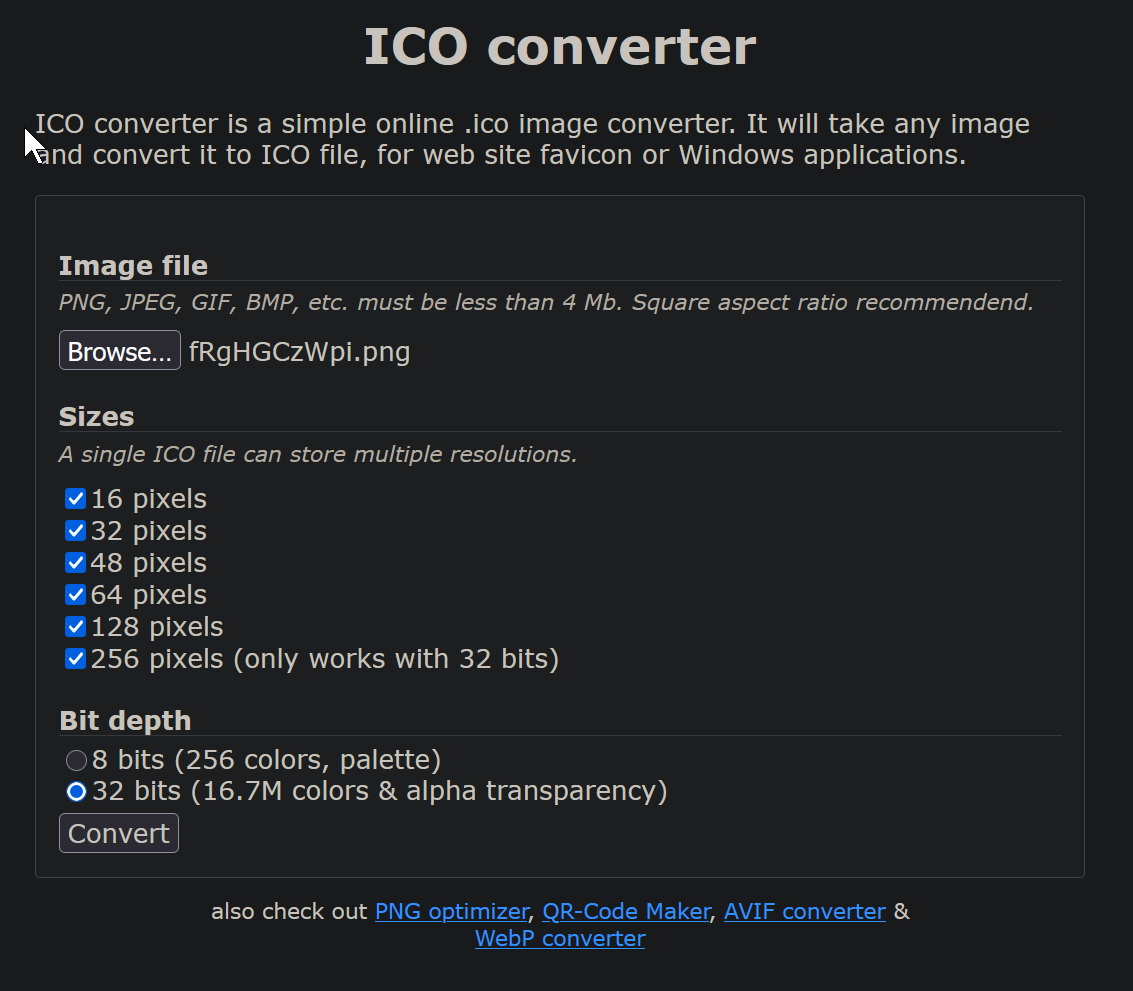
I used webservice
https://www.icoconverter.com/
To create a .ico file
with these settings
and I downloaded the 3 files from the github issues
https://github.com/notepad-plus-plus/notepad-plus-plus/blob/master/PowerEditor/src/icons/standard/toolbar/allChars.bmp
https://github.com/notepad-plus-plus/notepad-plus-plus/blob/master/PowerEditor/src/icons/light/toolbar/regular/allChars_off.ico
https://github.com/notepad-plus-plus/notepad-plus-plus/blob/master/PowerEditor/src/icons/dark/toolbar/regular/allChars_off.icoAnd I placed them in folder
C:\Users\user\AppData\Roaming\Notepad++\plugins\config\Icons
Restarted notepad++
The icon appears and works but the icon is wrong

I tried these settings
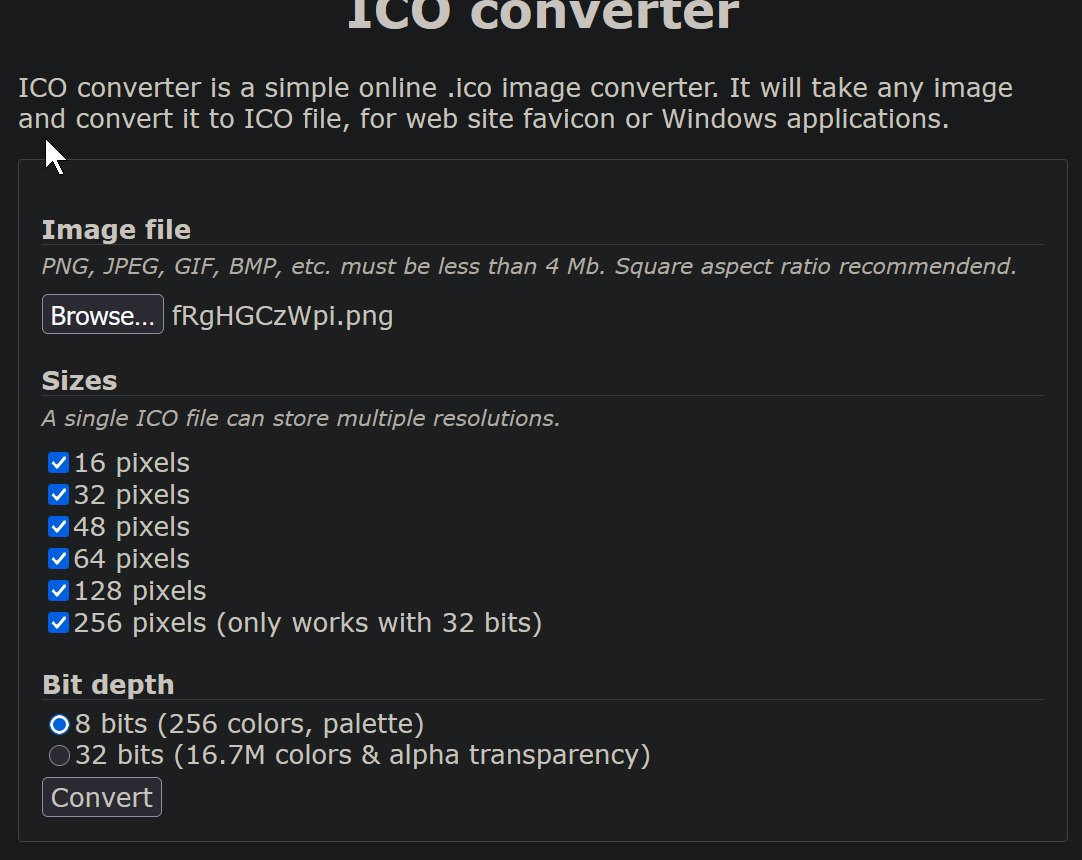
Also does not work
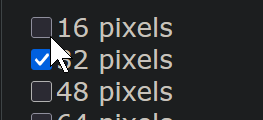
also no
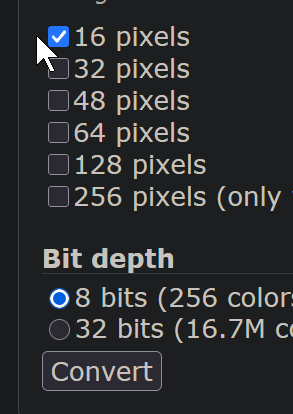
also no ???
Oh wait
File,Open Containing Folder,cmd,,cmd.ico,cmd.ico,cmd.icoshould have been
File,Open Containing Folder,cmd,,Icons\cmd.ico,Icons\cmd.ico,Icons\cmd.icoIcon has disappeared !
ok, instead move the file to C:\Users\user\AppData\Roaming\Notepad++\plugins\config
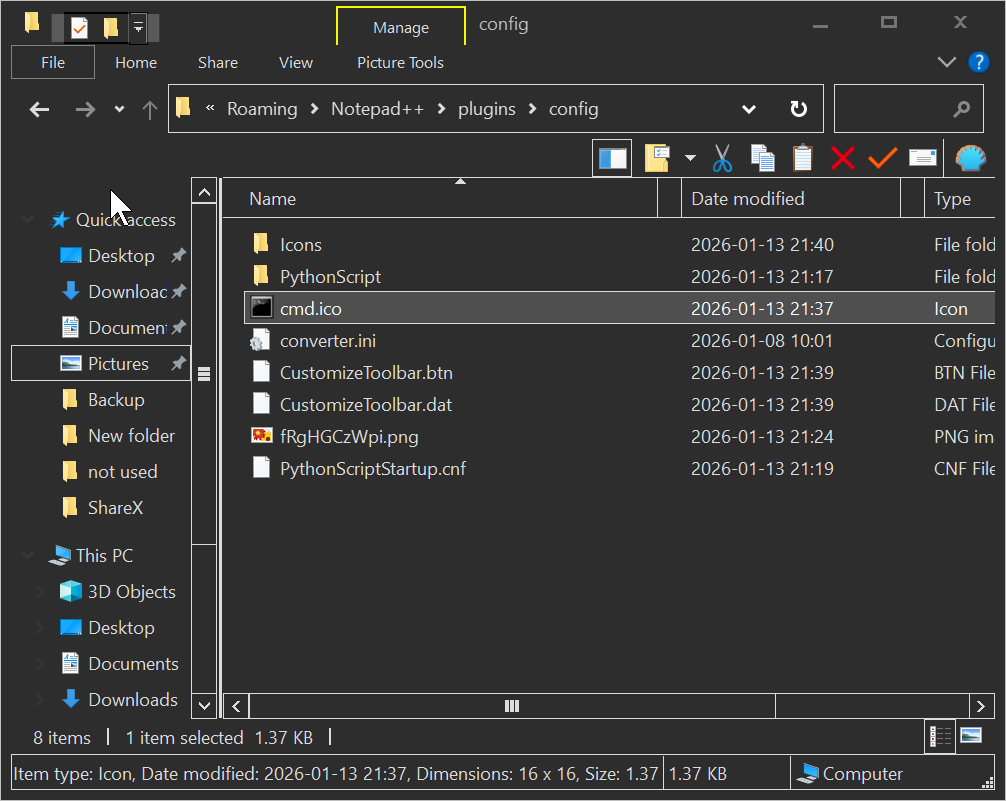
change it back to
File,Open Containing Folder,cmd,,cmd.ico,cmd.ico,cmd.icorestart npp
icon is back, but still question mark

Maybe the file is not 16x16 256 colours ?
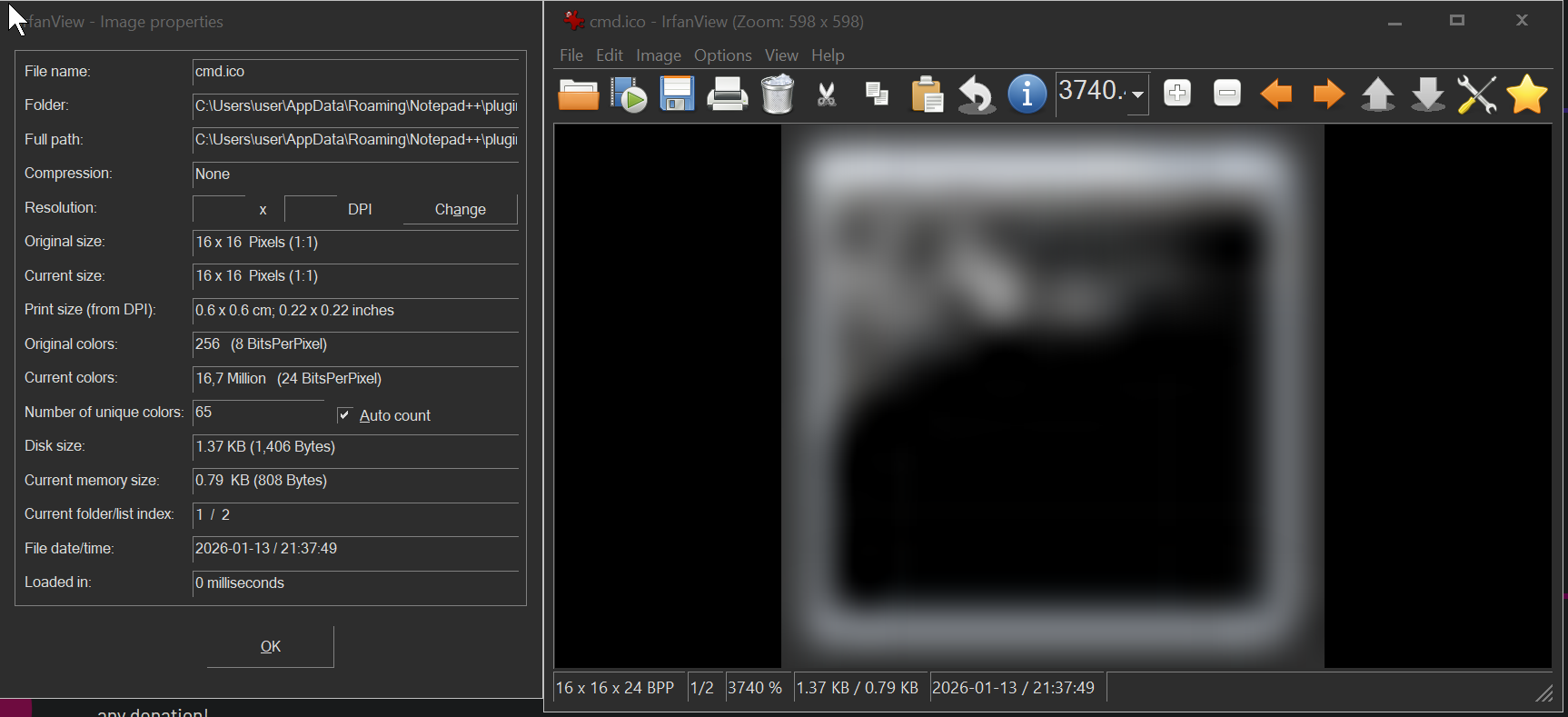
Looks like it is as specified
Maybe something is wrong with the file …
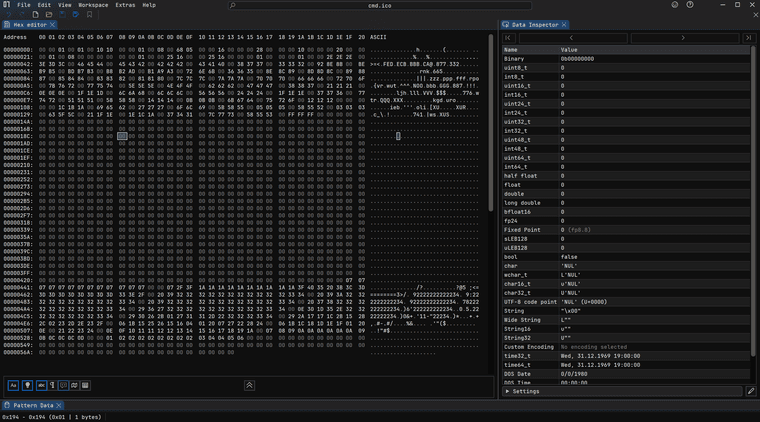
I’m not good enough to mentally decode this, looks normal
Hmm
https://en.wikipedia.org/wiki/ICO_(file_format)
0x02 idType is 1 , which is ICO good
0x04 idCount is 1, just 1 image
0x06 ICONDIRENTRY structbWidth is 10 , which is width 16
bHeight is 10, which is width 16
bColorCount 0. does not use a pallette
wPlanes is 1, has color plane , whatever that is, 0 is black and white ?
wBitCount, it is 8 bit per pixel
dwBytesInRes, 1384 bytes ?? idk…
onion.bmp,onion.ico,onion.icoah wait you have BMP in there ??
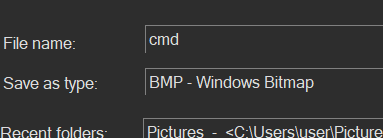
File,Open Containing Folder,cmd,,cmd.bmp,cmd.ico,cmd.icorestart
woohoo !
Wow, I was about ready to give up there !
Thanks both of you, I will go with the CustomizeToolbar plugin as it give me that distinctive icon !



Hello! It looks like you're interested in this conversation, but you don't have an account yet.
Getting fed up of having to scroll through the same posts each visit? When you register for an account, you'll always come back to exactly where you were before, and choose to be notified of new replies (either via email, or push notification). You'll also be able to save bookmarks and upvote posts to show your appreciation to other community members.
With your input, this post could be even better 💗
Register Login