Notepad++ release 8.9.8
-
@donho I began seeing this message pop up
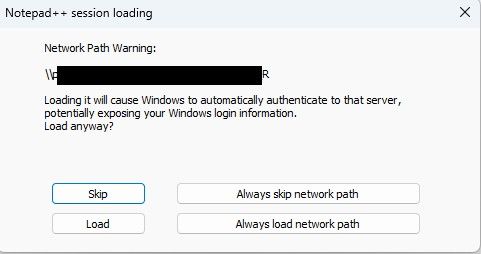
Why is it suddenly concerned about my network path? And why would it expose my login information, and to who if im in a trusted network from a trusted PC?
-
@Danny-Duplechian From my cursory reading of the change logs, there is a lot of new security-related functionality, specifically related to NTLM authentication.
I’m NOT an expert, but npp is now checking with you before accessing non-local paths, in an attempt to determine what should (not) be trusted.
These non-local paths may appear in your .npp-session file, among others.
If these reads are done on untrusted servers, your “NTLMv2 hash” may (will?) be sent and possibly used against you.
If you recognize the server, click Load or Always load. -
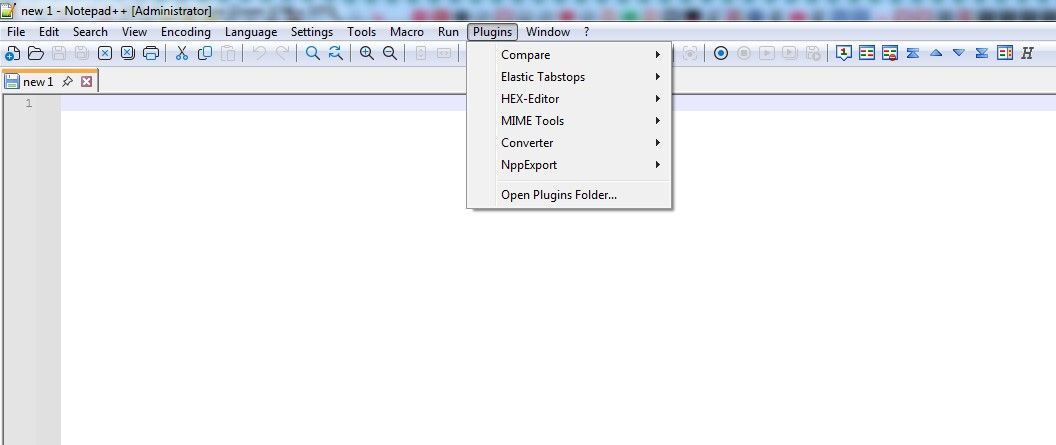
After updating to 8.9.8, the “Plugins Admin” selection has disappeared under the “Plugins” menu.
-
When you ran the installer, did you turn off the following checkmark?
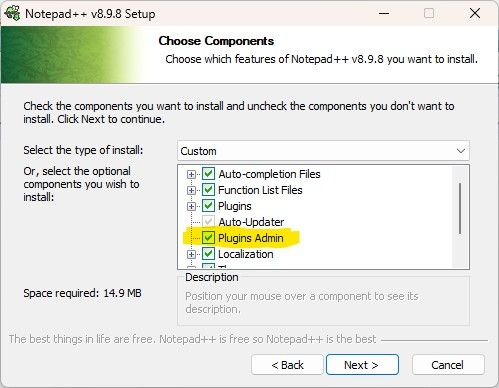
You need to have Plugins Admin enabled (checkmarked) in the installer to have it in the Plugins menu when you run. If you run the installer again, you can turn it on when you get to that step in the installation.
(Also, if you shared your ?-menu’s Debug Info, we could have seen whether it said
WinGUp: presentor not – because without WinGUp, the Plugins Admin won’t work. That would’ve been removed by uncheckmarking both Plugins Admin and Auto-Updater in the list of checkboxes from the screenshot.) -
Sorry for not providing complete info.
I did have the Pugins Admin checked during installation (I usually install a new version with the same options as the previous version).
Here is the debug info:
Notepad++ v8.9.8 (64-bit)
Build time: Aug 23 2026 - 17:22:44
Scintilla/Lexilla included: 5.6.6/5.5.3
Boost Regex included: 1_90
pugixml included: 1.16
nlohmann JSON included: 3.12.0
Path: C:\Program Files\Notepad++\notepad++.exe
Command Line: “C:\Program Files\Notepad++\change.log”
Admin mode: ON
Local Conf mode: OFF
Cloud Config: OFF
WinGUp: present
disableNppAutoUpdate.xml: absent
Periodic Backup: OFF
Placeholders: OFF
Scintilla Rendering Mode: SC_TECHNOLOGY_DEFAULT (0)
Multi-instance Mode: monoInst
asNotepad: OFF
File Status Auto-Detection: cdEnabledNew (for current file/tab only)
Dark Mode: OFF
Display Info:
primary monitor: 1920x1200, scaling 100%
visible monitors count: 1
installed Display Class adapters:
0000: Description - NVIDIA GeForce GT 1030
0000: DriverVersion - 27.21.14.6140
OS Name: Windows 7 Ultimate (64-bit)
OS Build: 7601.24544
Current ANSI codepage: 1250
Plugins:
ComparePlugin (2.0.2)
ElasticTabstops (1.5)
HexEditor (0.9.14)
mimeTools (3.1)
NppConverter (4.7)
NppExport (0.4) -
Everything there looks good so far, so nothing there. That makes me think it’s the Mark of the Web.
Exit Notepad++.
Open up Windows Explorer, navigate to
C:\Program Files\Notepad++. Right click onnotepad++.exe, do Properties, and make sure the bottom of the General tab doesn’t have the “unblock” checkbox: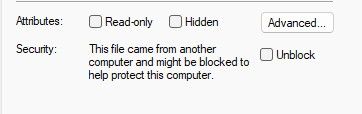
if it does, checkmark it, and choose Apply / OK
Then go to
c:\Program Files\Notepad++\Plugins\Config, and do the same right-click Properties > General check onnppPluginList.dll. (Since Notepad++ runs, but the Plugins Admin doesn’t show up, this is most likely. I just started with the exe to be methodical.)Then also check
c:\Program Files\Notepad++\updater\gup.exe, just to make sure it will update properly in the future.If that works: then, in the future, if you manually ran the installer exe , you might want to check for the “unblock” on the installer before you do – I think if you unblock that, it will then not block the exe/dll that it installs. Similarly when downloading the zipfiles, unblock the zipfile, and everything you extract will inherit being unblocked.
-
Thanks for the tips.
None of the .exe files had the blocks.
I ran the update manually and how finally the Plugins Admin option has shown up.
I was wondering whether there was some change in nppPluginList.dll that might have been incompatible with my OS (Windows 7). But it seems everything is OK for now.
-
Scenario: Company computer, Windows 11 24H2 OS build 26100.9106.
I can´t save files to C:\Users\USERNAME\OneDrive - COMPANY\Documents after updating - worked before without any problems with older versions.Error popup: “This file cannot be saved and it may be protected. Do you want to launch Notead++ in Administrator mode?” (see screenshot below)
Windows Security kicks in saying “Protected folder access blocked” - blocked by “Controlled folder access”.What works:
I can use standard Notepad to save files to that location.
From notepad++ I can save to location C:\Users\USERNAME\OneDrive - COMPANY\Desktop.Does Notepad 8.9.8 needs to be allowed in Windows on protected folders?
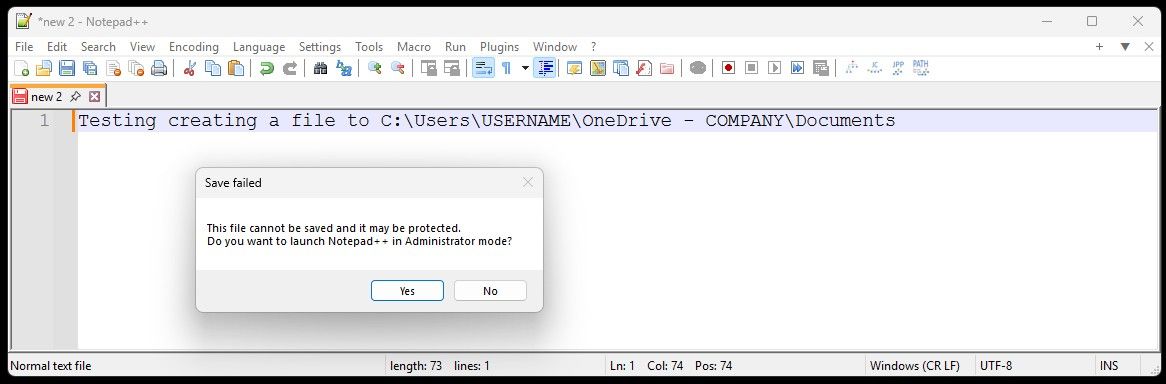
-
-
Your issue doesn’t belong to this thread.
-
In this case, Windows already told you all you need to know - most likely your company set that restriction via a domain policy for this specific folder in question, so you must go to the Windows Settings > Privacy & security > Windows Security > Virus & threat protection > Ransomware protection > Manage ransomware protection, and set the notepad++.exe app to be allowed there.
after updating - worked before without any problems with older versions.
Maybe your previous N++ version was older than v8.8.7, where the N++ digital signature changed (new certificate).
What works:
I can use standard Notepad to save files to that location.Yes. All the Microsoft own binaries (digitally signed by MS) are allowed by default.
-
-
-
Run a Macro Multiple Times
This change basically crippled 8.9.8 for me. Creating an ad-hoc macro and running it against every line in the file is one of my most-used features of N++.
The way I learned about the change was that it prevented me from running a macro multiple times because there was supposedly a problem with my shortcuts.xml file that I needed to fix. So, I manually edited the file. After that, it prevented me from running a macro multiple times because I had edited the file.
How do I fix this? My current solution has been to go back to 8.9.7.
-
Use the Run > Validate shortcuts.xml, as described in the user manual.
https://npp-user-manual.org/docs/macros/#macro-security -
@donho I began seeing this message pop up
Why is it suddenly concerned about my network path? And why would it expose my login information, and to who if im in a trusted network from a trusted PC?
This prompt pops up on every file I open inside my WSL2 vm. It made using Notepad ++ so frustrating that I downgraded back to 8.9.7.
Additionally, clicking always skip or always load doesn’t stop this from re-triggering when closing and opening the same file. I don’t know if that was the intended purpose of those buttons though.
-
As @xomx said in this Issue#18315 comment, he was not able to reproduce the problem (*). Since there is an issue (even though it’s currently closed), would you be able to go to that issue, and give an exact sequence of steps (from the initial launch of Notepad++ through to the second and third time that the warning pops up even with having answered Always load …), including your full ?-menu > Debug Info, and the session.xml that is being loaded (you can change paths in the session to things like
c:\path\to\file1.jsonand\\hostname\sharename\path\to\file2.cppif your filenames or paths hold information that you need to redact.Another important question: if instead of your normal workflow, if you open Notepad++, click Always load…, then exit Notepad++ immediately and restart, does it save the answer?
If you have the ability, replying in [issue #18315](this Issue#18315 comment](https://github.com/notepad-plus-plus/notepad-plus-plus/issues/18315) might be best (IMO) at this point; but if you don’t have or cannot create an account for GitHub, you can reply here. (It just buries other things in the Release Announcement threads if it dives into debugging a specific problem.)
*: unsaid in that Issue: I had also tried to replicate it, and could not. As soon as I answer ALWAYS in a given instance of Notepad++, it stops pestering me, no matter how many times I reload a file from the network or from my local drive, or how many times I manually open a session file from the network or from my local drive. That’s why it’s so important to give the exact sequence of events you use to encounter the problem, with as many details as you can. Because until someone can replicate it, the problem likely cannot be found or fixed.
-
After using rustdesk-1.4.9-x86_64.exe to control a remote Windows 11 PC, then I opened a .txt file in Notepad++, but it appeared blank—I couldn’t see any text.
-
-
Hi Don,
Is there a configuration option to disable the fix for the potential exposure of Windows login info (SMB/NTLM) via UNC path? If not, could you please add one (preferably with the additional ability to set it using a command line switch when running the installer).
The reason for my request is that that fix not needed in secured network environments where outbound SMB connections to untrusted networks are already blocked at the perimeter firewall. In those situations, the fix unnecessarily prompts users when opening files via a UNC path, even when the SMB client and server are in the same Active Directory domain.
Thanks,
JT
-
Current workaround for now - the relevant config.xml setting needed (just use a post-install script for it or supply a pre-configured config.xml file to your users):
networkPathWarningMethod="2"which means “networkPathAlwaysLoad”.
i.e. edit this line:
<GUIConfig name="MISC" fileSwitcherWithoutExtColumn="no" fileSwitcherExtWidth="50" fileSwitcherWithoutPathColumn="yes" fileSwitcherPathWidth="50" fileSwitcherNoGroups="no" backSlashIsEscapeCharacterForSql="yes" writeTechnologyEngine="3" isFolderDroppedOpenFiles="no" docPeekOnTab="no" docPeekOnMap="no" sortFunctionList="no" saveDlgExtFilterToAllTypes="no" muteSounds="no" enableFoldCmdToggable="yes" hideMenuRightShortcuts="no" networkPathWarningMethod="2" isFawSymlinkAllowed="false" />Edit:
There already seems to be such a helper script (I didn’t test it myself):
https://github.com/notepad-plus-plus/notepad-plus-plus/issues/18319#issuecomment-5508274570 -
Hello,
since the Version 8.9.8 i have the problem that the command “Notepad++.exe myFile.txt” does not open the requested file if Notepad++ is already running.
The command works only if Notepad++ is not running.
In previous versions the command worked fine.Company machine, Windows 11, Notepad++ v8.9.8 (64bit)
-
I assume you are using scoop, or some other package manager that uses junctions in the path to Notepad++. v8.9.8 introduced an issue where that will not work. It has already been fixed in the codebase, so the next version will not have that problem (release candidate for v8.9.8.1 should be soon). In the meantime, you can go back to v8.9.7
-
P PeterJones forked this topic on



Hello! It looks like you're interested in this conversation, but you don't have an account yet.
Getting fed up of having to scroll through the same posts each visit? When you register for an account, you'll always come back to exactly where you were before, and choose to be notified of new replies (either via email, or push notification). You'll also be able to save bookmarks and upvote posts to show your appreciation to other community members.
With your input, this post could be even better 💗
Register Login