[Feature Request] : "Distraction Free Mode" using "Borderless" mode instead of "Fullscreen"
-
I’ll preface I’m using Notepad++ in conjunction with a tool called YomiNinja that scans your screen for Japanese text, OCR it and bring up a pop-up dictionary when you hover the mouse on a Japanese word.
This is what it looks like:
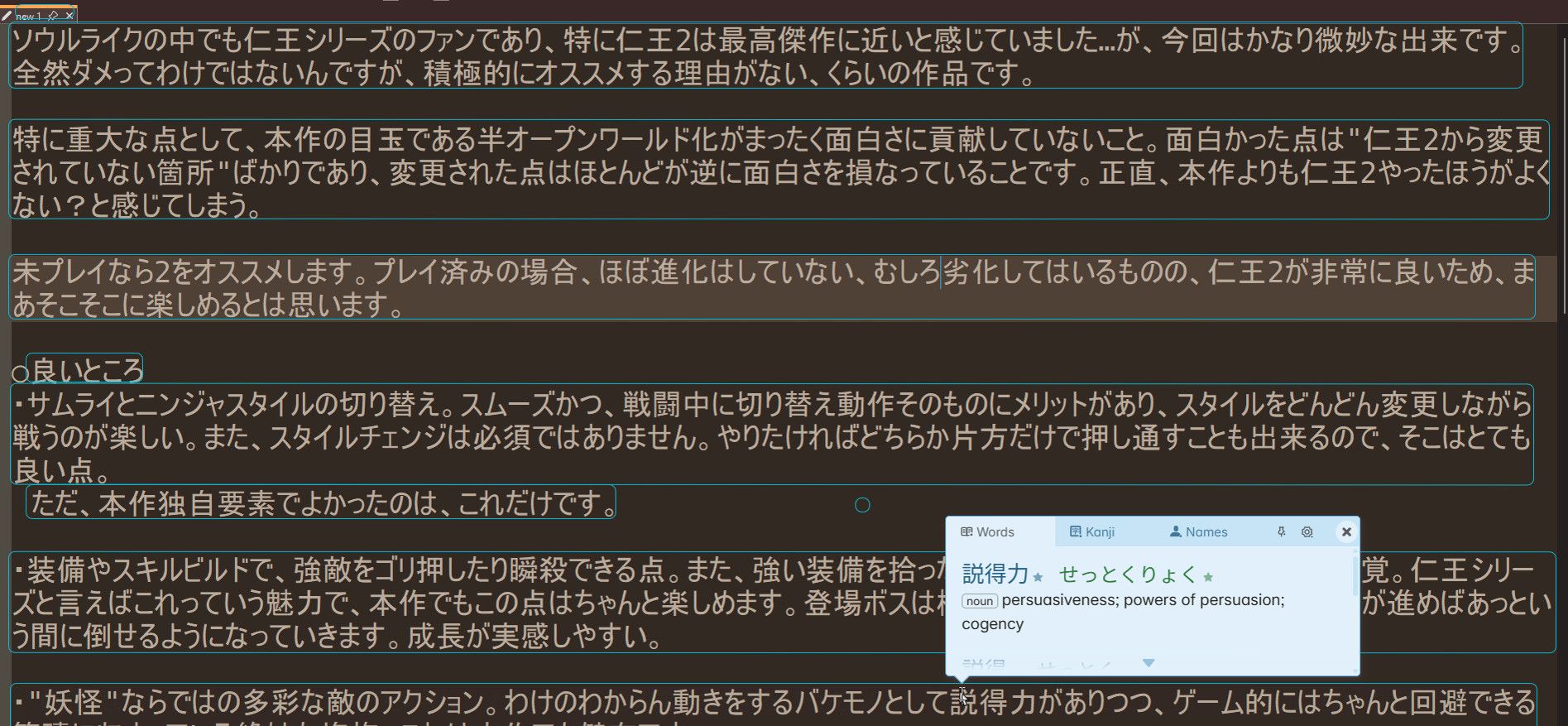
Now, I would like to do the same in “Distraction Free Mode” because I particularly like the text being a narrow strip centered on my screen instead of it being this wide, but there is an issue - “Distraction Free Mode” I’m assuming operates in Fullscreen mode, meaning it tries to always stay on top, preventing YomiNinja overlay from being displayed and thus rendering it completely unusable.
I’m familiar with this issue because it always come up when using that tool with in videogames, and the solution is always the same: switching the game to either Windowed or Borderless mode.
Therefore, would it be possible to add the option of Borderless for “Distraction Free Mode”, or also simply setting it to be Borderless by default?
Thank you ^_^
-
Post-It mode is already equivalent to Distraction Free mode without going fullscreen
-
@PeterJones Thank you for your answer Peter ^_^
This might be a bug, for two different reasonsReason 1:
On my end (using Windows 11), Post-it Mode doesn’t display the text in a narrow centered strip like Distraction Free Mode does, it’s still wide.
Here’s a screenshot of how Post-it Mode looks for me:
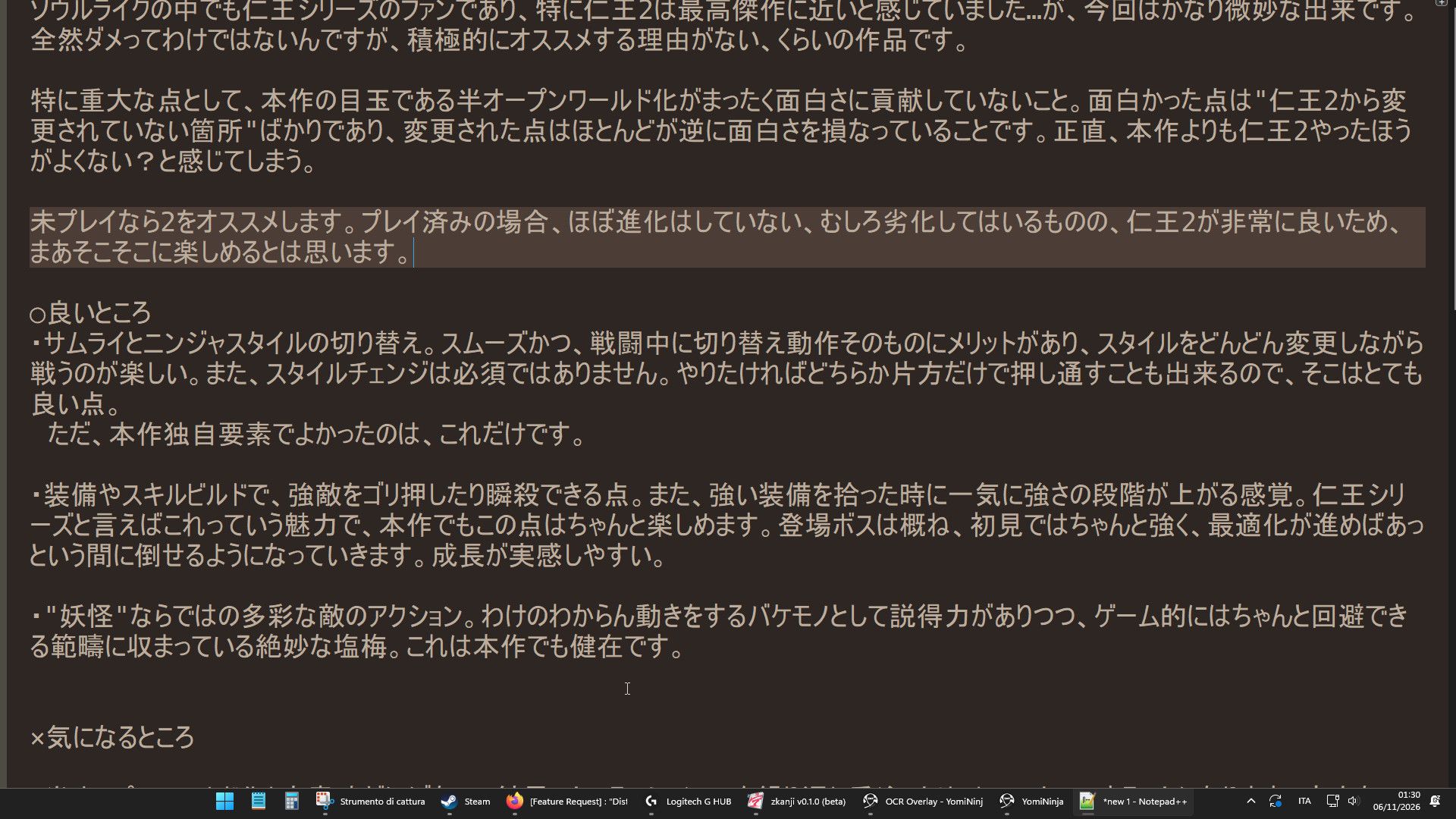
(Also side note, the first line on top is being cut so it would need some padding/offset)Reason2:
It is still behaving like Fullscreen mode ^_^’
If I click any of the icons on the bottom bar, the corresponding software won’t be shown on top, notepad ++ is taking 100% focus/priority before anything (thus still preventing YomiNinja from being displayed) -
@PeterJones Thank you for your answer Peter ^_^
This might be a bug, for two different reasonsBoth are expected and documented behavior.
Reason 1:
On my end (using Windows 11), Post-it Mode doesn’t display the text in a narrow centered strip like Distraction Free Mode does, it’s still wide.
I forgot DFM added the gap. Post-It Mode uses whatever the normal (non-maximized) window size is, without adding the gap. If you want it narrower, set the window size to what you want it to be.
(Also side note, the first line on top is being cut so it would need some padding/offset)
Might have to do with font size
It is still behaving like Fullscreen mode ^_^’
If I click any of the icons on the bottom bar, the corresponding software won’t be shown on top,Post-It mode may enable Always On Top; it’s been a while since I’ve tried, so I’m not sure.
-
I forgot DFM added the gap. Post-It Mode uses whatever the normal (non-maximized) window size is, without adding the gap. If you want it narrower, set the window size to what you want it to be.
Ah, I see. That takes care of centering the text, unfortunately it doesn’t cover the rest of my desktop so I end up seeing this mess in the image below
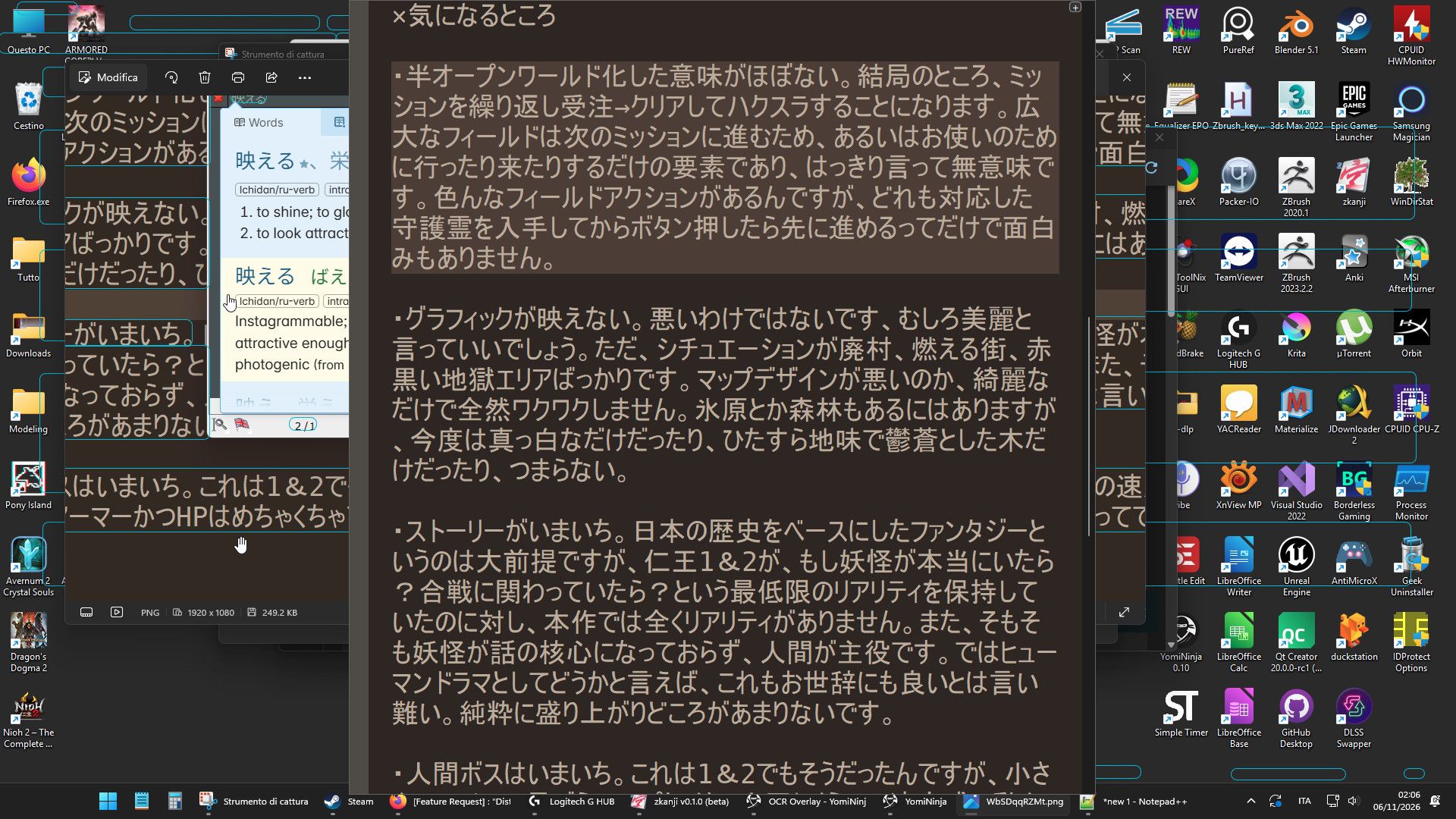
The end result is very distracting, I wouldn’t really considered it a replacement for Distraction Free Mode.
(also the screenshot from Distraction Free Mode for comparision) :
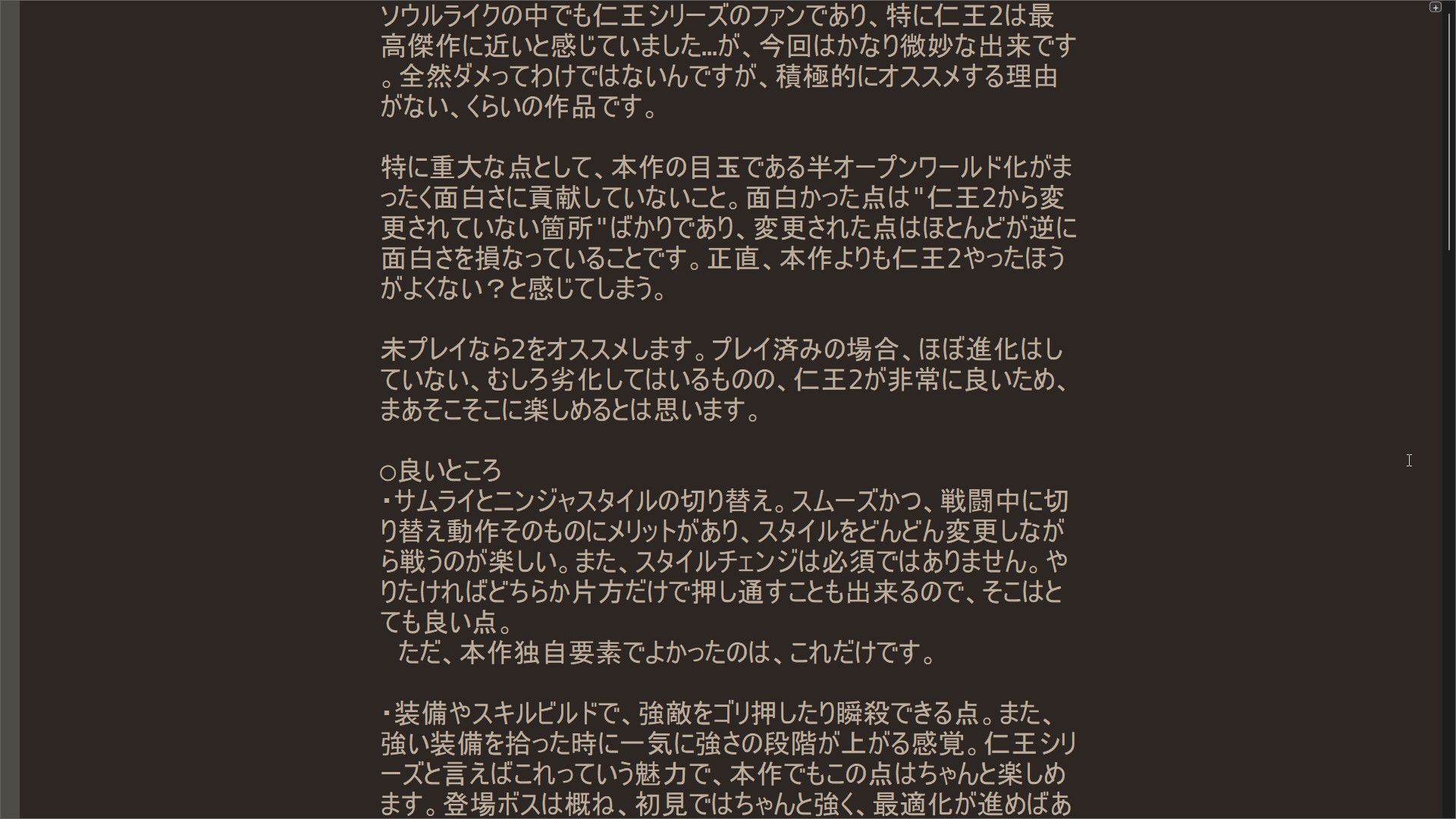
If it’s not too much trouble, I would really appreciate it Distraction Free Mode cold be made Borderless default or optionally.
Or maybe I’m simply trying to use Notepad++ for something it wasn’t intended for… in which case, can someone recommend me a simple text reader, similar to the Distraction Free Mode?
(also the sepia colors eheh)Thank you ^_^
-
I’ve found a working workaround to this for anyone ever needing it (or rather, AI found it for me)
You can use AutoHotkey to run this script:
#Requires AutoHotkey v2.0

+F12::WinSetAlwaysOnTop(0, "ahk_exe notepad++.exe")
After entering in Distraction Free mode, all you need to do is press Shift+F12 to set “AlwaysOnTop” OFF - I’ve tested it and it works ^_^
-
Ah, I see. That takes care of centering the text, unfortunately it doesn’t cover the rest of my desktop so I end up seeing this mess in the image below
The end result is very distracting, I wouldn’t really considered it a replacement for Distraction Free Mode.Your words said “Distraction Free Mode” without “Fullscreen”. “Fullscreen” is the aspect of DFM that covers the full screen.
If it’s not too much trouble, I would really appreciate it Distraction Free Mode cold be made Borderless default or optionally.
Still not sure what you mean by “borderless”.
And when you came to the “General Discussion” section of this Forum, just below the New Topic button you pushed, there was a “Please Read This Before Posting”, which says, “Please note that while we will try to help you, and even can try to confirm software bugs with you, this Forum is not the official issue tracker. If there is a bug in Notepad++, posting about it in this Community Forum will not make an official request to get the bug fixed. We have a FAQ entry on Feature Requests and Bug Reports.” – and while that page specifically mentioned “bug”, the FAQ that it links to explains that both bugs and feature requests are tracked in the same Issue Tracker (not here, in the discussion forum made up of fellow users of Notepad++)
In the other post, you mention:
“AlwaysOnTop” OFF
Based on your feedback from multiple suggestions, and especially this comment, what you really seemed to want was “Distraction Free Mode” without “Always On Top”. I’m not sure why you were using “Fullscreen” to mean “Always On Top”.
You can use AutoHotkey to run this script:
Unnecessary. Any permanent menu command in Notepad++ can have a shortcut assigned via the Shorcuct Mapper. So use Settings > Shortcut Mapper to assign a shortcut to View > Always On Top (like the
Shift+F12you put in AHK), you can use that shortcut as long as you’ve clicked in the editing portion of the Distraction Free mode.
update: Or, with the macro below (*), you can set
Shift+F12to run both View > Distraction Free Mode and View > Always On Top with a single keystroke. Since DFM enables AOT, then doing AOT second in the macro will turn it back off.<Macro name="DistractionNotOnTop" Ctrl="no" Alt="no" Shift="yes" Key="123"> <Action type="2" message="0" wParam="44011" lParam="0" sParam="" /> <Action type="2" message="0" wParam="44034" lParam="0" sParam="" /> </Macro>With that keystroke on the Macro, you can then easily toggle on and off your preferred combo of “Distraction Free, but Not Always On Top”
(*: if you manually edit
shortcuts.xmlto add that macro, you’ll need to run Run > Validate shortcuts.xml afterward, to confirm that you know you manually edited the config file.) -
Your words said “Distraction Free Mode” without “Fullscreen”. “Fullscreen” is the aspect of DFM that covers the full screen.
That is true, but to be fair I’ve also immediately clarified what I meant by “Fullscreen” in the first message : )
I’m assuming operates in Fullscreen mode, meaning it tries to always stay on top
Not being a programmer, I can only talk about Fullscreen and Borderless by their observed effects in videogames.
From videogame options, Fullscreen and Borderless both cover the entire screen, the only difference is Fullscreen behave as “Always On Top” (almost always), and Borderless doesn’t.Thank you for the Macro, it’s much less hassle than having to run that script manually every time, and I really appreciate it ^_^

Hello! It looks like you're interested in this conversation, but you don't have an account yet.
Getting fed up of having to scroll through the same posts each visit? When you register for an account, you'll always come back to exactly where you were before, and choose to be notified of new replies (either via email, or push notification). You'll also be able to save bookmarks and upvote posts to show your appreciation to other community members.
With your input, this post could be even better 💗
Register Login