Notepad++ release 8.9.9.1
-
Notepad++ release 8.9.9.1 is available:
https://notepad-plus-plus.org/news/v8991-released/
Notepad++ v8.9.9.1 regression fixes & new feature:
- Fix regression in pasting into virtual space in multi paste mode. (Fix #18606)
- Fix regression where Folder as Workspace not load entirely if a symlink in the folder. (Fix #18621)
- Fix regression where save fails under UAC in Administrator Protection mode. (Fix #18604)
- Add highlight all matches for Find dialog. (Fix #18491)
Notepad++ v8.9.9 vulnerability fixes, new features & bug-fixes:
- Vulnerability: Fix WM_COPYDATA sender authentication bypass. CVE ID not assigned yet
- Vulnerability: Fix WM_COPYDATA privilege escalation allowing launch plugin commands execution. CVE ID not assigned yet
- Vulnerability: Fix heap disclosure. CVE ID not assigned yet
- Vulnerability: Fix TOCTOU risk when saving temp file under UAC. CVE ID not assigned yet
- Vulnerability: Fix out-of-bounds array access via NPPM_MENUCOMMAND. CVE ID not assigned yet
- Vulnerability: Fix heap buffer overflow in SAML decode of MIME Tools plugin. CVE ID not assigned yet
- Update to Scintilla 5.6.9 & Lexilla 5.5.5. (Implement #18595)
- Update to boost 1.92.0. (Implement #18536)
- Improve Find in Files performance. (Fix #15248, #13730)
- Add an option to change dialog font & font size. (Fix #5648, #9914, #10745, #17183)
- Add an option to display the Incremental Search bar at the top. (Fix #18486)
- Remember incremental Search options across sessions. (Fix #18484)
- Enhance the Cliboard history panel UI. (Implement #18531, #18559)
- Fix files not opening via “Edit with Notepad++” when app path use 8.3 path format. (Fix #18530, report)
- Fix space dots ignore display scaling. (Fix #18589)
- Fix Document Switcher persistence issues. (Fix #10574, #10950)
- Fix loss of editor focus when dismissing the Document Switcher with Ctrl+Esc. (report)
- Fix Clipboard History buffer over-read & truncation of UTF-16 surrogate pairs. (Fix #18519, #report)
- Fix auto-completion & call tip persist issue when moving/resizing window. (Fix #18581)
- Fix the current doc hidden due to missing auto-scroll in Windows dialog listview. (Fix report)
- Fix incomplete repainting of Windows dialog list after resizing then sorting. (Fix #16267)
- Fix the ESC key not closing Windows dialog after a document is closed. (Fix #18554)
- Add UDL as a selectable default language for new documents. (Fix #979, #11097, #18325)
- Fix UDL dialog edits scrolling the wrapped document down. (Fix #18105)
- Detect external file modifications in both views instead of only the active view. (Fix #7581)
- Add Structured Text language support. (Fix #18365)
- Fix several memory leaks. (Fixed by #18466, #18467, #18465, #18473, #18482, #18512, #18535)
- Fix Markdown UDL link highlighting being broken by ‘@’ in the URL. (Fix #18009)
- Fix Find-in-Files macro playback ignoring empty filters. (Fix #8170)
- Fix Count and Mark All ignoring zero-length regex matches. (Fix #7896)
- Fix bugs in Function List for C, TypeScript, INI, PowerShell & Bash. (Fix #10162, #18358, #18574, #18174)
- Fix the “inherit” flag for FG/BG not being cleared in Style Configurator. (Fix #14197)
- Set new UDL to use theme FG, transparent BG, no bold/italic/underline by default. (Fix #18387, #5622, #17054)
- Fix spurious NPPN_READONLYCHANGED notification when files are deleted. (Fix #16289)
- Fix call-tip parameter highlighting being confused by commas in string literals. (Fix #8650)
- Fix missing warning display when deleting files from Notepad++ on Windows 7. (Fix report)
- Unify internal list views highlight style. (Fix #18563)
- Update Python & R keyword lists. (Fix #18464, #18445)
The auto-updater will be triggered on November 16.
-
New problems with opening files through the context menu in Windows 7.
-
Notepad++ is closed (portable)
Select several files and open them through the context menu in Windows 7, as a result Notepad++ will open only one file. -
Notepad++ is open (portable)
Select several files and open them through the context menu in Windows 7, as a result Notepad++ will not open any file at all.
Checked on a virtual machine for Windows 10, there are no such problems with Notepad++ (portable)
Notepad++ v8.9.9.1   (64-bit)
Build time: Nov 12 2026 - 02:04:15
Scintilla/Lexilla included: 5.6.9/5.5.5
Boost Regex included: 1_92
pugixml included: 1.16
nlohmann JSON included: 3.12.0
Path: E:\allTools\Editors\Texts\Notepad++\npp.8.9.9.1\x64\notepad++.exe
Command Line:
Admin mode: ON
Local Conf mode: ON
Cloud Config: OFF
WinGUp: present
disableNppAutoUpdate.xml: present
Periodic Backup: ON
Placeholders: OFF
Scintilla Rendering Mode: SC_TECHNOLOGY_DIRECTWRITE (1)
Multi-instance Mode: monoInst
asNotepad: OFF
File Status Auto-Detection: cdEnabled4CurrentFile
Dark Mode: OFF
Display Info:
    primary monitor: 1920x1080, scaling 100%
    visible monitors count: 2
    installed Display Class adapters:
        0000: Description - Intel(R) HD Graphics 4000
        0000: DriverVersion - 10.18.10.3345
        0001: Description - NVIDIA Quadro K620
        0001: DriverVersion - 26.21.14.4166
        0002: Description - NVIDIA Quadro FX 580 (Microsoft Corporation - WDDM v1.1)
        0002: DriverVersion - 8.15.11.8593
        0003: Description - Стандартный VGA графический адаптер
        0003: DriverVersion - 6.1.7600.16385
    - warning, search has been limited to maximum number of adapter records: 4
OS Name: Windows 7 Home Premium (64-bit)
OS Build: 7601.0
Current ANSI codepage: 1251
Plugins:
    ComparePlus (3)
    DSpellCheck (1.5)
    Explorer (1.9.9)
    HexEditor (0.9.14)
    HTMLTag (1.6.1)
    ImgTag (2.0.1)
    JSMinNPP (25.11.16)
    mimeTools (3.2)
    NPPColorPicker (1.0.1)
    NppConverter (4.7)
    NppExport (0.4)
    NppMarkdownPanel (0.9.3)
    NppSnippets (1.7)
    NppUISpy (1.2)
    PreviewHTML (1.4.8)
    QuickColorPicker (2.2.1.1)
    RegexTrainer (1.2)
    ShtirlitzNppPlugin (1.1.2)
    WebEdit (2.9.0.1)
    _CustomizeToolbar (5.3)
For many years I have been adding Notepad++ to the context menu using this batch file, and it always worked very well until I upgraded to version 8.9.9-8.9.9.1 (portable)
REM Open file in Notepad++ (Открыть файл в Notepad++)
Reg.exe add "HKCR\*\shell\Open file in Notepad++" /v "Icon" /t REG_SZ /d "%~dp0notepad++.exe,0" /f
Reg.exe add "HKCR\*\shell\Open file in Notepad++\command" /ve /t REG_SZ /d "\"%~dp0notepad++.exe\" \"%%1\"" /f

REM Open Folder as Workspace in Notepad++ (Открыть Папку как Проект в Notepad++)
Reg.exe add "HKCR\Folder\shell\Open Folder as Workspace in Notepad++" /v "Icon" /t REG_SZ /d "%~dp0notepad++.exe,0" /f
Reg.exe add "HKCR\Folder\shell\Open Folder as Workspace in Notepad++\command" /ve /t REG_SZ /d "%~dp0notepad++.exe -openFoldersAsWorkspace open: \"%%1\"" /f

REM Open folder in Notepad++ (Открыть папку в Notepad++)
Reg.exe add "HKCR\Folder\shell\Open folder in Notepad++" /v "Icon" /t REG_SZ /d "%~dp0notepad++.exe,0" /f
Reg.exe add "HKCR\Folder\shell\Open folder in Notepad++\command" /ve /t REG_SZ /d "\"%~dp0notepad++.exe\" \"%%1\"" /f
For everyone who is not aware, I remind you that a portable version of the Notepad++ file NppShell.dll has never existed.
-
-
@andrecool-68 i have found some batch shortcuts don’t work in windows reg bat files for about 2 yrs now, like %~dp0 or %1, since path needs dbl \, u can replace w other environment vars or hard code path to npp since it shouldn’t change, that might do the trick. best to open regedit and edit paths there, then export key to reg file, then use npp to copy and add dbl \ that to your reg bat lines. i sometimes make a portable user-sys env var to use on that mach.
-
open regedit and edit paths there, then export key to reg file
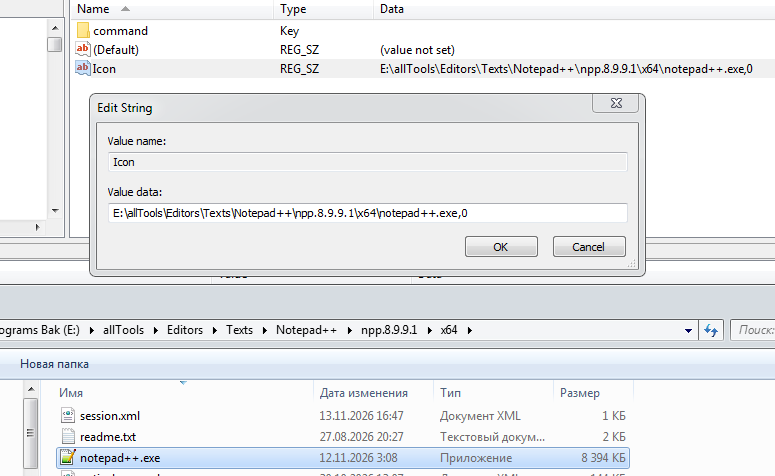
My paths in the registry are as straight as an arrow, this is a problem in Notepad++ itself. In previous versions, everything works perfectly!
-
My paths in the registry are as straight as an arrow, this is a problem in Notepad++ itself. In previous versions, everything works perfectly!
I disagree. It does not seem to be a problem in Notepad++, because I cannot replicate your problem, though my experiments tell me what I think you are doing wrong.
I am on Windows 11, because I didn’t feel like setting up a VM for an operating system whose extended support ended 6 years ago, and which Notepad++ officially doesn’t support.
I unzipped 8991 into
andre8991, then set the compatibility on the exe so that it always runs as Admin, to mimic your unnecessary admin mode, which is causing your difficulties.I then used the following simplified batch file, to only do the normal open, not the session or folder, since those are irrelevant to your complaints:
REM Open file in Notepad++ (Открыть файл в Notepad++)
Reg.exe add "HKCR\*\shell\AndreCool Notepad++" /v "Icon" /t REG_SZ /d "%~dp0notepad++.exe,0" /f
Reg.exe add "HKCR\*\shell\AndreCool Notepad++\command" /ve /t REG_SZ /d "\"%~dp0notepad++.exe\" \"%%1\"" /f
I ran that, and verified that the old-style context menu contains the “AndreCool Notepad++” entry.
- When I use that context entry on a single file when Notepad++ isn’t running, it will prompt me for UAC, then open that single file
- When I use that context entry on multiple files (3) when Notepad++ isn’t running, it will prompt me for UAC, then the first file opens, then I look at my taskbar and see that there’s another UAC prompt which doesn’t make it to the foreground, then I click on that and accept it and the second file opens, then I see a third UAC prompt on the taskbar, click on it and accept it, and the third file opens. So your situation 1 probably just means that you need to look at your taskbar and click on the UAC. UAC doesn’t always come to the front in Windows, and there’s nothing Notepad++ can do about that. It’s been true for as long as I can remember.
- Leave Notepad++ running. Select multiple files (3) and use that context menu entry. Get a UAC prompt, and after I accept, it opens that file; I see a second UAC on the taskbar, so activate and accept, and the second file opens; I see a third UAC on the taskbar, so activate and accept, and the third file opens.
Notepad++ correctly opens all files when multiple files are selected from your context-menu entry. I cannot replicate your reported problem. It works for me.
My conclusion: always check the taskbar for Windows UAC prompt, because Windows doesn’t always bring that prompt to the front. Windows has always been like that.
Edit: to clarify: I am not saying that Notepad++ didn’t change. It is more strict now about opening files across the boundary, and that is A Good Thing ™. Your context menu is not elevated but your Notepad++ is. So now you’re perhaps getting the UAC prompt more often than you would before Notepad++'s improved security. But UAC prompts have always had trouble in Windows making it to the front, whether with Notepad++ or with other applications. You won’t always notice, but if you look, the little shield should be on the rightmost position on your taskbar:

For me, it’s even flashing that background, to bring it to my attention. -
Checked on a virtual machine for Windows 10, there are no such problems with Notepad++ (portable)
Then it might be a problem solely related to Windows 7. In which case, official policy is that the problem doesn’t need to be addressed. It may be that the recent security improvements are finally the impetus to stop trying to keep Notepad++ even in the “running” column – I believe there are a couple of recent changes that haven’t been made because it might stop Win7 from being in the “running”. But these security changes are important, so maybe it’s time to say that 8.9.9.1 is the last known-running for Win7, and allow 8.9.9.2 (or 9.0 or whatever’s next) to stop creating win7-compatible executables
Or, other options:
- Continue using your old, insecure OS, and keeping Notepad++ always in Admin mode, by no longer updating Notepad++ on that machine. Since you obviously don’t care about security in the OS, you won’t care that the older Notepad++ isn’t secure.
- Continue using your old, insecure OS, and keeping an older copy of Notepad++ always in Admin mode, but have your updated Notepad++ versions in the right-click context menu but not always in Admin, so the admin-boundary improvements won’t hinder your usage.
- Stop using your old, insecure OS; change to a small Linux if your machine cannot handle modern Windows; and run Notepad++ in WINE.
- Continue using your old, insecure OS; continue updating Notepad++, but stop running Notepad++ in Admin mode – since Notepad++ prompts for UAC when saving to admin-protected files, you don’t need to run Notepad++ in Admin mode to save those files (as you’ve been told multiple times). Running an application in Admin mode when you don’t need to has always been non-best-practice.
-
My conclusion: always check the taskbar for Windows UAC prompt, because Windows doesn’t always bring that prompt to the front. Windows has always been like that.
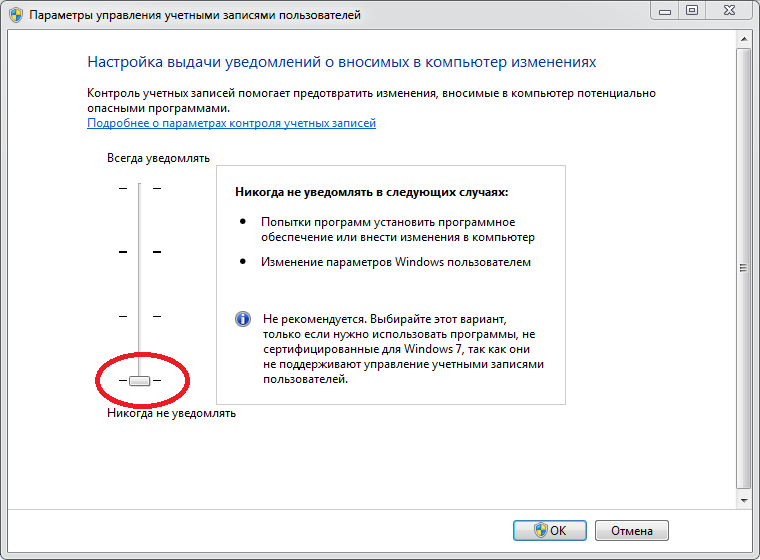
I have this option disabled immediately after installing Windows 7
-
Continue using your old, insecure OS
A very good solution when there is no solution at all))
-
I have this option disabled immediately after installing Windows 7
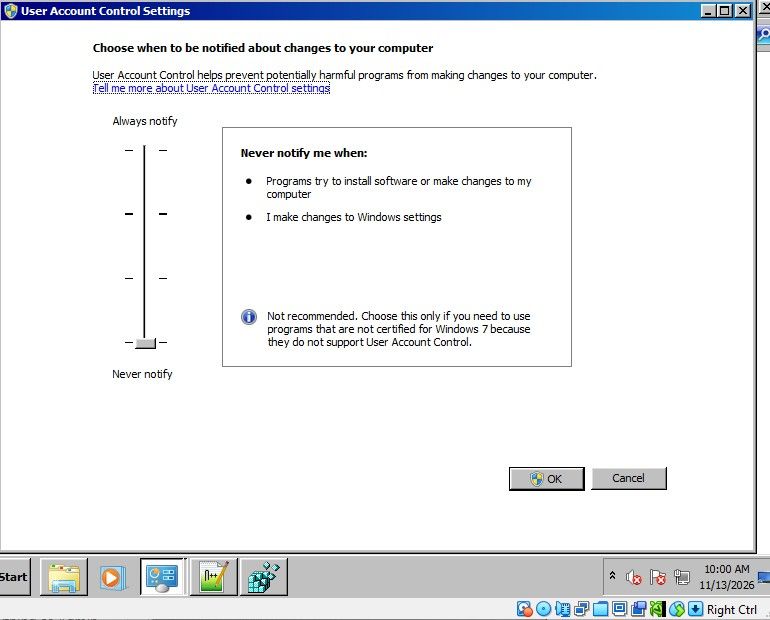
Okay, I found an old Win7 VM (it was 32bit, but it’s Win7). I verified I have the same “Never Notify Me” (lowest setting) there. I see that in that mode, Windows actually just runs everything as Admin (which is the wrong way for that OS to have implemented it), so that’s why Notepad++ is running As Administrator.
I ran the same batch file I showed above, and verified that the context menu opens one file just fine. Then I selected multiple files while Notepad++ was still running, and that context menu opened all of them just fine – no UAC prompt, no files ignored. Then I closed Notepad++, and selected 3 files and ran that context menu entry, and it opened all three just fine – no UAC prompt, no files ignored.
(I tried both with files in a normal directory, and with files in a c:\program files\ directory, and both worked just fine)
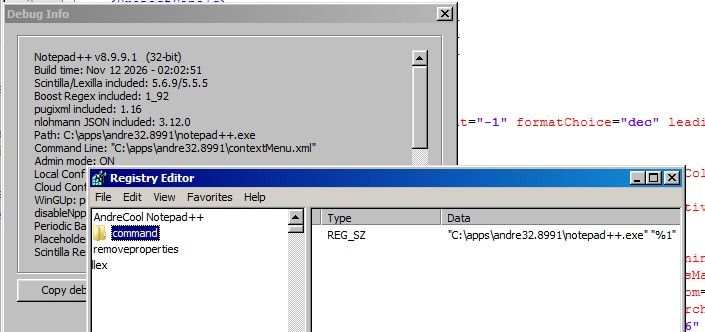
Notepad++ v8.9.9.1   (32-bit)
Build time: Nov 12 2026 - 02:02:51
Scintilla/Lexilla included: 5.6.9/5.5.5
Boost Regex included: 1_92
pugixml included: 1.16
nlohmann JSON included: 3.12.0
Path: C:\apps\andre32.8991\notepad++.exe
Command Line: "C:\apps\andre32.8991\change.log"
Admin mode: ON
Local Conf mode: ON
Cloud Config: OFF
WinGUp: present
disableNppAutoUpdate.xml: present
Periodic Backup: ON
Placeholders: OFF
Scintilla Rendering Mode: SC_TECHNOLOGY_DIRECTWRITE (1)
Multi-instance Mode: monoInst
asNotepad: OFF
File Status Auto-Detection: cdEnabled4CurrentFile
Dark Mode: OFF
Display Info:
    primary monitor: 800x600, scaling 100%
    visible monitors count: 1
    installed Display Class adapters:
        0000: Description - VirtualBox Graphics Adapter (WDDM)
        0000: DriverVersion - 7.1.8.18469
OS Name: Windows 7 Enterprise (32-bit)
OS Build: 7601.23964
Current ANSI codepage: 1252
Plugins:
    mimeTools (3.2)
    NppConverter (4.7)
    NppExport (0.4)
So even in Windows 7, I cannot replicate your problem. I still find no evidence that the problem is in Notepad++ itself.
What happens if you switch from the lowest security to the second-lowest (in standard US-EN, “Notify me only when programs try to make changes to my desktop (do not dim my desktop)”) or any of the others. (I tried that 3rd level, or the 2nd, or the 1st, and it still worked: it didn’t run Notepad++ as Admin anymore, and when I tried to save a protected file, Notepad++ correctly asked for UAC, and the save was successful.)
So nothing I do replicates your problem. I am sorry.
-
So even in Windows 7, I cannot replicate your problem.
Me neither (64-bit Win7 SP1 VM):
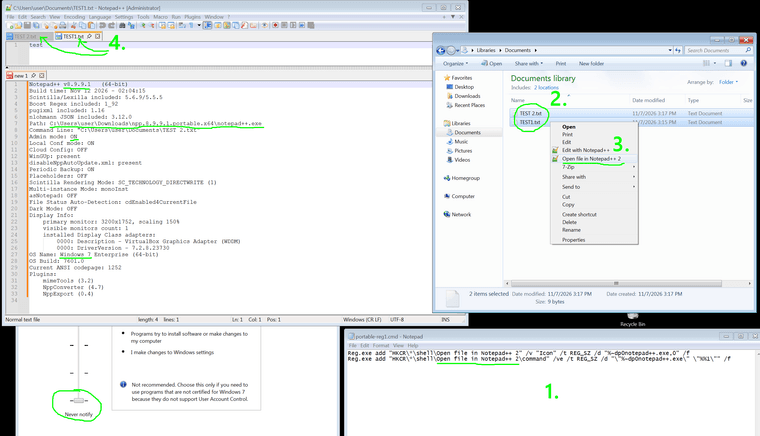
-
So nothing I do replicates your problem. I am sorry.
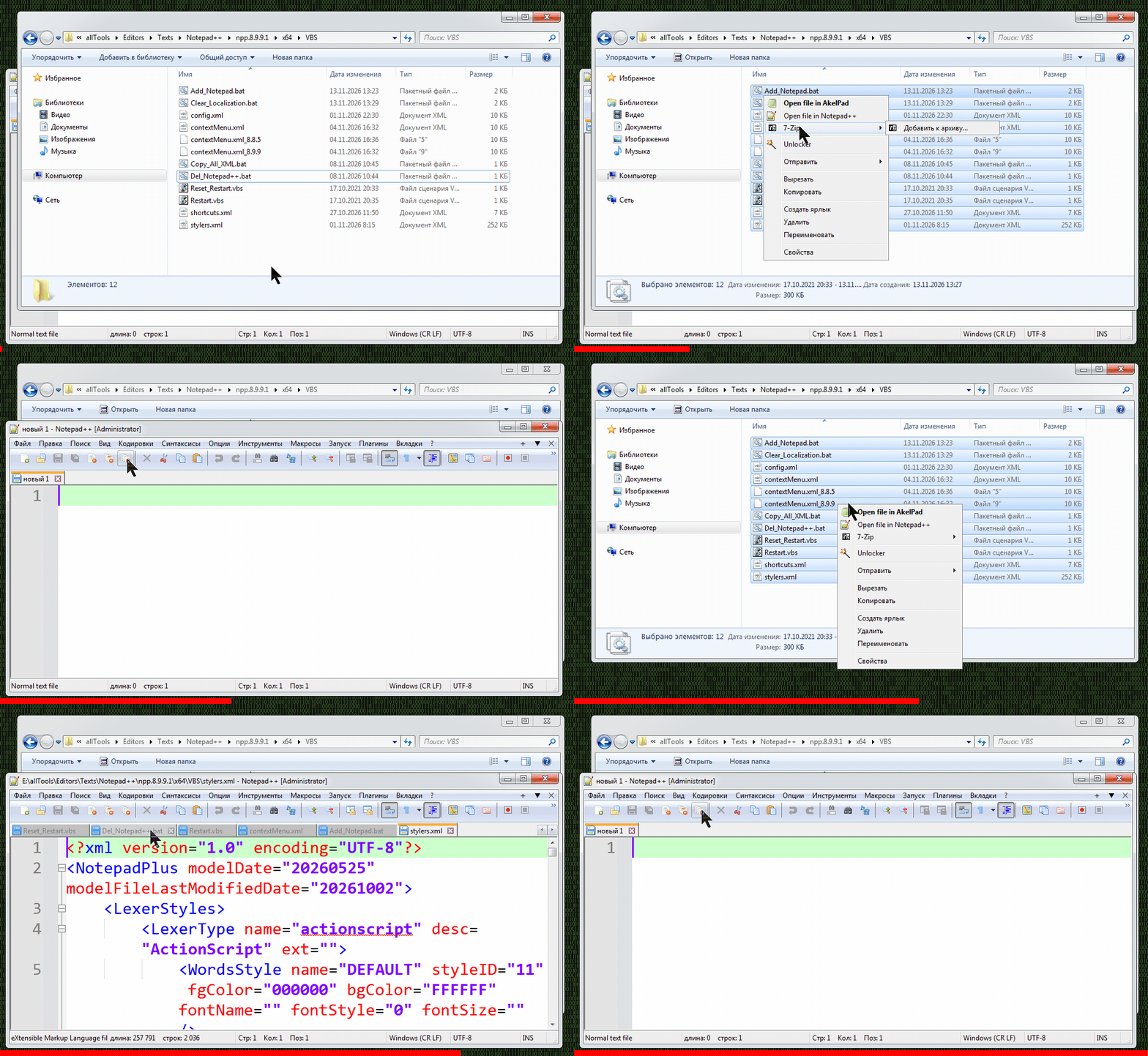
I did another test on a virtual machine with a clean version of Windows 7 x64, launched the same directory with the new version of Notepad++, and there were no file opening errors at all.
Then on the main system I ran a disk check for errors
sfc /scannowI checked the same directory again with the new version of Notepad++, and the file opening errors have disappeared for now.
-
and the file opening errors have disappeared for now.
Hopefully it will stay working. Good luck.
-





Hello! It looks like you're interested in this conversation, but you don't have an account yet.
Getting fed up of having to scroll through the same posts each visit? When you register for an account, you'll always come back to exactly where you were before, and choose to be notified of new replies (either via email, or push notification). You'll also be able to save bookmarks and upvote posts to show your appreciation to other community members.
With your input, this post could be even better 💗
Register Login