keyword highlighting in text file
-
@venky ,
You need to set the UDL’s
Ext.:box totxtto get it to syntax highlight .txt files automatically; without that, you have to choose Language > nameofUDL every time you open a text file. -
@PeterJones Thank you. I did do that to begin with but it still does not work. When I open a text file, the UDL file is selected automatically under Language menu but the keyword highlighting is not happening. to note I am using DarkMode and DarkModeDefault theme.
-
Probably going to need more information about exactly what you’re attempting to do. Dark mode wouldn’t have anything to do with it.
-
@Alan-Kilborn See below for the UDL XML file I have. Maybe there is something wrong in this file?
<?xml version=“1.0” encoding=“UTF-8” ?>
<NotepadPlus>
<UserLang name=“Text” ext=“txt” udlVersion=“2.1”>
<Settings>
<Global caseIgnored=“yes” allowFoldOfComments=“no” foldCompact=“no” forcePureLC=“0” decimalSeparator=“0” />
<Prefix Keywords1=“no” Keywords2=“no” Keywords3=“no” Keywords4=“no” Keywords5=“no” Keywords6=“no” Keywords7=“no” Keywords8=“no” />
</Settings>
<KeywordLists>
<Keywords name=“Comments”></Keywords>
<Keywords name=“Numbers, prefix1”></Keywords>
<Keywords name=“Numbers, prefix2”></Keywords>
<Keywords name=“Numbers, extras1”></Keywords>
<Keywords name=“Numbers, extras2”></Keywords>
<Keywords name=“Numbers, suffix1”></Keywords>
<Keywords name=“Numbers, suffix2”></Keywords>
<Keywords name=“Numbers, range”></Keywords>
<Keywords name=“Operators1”></Keywords>
<Keywords name=“Operators2”></Keywords>
<Keywords name=“Folders in code1, open”></Keywords>
<Keywords name=“Folders in code1, middle”></Keywords>
<Keywords name=“Folders in code1, close”></Keywords>
<Keywords name=“Folders in code2, open”></Keywords>
<Keywords name=“Folders in code2, middle”></Keywords>
<Keywords name=“Folders in code2, close”></Keywords>
<Keywords name=“Folders in comment, open”></Keywords>
<Keywords name=“Folders in comment, middle”></Keywords>
<Keywords name=“Folders in comment, close”></Keywords>
<Keywords name=“Keywords1”>Warning Error Failure</Keywords>
<Keywords name=“Keywords2”></Keywords>
<Keywords name=“Keywords3”></Keywords>
<Keywords name=“Keywords4”></Keywords>
<Keywords name=“Keywords5”></Keywords>
<Keywords name=“Keywords6”></Keywords>
<Keywords name=“Keywords7”></Keywords>
<Keywords name=“Keywords8”></Keywords>
<Keywords name=“Delimiters”></Keywords>
</KeywordLists>
<Styles>
<WordsStyle name=“DEFAULT” fgColor=“000000” bgColor=“FFFFFF” fontStyle=“0” nesting=“0” />
<WordsStyle name=“COMMENTS” fgColor=“000000” bgColor=“FFFFFF” fontStyle=“0” nesting=“0” />
<WordsStyle name=“LINE COMMENTS” fgColor=“000000” bgColor=“FFFFFF” fontStyle=“0” nesting=“0” />
<WordsStyle name=“NUMBERS” fgColor=“000000” bgColor=“FFFFFF” fontStyle=“0” nesting=“0” />
<WordsStyle name=“KEYWORDS1” fgColor=“FFFFFF” bgColor=“008040” fontStyle=“5” fontSize=“18” nesting=“0” />
<WordsStyle name=“KEYWORDS2” fgColor=“000000” bgColor=“FFFFFF” fontStyle=“0” nesting=“0” />
<WordsStyle name=“KEYWORDS3” fgColor=“000000” bgColor=“FFFFFF” fontStyle=“0” nesting=“0” />
<WordsStyle name=“KEYWORDS4” fgColor=“000000” bgColor=“FFFFFF” fontStyle=“0” nesting=“0” />
<WordsStyle name=“KEYWORDS5” fgColor=“000000” bgColor=“FFFFFF” fontStyle=“0” nesting=“0” />
<WordsStyle name=“KEYWORDS6” fgColor=“000000” bgColor=“FFFFFF” fontStyle=“0” nesting=“0” />
<WordsStyle name=“KEYWORDS7” fgColor=“000000” bgColor=“FFFFFF” fontStyle=“0” nesting=“0” />
<WordsStyle name=“KEYWORDS8” fgColor=“000000” bgColor=“FFFFFF” fontStyle=“0” nesting=“0” />
<WordsStyle name=“OPERATORS” fgColor=“000000” bgColor=“FFFFFF” fontStyle=“0” nesting=“0” />
<WordsStyle name=“FOLDER IN CODE1” fgColor=“000000” bgColor=“FFFFFF” fontStyle=“0” nesting=“0” />
<WordsStyle name=“FOLDER IN CODE2” fgColor=“000000” bgColor=“FFFFFF” fontStyle=“0” nesting=“0” />
<WordsStyle name=“FOLDER IN COMMENT” fgColor=“000000” bgColor=“FFFFFF” fontStyle=“0” nesting=“0” />
<WordsStyle name=“DELIMITERS1” fgColor=“000000” bgColor=“FFFFFF” fontStyle=“0” nesting=“0” />
<WordsStyle name=“DELIMITERS2” fgColor=“000000” bgColor=“FFFFFF” fontStyle=“0” nesting=“0” />
<WordsStyle name=“DELIMITERS3” fgColor=“000000” bgColor=“FFFFFF” fontStyle=“0” nesting=“0” />
<WordsStyle name=“DELIMITERS4” fgColor=“000000” bgColor=“FFFFFF” fontStyle=“0” nesting=“0” />
<WordsStyle name=“DELIMITERS5” fgColor=“000000” bgColor=“FFFFFF” fontStyle=“0” nesting=“0” />
<WordsStyle name=“DELIMITERS6” fgColor=“000000” bgColor=“FFFFFF” fontStyle=“0” nesting=“0” />
<WordsStyle name=“DELIMITERS7” fgColor=“000000” bgColor=“FFFFFF” fontStyle=“0” nesting=“0” />
<WordsStyle name=“DELIMITERS8” fgColor=“000000” bgColor=“FFFFFF” fontStyle=“0” nesting=“0” />
</Styles>
</UserLang>
</NotepadPlus> -
-
@venky ,
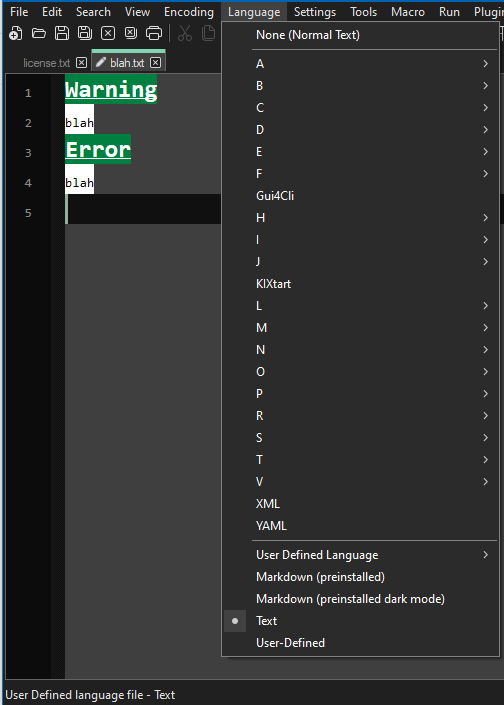
There is nothing wrong with your UDL. When I apply that UDL to a file, I see:
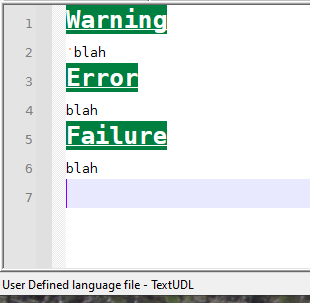
or, in Dark Mode:
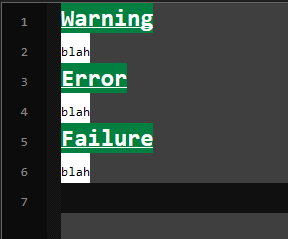
-
@PeterJones Can you tell me how (steps) you applied the UDL? Thanks.
-
@venky ,
You claim that “the UDL file is selected automatically under Language menu”, so according to your claim, it should be applied properly.
My steps were:
- Copy your UDL text
- Paste into a new file
- Save As >
%AppData%\Notepad++\userDefineLangs\TextUDL.xml - File > Exit
- Run Notepad++
- Open text file (must have
.txtextension)
or
File > New then File > Save As >c:\path\to\blah.txt - Type file as
Warning blah Error blah Failure blah - It’s highlighted
If it’s not working for you, please go to the ? menu, run Debug Info, click on the underlined text, and paste into your reply. In your reply, also show a screenshot with enough of the Status Bar to show us the selected language on the lower-left of the status bar (like my screenshot above).
-
@PeterJones Please see below. I put replaced user profile name with … in the path below.
I also tried this with portable version and it did not work.
Notepad++ v8.4.4 (64-bit)
Build time : Jul 15 2022 - 17:54:42
Path : C:\Program Files\Notepad++\notepad++.exe
Command Line :
Admin mode : OFF
Local Conf mode : OFF
Cloud Config : C:\Users.…\AppData\Roaming\Notepad++
OS Name : Windows 10 Enterprise (64-bit)
OS Version : 21H2
OS Build : 19044.1889
Current ANSI codepage : 1252
Plugins : none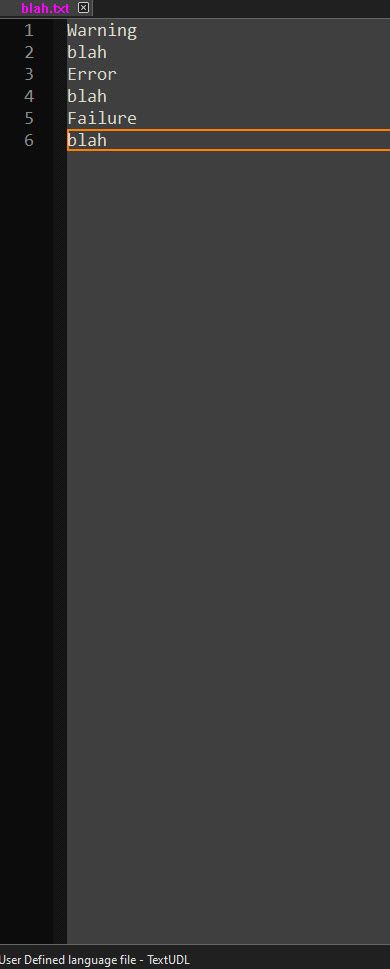
-
@venky said in keyword highlighting in text file:
I also tried this with portable version and it did not work.
I do not know what you are doing differently than I am.
I just started again from scratch:
- Unzip Notepad++ portable to
C:\usr\local\apps\npp\udl - Copy
C:\usr\local\apps\npp\udl\userDefineLangs\markdown._preinstalled.udl.xmltoC:\usr\local\apps\npp\udl\userDefineLangs\TextUDL.xml - Use MS notepad.exe to paste the exact UDL definition that you have above into TextUDL.xml and save/exit
- Create an emtpy file
C:\usr\local\apps\npp\udl\blah.txt - Drag
blah.txton top ofnotepad++.exein that directory to run the portable instance with thatblah.txt. - Type (or paste) the six lines of the file.
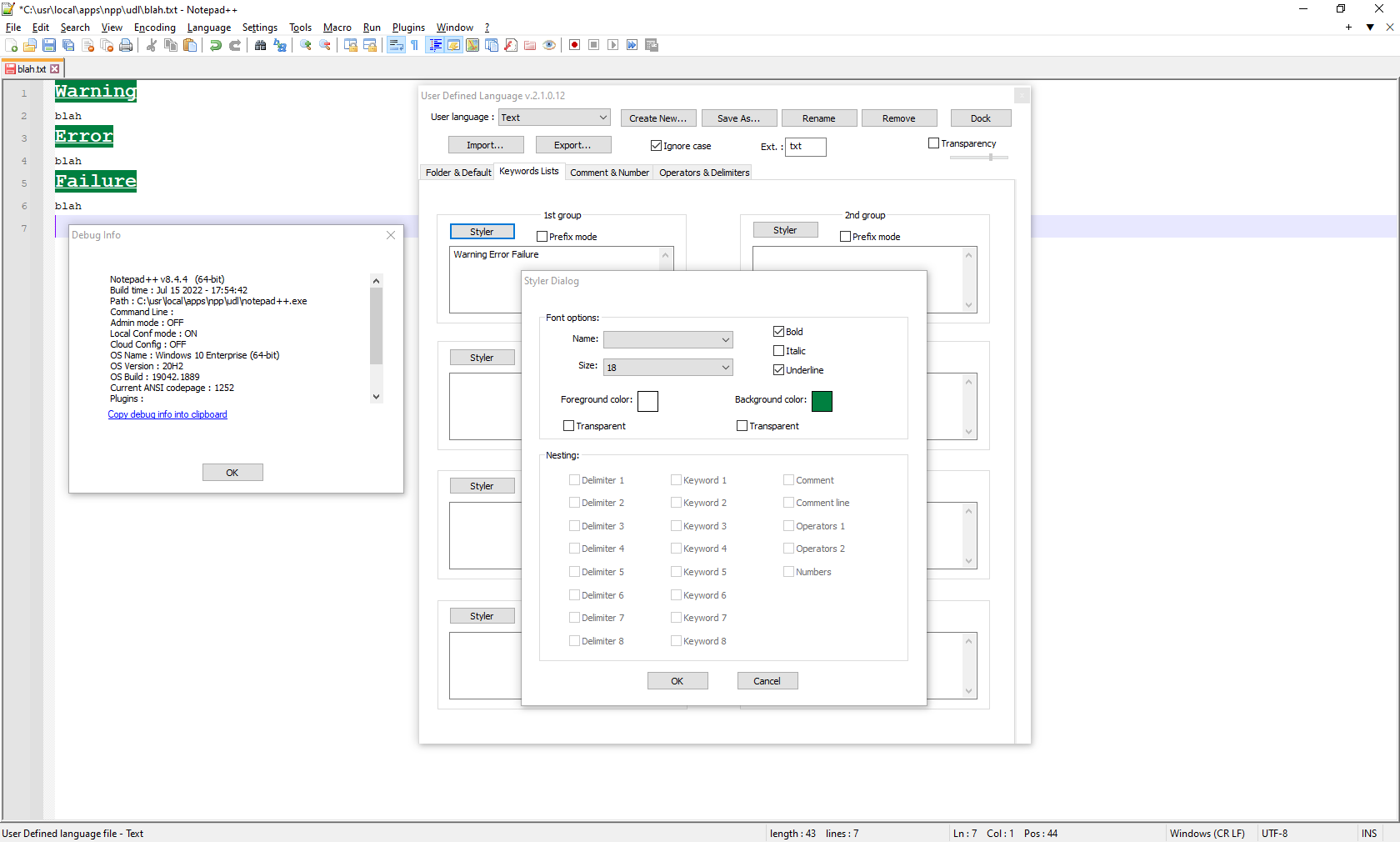
Notepad++ v8.4.4 (64-bit) Build time : Jul 15 2022 - 17:54:42 Path : C:\usr\local\apps\npp\udl\notepad++.exe Command Line : Admin mode : OFF Local Conf mode : ON Cloud Config : OFF OS Name : Windows 10 Enterprise (64-bit) OS Version : 20H2 OS Build : 19042.1889 Current ANSI codepage : 1252 Plugins : mimeTools (2.8) NppConverter (4.4) NppExport (0.4) - Unzip Notepad++ portable to
-
I don’t want to muddy the waters, but when I follow the instructions, I just see
Normal text fileon the status bar after pulling in blah.txt. And, you didn’t show yours, but when I go to the UDL section of the Languages menu I don’t see anything that resembles “TextUDL” (and although I’m no expert on UDL, I expected to).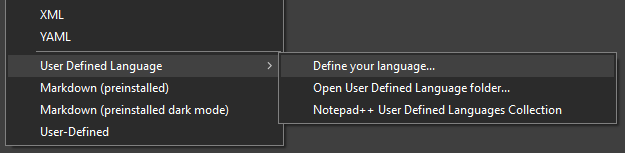
And I didn’t get any coloring on Warning, Error, etc.
-
Yours is just behaving like you didn’t restart Notepad++ after putting the UDL definition in the userDefineLangs directory. (Or you used the wrong userDefineLangs directory)
Oh, actually, no, there was an implied step 3.5 which I forgot to mention: in notepad.exe, replace the “smart quotes” with real ASCII " quotes.
(I am working on a video screenshot , showing the full sequence… but having upload problems – new laptop, so my quick animation->forum process needs to be rebuilt.)
-
@PeterJones said in keyword highlighting in text file:
implied step 3.5 which I forgot to mention: in notepad.exe, replace the “smart quotes” with real ASCII " quotes
If it turns out the entire problem is the OP not pasting the data into a code block, I’m going to feel like my time was wasted. :-(
-
@Alan-Kilborn said in keyword highlighting in text file:
@PeterJones said in keyword highlighting in text file:
implied step 3.5 which I forgot to mention: in notepad.exe, replace the “smart quotes” with real ASCII " quotes
If it turns out the entire problem is the OP not pasting the data into a code block, I’m going to feel like my time was wasted. :-(
I hope that’s not all, too… I would have assumed that the OP would have just copied his UDL file over to the portable he tried, not just do a copy/paste from the forum. And since the OP status bar shows the TextUDL file type, obviously that part is working.
For @venky , here is a recording of the procedure I took, from unzipping through seeing the highlighting.

-
-
The other option, of course, is for @venky to start from scratch with a new UDL. Then build it up slowly, so that every piece is known working.

Here, I start with
blah.txt, with the UDL editor docked. I switch to the default User Defined Language (so it really starts from scratch), Create New, give it a name (Second), and switch the active language for just this file to Second.Then I go into keywords, use lowercase
warningand give it a color, to show that it’s case sensitive. (I forgot while recording this second video that the screenshot above already showed theWarningcase matched what was in the pasted UDL definition)I go into the second keywords box with capitalized
Warning, assign it a color, and watch the color change in the editor.If a user is having trouble getting a UDL to work, I recommend starting from scratch, and building it up slowly, because then you can see each individual step work.




Hello! It looks like you're interested in this conversation, but you don't have an account yet.
Getting fed up of having to scroll through the same posts each visit? When you register for an account, you'll always come back to exactly where you were before, and choose to be notified of new replies (either via email, or push notification). You'll also be able to save bookmarks and upvote posts to show your appreciation to other community members.
With your input, this post could be even better 💗
Register Login