HOW Do You Add Keyboard Shortcuts
-
@Terry-R Thanks Terry, I did that, but only found how to change ones that existed already, which is why I posted here.
It would have been easier if you just posted the link and kept the abuse in your head. -
@Terry-R P.S. Terry, that link doesn’t work, thanks for the attempt though!
-
@submitific said in HOW Do You Add Keyboard Shortcuts:
that link doesn’t work,
Well, the link does work. And as for “…only found how to change ones that already existed…” does not make sense. Not every command which can be given a keyboard shortcut has one currently. So you can add shortcuts for any of the commands which don’t currently have one (see image where I’ve highlight ones without shortcuts, there are plenty more:
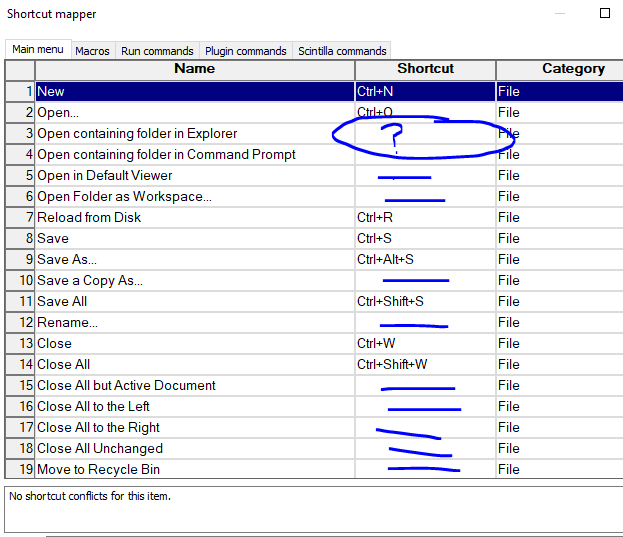
Maybe you need to fully explain what you are trying to do. It would seem that your native tongue isn’t english so we will make allowances, but try to explain with more sentences.
Terry
-
@submitific said in HOW Do You Add Keyboard Shortcuts:
@Terry-R Thanks Terry, I did that, but only found how to change ones that existed already, which is why I posted here.
How does the quote in the manual, “Use the Modify button to edit the existing shortcut or to create a shortcut for an entry that has none” not answer your question? It literally tells you how to do both modifying an existing or creating a new shortcut in the same sentence.
-
@submitific said in HOW Do You Add Keyboard Shortcuts:
It would have been easier if you just posted the link and kept the abuse in your head.
???
I don’t see any “abuse” in what Terry said.
And Terry would have been totally justified in replying with “RTFM” (only) and giving no helpful link.that link doesn’t work
I second what was said, the link does indeed work.
-
@Terry-R I thought my question was pretty clear!
How Do You Add A KeyBoard Shortcut!The link did not work yesterday, I just clicked it right now and it came right up. Thank you!
-
Hi,
it is totally legit to ask how to ADD Keyboard Shortcuts.
In Settings/Shortcut Mapper You only can:
- change an existing Keyboard Shortcut to something else (or “NONE” to remove)
- remove an assigned Keyboard Shortcut
- assign a Keyboard Shortcut to a function which currently has no Shortcut
There are effectively only 2 Buttons / context menu entries available:
- Modify
- Remove
Unfortunately You CANNOT ADD an ADDITIONAL Keyboard Shortcut there.
I came here, because I am searching for a solution for my problem:
I want to change the Shortcut Setting of “IDM_FILE_CLOSE”, which is normally only bound to <Ctrl>-<W>.
I want to use <Ctrl>-<F4> and <Ctrl>-<X> as ADDITIONAL Keyboard Shortcuts for “IDM_FILE_CLOSE”, Shortcut id=“40003”.I’m also a “nano” user, where I use <Ctrl>-<S> / <Ctrl>-<X> to save and exit, I recognized I’m trying to use this key combination in npp too…
So I removed the key binding <Ctrl>-<X> (SECONDARY Key Shortcut of Edit/Cut), as I am using <Shift>-<DEL> for that.And I did some testing:
There are 2 default Shortcuts / 2 entries in Settings/Shortcut Mapper for exactly the same function: Edit/Cut: (for Copy&Paste too)
- <Shift>-<DEL>
- <Ctrl>-<X>
menuCmdID.h shows
IDM_EDIT_CUT = 42001.When Changing these two shortcuts
            to               --> this will will result in
Cut (1) --> Strg-Alt-Shift-1 --> <Shortcut id="42001" Ctrl="yes" Alt="yes" Shift="yes" Key="49"/>
Cut (2) --> Strg-Alt-Shift-2 --> <Shortcut id="42001" Ctrl="yes" Alt="yes" Shift="yes" Key="50" nth="1"/>
in shortcuts.xml.
When Changing File/Close to
Strg-Alt-Shift-3
this will result in<Shortcut id="41003" Ctrl="yes" Alt="yes" Shift="yes" Key="51"/>but adding a similar “shortcuts.xml” entry with nth=“1”:
<Shortcut id="41003" Ctrl="yes" Alt="yes" Shift="yes" Key="52" nth="1"/>for using
Strg-Alt-Shift-3
as SECONDARY shortcut for “IDM_FILE_CLOSE” doesn’t work, it’s completely ignored.After Changing any other setting via Shortcut Mapper, the handmade entry
<Shortcut id="41003" Ctrl="yes" Alt="yes" Shift="yes" Key="52" nth="1"/>
is automatically removed from shortcuts.xml…So it looks that Edit: Copy/Cut/Paste only can have 2 keyboard shortcuts at the same time, because this is programmatically provided,
and it’s not possible for the user to add additional shortcuts via shortcuts.xml…The Shortcut Mapper should:
- offer an button or context menu entry to reset the currently selected function to it’s default shortcut
- offer an button or context menu entry to add/create an additional shortcut for the currently selected function
- should display the “Shortcut id” of the currently selected entry, so that an experienced user can easily add/modify an entry to/in shortcuts.xml by himself.
Thank You and Best Regards,
Michael -
@Michael-Neumann said in HOW Do You Add Keyboard Shortcuts:
In Settings/Shortcut Mapper You only can:
- change an existing Keyboard Shortcut to something else (or “NONE” to remove)
- remove an assigned Keyboard Shortcut
- assign a Keyboard Shortcut to a function which currently has no Shortcut
“Assign a Keyboard Shortcut to a function which currently has no Shortcut” is how the “add a keyboard shortcut” was interpreted; and since the OP didn’t reject the answer, once he was able to read the manual, then I am assuming that’s what was meant a year ago.
There are effectively only 2 Buttons / context menu entries available:
- Modify
- Remove
Unfortunately You CANNOT ADD an ADDITIONAL Keyboard Shortcut there.
All normal commands (anything but what’s in the Scintilla commands tab) can only have one keyboard shortcut assigned to one command. That’s as designed.
I came here, because I am searching for a solution for my problem:
I want to change the Shortcut Setting of “IDM_FILE_CLOSE”, which is normally only bound to <Ctrl>-<W>.
I want to use <Ctrl>-<F4> and <Ctrl>-<X> as ADDITIONAL Keyboard Shortcuts for “IDM_FILE_CLOSE”, Shortcut id=“40003”.Create two new macros, each doing that one commmand. Assign a different shortcut to each macro. (It’s
41003, BTW, not40003)<Macro name="CloseTab1" Ctrl="yes" Alt="no" Shift="no" Key="115"> <Action type="2" message="0" wParam="41003" lParam="0" sParam=""/> </Macro> <Macro name="CloseTab2" Ctrl="yes" Alt="no" Shift="no" Key="88"> <Action type="2" message="0" wParam="41003" lParam="0" sParam=""/> </Macro>Like many commands that an EU-FOSSA review flagged a few years back when they had nothing better to do with their time than claim that automating Notepad++ was inherently insecure, IDM_FILE_CLOSE was deemed to be “unsafe”, so was removed from the list of macro-recordable actions. Fortunately, the post-review fixes didn’t make them non-playable, so experienced users can easily add/modify an entry for such a Macro in
shortcuts.xmlby him- or herself. (For more details on using hidden features of the the macro system, see our macro FAQ.)There are 2 default Shortcuts / 2 entries in Settings/Shortcut Mapper for exactly the same function: Edit/Cut: (for Copy&Paste too)
- <Shift>-<DEL>
- <Ctrl>-<X>
Scintilla commands work differently than normal Notepad++ menu commands, and can have multiple shortcuts (for historic reasons, like the Shift-Del and Ctrl+X for Cut). But they are the exception. The developer has rejected requests to allow multiple shortcuts for any of the other commmands.
as SECONDARY shortcut for “IDM_FILE_CLOSE” doesn’t work, it’s completely ignored.
It’s not designed to work that way. Sorry. Create macros that call those IDs, and give the macro its own shortcut, if you really must have multiple shortcuts for the same command.
So it looks that Edit: Copy/Cut/Paste only can have 2 keyboard shortcuts at the same time, because this is programmatically provided,
Actually, anything in the Scintilla Commands tab of the Shortcut Mapper can have 0 or more shortcuts assigned. It’s not limited to only 2. And it’s not limited to only Copy/Cut/Paste. This is described in the user manual’s Preferences > Shorcut Mapper, specifically in the paragraph that starts with “In the
Scintilla commandstab, you can actually assign more than one shortcut to a given Scintilla command”The Shortcut Mapper should:
This is the Community of Notepad++ users, not the feature request tracker. And as I said above, the feature of allowing multiple shortcuts for a single command, except for Scintilla commands, has been rejected by the developer, and thus won’t be implemented.
Regarding the three specific points of your feature request:
- offer an button or context menu entry to reset the currently selected function to it’s default shortcut
That would require that the application store yet another attribute in the shortcuts.xml to store what the original shortcut was. I am highly doubtful that the author of Notepad++ would find enough utility in such a feature to add the new attribute, without a huge groundswell of support. But I might be wrong on that
- offer an button or context menu entry to add/create an additional shortcut for the currently selected function
As I said above, the developer has already rejected that feature request, so it’s not going to happen.
- should display the “Shortcut id” of the currently selected entry, so that an experienced user can easily add/modify an entry to/in shortcuts.xml by himself.
There’s already a plugin with that feature (NppUISpy, available in Plugins Admin). The developer doesn’t tend to add features to the main application that already exist in plugins, unless he deems that the feature seems fundamental to Notepad++. I am doubtful that showing the commandID would be considered fundamental enough to duplicate the plugin functionality, so just use the plugin to find the command ID. Or, like an experienced user, go to menuCmdID.h in the source code in the repo, as linked in the User Manual > Config Files > Macros documentation, and determine the commandID from there.
-
@PeterJones said in HOW Do You Add Keyboard Shortcuts:
Actually, anything in the Scintilla Commands tab of the Shortcut Mapper can have 0 or more shortcuts assigned. It’s not limited to only 2. And it’s not limited to only Copy/Cut/Paste. This is described in the user manual’s Preferences > Shorcut Mapper, specifically in the paragraph that starts with “In the
Scintilla commandstab, you can actually assign more than one shortcut to a given Scintilla command”This might be confusing to @Michael-Neumann, because Cut, Copy and Paste are no longer Scintilla shortcuts; they moved to the Main menu tab, Edit category, as part of the changes that enhanced multiple selections and implemented VS Code-style line cut/copy/paste.
Since the two sets of shortcuts, with X/C/V and with Insert/Delete, are so familiar and either would have been missed, special allowance was made to let those menu items have two distinct shortcuts. No other commands work that way.
-
Keyboard shortcuts are usually added through the app or system settings, depending on what you’re using. Most editors and apps have a “Keyboard Shortcuts” section where you can create or customize them easily.
-
Why in the world would you think your post helpful? “depending on what you’re using” – of course they are using Notepad++. This is a Notepad++ forum. If you cannot give a human-created Notepad++ -specific answer, don’t bother posting.





Hello! It looks like you're interested in this conversation, but you don't have an account yet.
Getting fed up of having to scroll through the same posts each visit? When you register for an account, you'll always come back to exactly where you were before, and choose to be notified of new replies (either via email, or push notification). You'll also be able to save bookmarks and upvote posts to show your appreciation to other community members.
With your input, this post could be even better 💗
Register Login