Theme busted!

-
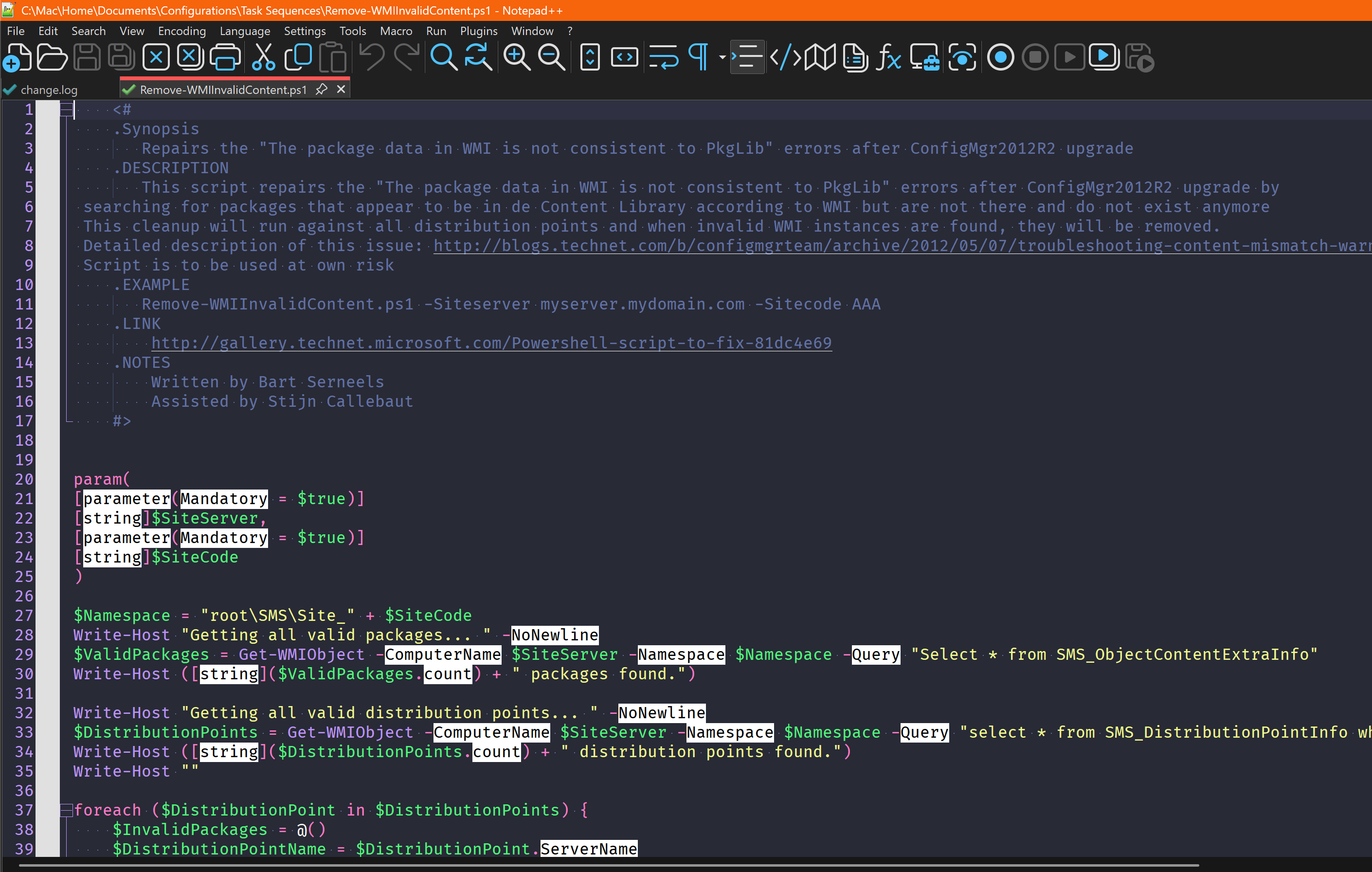
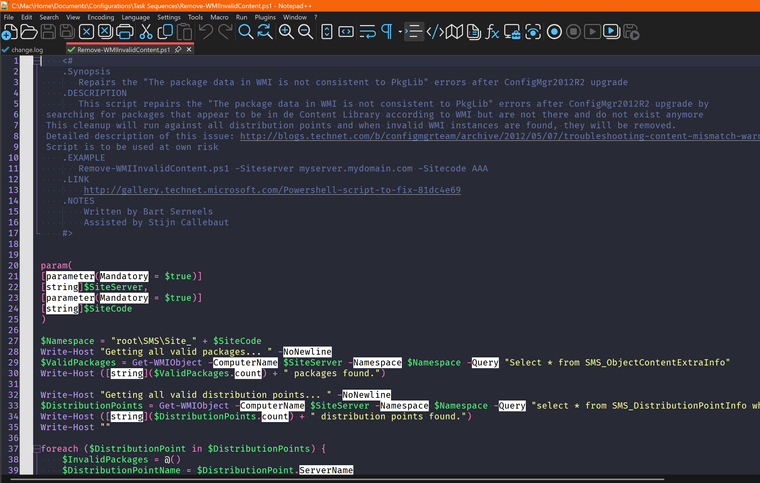
Just updated to 8.8.9 at work this morning and noticed that when I opened a .ps1 file, my theme was showing big white blocks with black text around specific words like [string]. (String would be in the block). I am using the Dracula theme and have been for years so I thought maybe something was updated or needed to be updated. No dice.
Logged into my home computer after work and realized the issue was also occurring there with 8.8.9 and Dracula… So I logged into my Macbook, launched Parallels and fired up Win11. Everything is exactly as it should be, no issues! I then used the updater and it installed v8.8.8 for ARM. Fired it up and it also looks fine. Then I went to the website and downloaded/installed 8.8.9… busted.
I have attached two images. Anyone know what’s going on? Is this a theme issue or a notepad++ issue?

-
See details in https://community.notepad-plus-plus.org/post/104192
update: I have versions of the theme files which won’t have the ugly white backgrounds temporarily at
.../themesPost889/PowerEditor/installer/themes- Exit Notepad++
- Go to that URL and download the raw version of your theme(s)
- For a normal Notepad++ installation, use Explorer to go to
%AppData%\Notepad++ - if there’s not a
themessubdirectory, create it - move the downloaded theme(s) into
%AppData%\Notepad++\themes - When you run Notepad++ next time, it will use the updated theme.
If you have customized your theme with user-keywords or user-extensions, this would overwrite those…
I will eventually be writing a FAQ which explains a way to work around those customizations (once I don’t have to link to a branch in my fork of the code to share the theme files).
update 2: The installer themes in the source code have been updated to have all the styles needed (to be able to fix the problems from v8.8.9). You can go here to grab the theme file(s) you want: https://github.com/notepad-plus-plus/notepad-plus-plus/tree/master/PowerEditor/installer/themes
New FAQ: https://community.notepad-plus-plus.org/topic/27306/faq-themes-in-v8-8-9


Hello! It looks like you're interested in this conversation, but you don't have an account yet.
Getting fed up of having to scroll through the same posts each visit? When you register for an account, you'll always come back to exactly where you were before, and choose to be notified of new replies (either via email, or push notification). You'll also be able to save bookmarks and upvote posts to show your appreciation to other community members.
With your input, this post could be even better 💗
Register Login