Search++: A work in progress
-
@Alan-Kilborn said in Search++: A work in progress:
I haven’t checked it out yet, but going on the feature description, it sounds as if you’ve made Notepad++'s native search functionality essentially obsolete.
I grant that it is an ambitious project… far too ambitious to suggest as changes to Notepad++. (Apart from all the other changes, just the difference in the way search is implemented, which comes from Columns++, is almost certainly too large and risky a change to propose to the base program.) If it is successful, I hope it can supplant native search in nearly all situations for those who like its user interface.
I’m sure some people are going to take one look at the UI and go… WTF? I have an admitted bias towards designing toolboxes for power users over leading casual users by the hand. I try to be intuitive, but I’ll take functionality over obviousness if it’s an either/or choice. That’s not going to work for everybody… not everyone has the time and interest to read documentation to figure out how to use a search dialog.
I’m sure glitches and omissions in the feature set will turn up. If I’m lucky, I’ll be able to address them without radical redesign.
It’s still missing search in open documents and search in files in a directory… until and unless I can add those, it will be lacking crucial capabilities of native search. I think that and the search results in dark mode (which shouldn’t be all that difficult, I just haven’t worked it out yet) are the only blockers, aside from gaining a history of stability and reliability, to adopting it as a “daily driver” search for those who would choose to do so.
-
@Coises said:
bias towards designing toolboxes for power users over leading casual users by the hand
I consider this a good thing. :-)
I’m sure some people are going to take one look at the UI and go… WTF?
Like this?
https://github.com/notepad-plus-plus/notepad-plus-plus/issues/9627
:-) -
@Alan-Kilborn said in Search++: A work in progress:
Like this?
https://github.com/notepad-plus-plus/notepad-plus-plus/issues/9627
:-)Now my head hurts.
Perhaps I should have included screenshots. Docked (default):
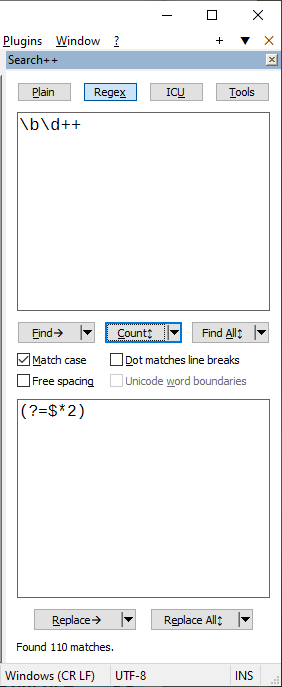
Horizontal (non-docking):
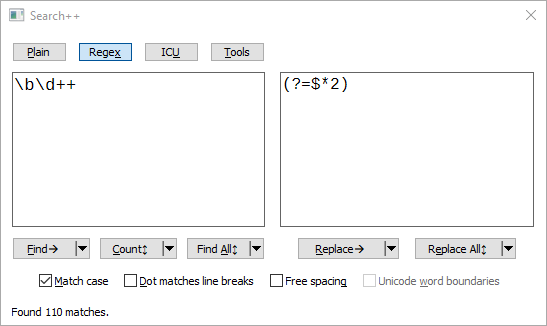
-
Hello, @coises and All,
I’m presently testing your new
Search++plugin : really awesome ;-))I’ll share my first impressions with you in a few hours. Many thanks for this new valuable plugin !
Best Regards,
guy038
-
@Coises said in Search++: A work in progress:
I present Search++ as a work in progress:
At first I thought you were resurrecting the old SearchPlus plugin. Ironically, you had to “search” online for it since it wasn’t included in Plugin Manager (Manager, not Admin at the time).
In any case, your ++ version seems to have way more capabilities already and it’s just “a work in progress”.
Cheers.
-
Hi, @coises and All,
First impressions :
- Regarding the menus : in order to harmonize all the sub-menus :
I suppose that the
Findsub-menus could be expressed as below :Find Forward or Find Find Forward in Selection or Find in Selection Find Forward in Marked Text or Find in Marked Text Find Forward in Whole Document or Find in Whole Document ---------------------------------------------------------------- Find Backward Find Backward in Selection Find Backward in Marked Text Find Backward in Whole DocumentSimilarly, the
Replacedialog could be expressed as below :Replace and Find Forward or Replace and Find Replace and Find Forward in Selection or Replace and Find in Selection Replace and Find Forward in Marked Text or Replace and Find in Marked Text Replace and Find Forward in Whole Document or Replace and Find in Whole Document -------------------------------------------------------------------------------------- Replace and Find Backward Replace and Find Backward in Selection Replace and Find Backward in Marked Text Replace and Find Backward in Whole Document ------------------------------------------------------- Find or Replace Forward or Find or Replace Find or Replace Forward in Selection or Find or Replace in Selection Find or Replace Forward in Marked Text or Find or Replace in Marked Text Find or Replace Forward in Whole Document or Find or Replace in Whole Document -------------------------------------------------------------------------------------- Find or Replace Backward Find or Replace Backward in Selection Find or Replace Backward in Marked Text Find or Replace Backward in Whole DocumentFinally, I think that the
CountandReplace Allmenus should adopt the same presentation as theFind All / Mark / Select / Showsub-menus, i.e. :Count All Count Before Count After -------------------------------- Count All in Selection -------------------------------- Count All in Marked Text Count Before in MArked Text Count After in Marked Text -------------------------------- Count All in Whole Document Count BeFore in Whole Document Count After in Whole DocumentAnd
Replace All
Replace All Before
Replace All After
----------------------------------------
Replace All in Selection
----------------------------------------
Replace All in Marked Text
Replace All Before in MArked Text
Replace All After in Marked Text
----------------------------------------
Replace All in Whole Document
Replace All Before in Whole Document
Replace All After in Whole Document
- Regarding the
Search++ resultspanel :
I’m a bit annoyed to not be able to clear this panel at any time and that I need to close and re-open a N++ session to that purpose ! Personally, an option in the
Toolsmenu, to clear theSearch++ Resultspanel would be great !
- Regarding the search direction :
I do appreciate to temporarily reverse the search direction, with native N++ search, by hitting or releasing the
Shiftkey ! Would it be possible to add this functionality toSearch++plugin ?
-
Regarding the button’s labels :
-
First, I would say that the possibility to change the default value of a button by hitting the
Shiftkey while clicking on a specific sub-menu, is very interesting !
After testing all the cases, I noticed that :
-
The Backward direction is noted with the
←arrow, in theFindandReplacesub-menus -
The Forward direction is noted with the
→arrow, in theFindandReplacesub-menus -
The Before indication is noted with the
↑arrow, in theCount,Find All / Mark / Select / ShowandReplace Allsub-menus -
The After indication is noted with the
↓arrow, in theCount,Find All / Mark / Select / ShowandReplace Allsub-menus -
The All/Everywhere indication is noted with the
↕arrow, in theCount,Find All / Mark / Select / ShowandReplace Allsub-menus
However, the indications for Selection, Marked text and Whole document, at beginning of buttons, are rather difficult to visualize : May be, a different and distinctive shape and/or color would be welcome ! I put the
3 casesin a single picture and they look as below :
-
The
Findbutton is preceded by the Whole Document mark -
The
Countbutton is preceded by the Marked Text mark -
The
Find Allbutton is preceded by the Selection mark
I’ve begun to study the purpose of each sub-menu ( not so obvious ! ) and I’ll probably ask you about some weird behaviours in a next post
Best Regards,
guy038
-
@guy038 said in Search++: A work in progress:
I’ve begun to study the purpose of each sub-menu ( not so obvious ! )
This section of the help might help.
I think it indeed might be a little more confusing than it needs to be, but I haven’t found the magic formula to simplify it yet.
I omitted “All” from the commands other than Find All and Replace All because they can’t be step-wise… you can’t Count the next match. So in a logical sense, I’m thinking that “Find” and ”Find All” are two different things (not that “Find All” is “Find” with “All” added as a modifier). But it is potentially confusing.
Backward and Before sound awfully similar, as do Forward and After… but Backward and Forward are for single step searches while Before and After are for multiple-result searches. It is not as intuitive as I wish it were.
You are right, clear is missing from the results list and it should be there. I’ll probably put it on the right-click menu for the search results, with something as a keyboard shortcut. To go with that, unless there’s some reason it doesn’t work as I would hope, I’ll probably want to enable Undo/Redo so that if you inadvertently clear the results, you can recover them.
(Oh, I should mention that there is a version 0.2 that fixes a couple reported issues and a couple more I found while fixing those.)
-
I said in Search++: A work in progress:
I omitted “All” from the commands other than Find All and Replace All because they can’t be step-wise… you can’t Count the next match. So in a logical sense, I’m thinking that “Find” and ”Find All” are two different things (not that “Find All” is “Find” with “All” added as a modifier). But it is potentially confusing.
@guy038 and anyone else reading:
Would it be more clear, less clear or equally impenetrable if I changed “Find All” to “List”?
When you think of it, “Find All” is not the result of doing “Find” multiple times. It’s an entirely different operation: listing matches in the results window. On the other hand, it’s the phrase that’s familiar.
The other verbs on that button are all single words not used anywhere else — Mark, Select and Show — so “List” would have a certain symmetry.
I’m sort of talking myself into changing it, but I wonder if others think that would just add to the mystery?
“Replace All” at least really is the result of doing the same thing as “Replace,” but as many times as possible, so that’s at least consistent.
Should there be an option to add a list of replacements done by “Replace All” to the search results list? If so, should that be a button alternative (that’s what I would think) or a setting?
I hate the “Replace and Find” vs “Find or Replace” naming, but I have not been able to think of a clear and concise way to express what each does. (If it is not obvious to anyone reading, they are the comparable to Notepad++ Replace with “Replace: Don’t move to the following occurrence” unchecked or checked.) Both do a Find unless a Find was already done just before. (In a similar way, though not internally quite the same, as Columns++, and differently from Notepad++, this is checked by monitoring whether the selection is changed, not by repeating the Find. That’s what makes it possible for \K to work in stepwise Find/Replace.)
So they are really “Find if you didn’t just find, otherwise replace and then find” and “find if you didn’t just find, otherwise replace (and stay put so I can see what just happened).”
-
@guy038 said in Search++: A work in progress:
I do appreciate to temporarily reverse the search direction, with native N++ search, by hitting or releasing the Shift key ! Would it be possible to add this functionality to Search++ plugin ?
Yes, that makes sense for the step-wise Find and Replace buttons in the plain text search. I don’t think there’s any reason I can’t make it work.
-
Hello @coises and All,
Regarding the bug of
Search++_01, I did verify that all is fixes inSearch++_02and I also verified that it’s OK with theColumns++plugin !
Regarding changing the
Find Allname :Of course, I suppose that you could change the
Find Alllabel by theListlabel. However note that theFind All in Current Documentoption, theFind All in All Opened Documentsoption and theFind Alloption of N++ search begin all with the stringFind All. Thus, I think the change would rather disturb some people !
Regarding the inclusion of the results of the
Replace Alloption in thesearch++results :To my mind, this extra work does not seem necessary, at first ! On the other hand, you always have the possibility to re-do a
Find Allsearch, using the previous replace expression. However, if this functionnallity seems important to you, just go ahead !
Regarding hding all lines of a file :
-
Let’s hide all the contents of a file
1, with the option in theToolspanel -
Switch to an other file
2 -
Switch back to file
1
All the lines of file
1are visible again : I suppose that this behaviour is the one that you expect, don’t you ?
-
Regarding the Mark functionnality :
-
Let’s mark some text with the native N++
Markdialog with theBookmark lineoption checked -
If you use the
Unmark All Textoption of theToolspanel, it correctly clear all the marks. However, it does not clear the associated bookmarks !
I think of two possible solutions :
-
Clear all the bookmarks, as well
-
Add a new
Clear bookmarksoption
Now, let suppose this text :
 1  foo
 2  bar
 3  foo
 4  bar
 5  foo
 6  bar
 7  foo
 8  bar
 9  bar
10  foo
11  bar
12  bar
13  foo
I first did a selection from line
4 barto line9 bar-
With the word
fooin the search dialog, I first run aMark in Selectionoption -
Now, if I use the
Find in Marked Textoption, I do get the first wordfooof the selection ( Line5 foo) -
Clicking again on the
Find in Marked Textoption, I do get the second wordfooof the selection ( Line7 foo) -
Clicking a third time on the
Find in Marked Textoption, I correctly get the messageNo matches found (Find again to search all marked text) -
Clicking a fourth time on the
Find in Marked Textoption, it does match again the first wordfooof theMarked Textregion ( Line5 foo)
That correspond to what you say in the
Helpdocumenation :Marked Text: If there is any marked text, ONLY marked text will be searched;
Now, let’s use the new text below :
1 foo 2 bar 3 foo 4 bar 5 foo 6 bar 7 foo 8 bar 9 bar 10 foo 11 bar 12 bar 13 foo-
I first do a stream selection from line
4 barto line9 bar. Note that this selection does contain more than80characters and3lines ! (102 chars / 6 lines )and then should be considered as a true selection ! -
Now, if I use the
Find in Selectionoption, I do get the first wordfooof the selection ( Line5 ... foo) -
Clicking again on the
Find in Selectionoption, I do get the second wordfooof the selection ( Line7 ... foo) -
Clicking a third time on the
Find in Selectionoption, it matches the wordfoo, outside the selection ( Line10 ... foo)
( I was expecting the message
No matches found (Find again to search in selection)- Clicking a fourth time on the
Find in Selectionoption, it matches the wordfoo, outside the selection ( Line13 ... foo)
( I was expecting, again, a match of the first word
fooof the selection ( Line5 ... foo) ) !Indeed, you say in the
Helpdocumenation :If there is a non-empty selection — single, rectangular or multiple — the search will be confined to the selected text.
May be, @coises,I just did not exactly understand the Selection concept ?
Best Regards,
guy038
-
-
@guy038 said in Search++: A work in progress:
-
Let’s hide all the contents of a file
1, with the option in theToolspanel -
Switch to an other file
2 -
Switch back to file
1
All the lines of file
1are visible again : I suppose that this behaviour is the one that you expect, don’t you ?@guy038, thank you so much for all your thoughts and your tests. They are an immense help.
I see there is a potential problem here, without a simple solution. It looks like Notepad++ saves and restores hidden lines, but it tracks them when it hides them or shows them, so it is unaware of any changes in state made by a plugin. It not only doesn’t restore lines hidden in Search++, if you hide lines in Notepad++ and then find them in Search++, they wind up hidden again when you switch tabs away and back.
Ugh. This could be really messy. :-(
-
Let’s mark some text with the native N++
Markdialog with theBookmark lineoption checked -
If you use the
Unmark All Textoption of theToolspanel, it correctly clear all the marks. However, it does not clear the associated bookmarks !
I think of two possible solutions :
-
Clear all the bookmarks, as well
-
Add a new
Clear bookmarksoption
Unless it doesn’t work for some reason (I haven’t tried it yet), I think Notepad++’s own Search | Bookmark | Clear all bookmarks can handle that.
May be, @coises,I just did not exactly understand the Selection concept ?
It sounds like I need to clarify what happens a little more in the help. Short answer: the first Find selects the text it found, which wipes out the original selection; it’s not possible to search within a selection that doesn’t exist, so subsequent searches revert to searching the whole document.
This traces back to some discussion about search in early Columns++. The purpose of having a search function there was to make it possible to search and replace in column selections, which Notepad++ search will not do. @Alan-Kilborn observed some unexpected behavior and suggested using what Scintilla calls an indicator. (Notepad++ calls it marked text or a style… both style and mark mean something different from indicator in Scintilla, so keeping the words straight is an ongoing challenge.)
The fundamental operation of Find (step-wise) is to select what was found. You can’t have a selection within a selection; the original selection is lost when you do the first Find. My original attempt at solving this in Columns++ — by “memorizing” the original selection and using it for subsequent finds — did not work well. After Alan’s suggestion, I switched to “Search in Indicated Region” and set a marked region from the column selection. Eventually I wound up with some features for controlling the indicated region incorporated into the search dialog, and some complicated rules (described here under the heading “Other controls in the Search dialog”) to make it so that users can almost forget about the indicator, even though every search in Columns++ must happen within an indicated region.
One of my goals in Search++ was/is to get rid of the imposition of an “indicated region” (now just called “marked text”) on users who aren’t thinking in those terms.
The rough equivalent to Selection -> Region | Auto set in Columns++ (which is checked by default) is Settings | Convert selections to marked text before beginning a stepwise search in Search++ (which is not, at present, checked by default).
Given my experience with Columns++, I don’t plan to attempt to restrict search to a “memorized” selection that no longer exists. Either you convert the selection to marked text, let Search++ convert it for you, or only the first step-wise Find will be confined to the original selection.
-
-
This is very interesting!
Maybe you’ll also consider an alternate UI (in addition to the main one) in a form of a small one-line search panel similar to the one in Sublime Text or similar to this one:
https://github.com/d0vgan/AkelPad-Plugs-QSearchTo be honest, now I prefer the Incremental Search panel in Noteped++ to the Find dialog because the Incremental Search panel occupies much less space, even though it’s not that powerful as the Find dialog.
The painful points of the Incremental Search panel are:- it does not clear the last word or the entire Find What field by Ctrl+Backspace. Instead, a stupid unreadable symbol is inserted. (Yes, I know, Microsoft forces us to write own handler of Ctrl+Backspace in each and every instance of an Edit control, what a shame),
- it does not forward Ctrl+Tab to the main window, thus not allowing to switch between tabs while in the Incremental Search panel.
-
Hello, @coises and All,
- Regarding the Bookmarks :
I’m pretty dumb for not thinking of the N++ native command
Search > Bookmark > Clear All Bookmarksor even better : a right mouse click within theBookmark marginwith the same option !
- Regarding the selection concept :
Many thanks for your explanations. So, if I understand you clearly, we need to transform the selection(s) in
Marked Text, first and then use theFind in Mark Textoption
- In your initial post, near the end of the
Featuressection, you said :
Regular expression searches in Search++ perform a fully Unicode-based search using a customized combination of Boost.Regex and ICU4C. In particular, this produces fewer “surprising” results with Unicode characters above 0xFFFF (including most emoji) and when searching in documents using a DBCS code page (which in Notepad++ can be Chinese, Japanese or Korean files that are in the system default encoding instead of in Unicode).
Then, at the end of the
Quirks and features ...section :The ICU button at the top is there mostly for testing. It uses the regular expression engine built into ICU, which has different syntax than the familiar Boost.Regex engine and does not integrate as well with Scintilla. Replace is not implemented for this search engine, and it only works on Unicode documents. It will probably be removed when Search++ reaches version 1.0, as it really isn’t very useful except as a check on the results from the main Regex engine (since I’ve meddled with the main Regex engine quite a lot, and I haven’t modified the ICU engine in any way).
And later, at the end of the
Missing and Planned Features ...section :I hope to add more features to the regular expression search. The current version is almost identical to the search in Columns++, but presented in what is hopefully a more flexible and user-friendly interface. It should be more accurate for Unicode-derived properties since it uses ICU4C directly instead of working from the home-grown parse of Unicode tables used in Columns++. If I can work out a way, I hope to add Unicode word breaks and more Unicode properties.
So, some questions :
-
When clicking on the
Regexbutton, do we use your Unicode search engine, as inColumns++or is it a mix of theColumns++version andICU -
Oddly, if we choose the
ICUbutton, theReplaceandReplace Allbuttons are not greyed and seem functional, contrary to what you said ?! -
Can you recommend a few websites, speaking about
ICUand theUnicode Word Boundariesspecificity ? -
Presently, when hitting the
ICUbutton, do searches like\p{alphabetic}or\p[XID_Continue}are possible against myTotal_Charsfile of325,590characters ?
TIA for all your answers !
Best Regards,
guy038
-
@Vitalii-Dovgan said in Search++: A work in progress:
Maybe you’ll also consider an alternate UI (in addition to the main one) in a form of a small one-line search panel
Probably not one line, but reasonably compact should be possible. At present you can dock the docking Search++ dialog to the top or bottom instead of the left or right, if you like that better. The layout adapts, but it doesn’t use the full width as well as it could — right now there are only horizontal and vertical layouts, and I need to work out an “ultra-wide” layout that puts all the buttons and check boxes into a single row when the dialog is wide enough. I don’t see any reason that can’t be done, though.
The painful points of the Incremental Search panel are:
- it does not clear the last word or the entire Find What field by Ctrl+Backspace. Instead, a stupid unreadable symbol is inserted. (Yes, I know, Microsoft forces us to write own handler of Ctrl+Backspace in each and every instance of an Edit control, what a shame),
Search++ does that now. (That must be the default command for Ctrl+Backspace in Scintilla, since I did nothing special to make it work. I’ve never used Ctrl+Backspace.)
- it does not forward Ctrl+Tab to the main window, thus not allowing to switch between tabs while in the Incremental Search panel.
I see regular Notepad++ search doesn’t do that either. (It uses Ctrl+Tab to switch dialog tabs, though, so that makes sense.) Search++ doesn’t do it now; I don’t know if it’s possible (particularly from a docked dialog) but I will see if it can be done.
At present you can switch rapidly to the main Notepad++ window with Ctrl+N. If you’ve set a shortcut for Search++ you can then use that to switch back again. I know that’s still extra keystrokes, so I will see if Ctrl+Tab can be forwarded, since it’s not used for anything in Search++.
Thank you for your observations and suggestions!
-
@Coises
It should be possible to forward Ctrl+Tab and Ctrl+Shift+Tab by processing WM_KEYDOWN with VK_TAB in your dialog’s DlgProc similarly to this:
https://github.com/d0vgan/AkelPad-Plugs-QSearch/blob/master/Source/QSearch/QSearchDlg.c#L4569Interestingly, the Right Ctrl key often emulates Ctrl+Alt, so when you verify only the presence of VK_TAB and VK_CONTROL (like in the code mentioned above), this code also works for RightCtrl+Tab which becomes VK_TAB and VK_CONTROL and VK_MENU. (VK_MENU is the Alt key. Unlike the real Alt key that comes under WM_SYSKEYDOWN, the “Ctrl+Alt” from RightCtrl comes under WM_KEYDOWN).
Oh, WM_KEYUP should be handled as well:
https://github.com/d0vgan/AkelPad-Plugs-QSearch/blob/master/Source/QSearch/QSearchDlg.c#L4607 -
@guy038 said in Search++: A work in progress:
So, if I understand you clearly, we need to transform the selection(s) in
Marked Text, first and then use theFind in Mark TextoptionYes; or click the Tools button, open Settings and check Convert selections to marked text before beginning a stepwise search to have Search++ do it automatically. Otherwise, multiple searches that don’t affect the selection (like Count or Find All or Replace All) will work within the selection, but only the first stepwise Find (or the preliminary find in a stepwise Replace) will be constrained to the selection, since after that the original selection will be gone.
- When clicking on the
Regexbutton, do we use your Unicode search engine, as inColumns++or is it a mix of theColumns++version andICU
It’s the Columns++ search engine, except for one thing. Previously I could not figure out how to incorporate ICU4C into the plugin, so for Columns++ I devised a Python program that reads several of the Unicode character data files and writes C++ code that compiles into a gigantic table containing the information I needed. I stumbled on the way to use ICU4C shortly before I began working on Search++; instead of building and using those tables, I go straight to ICU4C for information (questions like, “What is the general category of this character?” or ”Is this a lower case character?”).
It might turn out that this will have an efficiency impact (better or worse? — I don’t know). It should fix some of the errors in Columns++, like
[[:lower:]]missing characters that are lower case but not letters.- Oddly, if we choose the
ICUbutton, theReplaceandReplace Allbuttons are not greyed and seem functional, contrary to what you said ?!
They’re not disabled, but all they do is return the message, “Command not implemented.”
- Can you recommend a few websites, speaking about
ICUand theUnicode Word Boundariesspecificity ?
I don’t really have anything except the Unicode documentation. In my brief testing, the practical effect in English is that words like
can'tare recognized as a single word. Most regular expression engines define a word boundary (\b) in terms of what is a word character (\w). The regular expression engine in ICU lets you do that, but it also provides an option to use Unicode word boundaries to define \b.- Presently, when hitting the
ICUbutton, do searches like\p{alphabetic}or\p[XID_Continue}are possible against myTotal_Charsfile of325,590characters ?
Yes. You can even use things like
\p{script=Greek}. Unfortunately, I haven’t been able to find any place where ICU documents its own regular expression syntax. The regular-expressions.info web site includes ICU among the regex dialects it shows. - When clicking on the
-
@guy038 said in Search++: A work in progress:
I’m a bit annoyed to not be able to clear this panel at any time and that I need to close and re-open a N++ session to that purpose ! Personally, an option in the Tools menu, to clear the Search++ Results panel would be great !
Regarding the search direction :I do appreciate to temporarily reverse the search direction, with native N++ search, by hitting or releasing the Shift key ! Would it be possible to add this functionality to Search++ plugin ?
These features, and some bug fixes, are in version 0.3.
-
Hi, @coises and All,
Thanks for your new
Search++_03release !BTW, with native N++ search, the
Shift + Entershortcut is also available when you choose theRegular expressionsearch mode ( with the condition that theregexBackward4PowerUser="yes"option is present within theconfig.xmlfile. May be, you could allow it as well inSearch++?
I just discovered
ICU’s features, and they’re really impressive ! Over the next few days, I’ll try to list the many Unicode properties accessible throughICU… Another whole new world is opening up to me !! Personally, I think theICUbutton should remain available in future versions !
I ran into a problem while selecting characters. For example :
- Put this small text in new tab
ໜໝໞໟༀ༁༂༃༄༅༆༇༈༉༊་༌།༎༏༐༑༒༓༔༕༖༗༘༙༚༛༜༝༞༟༠༡༢༣༤༥༦༧༨༩༪༫༬༭༮༯༰༱༲༳༴༵༶༷༸༹༺༻༼༽༾༿ཀཁགགྷངཅཆཇཉཊཋཌཌྷཎཏཐདདྷནཔཕབབྷམཙཚཛཛྷཝཞཟའཡརལཤཥསཧཨཀྵཪཫཬཱཱཱིིུུྲྀཷླྀཹེཻོཽཾཿ྄ཱྀྀྂྃ྅྆྇ྈྉྊྋྌྍྎྏྐྑྒྒྷྔྕྖྗྙྚྛྜྜྷྞྟྠྡྡྷྣྤྥྦྦྷྨྩྪྫྫྷྭྮྯྰྱྲླྴྵྶྷྸྐྵྺྻྼ྾྿࿀࿁࿂࿃࿄࿅࿆࿇࿈࿉࿊࿋࿌࿎࿏࿐࿑࿒࿓࿔࿕࿖࿗࿘࿙࿚ကခဂဃငစဆဇဈဉညဋဌ-
Switch to this new tab
-
Run
Plugins > Search++ > Search... -
Select the
ICUbutton -
SEARCH
\p{script=Tibetan} -
Check the
Match caseoption -
Right click on the
Find Allbutton -
Choose the
Select > Select in Whole Documentoption
=> A selection appears with the bottom message
Selected 207 matches- Without doing anything else, I use the
Ctrl + Cshortcut
After opening an other new tab, I was quite surprised that the
207tibetan chars were not pasted, after aCtrl + Voperation ?!Then, I understood that the selection is effective ONLY IF :
-
The
Search++plugin is closed with thexbutton or using theESCkey -
You click again on the
New 1tab, withSearch++not on focus -
You move the
New 1text one lineUporDownwith the▲or▼marks of the vertical scroll bar
@coises, is this behaviour correct ?
Regarding the
Unicode Word boundaries:I had a look to https://www.regular-expressions.info/unicodeboundaries.html#word
I understood that :
-
When
ICUselected and theUnicode word boundariesnot checked, the\bregex, against our tibetan text above, counts46matches -
When
ICUselected and theUnicode word boundarieschecked, the\bregex, against our tibetan text above, counts176matches
Quite different, indeed ! Note that if the
Unicode word boundariesis not checked , the(?w)\bregex would also return176matches. Thus, a leading(?w)forces the use of theUnicode word boundariesoption !Then, reading https://www.regular-expressions.info/unicodeboundaries.html#grapheme, I realized that, presently, the
\bregex cannot identify the different grapheme positions !Would it be possible to add an option for this specific case, or am I asking too much ? I suppose the later is true !!
Best Regards,
guy038
-
@guy038 said in Search++: A work in progress:
Thanks for your new
Search++_03release !Thank you for testing it.
BTW, with native N++ search, the
Shift + Entershortcut is also available when you choose theRegular expressionsearch mode ( with the condition that theregexBackward4PowerUser="yes"option is present within theconfig.xmlfile. May be, you could allow it as well inSearch++?Regex backward… I have my doubts, but I can leave it open as something I might try to make available some day. When I’ve thought about it before, I get caught up trying to define exactly what it means to match regular expressions backward. Regular expressions can match different lengths depending on where they start. Is the previous match the one that ends at the latest possible position? The one that begins at the latest possible position? The last one that would have occurred before the current position if you matched forward repeatedly from the beginning of the text? The one that would result from reversing both the text and the regular expression (but then what do you do with backreferences)?
Shift+Enter is a different problem. Enter doesn’t work to find: since the Find and Replace boxes take multiple lines, they consume the Enter key. You can use Alt+F and Alt+R (the underlined characters on the Find and Replace buttons), but those combinations are a bit awkward. I’ve been thinking of just making Shift+Enter and Ctrl+Enter do the functions on the Find and Replace buttons — I think those would be more natural than Alt+F and Alt+R for most people (including me). But then it isn’t obvious how access to backward should work. Beyond all that, there is no standard Windows mechanism for keyboard-only access to the drop-down menus on split command buttons. Once you can get to the button without clicking it, down arrow works to open the menu; but you can’t get there with Alt+underlined letter: that does the click action. I haven’t figured out a good way to deal with all of the keyboard navigation obstacles yet.
Which is a long way of saying I don’t know which of too many possibilities I will eventually decide must take priority for keyboard actions, so I don’t know what I can/will do in that regard.
Personally, I think the
ICUbutton should remain available in future versions !I’ll probably leave the function there… it might be “hidden” (like a Shift-click on Regex) so it doesn’t confuse people who would probably never use it.
- Choose the
Select > Select in Whole Documentoption
=> A selection appears with the bottom message
Selected 207 matches- Without doing anything else, I use the
Ctrl + Cshortcut
After opening an other new tab, I was quite surprised that the
207tibetan chars were not pasted, after aCtrl + Voperation ?!Then, I understood that the selection is effective ONLY IF :
It’s not that selection isn’t effective, it’s that keyboard focus was still in the Search++ dialog. You have to move focus to the document for the Ctrl+C to work.
You can use Ctrl+N (think “Notepad++”) to return focus to the document, or (as you discovered) click on the tab if you’re using the mouse.
This does make me think I should probably have an option, perhaps enabled by default, to return focus to the document automatically after a select operation, since wanting to copy is probably the most common reason for using select.
(I’ve been bitten by this often enough in Columns++, which works the same way. It’s just so easy to forget that focus is in the dialog, not the document.)
Note that if the
Unicode word boundariesis not checked , the(?w)\bregex would also return176matches. Thus, a leading(?w)forces the use of theUnicode word boundariesoption !Hmmm… I’m not sure what’s happening there.
Then, reading https://www.regular-expressions.info/unicodeboundaries.html#grapheme, I realized that, presently, the
\bregex cannot identify the different grapheme positions !Would it be possible to add an option for this specific case
In both Regex and ICU, \X matches a single grapheme cluster. In Regex, (?=\X) matches a grapheme boundary; that doesn’t work in ICU. (It looks like in ICU, \X actually matches from the current position to the end of a grapheme cluster. In Regex, the match must begin and end on a grapheme cluster boundary. The Boost.Regex logic already worked that way, but I replaced/extended it to use the grapheme break algorithm specified by Unicode.) \X partially works in built-in Notepad++ search, too, but it misses some cases and falls apart entirely outside the BMP.
- Choose the
-
Hi, @Coises and All,
Don’t worry about my request for searching for regular expressions in the opposite direction: I can live without that feature !
Regarding the possibility of changing the
Alt + FandAlt + Rshortcuts to some anothers, I’m not really in favor of it because you would break a very oldWindowsstandard !BTW, when in Plain text and with focus on
Search++, let’s suppose we search for the stringand-
Using the
Alt + Fshorcut does move to the next match and, in addition, the shortcutAlt + Shift + Fdoes move to the previous match Nice, indeed ! -
But, if I decide, now, to use the
Enterkey, it wrongly add a line-break after the wordand, in the Find dialog ofSearch++
So, to my mind, it would be better to put the focus on the Find button as soon as you hit the
Alt+ Fshortcut, in order to use, either, theAlt + FOREnterand theALT+ Shift + FORShift + Entershortcuts !
Regarding my selection problem :
Oh… yes, indeed ! The solution was obvious :
Ctrl + Nto switch focus from theSearch++plugin to nativeN++!You said :
This does make me think I should probably have an option, perhaps enabled by default, to return focus to the document automatically after a select operation, since wanting to copy is probably the most common reason for using select.
Yes indeed; this would make sense !
Note that I personally choose the
Ctrl + Shift + Nshortcut for the commandPlugins > Search++ > Search...Thus, as a summary :
-
When focus on
Notepad++, theCtrl + Shift + Nshortcut opens or puts focus on theSearch++plugin ( User shortcut ) -
When focus on
Search++, theCtrl + Nshortcut puts focus onNotepad++( Search++ shortcut ) -
When focus on
Search++, theCtrl + Oshortcut toogles between the Find and the Replace dialog of **Search++( Search++ shortcut ) -
When focus on
Search++, theCtrl + Hshortcut re-opens or puts focus ontheSearch++ Results`( Search++ shortcut ) -
When focus on
Search++ Results, theCtrl + Oshortcut puts focus on theSearch++`plugin ( Search++ shortcut ) -
When focus on
Search++ Results, theCtrl + Shift + Nshortcut closes theSearch++ Resultspanel and puts focus onNotepad++( Search++ shortcut ) -
When focus on
Search++, theCtrl + Shift + Nshortcut closes theSearch++panel and puts focus onNotepad++( User shortcut )
BTW, @coises, why didn’t you choose a single shortcut ( I’m thinking about
Ctrl + H) to toggle between theSearch++plugin and theSearch++ Results? Native notepad++ just use theF7key to shift the focus, back and forth, between theDocumentwindow and theSearch resultspanel !
Regarding the
Unicode Word Boundaries:When I said :
Note that if the
Unicode word boundariesis not checked , the(?w)\bregex would also return176matches. Thus, a leading(?w)forces the use of theUnicode word boundariesoption !There’s nothing weird about this assertion. It just means that the behavior of the
(?w)and(?-w)modifiers act in the same way as the well-known(?s)and(?-s)modifiers which set / unset the. matches new-lineoption, whatever this option is physically checked or not, in nativeN++search !
- Regarding the
Grapheme Boundaries:
No need to add any option ! I’ve just realized that, in
regexmode, the simple regex(?!\X).does match any character which is not aGrapheme-Basechar. Thus, aCountaction would detect, for instance, the total number of accentuated characters associated to a simple latin letter !
I still need to explore all of
Search++'s features and, most importantly, to compile a list of the various properties available with theICUregular expression engine.BR
guy038
-





Hello! It looks like you're interested in this conversation, but you don't have an account yet.
Getting fed up of having to scroll through the same posts each visit? When you register for an account, you'll always come back to exactly where you were before, and choose to be notified of new replies (either via email, or push notification). You'll also be able to save bookmarks and upvote posts to show your appreciation to other community members.
With your input, this post could be even better 💗
Register Login