Search++: A work in progress
-
Search++ v0.5 includes various changes:
It is now possible to Count, Find All, Mark or Replace in Open Documents or in Documents in this View.
When the search dialog is narrow (typical if the docking dialog is used and docked to the left or right), the status message can overflow the available space. I added ellipsis to the message and a balloon tip on hover to show the whole message when it overflows.
I changed the default (“smart”) Mark commands so that they don’t search only within marked text when some text is marked. That search is possible (Mark in Marked text is on the Mark submenu), but it’s probably not what someone usually means to do.
I tried to make the command button drop-down menus make a little more sense. They’re probably still confusing. I updated the description in the help; hopefully if someone really wants to understand what it all means, I’ve made it possible.
Experiences, problem reports, suggestions and trauma dumps are still welcome and very much appreciated.
Still not done:
-
@guy038’s disappointment with the Find field not being filled from the document selection in as many situations as he expects remains to be addressed.
-
I haven’t looked at @Lachlanmax’s request to include bookmarking lines yet. Using marked text in multiple documents was also mentioned; the changes in 0.5 possibly address that to some extent, but only for open documents, since I haven’t added any searching of files on disk yet. I’m not sure how I could/would apply the idea of searching in marked text to documents that aren’t open in Notepad++.
-
When accumulating a lot of search results (tens or hundreds of thousands of hits), the search completes and then everything hangs while the results window is filled. It can be confusing and disconcerting.
-
The drop-down menus for the command buttons drop up when the button is near the bottom of the screen. That’s OK, except that the menu then covers the place you just clicked to open it, and if you happen to move the mouse just a pixel before you release the button, it selects the bottom item in the menu.
-
I still haven’t fixed the search results window for dark mode.
-
I still don’t have a convenient method of keyboard access to the command button drop-down menus. (I can and probably will assign some shortcuts to them, but they still won’t be discoverable to anyone who doesn’t read about them in the help.)
-
As @guy038 noted, the icons added to the command buttons when you shift+click to set a different primary action for the button are difficult to make out. The reason for that is that I’m using Unicode symbol characters; eventually I need to replace them with proper icons or owner-drawn buttons.
-
I still haven’t implemented find in files. I’m not sure yet how I will manage the user interface: I don’t want to make the main dialog bigger (I want to keep it practical for docking use).
-
I hope to add the ability to save searches for future use, but I haven’t done that yet.
-
Searching in Open Documents or in Documents in this View loses multiple selections that aren’t a rectangular selection. That’s because Notepad++ loses them when switching tabs, and I think the only safe and robust way for a plugin to access open documents is to temporarily activate them. There might be other things that are lost, too; I need to identify them and save/restore them. (Hidden lines are lost, but that’s for a different reason.)
-
Hidden lines as Search++ uses them don’t work together properly with hidden lines the way Notepad++ uses them. It is not clear to me yet what is possible there; I hate to give up the Show command, as it is a handy way to get the effect of a search results list but right in place, where you can edit what you see.
-
While there is a search progress dialog, it doesn’t always show up when it should. The biggest problem is long searches that don’t find anything. (Those are usually regular expression searches, at their worst resulting in the infamous “too complex” message.) It will be a tricky problem to solve, because the Boost.Regex engine doesn’t have any sort of callback for long operations: once I start a search, my code doesn’t get control again until it either finds something or fails to find anything. I suspect there will be no effective way to solve that without modifying Boost.Regex code.
-
-
@Coises I was though to mention this for 0.4, but FYI it remains in 0.5.
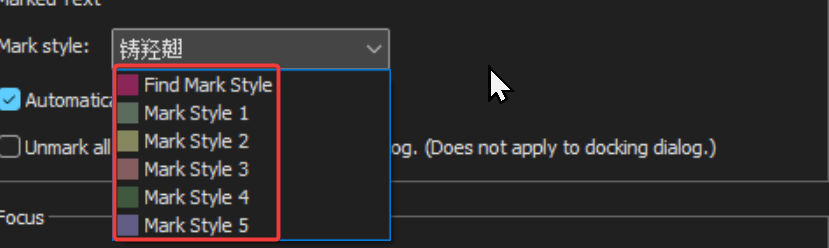
I’ve highlighted tha the “Mark Style” drop down appears to be populated with non-english characters, even though the remaining UI is english. When clicking the dropdown to show values, this value does not exist in the revealed list of choices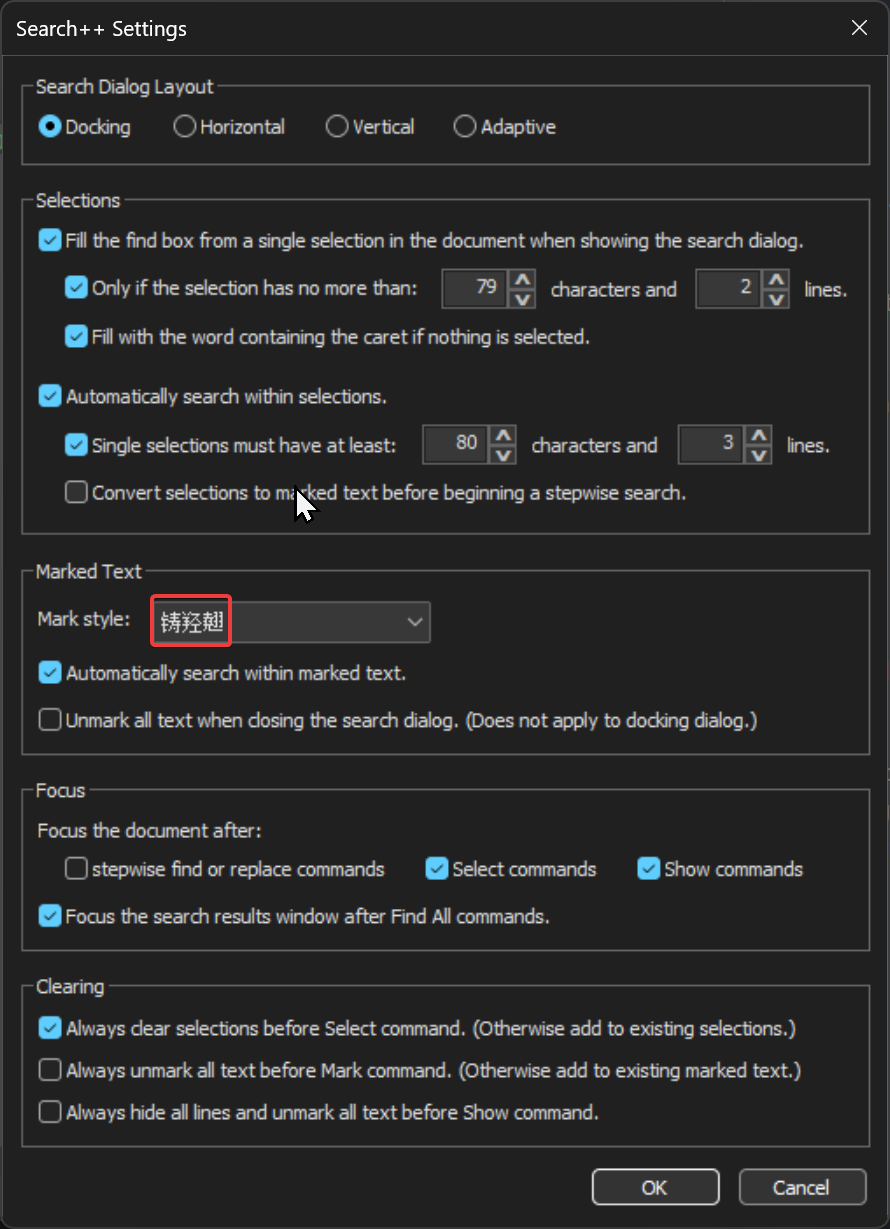
Notepad++ v8.9.3 (64-bit)
Build time: Mar 20 2026 - 00:44:25
Scintilla/Lexilla included: 5.6.0/5.4.7
Boost Regex included: 1_90
pugixml included: 1.15
nlohmann JSON included: 3.12.0
Path: C:\Program Files\Notepad++\notepad++.exe
Command Line:
Admin mode: OFF
Local Conf mode: OFF
Cloud Config: OFF
WinGUp: present
disableNppAutoUpdate.xml: absent
Periodic Backup: ON
Placeholders: ON
Scintilla Rendering Mode: SC_TECHNOLOGY_DIRECTWRITE (1)
Multi-instance Mode: monoInst
asNotepad: OFF
File Status Auto-Detection: cdEnabledNew (for current file/tab only)
Dark Mode: ON
Display Info:
primary monitor: 2560x1440, scaling 100%
visible monitors count: 2
installed Display Class adapters:
0000: Description - NVIDIA GeForce RTX 3080
0000: DriverVersion - 32.0.15.9186
OS Name: Windows 11 Home (64-bit)
OS Version: 25H2
OS Build: 26200.8037
Current ANSI codepage: 1252
Plugins:
CollectionInterface (1.3)
ColumnsPlusPlus (1.3.1)
ComparePlus (2.2)
CSVLint (0.4.7)
CsvQuery (1.2.9)
FWDataViz (2.6.7)
HTMLTag (1.5.6)
HugeFiles (0.4.1)
JsonTools (8.5)
mimeTools (3.1)
MultiReplace (5.0.0.35)
NppConverter (4.7)
NppExport (0.4)
NppXmlTreeviewPlugin (2)
PythonScript (2.1)
Search++ (0.5)
XMLTools (3.1.1.13) -
@Snabel42 said in Search++: A work in progress:
I’ve highlighted tha the “Mark Style” drop down appears to be populated with non-english characters, even though the remaining UI is english. When clicking the dropdown to show values, this value does not exist in the revealed list of choices
Thank you for the report and the screenshots. I couldn’t reproduce it until I changed to dark mode (to match your screenshot).
The control functions perfectly well in light mode and is completely messed up in dark mode.
I will investigate to see if I can find a cause and/or a workaround.
I have the same control in the Search dialog in Columns++, but I never added the Notepad++ message to support dark mode to anything in Columns++. The control works there, regardless of whether Notepad++ is in light or dark mode, so it seems specifically to be connected with the dialog being in dark mode.
-
Hi @coises,
first, I have to say I was a bit shocked when you mentioned the Mark commands under the Find All dropdown, because this is exactly what I wanted and somehow I completely did not see it when I needed it. Maybe I was simply too tired at that moment :)
So for the marking itself, yes, this already covers what I had in mind.
The main thing I was thinking about is really the bookmark workflow.
I take it the essential option here is to set a bookmark on every line that contains a match when using a Mark command. Is that it?
Yes, exactly, this is exactly what I mean.
For me this is most useful when working in larger logs or config files, where I want to quickly jump only between relevant lines after marking.
About whether this should be a setting or per-search option, I would personally prefer it per search.
Sometimes I only want visual marking to better understand the pattern and refine the next search. Other times I want the bookmarks as a temporary navigation layer through the file. Because this changes from task to task, a permanent “set and forget” setting feels a bit too static to me.
For clearing, I still think independent control makes most sense.
There are cases where the visual marks become noisy and I want to remove only them, but still keep the bookmarks for navigation. In other cases I want both gone. So separate control gives the most flexibility.
About the null matches question, I am honestly not fully sure what you mean there, so I would not want to guess wrong.
For the Find in Files / open documents topic, my earlier point was maybe not explained well.
Yes, exactly this is what I meant, sorry that I was not clear enough before.
When you later add the ability to search files on disk and all open documents, I think this workflow will become even stronger. I will happily wait for the full version, because this already looks very promising.
And thanks again for your really great work on this plugin. It already feels like something with a lot of potential.
-
Hello, @coises,
You said :
When the search dialog is narrow (typical if the docking dialog is used and docked to the left or right), the status message can overflow the available space. I added ellipsis to the message and a balloon tip on hover to show the whole message when it overflows.
Could you share a screenshot that illustrates this behavior as I have not been able, so far, to see any
ellipsischar and anyballon tip!
Now, is this a bug or I did not understand the logic ?
Let’s suppose this text in a new tab :
This is a test This is a test This is a test This is a test This is a test This is a test-
Move to this new tab
-
Put the caret on the
4thempty line, without selecting anything else ( IMPORTANT ) -
Run
Plugins> Search++ > Search... -
Select the
Plainbutton -
SEARCH
is -
Check the
Match caseoption ONLY -
Click on the
▼mark of theFind Allbutton -
Choose the
Select > Select Before in Whole Documentor theSelect Beforeoption
=> No message and no matches ??
I was rather expecting the message
Selected 6 matches before current position-
Replace the caret on the
4thempty line , without selecting anything else ( IMPORTANT ) -
Click on the
▼sign of theFind Allbutton -
Choose the
Select > Select After in Whole Documentor theSelect Afteroption
=> Any
isstring is matched in entire document=> Message :
Selected 12 matches after selection??I was rather expecting the message
Selected 6 matches after current positionFinally :
-
Replace the caret on the
4thempty line , without selecting anything else ( IMPORTANT ) -
Click on the
▼sign of theFind Allbutton -
Choose the
Select > Select in Whole Documentoption
=> Any
isstring is matched in entire document=> Message :
Selected 12 matchesThis time, the results are coherent !
Now, @coises, to my mind, it would be interesting to change the layout, below :
Find ▼    Count ▼    Find All ▼

□ Match Case    □ Whole word only
By this one :
Find ▼    Count ▼    Find All ▼

Select ▼    Mark ▼    Show ▼

□ Match Case    □ Whole word only
In addition, this would give some more default values available for the
Select,MarkandShowoptions ! What are your thoughts on this ?
A nice thing regarding the Search
Markfeature is that you can use the native N++Markfeature to perform additional actions :-
You may clear all marked text with the
Clear all marksbutton. Of course, you can simply use theTools > Unmark All Textof Search++ -
You can use the
Copy Marked Textof the Mark dialog. But, while trying to get aSearch++equivalent behavior, I suspected an other bug :((
Let’s use this text in a new tab
This program is free software: you can redistribute it and/or modify it under the terms of the GNU General Public License as published by the Free Software Foundation, either version 3 of the License, or (at your option) any later version.-
Move to this new tab
-
Run
Plugins> Search++ > Search... -
Select the
Regexbutton -
SEARCH
^.+ -
Click on the
▼sign of theFind Allbutton -
Choose the
Select > Select in Whole Documentoption
=> The
4lines are selectedThen, in order to mimic the
Copy Marked Textbutton, you just have to do aCtrl + Caction. So OK, so far !-
Now, click anywhere to cancel the selection
-
Select this
ABCDEstring -
Copy in the clipboard with a
Ctrl + Caction -
Move to the new tab
-
Run
Plugins> Search++ > Search... -
Select the
Regexbutton -
SEARCH
^.+ -
Click on the
▼sign of theFind Allbutton -
Choose the
Mark > Mark in Whole Documentoption
=> The
4lines are marked-Then use the
Tools > Marked text → Selectionsoption=> The
4lines are ALSO selected-
Run a
Ctrl + Caction to put this selection in the clipboard -
Then, run a
Ctrl + Vaction => The clipboard wrongly contains the stringABCDE
So, despite of the
Tools > Marked text → Selectionsaction, nothing can be copied !?
Regarding the marked strings, you probably know that you can go through all of them with the
Ctrl + 0andCtrl + Shift + 0shocrtcuts on main keyboard ( Refer to theSearch > Jump Up > Find Mark StyleandSearch > Jump Down > Find Mark Styleoptions )And indeed, a
Ctrl + 0action moves to the next marked text, whatever that the mark operation was due toNotepad++orSearch++Unfortunately, a
Ctrl + Shift+ 0action does not move to the previous marked text :-(( Could you confirm, @coises ?However, note that commands
Ctrl + 1toCtrl + 5andCtrl+ Shift + 1toCtrl + Shift + 5, to navigate between marked strings, work as expected if you change the Marked Style inSettingsaccordingly.
Last thing :
In the
Toolsmenu, I noticed that theUnmark All Textbutton ONLY clears hhe marked text which is presently defined in theSettingsdialogSo, you could, either :
-
Add a color to identify which marked text will be cleared
-
Simply clears any marked text whatever its style
-
Change the single option :
□ Unmark all textin the two options :
□ Unmark present styled text

□ Unmark all styled text
Best Regards,
guy038
-
-
@guy038 said in Search++: A work in progress:
Could you share a screenshot that illustrates this behavior as I have not been able, so far, to see any
ellipsischar and anyballon tip!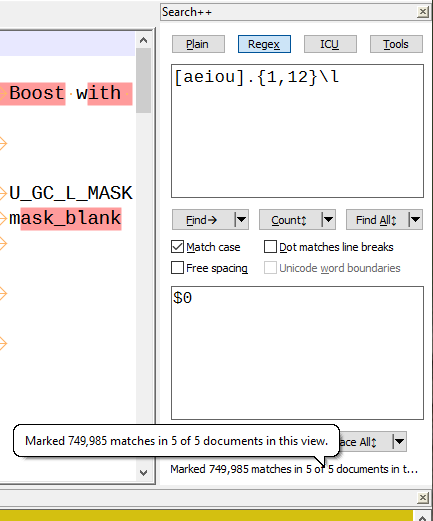
Now, is this a bug or I did not understand the logic ?
=> No message and no matches ??
That is a bug. It should work the same as Mark Before and Mark After. Thank you for catching and reporting it. I’ll fix it.
Now, @coises, to my mind, it would be interesting to change the layout, below :
[…]
In addition, this would give some more default values available for theSelect,MarkandShowoptions ! What are your thoughts on this ?I’m concerned about increasing the minimum size of the dialog and about making it too busy/cluttered. I won’t say I won’t consider it, but… I’m hesitant. It could be an option to add extra buttons, I suppose — the plugin already manages three layouts (horizontal, vertical and wide, the latter being for docking at the top or bottom), I suppose it could manage six (each existing layout in either 5-command-button or 8-command-button form). I’m not saying never… but not now.
-Then use the
Tools > Marked text → Selectionsoption=> The
4lines are ALSO selected-
Run a
Ctrl + Caction to put this selection in the clipboard -
Then, run a
Ctrl + Vaction => The clipboard wrongly contains the stringABCDE
After clicking on a button in a dialog, keyboard focus is on the button. (That’s standard Windows behavior, which I have not attempted to change in this case.) Your Ctrl+C went to the button. You needed to return focus to the document (e.g., Ctrl+N) before you could copy the selection.
I admit this focus thing is an annoyance, but I think it would get even more confusing if I overrode Windows standard behavior in a dozen special cases by putting the focus where I think the user will want it next. (I did it with Select commands, but I’m not even sure that’s a good idea. How many exceptions to normal Windows behavior should I expect users to remember? At what point does keeping track of all the exceptions become more difficult than just keeping track of the focus?)
Unfortunately, a
Ctrl + Shift+ 0action does not move to the previous marked text :-(( Could you confirm, @coises ?I can confirm, and I also see that the same thing happens with text marked using the Mark tab of the built-in search dialog. Search | Jump Up | Find Mark Style does work, but the Ctrl+Shift+0 shortcut does not.
If I change the shortcut to Ctrl+Shift+M, it works. Further testing suggests that Ctrl+Shift+0 does not work as a shortcut when assigned to any command. I haven’t yet checked to see if this is a known issue, or whether it persists without any plugins.
In the
Toolsmenu, I noticed that theUnmark All Textbutton ONLY clears hhe marked text which is presently defined in theSettingsdialogSo, you could, either :
-
Add a color to identify which marked text will be cleared
-
Simply clears any marked text whatever its style
-
Change the single option :
I see your point. The wording suggests that it will remove all marks of any kind, not just the mark style Search++ is using.
Notepad++ treats Find Mark Style differently than the other styles; Search | Clear Styles | Clear all Styles clears styles 1-5, but not the Find Mark Style. (The only way I know to clear that in native Notepad++ is in the Mark dialog.) So there isn’t true Clear All Styles already. (Beyond that, I might add a custom style, like Columns++ uses; I haven’t decided yet if that would be advantageous — having something that doesn’t overlap with anything Notepad++ uses — or just an unnecessary complication.)
I’m pretty sure I will want to stay with the notion that the normal way to use Search++ will be to pick a mark style and stick with it, so any time Search++ refers to a “mark” it means “a mark in the style selected in the settings dialog.” So I don’t really want to introduce any options that break that model by affecting styles other than the one selected.
-
-
In regards to:
Further testing suggests that Ctrl+Shift+0 does not work as a shortcut when assigned to any command. I haven’t yet checked to see if this is a known issue
Maybe see this:
https://community.notepad-plus-plus.org/post/90173
or some of the other postings about Ctrl+Shift+0 in that topic. -
@Alan-Kilborn said in Search++: A work in progress:
In regards to:
Further testing suggests that Ctrl+Shift+0 does not work as a shortcut when assigned to any command. I haven’t yet checked to see if this is a known issue
Maybe see this:
https://community.notepad-plus-plus.org/post/90173
or some of the other postings about Ctrl+Shift+0 in that topic.Thank you, Alan. Good that someone still has memory cells working. (@guy038 and I were both in that discussion, and it seems neither of us remembered.)
Similar to what it sounds like happened to Guy in that thread, I attempted to reset all shortcuts for keyboard languages to None even though they already were all None, except for the last one, which had Ctrl+Space associated with something to do with IME and Chinese (probably came about when I was testing Columns++ search in double byte character sets). I changed it to None (repeatedly), but it changed itself back as soon as I OK’d the change.
None-the-less, even though no visible setting has changed, now Ctrl+Shift+0 works. No rhyme or reason to this corner of Windows, it seems. :-(
-
Hi, @alan-kilborn, @coises and All,
Many thanks @alan-kilborn, for solving the
Ctrl + Shift + 0not working at all ;-)) I completely forgot this old post. Like @coises, I confirm that your memory cells are working perfectly !So, certainly, on my
Windows 10laptop, with your precious advice, I was able to solve this bug, inOctober 2023. But, it happens that I migrated my laptop toWindows 11, at the end ofOctober 2025. And I supposed that this migration reset a lot of parameters, whose this one !Thank you again for helping us find the right post !
Best Regards,
guy038
-
@guy038 said in Search++: A work in progress:
-Then use the Tools > Marked text → Selections option
=> The 4 lines are ALSO selected
Run a Ctrl + C action to put this selection in the clipboard

Then, run a Ctrl + V action => The clipboard wrongly contains the string ABCDE
So, despite of the Tools > Marked text → Selections action, nothing can be copied !?
I wrote:
After clicking on a button in a dialog, keyboard focus is on the button. (That’s standard Windows behavior, which I have not attempted to change in this case.) Your Ctrl+C went to the button. You needed to return focus to the document (e.g., Ctrl+N) before you could copy the selection.
That is true, but there is also a flaw in Marked text → Selections that causes an extra, empty selection to be included at the beginning, which could cause unexpected results when pasting.
A new version will be coming, but probably not until sometime tomorrow. Thank you for all your feedback.
-
@guy038 said in Search++: A work in progress:
- Choose the
Select > Select Before in Whole Documentor theSelect Beforeoption
=> No message and no matches ??
-Then use the
Tools > Marked text → Selectionsoption=> The
4lines are ALSO selected- Run a
Ctrl + Caction to put this selection in the clipboard
Version 0.5.1 fixes the Before/After bug and adds some new commands to the Tools button menu; Copy Marked Text should avoid the need to make a selection from marked text just to copy it.
There are a few other small changes that hopefully are improvements.
- Choose the
-
Hello @alan-kilborn, @Coises and All,
Yesterday, I was pretty sure the bug had been fixed. Unfortunately, today, perhaps because I needed to re-start my laptop for other reasons, the bug is still here !
-
Of course, I re-ran the @alan-kilborn’s solution but without success
-
I tried to delete then re-assign the
Ctrl + Shift + 0shortcut to thePrevious style of Find Mark stylecommand within N++ => Not better -
I turned my laptop off and then back on but no chance, either
-
I also visit the two sites, below, to get some tools to deternine which process could own the
Ctrl + Shift + 0shortcut => No result
https://www.nirsoft.net/utils/hot_keys_list.html
https://github.com/ITachiLab/hotkey-detective
Note that once
Hotkeydetective.exehas been launched with administator rights, it is said to press the stolen key in order that the software shows you a path to the guilty process. However, hitting theCtrl + Shift + 0shortcut does not show any line, personally !
Finally, I had the idea of simply changing the
Ctrl * Shift + 0shortcut toCtrl * Shift + 6. And… bingo, this change worked nicely !Thus, doing the same thing for the
Ctrl + 0shortcut seems a possible solution to this problem !BR
guy038
P.S. :
After using this work-around, I tried to assign the
Ctrl + Shift + 0shortcut to a command without shortcut, like theView > Summary...command. But it does not show theSummarizedialog :-((In contrast, the shortcut
Ctrl + 0, which is no longer used, displays the control character0, as I did not check theSettings > Preferences... > Editing2 > Prevent control character (C0 code) typing into documentoption. Thus no need of theControl Panelfeature in order to type theNULcharacter anymore ! -
-
Hello, @coises,
First, thanks for the
Select Before/Afterfix ! Now, the newCopy Marked Textoptions, with the separator choice, are really practical and straightforwardRegarding the
Tools > Select Marked Textoption ( formely Marked text → Selections ), we need to do aCtrl + Naction, to replace focus on current document first, before doing aCtrl + Caction
Regarding the
Enhance clearing behavior, I suppose that you mean :- If current document already contains some selections, based on a previous search
OR
- If current document already contains some marked text, based on a previous search
OR
- If current document already contains some invisible lines and some visible lines, based on a previous search
=> The appearance of current document does not changed if present search does not find any match ( => previous selections are kept, previous marks are kept and no other lines are hidden )
Of course, this makes sense !
This still one point that’s a bit unclear to me : what is the fundamental difference between all these options, when compared in pairs :
Find                         vs        Find in Whole Document
Find Backward                vs        Find Backward in Whole Document


Count                        vs        Count in Whole Document
Count Before                 vs        Count Before in Whole Document
Count After                  vs        Count After in Whole Document


Find All Before              vs        Find All Before in Whole Document
Find All After               vs        Find All After in Whole Document

Select Before                vs        Select Before in Whole Document
Select After                 vs        Select After in Whole Document

Mark Before                  vs        Mark Before in Whole Document
Mark After                   vs        Mark After in Whole Document

Show Before                  vs        Show Before in Whole Document
Show After                   vs        Show After in Whole Document


Replace and Find             vs        Replace And Find in Whole Document
Replace and Find Backward    vs        Replace and Find Backward in Whole Document

Find or Replace              vs        Find or Replace in Whole Document
Find Backward or Replace     vs        Find Backward or Replace in Whole Document


Replace All                  vs        Replace All in Whole Document
Replace All Before           vs        Replace All Before in Whole Document
Replace All Aftrt            vs        Replace All After in Whole Document
Best Regards,
guy038
-
@guy038 said in Search++: A work in progress:
This still one point that’s a bit unclear to me : what is the fundamental difference between all these options, when compared in pairs :
The principle (see the last bullet point under help for search scopes) is that commands which don’t specify a scope search in marked text if there is any; otherwise, in the current selection if it is not empty; otherwise, in the whole document. That’s subject to the Settings: if you unchecked both Automatically search within selections and Automatically search within marked text, then all the pairs of commands you listed would be identical; and there are the limits on when selections are considered “large enough” to trigger search within selection. (A selection that is the immediate result of a stepwise search never causes the same search to search within that selection no matter how large it is.)
There are two special cases, and a third questionable feature, also involved:
-
There are no Before or After commands with in Selection scope. (My logic is that something can’t be both in the selection and before or after it.) So search commands that include Before or After can only be in Marked Text or in Whole Document.
-
Mark commands that don’t specify a scope don’t automatically scope to in Marked Text even if Automatically search within marked text is enabled. What happens is that unless you’ve checked Always unmark all text before Mark command, default Mark commands add to existing marks. I know this is a different behavior from selections, but I think because selections are so volatile, and marks are not, it is natural to use them in different ways. Should this exception be an option in Settings? I’m inclined to add it as a default-checked sub-option of Automatically search within marked text.
-
Search commands that specify in Selection or in Marked Text search the whole document if there is no (non-empty) selection or marked text. I’m questioning the sense of that now. I’m thinking that if the user specifies “in selection” or ”in marked text,” and there is none, the search should fail with a message like “No marked text to search” rather than silently discarding the specified scope.
Thoughts about that logic, especially point 3 (which I am inclined to change in the next release) are welcome and encouraged.
I have tried to keep as much “symmetry” as I could, to make it all more comprehensible. I think it is possible that I have created some nonsense in practice.
Points 1 and 3 together mean that Before and After commands without a scope are either the same as Before/After in Marked Text if Automatically search within marked text is checked, or the same as Before/After in Whole Document if it isn’t. However, as I wrote, I’m questioning point 3; without that, when the relevant setting is checked, there would be a difference (the commands that don’t specify a scope would switch between in Marked Text and in Whole Document depending on whether there was any marked text in the document, whereas neither command that specified one scope would switch to the other).
So… looking at the full list you gave, group by group, assuming default settings… this is what is supposed to happen (full testing of every possible case has not been done):
Find                         vs        Find in Whole Document
Find Backward                vs        Find Backward in Whole Document
The two on the left will find the next match in marked text following or preceding the current position or selection if any text is marked; otherwise they will find the first or last match in the selected text if “enough” text is selected; otherwise they will find the next match following or preceding the current position or selection in the whole document. Those on the right will always find the next match following or preceding the current position or selection in the whole document regardless of whether any text is marked or selected.
Count vs Count in Whole DocumentCount will count only matches in marked text if any text is marked; otherwise it will count only matches in selected text if “enough” text is selected; otherwise it will count all matches in the whole document. Count in Whole Document will always count all matches in the whole document regardless of whether any text is marked or selected.
Count Before                 vs        Count Before in Whole Document
Count After                  vs        Count After in Whole Document
The two on the left will count only matches in marked text that are before or after the current position or selection if any text is marked; otherwise they will count matches before or after the current position or selection in the whole document. Those on the right will always count matches before or after the current position or selection in the whole document regardless of whether any text is marked.
Find All Before              vs        Find All Before in Whole Document
Find All After               vs        Find All After in Whole Document
The two on the left will list only matches in marked text that are before or after the current position or selection if any text is marked; otherwise they will list all matches before or after the current position or selection in the whole document. Those on the right will always list all matches before or after the current position or selection in the whole document regardless of whether any text is marked.
Select Before                vs        Select Before in Whole Document
Select After                 vs        Select After in Whole Document
The two on the left will select only matches in marked text that are before or after the current position or selection if any text is marked; otherwise they will select all matches before or after the current position or selection in the whole document. Those on the right will always select all matches before or after the current position or selection in the whole document regardless of whether any text is marked.
Mark Before                  vs        Mark Before in Whole Document
Mark After                   vs        Mark After in Whole Document
I’ll double-check my logic later, but I think these are identical, since (1 above) Before/After can’t be in selection, and (2 above) Mark doesn’t automatically scope to marked text. It’s unclear to me which ones to remove, since either choice breaks the symmetry and could be confusing to users, but having two commands that do the same thing is also confusing.
Show Before                  vs        Show Before in Whole Document
Show After                   vs        Show After in Whole Document
I grant that this would be a strange use of Show. In the circumstance where there are hidden lines both before and after the current position or selection, and there is some marked text in document, the ones on the left would search only marked text before or after the current position or selection for lines to unhide, while the ones on the right would search all text.
Replace and Find             vs        Replace And Find in Whole Document
Replace and Find Backward    vs        Replace and Find Backward in Whole Document

Find or Replace              vs        Find or Replace in Whole Document
Find Backward or Replace     vs        Find Backward or Replace in Whole Document

Replace All                  vs        Replace All in Whole Document
Replace All Before           vs        Replace All Before in Whole Document
Replace All After            vs        Replace All After in Whole Document
These are like their Find and Find All counterparts. The ones on the left work like “in Marked Text” if any text is marked; otherwise, like “in Selection” if “enough” text is selected; otherwise like “in Whole Document” (like the ones on the right).
-
-
@guy038 said in Search++: A work in progress:
This still one point that’s a bit unclear to me : what is the fundamental difference between all these options, when compared in pairs :
Count Before                 vs        Count Before in Whole Document
Count After                  vs        Count After in Whole Document

Find All Before              vs        Find All Before in Whole Document
Find All After               vs        Find All After in Whole Document

Select Before                vs        Select Before in Whole Document
Select After                 vs        Select After in Whole Document

Mark Before                  vs        Mark Before in Whole Document
Mark After                   vs        Mark After in Whole Document

Show Before                  vs        Show Before in Whole Document
Show After                   vs        Show After in Whole Document
[…]
Replace All Before           vs        Replace All Before in Whole Document
Replace All Aftrt            vs        Replace All After in Whole Document
Now that I think about it some more, it seems like I could simplify this by removing all the Before and After search commands that don’t include a scope (in Selection, in Marked Text or in Whole Document). I don’t think anyone is going to want to make a before or after command the one-click action for a button; and otherwise, once you have to select from a menu anyway, why not select what you mean instead of selecting something that’s going to infer what you want?
Thanks again, Guy, for looking at this so carefully and pointing out the confusing and redundant parts.
If no one thinks it’s a bad idea, I’ll probably remove the unscoped Before and After searches in the next release.
-
Hi, @coises and All,
@coises, I read carefully your last two posts and many thanks for all your explanations !
Regarding your point
#3:You said :
I’m questioning the sense of that now. I’m thinking that if the user specifies “in selection” or ”in marked text,” and there is none, the search should fail with a message like “No marked text to search”
Indeed, it quite disturbing for example that, when no selection and no marked text exists, the
Count in selectionorCount in Marked Textoptions still return all the matches of current document ! Give it a try, searching for the insensitive wordfixwithin the lastchange.logfile ( You should get32matches ! )So I support your idea that, in this specific case, the search should fail with the message
No marked text to searchorNo selection to search- Regarding your point
#1:
I totally understand your logic. This make sense !
- Regarding your point
#2
You began with :
Mark commands that don’t specify a scope …
Are we agree that you’re speaking about the
Mark BeforeandMark afteroptions ONLY ? Presently, as you said, these two commands, not restricted to a scope, search throughout all file contents.Now, as expressed in your very last post, I do support your idea to avoid any command, containing Before or After, that do not include a scope (
in Selection,in marked Textandin Whole Document). Thus, that should solve automatically this problem ;-))
One question :
-
Let’s suppose the
v8.9.3change.log in a tab -
Now, enter the regex
(?si) 1.+?(?=^\R)in the Search dialog -
Click on the ▼, after the defeautl
Find Alloption -
Run the
Mark > Mark in Whole Documentoption
=> Message :
Marked 4 matches-
Now, with the
(?si) 1.+?(?=^\R)regex still present in the Find dialog -
Run the
Mark > Mark in Marked Textoption
=> We get the message
No matches found in marked text. Is this coherent, @coises ?. To my mind, I was expecting the message4 matches in marked text!Of course, I know that, normally, I should have changed the search, in between ! For example :
-
Write the
(?i)fixregex, in the Find dialog -
Run again the
Mark > Mark in Marked Textoption
=> The
fixword, whatever its case, is now marked, from all the previous marked regions, ONLY !You’ll note that the
fixstring within all the lines beginning withNotepad++, which were not concerned by the previous search, are not marked, as expected !
- Regarding the
Remove marks from all open documentsandRemove marks from documents in this viewoptions, in theToolsdialog :
Could you move them to an other place of the
Toolsdialog, in order to not be close to theRemove marks from active documentoption, that we’ll probably use more often ?OR :
Could you add a confirmation dialog for these two specific options ?
Best regards
guy038
- Regarding your point
-
@guy038 said in Search++: A work in progress:
- Regarding your point
#2
You began with :
Mark commands that don’t specify a scope …
Are we agree that you’re speaking about the
Mark BeforeandMark afteroptions ONLY ? Presently, as you said, these two commands, not restricted to a scope, search throughout all file contents.It applies to the plain Mark command, too. If there is a non-empty selection (that’s “large enough” per Settings), Mark will perform Mark in Selection (not possible for Mark Before and Mark After). But none of the three will perform Mark […] in Marked Text; that has to be selected explicitly. The same isn’t true for Select; if there is an existing selection (large enough), Select will perform Select in selection. What I was thinking is that perhaps this difference between Mark and Select should be “explained” by having an additional setting for each action, enabled only when Automatically search within {selections | marked text} is checked, that controls whether the matching command is an exception (that is, Select doesn’t perform Selection in Selection, or Mark doesn’t perform Mark in Marked Text). The current behavior would have the “except Select” box unchecked and the “except Mark” box checked.
It comes down to: What do you want to do when you say Select and there’s already a selection, or you say Mark and there’s already marked text? Do you replace the existing selection or marks? add to them? or search within them?
And when I put it that way… I have to think this through some more. From a user’s perspective, the Settings I have are too difficult to figure out. I’m having trouble getting a clear picture of what settings make sense with what other settings and I wrote the damn thing. :-(
Now, as expressed in your very last post, I do support your idea to avoid any command, containing Before or After, that do not include a scope (
in Selection,in marked Textandin Whole Document). Thus, that should solve automatically this problem ;-))It would get rid of some of the problem, but not all of it. Where I’m stuck is that I really want there to be “adaptive” commands (the plain Count, Find All, etc.) that recognize when the user would want to search in a selection or in marked text, so they can be the one-click action on a button. Alas, there’s that fundamental design flaw in all computers thus far produced: the RUM (“read user’s mind”) instruction was never implemented. It could be that making an appropriate guess is hopeless. But I really don’t want an oversized, cluttered interface with a matrix of 20 buttons, and I really don’t want users to have to select operations they use often or repeatedly from button menus. So, at least for a while, I’m going to keep trying.
I appreciate your feedback on these issues very much. Anything you, or anyone, can tell me about what works smoothly and what is difficult to use or doesn’t work as expected is helpful.
-
Now, enter the regex
(?si) 1.+?(?=^\R)in the Search dialog -
Click on the ▼, after the defeautl
Find Alloption -
Run the
Mark > Mark in Whole Documentoption
=> Message :
Marked 4 matches-
Now, with the
(?si) 1.+?(?=^\R)regex still present in the Find dialog -
Run the
Mark > Mark in Marked Textoption
=> We get the message
No matches found in marked text. Is this coherent, @coises ?. To my mind, I was expecting the message4 matches in marked text!I did document this, but it’s easily missed:
For a regular expression search, each run of marked text is searched independently; the search in any span of marked text cannot “see” outside that span. This affects the behavior of assertions (including word boundaries, lookaheads and lookbehinds, ^ and $).
The search in Columns++ has the same limitation. I couldn’t figure out a practical way to make it work other than this way.
Regarding the
Remove marks from all open documentsandRemove marks from documents in this viewoptions, in theToolsdialog :Could you move them to an other place of the
Toolsdialog, in order to not be close to theRemove marks from active documentoption, that we’ll probably use more often ?OR :
Could you add a confirmation dialog for these two specific options ?
I will work out something so they won’t be easily clicked by accident.
- Regarding your point
-
Hi, @coises and All,
Oh… My God ! I forgot about the
Find All,Select,MarkandShowoptions, which do not have any scope, too !So, in summary :
-
Regarding the scope :
-
If no icon appears, before the button label, the
Defaultscope will be used -
if this
 icon appears, before the button label, the
 Whole Documentscope will be used -
if this
 icon appears, before the button label, the
 in Selectionscope will be used -
If this
 icon appears, before the button label, the
 in Marked Textsope will be used
-
-
Regarding the extent :
-
If this
 icon appears, after the button label, the
 Forwardextent will be used -
If this
 icon appears, after the button label, the
 Backwardextent will be used -
If this
 icon appears, after the button label, the
 Beforeextent will be used -
If this
 icon appears, after the button label, the
 Afterextent will be used -
If this
 icon appears, after the button label, the
 Anyextent will be used -
If this
 icon appears, after the button label, the
 All Docsextent will be used -
If thisi
 con appears, after the button label, the
 Current Viewextent will be used
-
Regarding your question :
What do you want to do when you say Select and there’s already a selection, or you say Mark and there’s already marked text? Do you replace the existing selection or marks? add to them? or search within them?
To my mind, I would say :
-
Regarding Marked text
- Add current marked text region(s) to existing one(s) and operate within the union of all these searched regions as
Search++does presently. If we don’t want to keep previous marked region(s), we can simply use one of the threeTools > Remove Marks from...options, first
- Add current marked text region(s) to existing one(s) and operate within the union of all these searched regions as
-
Regarding selections :
-
That’s not the same story ! Indeed, for any command that does not delete the current selection(s), like
Count in Selection,Find All in Selection,Select in Selection,Mark in Selection,Show in Selection, andReplace All in Selection: no problem. Thus :- Add current selection(s) to existing one(s) and operate within the union of all these selections as
Search++does presently. If we don’t want to keep previous selection(s), we can simply put the caret anywhere in current document, first
- Add current selection(s) to existing one(s) and operate within the union of all these selections as
Note this tip regarding the Show command : after running your first
Show in Selectionoption, you can use theTools > Show all Linesoption, to display all the document again, and then, add new selection(s) and, finally, run again theShow in Selectionoption !Now, for any command that cancels all previous selection(s), like the
Find in Selectionoption, theReplace and Find in Selectionoption and theFind or Replace in Selectionoption, they seem to act on the whole document, anyway !Strictly speaking, to handle properly this case, you should keep a map of the beginning and end of EACH selection, in current document ! Probably not easy with huge documents and a nightmare because of all possible types of selection :-((
It’s worth noting that, within Notepad++, the
In selectionpossibilities are restricted to these5actions, ONLY :-
The
Countaction -
The
Find All in current Documentaction -
The
Replace Allaction -
The
Mark Allaction -
The
Clear all marksaction
BTW, why the choice between the
Replace and Find...options and theFind or Replace...options is not placed in theSettingsdialog, like withinNotepad++? This would simplify some menus !
I understand, now, why the
Mark in Whole documentoption returns4 matchesand theMark in Marked Textoption returnsNo matches found in marked text. Once any marked text exists, that means that any other operation will consider this marked text ONLYThus, as current document is the last
change.logfile and the current regex in Find dialog is(?si) 1.+?(?=^\R), the total amount of marked text is, indeed, the text below :1. Regression fix: a crash in User Defined Language. 2. Regression fix: installing (or removing) plugin re-opens Notepad++ with permanent admin privilege. 3. Regression-fix: wrongly added parenthesis for some multi-bytes characters. 4. Regression-fix: incorrect function list text display for non-UTF8 documents. 5. Regression-fix: ProjectPanel Workspace text localization issue. 6. Regression-fix: Change History margin not enabled by default. 7. Regression-fix: Notepad++ update & plugin download fail behind corporate MITM proxies. 8. Security enhancement: Update cURL to v8.19.0 in auto-updater (WinGUp) to fix cURL security issue (CVE-2025-14819). 9. Improve performance by migrating the XML parser from TinyXML to pugixml. 10. Update Scintilla to 5.6.0 & Lexilla to 5.4.7. 11. Fix the issue where printing caused Notepad++ to crash. 12. Fix Find in Files failing to search file content on disk. 13. Add disableNppAutoUpdate.xml to disable auto-update when WinGUp (GUP.exe) is present. 14. Fix a memory leak on exit. 15. Fix installed auto-completion files not overwritten after update. 16. Add model capacity of shortcuts.xml & contexMenu.xml for administration. 17. Add an option to disable selected text drag-and-drop. 18. Fix wrong theme-writing path for non-ProgramFiles installations. 19. Enhancement: prevent XML config files from being overwritten when updating portable package (copy/paste). 20. Fix incomplete Find dialg tab translation when 1st opêned from Project Panels. 21. Fix Notepad++ spawning a new Windows Explorer process in Task Manager. 22. Add Function List & Autocompletion for D language. 1. Security enhancement: Make updater check interity & authenticity of server-returned XML (XMLDsig). 2. Security enhancement: Fix untrusted search path vulnerability (CVE-2026-25926) by launching explorer.exe. 3. Security enhancement: Make auto-updater (WinGUp) even more secured (Remove dll dependency & unscured options). 4. Fix a plugin installation crash due to incorrect processing catch. 5. Add redact selection feature - Default: █, Modifier (Shift + Click): ●. 6. Fix context menu shortcut localization not aligning to the right regression. 1. Fix EOL duplication regression when playing back old recorded macros. 2. Remedy search failure for pasted text containing trailing invisible EOL character. 3. Fix customized context menu regression where separator (id="0") escapes FolderName submenu. 4. Fix issue where a single undo reverted multiple changes after macro execution. 5. Fix visual glitch when dragging dockable dialogs on a 2nd monitor. 6. Fix inconsistent automatic search mode switching (RegEx to Extended) in Find dialog. 7. Fix incorrect URL parsing caused by Unicode special spaces. 8. Update to Boost 1.90.0. 9. Improve update themes feature: fix JavaScript.js edge case. 10. Update javascript.js to better match javascript (embedded) in all themes. 11. Function List: enhance for Perl & PHP; add for Nim. 12. Fix comments and highlighting in TCL. 13. Update perl keywords and autocomplete for 5.42. 14. Improvement: display Find dialog status message with invisible characters warning. 1. NppExport v0.4 2. Converter v4.7 3. Mime Tool v3.1And it’s easy to verify that the regex cannot produce any match as no empty line exists ( the look-ahead
(?=^\R)), in this text, to limit the search scope !
Now, @coises, we can trick your plugin by modifying the regex to search !! Here’s how, just for fun :
-
First, use the
Tools > Remove marks from active document -
Type in the regex
(?si) 1.+?(?=^\R)|(?<=[.1]\r\n)\Rin the Find dialog
You’ll note that , this time, we also search for any line-break if prececed with
.\r\nor1\r\n-
Click on the ▼ of the
Find Allbutton -
Choose the
Markoption
=> Message
Marked 8 matches( So the previous4zones of text and the4line-breaks )-
Now, change the present regex, in the Find dialog, by the regex
(?si) 1.+?(?=^\R) -
Click on the ▼ of the
Countbutton -
Run the
Count in Marked Textoption. Bingo : we do get the message4 matches in marked text
-And, if we use the default
Findbutton, it does matches, succcessivly,4bunches of text ;-))Best Regards,
guy038
-
-
@guy038 said in Search++: A work in progress:
Now, for any command that cancels all previous selection(s), like the
Find in Selectionoption, theReplace and Find in Selectionoption and theFind or Replace in Selectionoption, they seem to act on the whole document, anyway !Not quite (unless there’s a bug). The first match (meaning first in time) will be the first match (meaning top/left) in the selection for a forward find, or the last match in the selection for a backward find.
After that, the selection is lost. However:
Strictly speaking, to handle properly this case, you should keep a map of the beginning and end of EACH selection, in current document ! Probably not easy with huge documents and a nightmare because of all possible types of selection :-((
That came up in the discussion @Alan-Kilborn and I had when I was working out search in Columns++. Later in that discussion, Alan mentioned the idea of marking text, which became the basis for how search in Columns++ works.
In Search++, there is an option is in the Settings dialog: Convert selections to marked text before beginning a stepwise search. This applies only when you use a stepwise command without a scope specified (default scope); so, if that option is checked, Find when there is a selection (but no marked text) will convert the selection to marked text and search within the marked text, but Find in Selection won’t.
BTW, why the choice between the
Replace and Find...options and theFind or Replace...options is not placed in theSettingsdialog, like withinNotepad++? This would simplify some menus !My thought was that users might change their mind about whether they want to see what the replacement did before moving on; for example, with a complicated regex replacement, perhaps at first wanting to see each replacement in context, then if they seem to be working as expected, start skipping forward to the next candidate for replacement.
-
Hello, @coises,
For the last time this season, I went skiing with two friends, just three hours, because the snow conditions started to deteriorate in the afternoon. Our previous outing, last week, was great because it was much colder that day !
Let’s back on topic ;-))
You said :
Not quite (unless there’s a bug). The first match (meaning first in time) will be the first match (meaning top/left) in the selection for a forward find, or the last match in the selection for a backward find.
After that, the selection is lost. However:
So, I agree with you that the very first match is correct and expected, but all the subsequent ones are not !
But, luckily, you add :
In Search++, there is an option is in the Settings dialog: Convert selections to marked text before beginning a stepwise search. This applies only when you use a stepwise command without a scope specified (default scope); so, if that option is checked, Find when there is a selection (but no marked text) will convert the selection to marked text and search within the marked text, but Find in Selection won’t.
Ah… very instructive, indeed. So, we have a mean to look within selections ONLY, if we check the
Convert selections to marked text before beginning a stepwise search, in theSettingsdialog. It will automatically cancel the selection(s) and replace them with some equivalent Marked text regions. I tested that feature : nice !
Regarding the choice between the two options
Replace and FindandFind or Replace:You said :
My thought was that users might change their mind about whether they want to see what the replacement did before moving on; for example, with a complicated regex replacement, perhaps at first wanting to see each replacement in context, then if they seem to be working as expected, start skipping forward to the next candidate for replacement.
I do understand your point of view ! Now, I’m thinking about an other solution :
In settings, you would create a new option :
How many times you want to [ immediately ] check the result of replacements, with the possible values :-
Never
-
Always
-
A digit from
1to9
So :
-
In case of the Never answer, the usual
Find And Replacewould be used -
In case of the Always answer, it would be like when the
Replace : Don't move to the following occurrenceoption is checked, inSettings > Preferences > Searchingof native N++ -
In case of a digit answer, between
1to9, the first replacements would act as theFind or Replaceoptions ofSearch++and all the next replacements would act as theReplace and Findoptions ofSearch++
And, to my mind, a default value of
3would be appropriate !Best Regards,
guy038
-





Hello! It looks like you're interested in this conversation, but you don't have an account yet.
Getting fed up of having to scroll through the same posts each visit? When you register for an account, you'll always come back to exactly where you were before, and choose to be notified of new replies (either via email, or push notification). You'll also be able to save bookmarks and upvote posts to show your appreciation to other community members.
With your input, this post could be even better 💗
Register Login