macro question re:
-
I am running Notepad++ V8.9.7, 64-bit version on Windows 11 Pro.
I install/update Notepad++ using an installer package.
I was trying to add the Global Search stuff and was following these instructions- First, we are going to add the macro, described below, within your active
shortcut.xmlfile, right before the line containing</Macros>
        <Macro name="Global Search" Ctrl="no" Alt="no" Shift="no" Key="0">
            <Action type="3" message="1700" wParam="0" lParam="0" sParam="" />
            <Action type="3" message="1601" wParam="0" lParam="0" sParam="(\w)" />
            <Action type="3" message="1625" wParam="0" lParam="2" sParam="" />
            <Action type="3" message="1602" wParam="0" lParam="0" sParam="(?1[[=$0=]]:$0)" />
            <Action type="3" message="1702" wParam="0" lParam="640" sParam="" />
            <Action type="3" message="1701" wParam="0" lParam="1609" sParam="" />
        </Macro>
Reminder :
-
If you installed N++ with an installer package, your active
shortcuts.xmlfile should be within the folder%AppData%\Notepad++ -
If you installed N++ with a portable package, your active
shortcuts.xmlfile should be along with theNotepad++.exefile, in your install folder -
You may also define a shortcut for this
Global Searchmacro, by opening theSettings > Shortcut Mapper... > Macrostab and double-clicking on theGlobal Searchline !
When I tried the above I has 2 issues:
- I have a “shortcut"s”.xml, not a shortcut.xml file. I assume this was a typo??
- I was unable to create a shortcut for this Global Search, When I open the Settings > Shortcut Mapper… > Macros tab I get this result:

I don’t see a Global Search line to double-click on.
Please advise.
moderator edit: added
>for quoting, fixed underlying markdown to match the original post, so that it’s an accurate representation of what @guy038 wrote in the original post). - First, we are going to add the macro, described below, within your active
-
I assume you are talking about this post by @guy038 . If you’re going to create a new topic based on instructions given in a different topic, the least you could do is link to it. (Or you could have just clicked “reply” on that post, as it would have auto-linked, and kept the discussion in one place rather than fracturing it)
I assume this was a typo??
The same post lists both
shortcut.xmlandshortcuts.xml, so the incorrect one was most likely a typo on @guy038’s part.I was unable to create a shortcut for this Global Search,
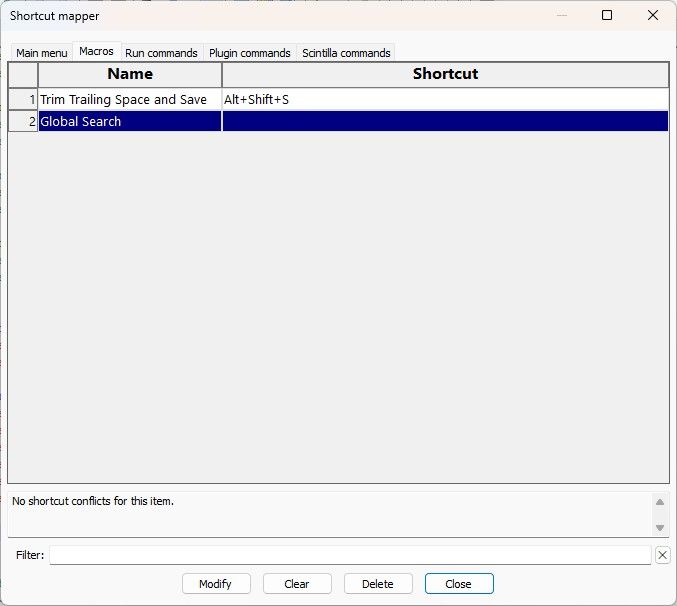
It’s there for me. Is the macro in the Macro menu yet? If not, did you remember to save the
shortcuts.xmlfile and then exit Notepad++ and restart, because Notepad++ doesn’t re-read that config file for new macros when you save it: you have to exit the app and launch it again to have it reload the config files.
update: Looking at @guy038 's original, he said,
Reminder :
-
If you installed N++ with an installer package, your active
shortcuts.xmlfile should be within the folder%AppData%\Notepad++ -
If you installed N++ with a portable package, your active
shortcuts.xmlfile should be along with theNotepad++.exefile, in your install folder -
You may also define a shortcut for this
Global Searchmacro, by opening theSettings > Shortcut Mapper... > Macrostab and double-clicking on theGlobal Searchline !
Now :
-
Close and restart Notepad++
-
Paste the French text, below, in a new tab ( I rewrote the same French text in different cases ! )
He should have had the
Close and restart Notepad++before theYou may also define ...– he probably didn’t notice, when typing up the instructions, that it might cause confusion.Having read my post, he will most likely fix his original, so that it has accurate instructions for future readers.
-
-
This question is for @guy038.
I don’t know if I have modified the shortcuts.xml file correctly, here is my file contents:
<?xml version=“1.0” encoding=“UTF-8”?>
<NotepadPlus>
<InternalCommands />
<Macro name=“Global Search” Ctrl=“no” Alt=“no” Shift=“no” Key=“0”>
<Action type=“3” message=“1700” wParam=“0” lParam=“0” sParam=“” />
<Action type=“3” message=“1601” wParam=“0” lParam=“0” sParam=“(?=\X)(.)|(?!\X).” />
<Action type=“3” message=“1625” wParam=“0” lParam=“2” sParam=“” />
<Action type=“3” message=“1602” wParam=“0” lParam=“0” sParam=“(?1(?=[[=$1=]])\X)” />
<Action type=“3” message=“1702” wParam=“0” lParam=“640” sParam=“” />
<Action type=“3” message=“1701” wParam=“0” lParam=“1609” sParam=“” />
</Macro>
<Macros />
<UserDefinedCommands>
<Command name=“Get PHP help” Ctrl=“no” Alt=“yes” Shift=“no” Key=“112”>https://www.php.net/$(CURRENT_WORD)</Command>
<Command name=“Wikipedia Search” Ctrl=“no” Alt=“yes” Shift=“no” Key=“114”>https://en.wikipedia.org/wiki/Special:Search?search=$(CURRENT_WORD)</Command>
<Command name=“Open selected file path in new instance” Ctrl=“no” Alt=“yes” Shift=“no” Key=“117”>$(NPP_FULL_FILE_PATH) $(CURRENT_WORD) -nosession -multiInst</Command>
</UserDefinedCommands>
<PluginCommands />
<ScintillaKeys />
</NotepadPlus>I was trying to find this line: the line containing </Macros> in shortcuts.xml but did not see it.
-
Please use the
</>button on the forum toolbar when you want to paste example text, and put the text where it sayscode_textwhen you do that. That way, your example text won’t be interpreted as “markdown”, so that we know that your example text is coming through the way you pasted it.@MurraySobol said:
This question is for @guy038.Why limit it, when anyone else with the knowledge can answer as well?
I don’t know if I have modified the shortcuts.xml file correctly,
You have not. The
<Macro name=...>...</Macro>must be between<Macros>and</Macros>here is my file contents:
<?xml version="1.0" encoding="UTF-8"?>
<NotepadPlus>
    <InternalCommands />
        <Macro name="Global Search" Ctrl="no" Alt="no" Shift="no" Key="0">
            <Action type="3" message="1700" wParam="0" lParam="0" sParam="" />
            <Action type="3" message="1601" wParam="0" lParam="0" sParam="(?=\X)(.)|(?!\X)." />
            <Action type="3" message="1625" wParam="0" lParam="2" sParam="" />
            <Action type="3" message="1602" wParam="0" lParam="0" sParam="(?1\(\?=[[=$1=]]\)\\X)" />
            <Action type="3" message="1702" wParam="0" lParam="640" sParam="" />
            <Action type="3" message="1701" wParam="0" lParam="1609" sParam="" />
        </Macro>
    <Macros />
    <UserDefinedCommands>
        ...
    </UserDefinedCommands>
    <PluginCommands />
    <ScintillaKeys />
</NotepadPlus>
I was trying to find this line: the line containing </Macros> in shortcuts.xml but did not see it.
Looks like the updated XML libary that Notepad++ now uses is changing empty
    <Macros>
    </Macros>
into
<Macros />… which is valid XML, but annoying when people are trying to explain how to edit macros manually.
To follow @guy038’s instructions, you will have to change
<Macros />into
    <Macros>
    </Macros>
and then put the macro inside it, like:
<Macros> <Macro name="Global Search" Ctrl="no" Alt="no" Shift="no" Key="0"> <Action type="3" message="1700" wParam="0" lParam="0" sParam="" /> <Action type="3" message="1601" wParam="0" lParam="0" sParam="(?=\X)(.)|(?!\X)." /> <Action type="3" message="1625" wParam="0" lParam="2" sParam="" /> <Action type="3" message="1602" wParam="0" lParam="0" sParam="(?1\(\?=[[=$1=]]\)\\X)" /> <Action type="3" message="1702" wParam="0" lParam="640" sParam="" /> <Action type="3" message="1701" wParam="0" lParam="1609" sParam="" /> </Macro> </Macros> -
Hello, @murraysobol, @peterjones and All,
I corrected, in my first post to @troglo37, the spelling mistake on the word
shortcuts.xmland rearranged a few lines to make my description more precise !
Of course, @murraysobol, it’s better to use the second version of my macro. Note, however, that this macro generally replaces a fairly short piece of text with a rather long string of characters ! Therefore, you may need to change a default setting in the
Searchsection ofPreferences...if the resulting regular expression becomes too long !For example, in my last post to @troglo37, the two lines of the test contains, respectively,
124and135chars and the resulting regexes contains, both,1,612chars !So, go to
Settings > Preferences... > Searchingsection. Then, in the partWhen Find Dialog is Invoked, move to theMax Characters to Auto-Fill Find field from Selectionoption and modify the default1024value to a greater value. Personally, I use the maximum16383value !However, it’s obvious that your initial selection must be as short as possible This macro will be used mainly to get the different spellings of names or surnames !
An exemple with this INPUT text, below :
Our friends Šarūnas, Đorđe, Ørjan, Paweł, Ștefania, Ángel and Uğur had already left
Our friends Sarūnas, Đorđe, Orjan, Paweł, Ștefania, Ángel and Uğur had already left
Our friends Šarunas, Đorđe, Ørjan, Pawel, Stefania, Ángel and Uğur had already left
Our friends Šarūnas, Dorde, Ørjan, Paweł, Ștefania, Angel and Ugur had already left
Now if I copy, at random, the third line of this INPUT text somewhere else, select that line and run the
Global Searchmacro, I get this regex :(?=[[=O=]])\X(?=[[=u=]])\X(?=[[=r=]])\X(?=[[= =]])\X(?=[[=f=]])\X(?=[[=r=]])\X(?=[[=i=]])\X(?=[[=e=]])\X(?=[[=n=]])\X(?=[[=d=]])\X(?=[[=s=]])\X(?=[[= =]])\X(?=[[=Š=]])\X(?=[[=a=]])\X(?=[[=r=]])\X(?=[[=u=]])\X(?=[[=n=]])\X(?=[[=a=]])\X(?=[[=s=]])\X(?=[[=,=]])\X(?=[[= =]])\X(?=[[=Đ=]])\X(?=[[=o=]])\X(?=[[=r=]])\X(?=[[=đ=]])\X(?=[[=e=]])\X(?=[[=,=]])\X(?=[[= =]])\X(?=[[=Ø=]])\X(?=[[=r=]])\X(?=[[=j=]])\X(?=[[=a=]])\X(?=[[=n=]])\X(?=[[=,=]])\X(?=[[= =]])\X(?=[[=P=]])\X(?=[[=a=]])\X(?=[[=w=]])\X(?=[[=e=]])\X(?=[[=l=]])\X(?=[[=,=]])\X(?=[[= =]])\X(?=[[=S=]])\X(?=[[=t=]])\X(?=[[=e=]])\X(?=[[=f=]])\X(?=[[=a=]])\X(?=[[=n=]])\X(?=[[=i=]])\X(?=[[=a=]])\X(?=[[=,=]])\X(?=[[= =]])\X(?=[[=Á=]])\X(?=[[=n=]])\X(?=[[=g=]])\X(?=[[=e=]])\X(?=[[=l=]])\X(?=[[= =]])\X(?=[[=a=]])\X(?=[[=n=]])\X(?=[[=d=]])\X(?=[[= =]])\X(?=[[=U=]])\X(?=[[=ğ=]])\X(?=[[=u=]])\X(?=[[=r=]])\X(?=[[= =]])\X(?=[[=h=]])\X(?=[[=a=]])\X(?=[[=d=]])\X(?=[[= =]])\X(?=[[=a=]])\X(?=[[=l=]])\X(?=[[=r=]])\X(?=[[=e=]])\X(?=[[=a=]])\X(?=[[=d=]])\X(?=[[=y=]])\X(?=[[= =]])\X(?=[[=l=]])\X(?=[[=e=]])\X(?=[[=f=]])\X(?=[[=t=]])\XFinally, if you select the
1,079characters of this regex and open the Find dialog withCtrl + F, you can easily verify that it matches, successively, the four lines of the INPUT text. Whaooou ;-))Note that I could have chosen the first, the second or the fourth line, either. The resulting regexes would have matched the four lines of the INPUT text, as well !
Best Regards,
guy038
-
@guy038 I’m sorry, but I’m totally confused by what I’ve seen so far.
Can you or anyone make one post step by step, everything from the beginning to the end of what needs to be done?
It would be extremely helpful for me and others who aren’t programmer-savvy. -
Hello, @troglo37 and All,
OK. So let’s start off slow !
First of all, I’d like to check with you to make sure we’re on the same page about our goal :
If we begin with this text :
Our friends Sarunas, Dorde, Orjan, Pawel, Stefania, Angel and Ugur had already left
Our friends Šarūnas, Đorđe, Ørjan, Paweł, Ștefania, Ángel and Uğur had already left
Our friends Šarūnas, Đorđe, Ørjan, Paweł, Ștefania, Ángel and Uğur had already left
As you can notice these lines are quite similar and differ only because of some accents in the first names :
-
The first line does not contain any accent
-
The second line contains some characters with an accent. Here are their Unicode values :
Š = 0160 ū = 016B Đ = 0110 đ = 0111 Ø = 00D8 ł = 0142 Ș = 0218 Á = 00C1 ğ = 011F- The third line contains — when it was possible to find an equivalent — a classical
ASCIIletter immediately followed with a combining diacritical mark — an accent — thus two characters for one glyph. However, the lettersĐ, đ, Ø and ł, without equivalent, are single characters only, like above !
S + 030C = Š
u + 0304 = ū
Đ = 0110
đ = 0111
Ø = 00D8
ł = 0142
S + 0326 = Ș
A + 0301 = Á
g + 0306 = ğ
Now, I assume you’d be interested in finding any of these three syntaxes — or others like them — at the same time, in your file(s), right ?
@troglo37, just tell me if this is your goal ?
See you later !
Best Regards,
guy038
-



Hello! It looks like you're interested in this conversation, but you don't have an account yet.
Getting fed up of having to scroll through the same posts each visit? When you register for an account, you'll always come back to exactly where you were before, and choose to be notified of new replies (either via email, or push notification). You'll also be able to save bookmarks and upvote posts to show your appreciation to other community members.
With your input, this post could be even better 💗
Register Login