How do I change font?
-
Hello, @benny-brodda, @alan-kilborn, @meta-chuh and all,
Normally, the default font size value is saved in the
stylers.xmlfile of your N++ configuration. Depending of your N++ first installation, this configuration file may be found in different locations and possibly duplicates of this file may exist !So, first, could you give us some general info, clicking on the N++ option
? > Debug Info...? It should help us …to help you ;-))I just verified that specific values of zoom, in each of the two views, independently, are kept from one N++ session to another ;-))
Best Regards,
guy038
-
Alan, thnks,
The zoom option fixes it all. Peculiar that adjusting the font size through the settings feature has no influence whatsoever it seems on the font size. Whatsoever it there for?/Benny -
@Benny-Brodda said:
settings feature has no influence
I too have had issues in the past, however I noticed that the image provided by @Meta-Chuh isn’t exactly what I have. My equivalent is:
(https://imgur.com/D6cPnTt)
which has the global options which ALSO need setting below the font selection area. Only then will the font in the tabs change.I have 7.6.4 64bit, whether that makes a difference?
Terry
-
Hi, @benny-brodda, @terry-r and All,
Just a reminder :
When you choose the N++ option
Settings > Style Configurator..., a dialog opens with, by default :-
A drop-down Themes list, which refers to the
Default (stylers.xml)theme, on top of the dialog -
A drop-down Language list which refers to the
Global Styleslanguage, on the leftmost part of the dialog -
A drop-down Style list which refers to the
Global overridestyle, on the left of the dialog
Now, in the Language list :
-
Any item, different from the first
Global Stylesand the lastSearch result, are specific built-in languages, different fromNormal Textand anyUDLlanguage. The different modifiable styles, of each language, are described in the corresponding drop-down Style list shown. -
The Search result item describes some settings of the Find result panel, when clicking on :
-
The buttons
Find All in All Opened DocumentsorFind All in Current Documentof the Find dialog -
The button
Find Allof the Find in Files dialog
-
-
The Global Styles language, which describes all the default settings, used when language is set to
Language > N > Normal Text
Let’s suppose, that you chose the options
Default (stylers.xml)theme andGlobal Styleslanguage. Then :-
All styles, different from
Global override, refer to settings specific to theNormal Textlanguage only ! -
The style
Global overriderepresents a pseudo-style, which overrides the default style of any language. This means, in concrete terms, that if you correctly modify the right part of the Style Configurator window, these new settings will apply, from now on, to ALL languages, includedNormal Textand on theSearch resultpanel too !
Now, I’ve said “if you correctly modify…” because, changing any of the
7possible settings, needs TWO actions in order to be active. Indeed, you may modify :-
The Global foreground colour ( Yellow, by default )
-
The Global background colour ( Orange, by default )
-
The Global Font name ( Courier New, by default )
-
The Global font size ( 10, by default )
-
The Global Bold attribute ( not set, by default )
-
The Global Italic attribute ( not set, by default )
-
The Global Underline attribute ( not set, by default )
But, secondly, in order to set the changed settings, effectively, you need to check the appropriate square box(es), at the bottom of the dialog, all independently, which all begin with
Enable ....For instance, using the default settings, if you check the two options
Enable global foreground colourandEnable global foreground colour, you should see that, whatever the current language used, everything should appear with a yellow text over an orange background ;-)) The displaying would be identical for any other language, included the Search result panel !Best Regards,
guy038
P.S. :
For people using a built-in theme, among the
20ones, different thanDefault (stylers.xml), most of them have the same settings for, either, theGlobal overridestyle and theDefault Stylestyle. Only4styles have different settings : these are theHello Kitty,Ruby Blue,Vibrant InkandVim Dark Bluestyles ! -
-
This post is deleted! -
This post is deleted! -
@guy038 said in How do I change font?:
But, secondly, in order to set the changed settings, effectively, you need to check the appropriate square box(es), at the bottom of the dialog, all independently, which all begin with Enable …
I realize I’m zombie-threading a little, but oh, good heavens, thank you.
Let’s just say that’s not the way I’ve come to expect to set apps’ fonts and font sizes, the first three or four hits I found for changing font didn’t have that “Enable” step, and your thorough instruction was [figuratively] invaluable.
;^) -
@Meta-Chuh Thank you very much for your help !
-
@guy038 ,
Thank you for the elaborate explanation, clearly distinguishing the three drop-down lists and clarifying that in the Language list, Global Styles is a different from the others, as is Search Result.
-
Noticed on newer versions of N++ that the “Enable global font” option
is gonehas moved. Screenshot for anyone looking: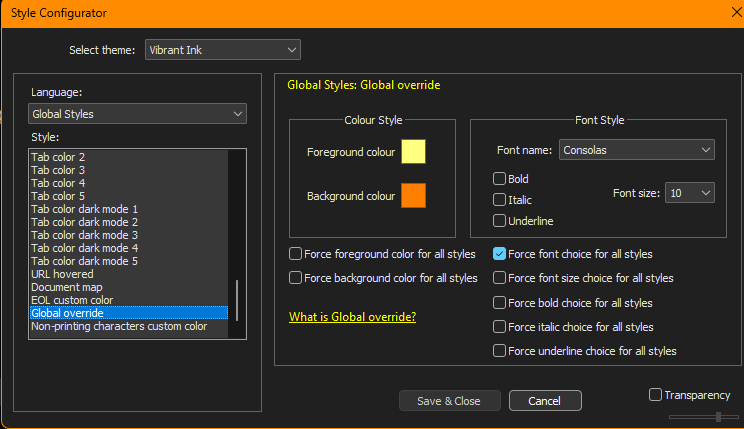
Thanks @PeterJones
-
@Cam-K said in How do I change font?:
Noticed on newer versions of N++ that the “Enable global font” option is gone
It’s not gone, just at the bottom of the list, because it’s not what most people should be using. See the global override dialog and the user manual for more on why you shouldn’t use it.




Hello! It looks like you're interested in this conversation, but you don't have an account yet.
Getting fed up of having to scroll through the same posts each visit? When you register for an account, you'll always come back to exactly where you were before, and choose to be notified of new replies (either via email, or push notification). You'll also be able to save bookmarks and upvote posts to show your appreciation to other community members.
With your input, this post could be even better 💗
Register Login