Theme, Monokai, change color of highlighted line
-
Good morning.
I have some trouble with themes in notepad++
I use Monokai dark at the moment, so far colors are ok.
What I need is a better highlighed line I am working in, its black on dark that has nothing to do with highlight.
Same problem with most other themes.
If I try to change it via Style congiruator the line will be solid in the color I choode doesnt matter for fore or background.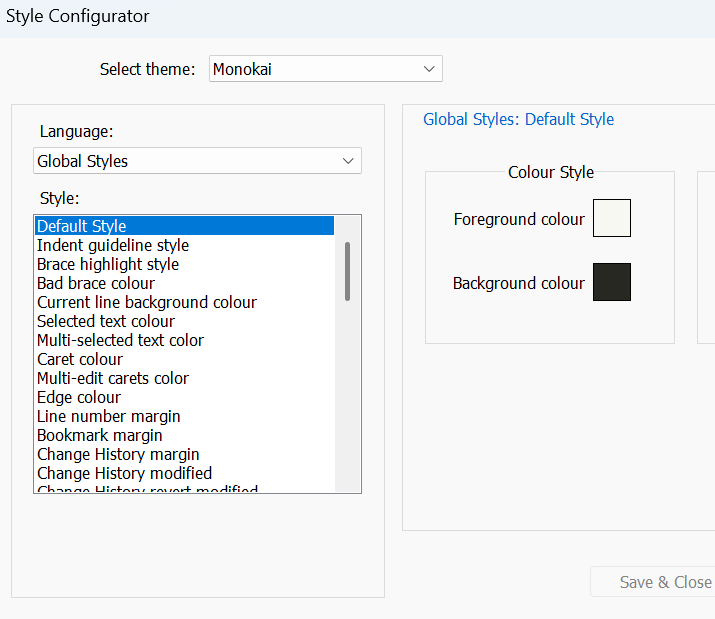
Also background is devided in left and right.

changing background

Absolute strange.
-
Under default Monokai, I cannot replicate:
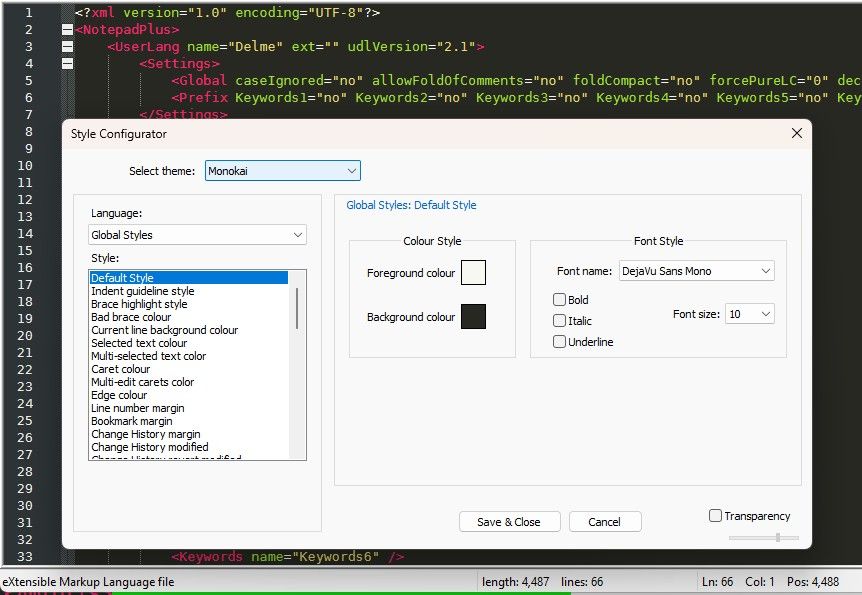
However, if I change the Default Style > Background for Monokai (to a green similar to your second screenshot), I can see it:
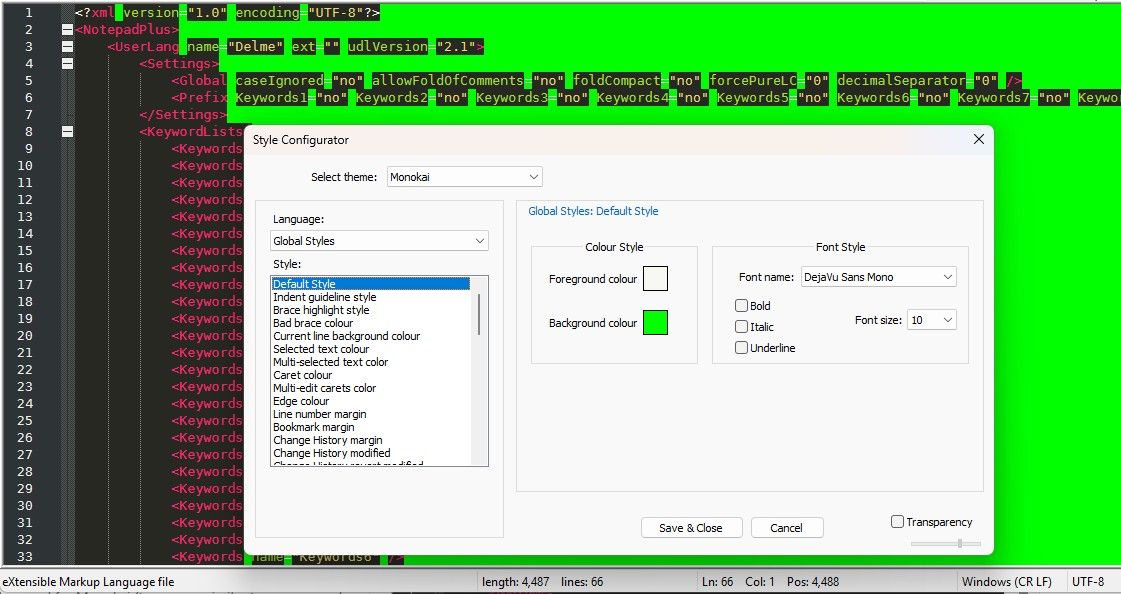
It’s because Monokai (and most themes) hardcodes every background color for every style, rather than using “inherit”. Here’s an example using the default style:
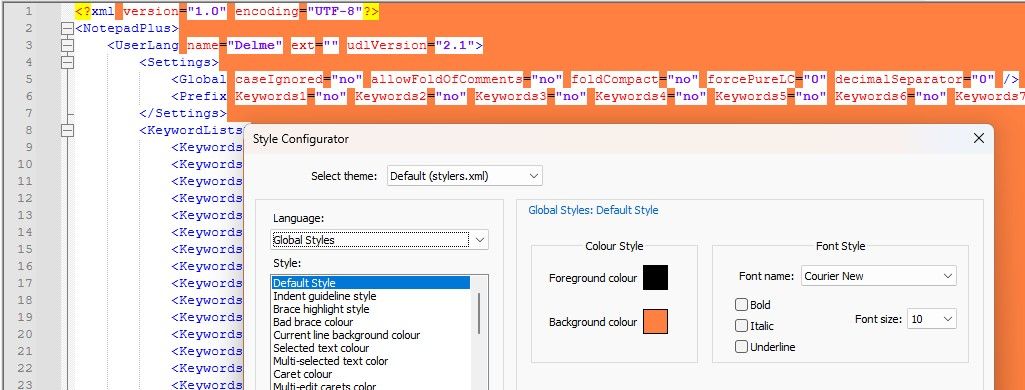
The theme color choices aren’t always perfect, and not everyone is going to agree with color choices made. As such, you can customize to what you want.
If you want most of the backgrounds for your theme to inherit from the “default background” rather than being hardcoded, you can go through and right click the background color for any that are the default. (Or, as a footnote, I will also explain a process that you can edit the XML for your customized Monokai, to automatically change anything that has a background that matches the monokai default background to inherit from default background, so that you can do it in a lot less time.)
What I need is a better highlighed line I am working in, its black on dark that has nothing to do with highlight.
…
If I try to change it via Style congiruator the line will be solid in the color I choode doesnt matter for fore or background.Which “highlight” do you mean? And I am not sure what you aren’t liking about it when you change it.
- Current line highlight:
- default Monokai:

- set it to something else:
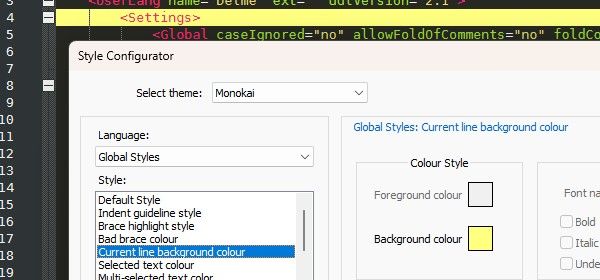
- it does exactly what I expect: it changes the current line background color 0x3E3D32 to something based on the color I selected.
- default Monokai:
- Selected text colour:
- default:
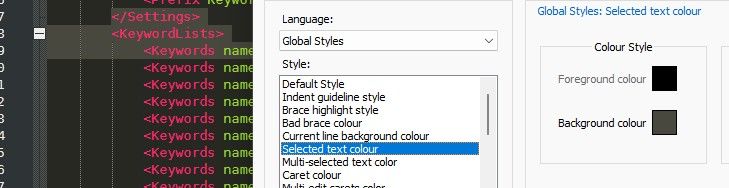
- modified:
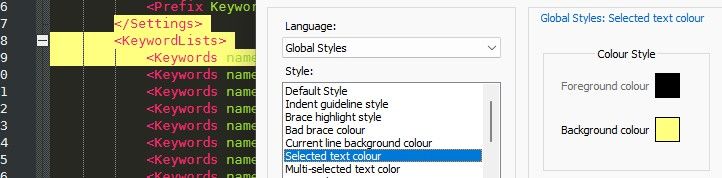
- again, it does what I expect
- default:
- Smart Highlighting:
- default:
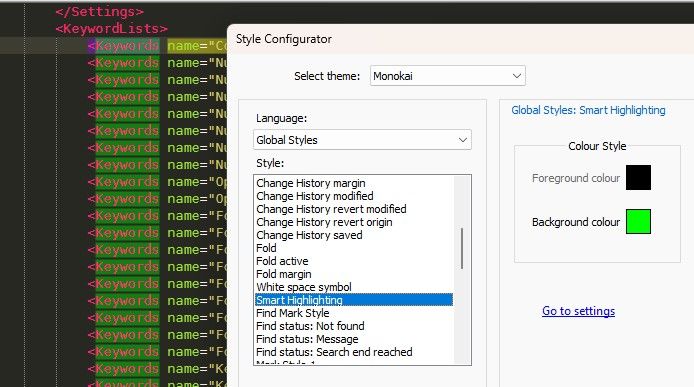
- changed to cyan:
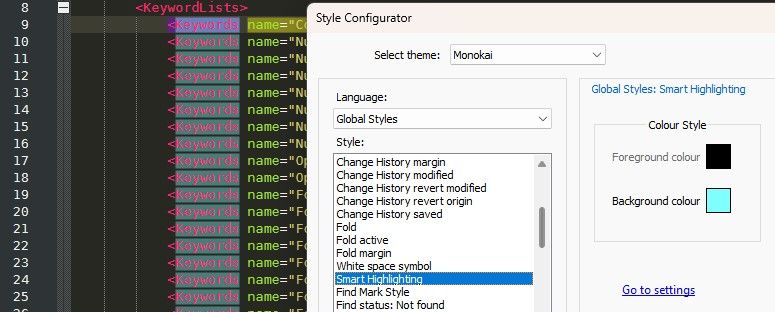
- this one, it’s actually combing the selected color with the normal background color, so it’s not exactly the same color you chose; but again, that’s not unique to Monokai
- default:
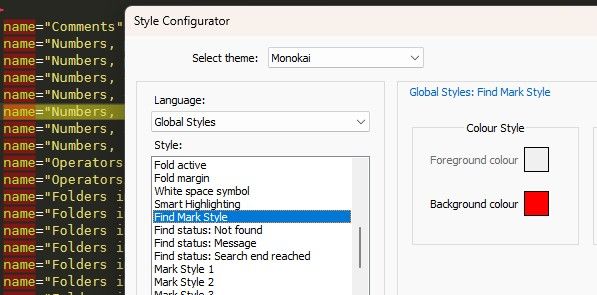
- Find Mark Style: used when you use Find > Mark dialog
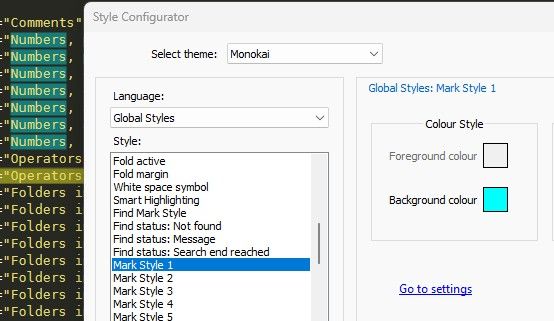
- Mark Style #: used when you use Search > Style … Token options:
There are a few other, less likely, choices that you might mean by highlight. But rather than showing that I think it does what’s expected, it would be better if you were more specific about what you were doing, and what you don’t like, and what you would like.
Footnote: Make Monokai backgrounds inherit quickly
I assume you have a copy of
Monokai.xmlin%AppData%\Notepad++\themes\.- Exit all copies of Notepad++
- Copy
Monokai.xmltoMonokai_custom.xml - Edit
Monokai_custom.xmlwith Notepad++ - Confirm that
<WidgetStyle name="Default Style"hasbgColor="272822"– if not, manually edit it to use that - Search > Replace, set Search Mode =
Regular Expression- FIND =
(?-s)bgColor="272822".*\KcolorStyle="(?:(2)|(3))"
REPLACE =colorStyle="(?{1}0)(?{2}1)"
REPLACE ALL - FIND =
(?-s)(bgColor="272822"(?:(?!colorStyle).))*\h*/>
REPLACE =colorStyle="${1} colorStyle="1" />
REPLACE ALL - On the “Default Style” line again, delete
colorStyle="1" - Save the file
- FIND =
- Exit Notepad++ and re-launch it
- Settings > Style Configurator > Select Theme =
Monokai_custom
Now if you change Monokai_custom’s default background color, it should propagate to all the other styles (both normal text and each language), so it really changes the background throughout.
- Current line highlight:

Hello! It looks like you're interested in this conversation, but you don't have an account yet.
Getting fed up of having to scroll through the same posts each visit? When you register for an account, you'll always come back to exactly where you were before, and choose to be notified of new replies (either via email, or push notification). You'll also be able to save bookmarks and upvote posts to show your appreciation to other community members.
With your input, this post could be even better 💗
Register Login