Notepad++ release 8.9.9.1
-
Checked on a virtual machine for Windows 10, there are no such problems with Notepad++ (portable)
Then it might be a problem solely related to Windows 7. In which case, official policy is that the problem doesn’t need to be addressed. It may be that the recent security improvements are finally the impetus to stop trying to keep Notepad++ even in the “running” column – I believe there are a couple of recent changes that haven’t been made because it might stop Win7 from being in the “running”. But these security changes are important, so maybe it’s time to say that 8.9.9.1 is the last known-running for Win7, and allow 8.9.9.2 (or 9.0 or whatever’s next) to stop creating win7-compatible executables
Or, other options:
- Continue using your old, insecure OS, and keeping Notepad++ always in Admin mode, by no longer updating Notepad++ on that machine. Since you obviously don’t care about security in the OS, you won’t care that the older Notepad++ isn’t secure.
- Continue using your old, insecure OS, and keeping an older copy of Notepad++ always in Admin mode, but have your updated Notepad++ versions in the right-click context menu but not always in Admin, so the admin-boundary improvements won’t hinder your usage.
- Stop using your old, insecure OS; change to a small Linux if your machine cannot handle modern Windows; and run Notepad++ in WINE.
- Continue using your old, insecure OS; continue updating Notepad++, but stop running Notepad++ in Admin mode – since Notepad++ prompts for UAC when saving to admin-protected files, you don’t need to run Notepad++ in Admin mode to save those files (as you’ve been told multiple times). Running an application in Admin mode when you don’t need to has always been non-best-practice.
-
My conclusion: always check the taskbar for Windows UAC prompt, because Windows doesn’t always bring that prompt to the front. Windows has always been like that.
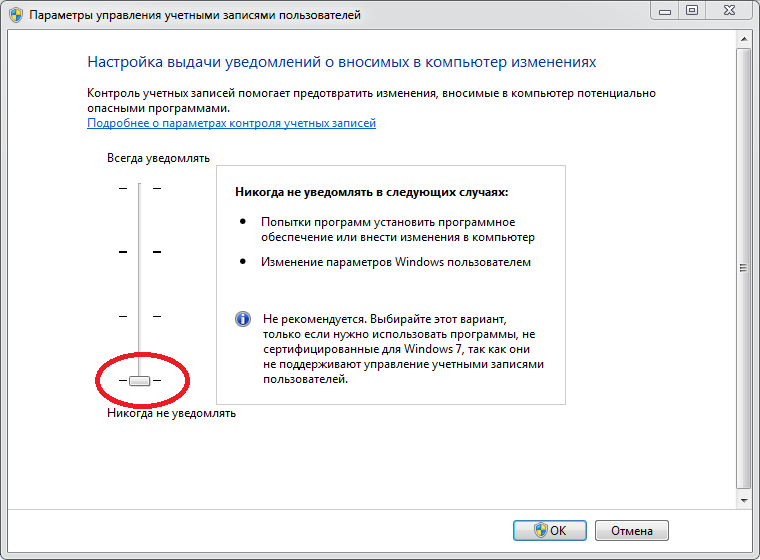
I have this option disabled immediately after installing Windows 7
-
Continue using your old, insecure OS
A very good solution when there is no solution at all))
-
I have this option disabled immediately after installing Windows 7
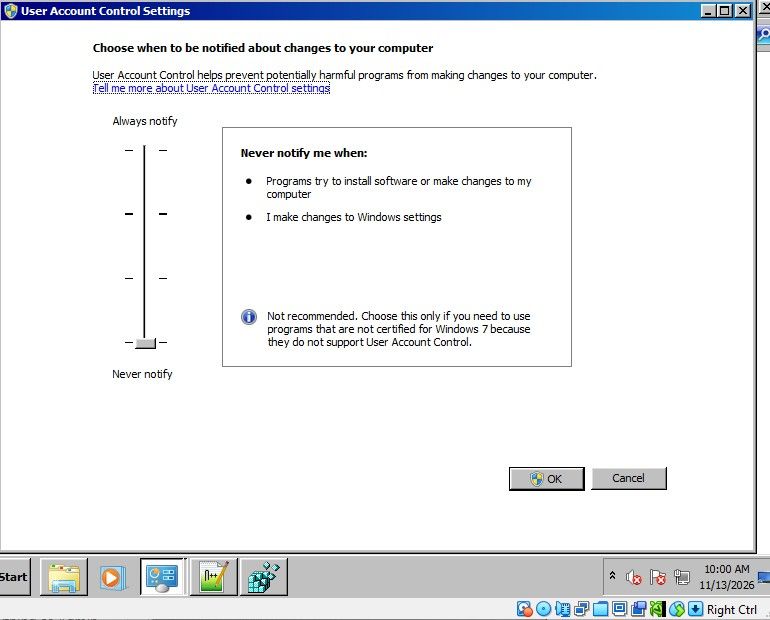
Okay, I found an old Win7 VM (it was 32bit, but it’s Win7). I verified I have the same “Never Notify Me” (lowest setting) there. I see that in that mode, Windows actually just runs everything as Admin (which is the wrong way for that OS to have implemented it), so that’s why Notepad++ is running As Administrator.
I ran the same batch file I showed above, and verified that the context menu opens one file just fine. Then I selected multiple files while Notepad++ was still running, and that context menu opened all of them just fine – no UAC prompt, no files ignored. Then I closed Notepad++, and selected 3 files and ran that context menu entry, and it opened all three just fine – no UAC prompt, no files ignored.
(I tried both with files in a normal directory, and with files in a c:\program files\ directory, and both worked just fine)
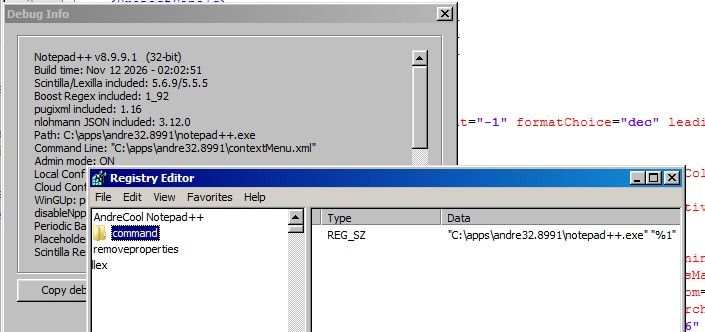
Notepad++ v8.9.9.1   (32-bit)
Build time: Nov 12 2026 - 02:02:51
Scintilla/Lexilla included: 5.6.9/5.5.5
Boost Regex included: 1_92
pugixml included: 1.16
nlohmann JSON included: 3.12.0
Path: C:\apps\andre32.8991\notepad++.exe
Command Line: "C:\apps\andre32.8991\change.log"
Admin mode: ON
Local Conf mode: ON
Cloud Config: OFF
WinGUp: present
disableNppAutoUpdate.xml: present
Periodic Backup: ON
Placeholders: OFF
Scintilla Rendering Mode: SC_TECHNOLOGY_DIRECTWRITE (1)
Multi-instance Mode: monoInst
asNotepad: OFF
File Status Auto-Detection: cdEnabled4CurrentFile
Dark Mode: OFF
Display Info:
    primary monitor: 800x600, scaling 100%
    visible monitors count: 1
    installed Display Class adapters:
        0000: Description - VirtualBox Graphics Adapter (WDDM)
        0000: DriverVersion - 7.1.8.18469
OS Name: Windows 7 Enterprise (32-bit)
OS Build: 7601.23964
Current ANSI codepage: 1252
Plugins:
    mimeTools (3.2)
    NppConverter (4.7)
    NppExport (0.4)
So even in Windows 7, I cannot replicate your problem. I still find no evidence that the problem is in Notepad++ itself.
What happens if you switch from the lowest security to the second-lowest (in standard US-EN, “Notify me only when programs try to make changes to my desktop (do not dim my desktop)”) or any of the others. (I tried that 3rd level, or the 2nd, or the 1st, and it still worked: it didn’t run Notepad++ as Admin anymore, and when I tried to save a protected file, Notepad++ correctly asked for UAC, and the save was successful.)
So nothing I do replicates your problem. I am sorry.
-
So even in Windows 7, I cannot replicate your problem.
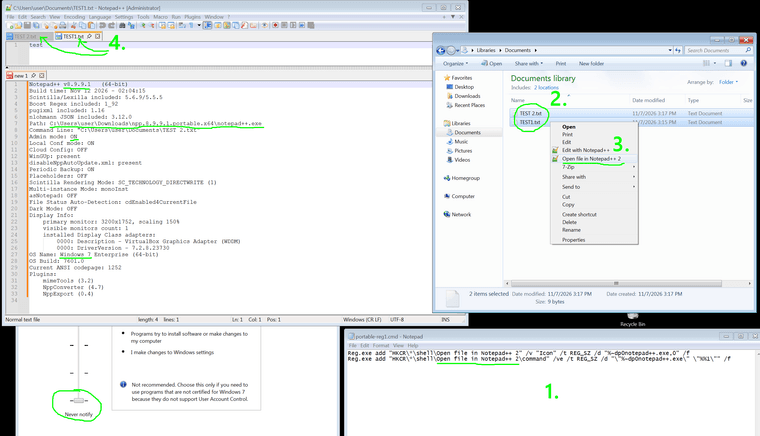
Me neither (64-bit Win7 SP1 VM):
-
So nothing I do replicates your problem. I am sorry.
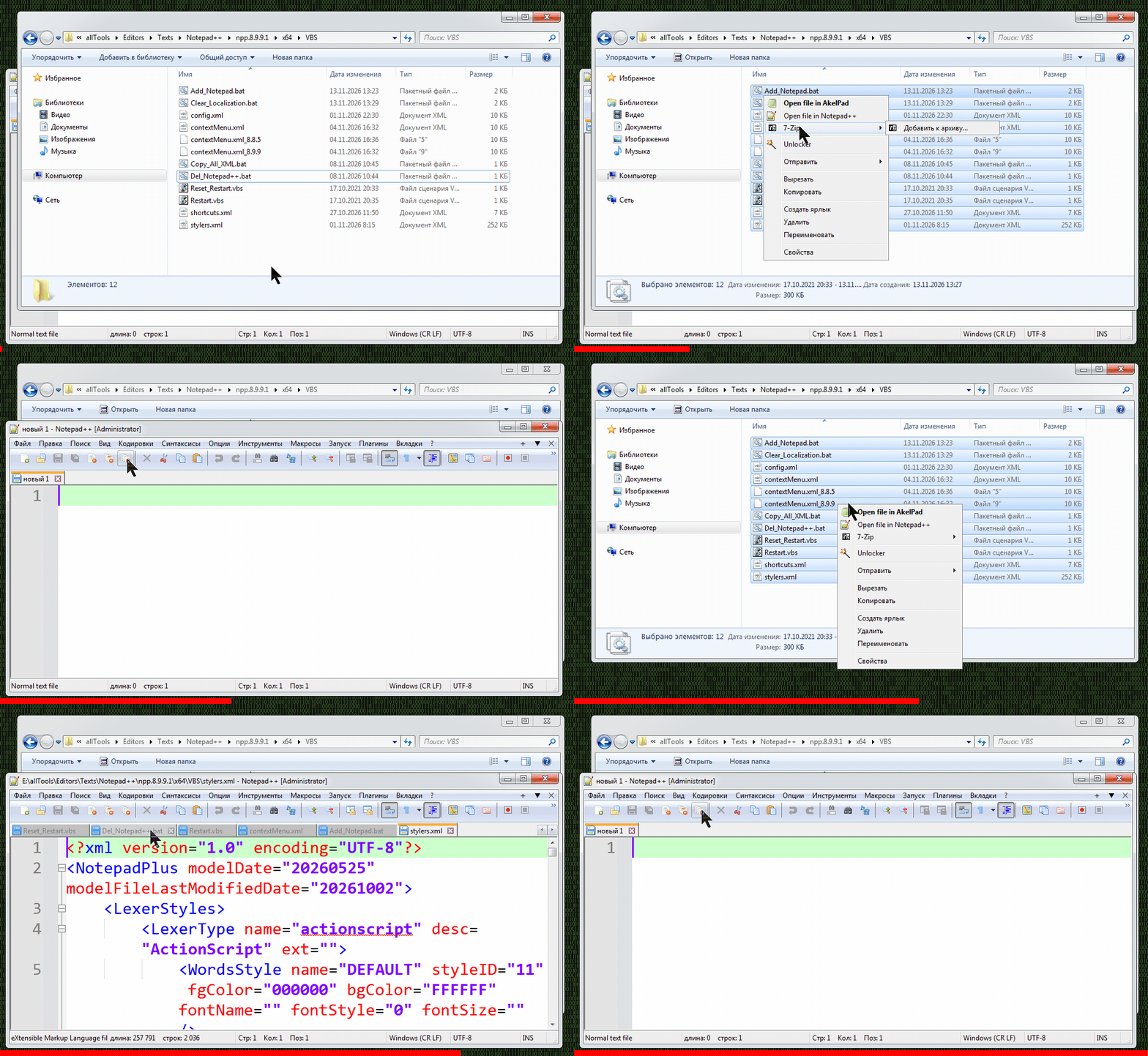
I did another test on a virtual machine with a clean version of Windows 7 x64, launched the same directory with the new version of Notepad++, and there were no file opening errors at all.
Then on the main system I ran a disk check for errors
sfc /scannowI checked the same directory again with the new version of Notepad++, and the file opening errors have disappeared for now.
-
and the file opening errors have disappeared for now.
Hopefully it will stay working. Good luck.
-
-
My paths in the registry are as straight as an arrow, this is a problem in Notepad++ itself. In previous versions, everything works perfectly!
I did another test on a virtual machine with a clean version of Windows 7 x64, launched the same directory with the new version of Notepad++, and there were no file opening errors at all.
Then on the main system I ran a disk check for errors
I checked the same directory again with the new version of Notepad++, and the file opening errors have disappeared for nowThere have been quite a few of vulnerability fixes recently, and some of them may affect older configurations. If that’s the case, there’s nothing we can do about it.
In any event, I’m glad to hear the issue has been resolved with the latest version.
Next time, please mùake sure you’ve ruled out all local causes before accusing the software. Otherwise, it may turn out to be a classic PEBKAC situation. -
Thanks a lot for changing the horizontal line in the lower part of the Find dialog! Now it’s continuous and looks much better.
To make it even more consistent, I suggest making the spacing between the vertical and horizontal lines and the edges the same. Right now it’s just a little bit off. I’d use the vertical spacing for the horizontal spacing as well.
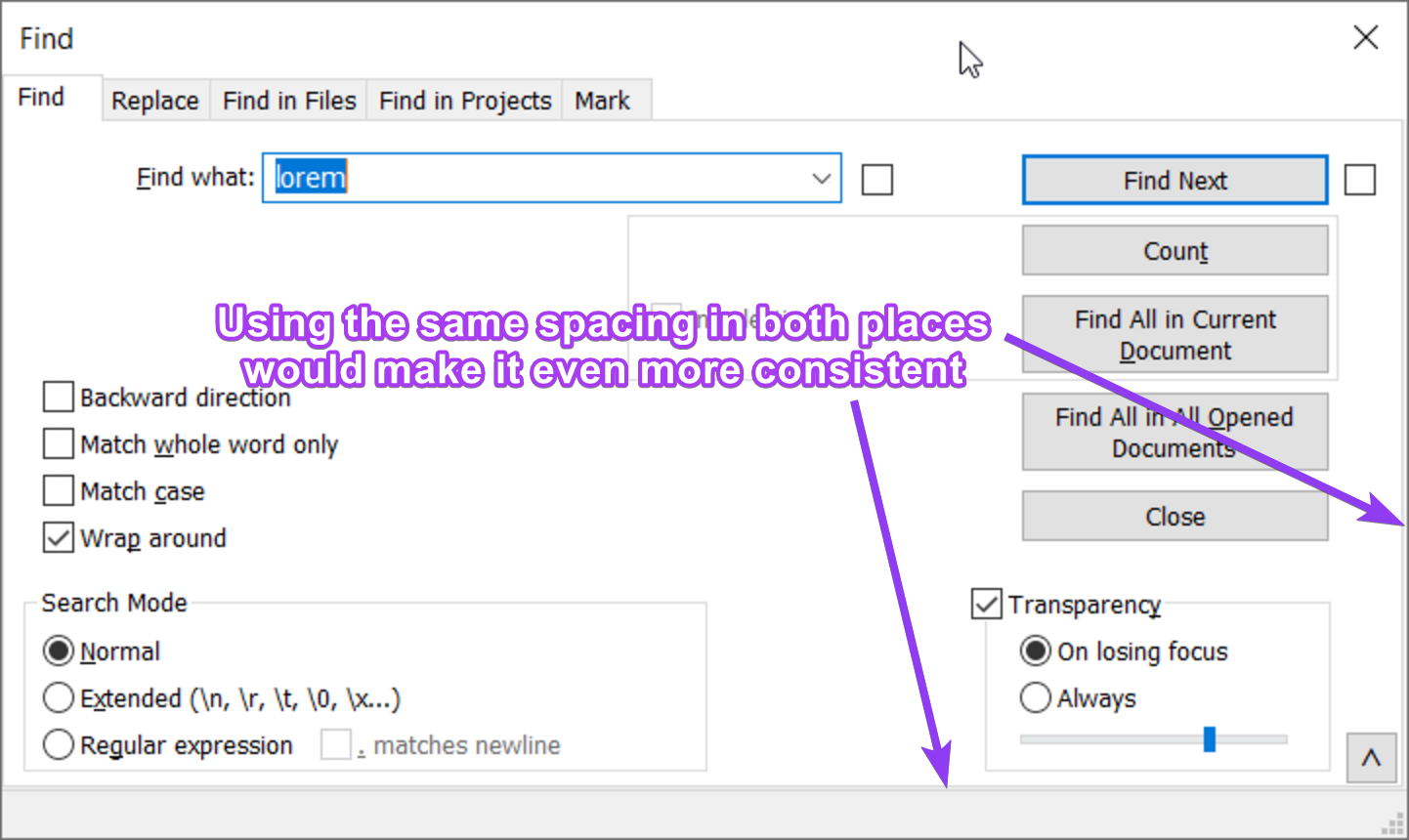
I hope I’m not being too pedantic, but I think these little details matter and make Notepad++ even better. You may not consciously notice them, but your subconscious picks up on them, and they contribute to the overall feel of the application.





Hello! It looks like you're interested in this conversation, but you don't have an account yet.
Getting fed up of having to scroll through the same posts each visit? When you register for an account, you'll always come back to exactly where you were before, and choose to be notified of new replies (either via email, or push notification). You'll also be able to save bookmarks and upvote posts to show your appreciation to other community members.
With your input, this post could be even better 💗
Register Login