Search++: A work in progress
-
Search++ version 0.8 is available:
-
Fix failure to handle hidden lines markers correctly when executing Show commands with Always hide all lines… not checked and when executing the Show only lines with shown text command on the Tools menu.
-
Track and restore first line and last line hidden states across tab changes.
-
Add Spy (temporarily show hidden lines) toggle to the Tools menu. When spy mode is on all lines are visible even though the markers for hidden lines and collapsed folding groups remain; hidden lines can be restored by toggling spy mode off again.
-
Replace the Reset button in the Expand visible configuration dialog with a Tools button. Make Tools menu keyboard shortcuts work in that dialog.
-
General reassignment of shortcut keys for greater consistency. Quite a few things have changed, so it is important to check the help, the community thread and/or the Tools menu and the Find and Replace box context menus for the new assignments if you use keyboard shortcuts in Search++. I regret the disruption; hopefully this will be a one-time change, and keyboard shortcuts will stay the same after this.
There are two big changes in this release: the addition of “Spy mode” and some fairly extensive changes to the keyboard shortcuts to yield greater consistency between mnemonics (underlined letters) and shortcuts, some additional capabilities, and hopefully a generally more logical set of assignments. Those changes are detailed below.
There is now a Tools button on the Expand visible configuration dialog instead of the previous Reset button, and Tools command keyboard shortcuts work when focus is in the Expand visible dialog. My rationale for this is that Reset wasn’t very clear, it just did a command from the Tools menu anyway (Show only lines with shown text), and especially with the new Spy toggle available, I’m not at all convinced there’s a reason to give any one command special accessibility.
There is a small change in the way the keyboard shortcuts for Show selected/all text (now Ctrl+O / Ctrl+Shift+O) work. Previously, the unshifted version, like the menu item, would show all lines if all selected text, or the caret if no text was selected, was visible. The menu item still changes to Show all lines, not requiring a shift or a right-click, if none of the selection is hidden, but Ctrl+O will do nothing if none of the selection is hidden, so that Ctrl+Shift+O is required to show all lines. My rationale is that especially when spy mode is active, it might be easy to accidentally show all lines when that is not intended if Ctrl+O does both. When using the menu, you have the item text to clue you in.
As always, comments, critiques, suggestions, problem reports and experiences are most welcome, and thank you for giving this work-in-progress a try.
Spy mode lets you temporarily view all lines in the active document while keeping the markers that define what should be hidden intact. The idea is from this feature request and the subsequent discussion.
I expect this to be most useful after a Show command. If the caret or selection is visible on the screen when you toggle Spy to checked, that part of the text will remain in (approximately) the same place on the screen while all lines become visible. That lets you see additional context for the match. You can use Show selected lines from the Tools menu to change the markers so the selected lines are not marked as hidden; then when you toggle Spy to unchecked, those lines will remain visible.
The Spy setting is per tab and is preserved when you change tabs and change back again. (As of this release, hidden first and last lines are also preserved.) While you cannot have different hidden line markers or fold markers for the same document in different views (that’s a Notepad++/Scintilla limitation), you can have Spy checked in one view and unchecked in the other.
It is possible to use the Notepad++ Hide Lines command or the icon for collapsing a fold block while Spy is checked. In this circumstance some lines will be hidden, but there may be other lines that are marked as hidden or are part of a collapsed fold block that are not hidden. The Spy entry on the Tools menu will then show a bullet instead of a check mark to indicate an indeterminant state. Clicking once will return to full Spy checked state (all lines visible), and clicking a second time will return to normal display. An indeterminant state is not preserved when changing tabs: upon switching back to the tab it will have Spy checked and all lines visible.
Spy is new feature. Expect there to be some glitches. If you have the time and patience, reports of your experience will be much appreciated.
There were a few interconnected rationales for the keyboard shortcut changes, all centered around trying to make things as convenient and coherent as I can for users who prefer to use the keyboard whenever possible. I am sorry for the disruption to those who are already used to some of these shortcuts; hopefully I have it “right” this time, and I won’t have to make such extensive changes again.
I’ll try to list the main changes. They’re all in the help and on the menus, but I can’t guarantee I’ve caught every last one of them here.
General navigation — these work in the main Search++ dialog, the Search in Files dialog, the Search++ results window and the Expand visible configuration dialog:
-
Ctrl+F toggles keyboard focus between the Search in Files dialog and the main Search++ dialog. If the target dialog isn’t visible, it is opened. Ctrl+Shift+F closes the Search in Files dialog.
-
Ctrl+R toggles keyboard focus between the Search++ results window and the main Search++ dialog. If the target dialog or window isn’t visible, it is opened. Ctrl+Shift+R closes the Search++ results window.
-
Ctrl+N puts keyboard focus in the active Notepad++ document. Ctrl+Shift+N closes the main Search++ dialog.
-
Ctrl+Shift+Q closes all Search++ dialogs and windows and puts keyboard focus in the active Notepad++ document.
-
Note that all these except Ctrl+N have changed. Also, Ctrl+O and Ctrl+Shift+O, which used to be general navigation commands, are now the Tools commands Show selected lines and Show all lines.
Main Search++ dialog navigation:
-
Alt+O (the letter “o”) toggles between the Find box and the Replace box.
-
Alt+1 through Alt+5 (only on the main keyboard, not the numeric keypad) open the drop-down menus on the five search command buttons. These were previously difficult to access by keyboard alone.
-
The third (“Find All”) command button uses the mnemonic (underlined letter)
A,S,KorHwhen the one-click command action is Find All, Select, Mark or Show. (Recall that you can set any command on the drop-down menu as the one-click command for a button by right clicking or Shift+clicking the command.) The Alt key plus that letter performs the one-click command (as it always did), while the Alt key plus one of the remaining letters performs the default command for the associated action.
Search in Files dialog navigation:
-
Alt+O (the letter “o”) toggles between the Find box and the Replace box.
-
Alt+T puts keyboard focus in the table of files at the bottom of the dialog.
Find and Replace box context menus (in the main Search++ dialog and the Search in Files dialog):
-
Ctrl+G is Exchange Find/Replace (formerly Ctrl+E). This swaps the Find and Replace fields in the dialog in which you are working.
-
Ctrl+Shift+H is Insert Find (formerly Ctrl+F and called Copy Find). This inserts the contents of the Find box in the main Search dialog at the location of the caret or in place of the selection. If you are working in the Find box in the main Search dialog, it replaces the contents of the Replace box with the contents of the Find box.
-
Ctrl+Shift+J is Insert Replace (formerly Ctrl+R and called Copy Replace). This inserts the contents of the Replace box in the main Search dialog at the location of the caret or in place of the selection. If you are working in the Replace box in the main Search dialog, it replaces the contents of the Find box with the contents of the Replace box.
Tools menu commands:
-
Show selected/all lines is now Ctrl+(Shift+)O.
-
Expand visible is now Ctrl+E, and configure is Ctrl+Shift+E.
-
Hide all lines is now Ctrl+H.
-
Remove marks from selected text is now Ctrl+Shift+V.
-
Select marked text is now Ctrl+Shift+S.
-
Copy marked text is now Ctrl+P with Ctrl+Shift+P for the configuration dialog.
-
Clear marks [and bookmarks] from active document (formerly Remove marks…) is now Ctrl+Shift+C.
-
Clear marks from multiple documents… (formerly Remove marks…) is now Ctrl+Shift+D.
-
Settings… is now Ctrl+Shift+G.
-
The mnemonic (underlined letter) for every item on the Tools menu which has a keyboard shortcut is now the same as the letter used in the keyboard shortcut. Keyboard shortcuts for Tools commands work when keyboard focus is in the main Search++ dialog or in the Expand visible configuration dialog. In the Expand visible configuration dialog, Ctrl+Shift+E opens or switches focus to the main Search++ dialog.
-
-
Hello, @coises,
Many thanks for this new release ! The new
Spy (temporarily show hidden lines)is interesting as it allows to see all context lines at a glance !The fact that the
Mark,Select,ShowandSpyfonctionalities work per tab is really a plus, too !
Now, after UNCHECKING :
-
In the
Settings > Selectionssection, theDefault commands automatically search within selections.option -
In the
Setings > Marked and shown textsection, theDefault commands automatically search within marked text.option -
In the
Settings > Focussection, all the options, as below :
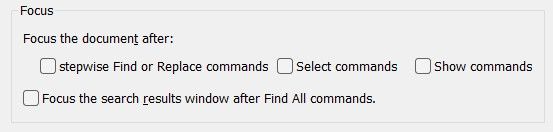
All the following commands keep focus to the
Search++dialog and do the following actions :Alt + F Finds the NEXT occurrence of the SEARCH string, in current file Alt + Shift + F Finds the PREVIOUS occurrence of the SEARCH string, in current file ( when 'PLAIN' button selected ) Alt + R Replaces the NEXT occurrence of SEARCH string, in current file Alt + A Displays ALL occurrences of the SEARCH string, from current file, in the 'Find Results' panel ( CANCEL with Ctrl + Shift+ R ) Alt + C Counts ALL occurrences of the SEARCH String, in current file Alt + E Replace ALL occurrences of the SEARCH string by the REPLACEMENT string, in current file ( when 'PLAIN' or 'REGEX' button selected ) Alt + H Shows ALL lines containing an occurrence of the SEARCH string, in current file ( CANCEL operation with Ctrl + Shift + A ) Alt + K Marks ( and possibly boobmarks ) ALL occurrences of the SEARCH string, in current file ( CANCEL operation with Ctrl + Shift + C ) Alt + S Select ALL occurrences of the SEARCH string, in current file ( NO CANCEL operation provided, so far ? ) ---------------------------------------------------------------------------------------------------------------------------------------------------------------- Alt + D Toggles 'Dot matches line Breaks' option ( when 'Regex' or 'ICU' button selected ) Alt + G Toggles 'Free Spacing' option ( when 'Regex' or 'ICU' button selected ) Alt + M Toggles 'Match case' option Alt + U Toogles 'Unicode Word boundaries' option ( when 'ICU' button selected ) Alt + W Toggles 'Whole word only' option ( when 'PLAIN' button selected ) ---------------------------------------------------------------------------------------------------------------------------------------------------------------- Alt + P Selects 'PLAIN' button Alt + X Selects 'REGEX' button Alt + I Selects 'ICU' button Alt + T Toogles 'TOOLS' button contents Alt + O Toogles between the 'FIND' and 'REPLACE' dialogs ---------------------------------------------------------------------------------------------------------------------------------------------------------------- Alt + Shift + 1 Opens the FIND drop-down menu Alt + Shift + 2 Opens the COUNT drop-down menu Alt + Shift + 3 Opens the FIND ALL drop-down menu Alt + Shift + 4 Opens the REPLACE drop-down menu Alt + Shift + 5 Opens the REPLACE ALL drop-down menu ---------------------------------------------------------------------------------------------------------------------------------------------------------------- Alt + L Displays the N++ 'Language' menu Alt + N Displays the N++ 'Encoding' menu Alt + V Displays the N++ 'View' menu ---------------------------------------------------------------------------------------------------------------------------------------------------------------- ALT + B Nothing ALT + J Nothing ALT + Q Nothing ALT + Y Nothing ALT + Z Nothing
As you can see, the different drop-down menus are opened with an
Alt + Shift + ...shortcut ( and not with anAlt + ...) ! I suppose, you did something wrong while attributing these5shortcuts, didn’t you ?Best Regards,
guy038
-
-
Alt + S Select ALL occurrences of the SEARCH string, in current file ( NO CANCEL operation provided, so far ? )
Since all you need to do to cancel a selection is to click anywhere in the document, I didn’t figure anything more would be needed.
As you can see, the different drop-down menus are opened with an
Alt + Shift + ...shortcut ( and not with anAlt + ...) ! I suppose, you did something wrong while attributing these5shortcuts, didn’t you ?I am guessing that you use one of the French keyboard layouts that requires the Shift key to type digits, correct?
Does this present a problem in actually using the shortcuts, or is it primarily a documentation issue?
Does this correspond to “normal” operation with underlined letters (the usual use of Alt+)? That is, if a dialog has a button labeled
Option 1with the1underlined, do have to use Alt+Shift+ to activate it, or does just Alt+{whatever character is under the1} do it? -
Hi, @coises and All,
You said :
Since all you need to do to cancel a selection is to click anywhere in the document, I didn’t figure anything more would be needed.
I agree with you that’s not a big task ! I just wanted to point out, that if you want to keep focus on the
Search++dialog, in order to use any otherAlt + ...command, I do not see any command which could cancel the selection !
Now, regarding the five shortcuts problem, you’re totally right : my FRENCH keyboard is a standard one and in order to get, for example, the
Alt + 1action, I must use the combinationAlt + Shift + 1! Now, I do not mind to stay with theseAlt + Shift + 1-5shortcuts ! But, if you find a way to detect the keys themselves, that would be fine too !BR
guy038
P.S. : Sorry for thinking you might have made a mistake when assigning those
5shortcuts ! -
 G guy038 referenced this topic on
-
Hello @coises
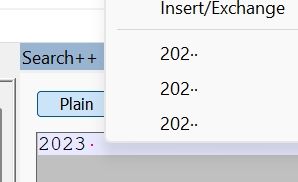
I think there is a small visual glitch in search/replace history
If a search or replace string ends with a blank character the entry is not displayed correctly in the history: the character just in front of the blank is not shown, instead it shows a blank as well:
-
Hello, @coises,
Could you take a look at my three consecutive posts, below , relative to simultaneous search of
compatible Unicode forms / characters?https://community.notepad-plus-plus.org/topic/27611/is-there-a-way-to-find-both-alphabets-with-and-without-accents-at-the-same-time-when-searching/11
https://community.notepad-plus-plus.org/topic/27611/is-there-a-way-to-find-both-alphabets-with-and-without-accents-at-the-same-time-when-searching/12
https://community.notepad-plus-plus.org/topic/27611/is-there-a-way-to-find-both-alphabets-with-and-without-accents-at-the-same-time-when-searching/13Do you think it would be possible to add this feature to Search++ as part of the plugin’s future development ?
Many thanks for your attention !
Best Regards,
guy038
-
Do you think it would be possible to add this feature to Search++ as part of the plugin’s future development ?
I do think it would be possible, and that it would be a useful enhancement.
I haven’t studied the problem in detail yet. The relevant concepts exist and are well-defined: Unicode canonical equivalence and compatibility equivalence. Probably someone has already implemented practical searches using canonical and compatibility equivalence in open source code, so finding and studying existing, mature solutions that have already encountered and resolved whatever complications inevitably arise will no doubt be my first step.
-
-
Hello, @coises, @thomas-knoefel and All,
For some obscure reasons, one day, my usual
USBkey for tests was just considered as containingRAWtext. I did not even succeeded to reformat it ! So I threw it in the trash and from a ( not too old ) copy of that key, I was able more or less, to reconstruct the original contents of thisUSBdrive !
Now, when I asked Google about “softwares able to search canonical and compatibility Unicode characters”, the IA answer, at the beginning, proposed, among other things, the CLI software
ripgrep (rg). Although it does not seem to really treat canonical and compatibility Unicode forms AFAIK, it is quite fast and has plenty of interesting options !Refer to https://github.com/BurntSushi/ripgrep. The last release is version
16.0. Download, preferably, theripgrep-16.0.0-x86_64-pc-windows-msvc.ziparchive which is compatible with64-bit Windows11laptopsAfter extraction of the
rg.exesoftware, in a CMD window, runrg -hfor short descriptions orrg --helpfor more details !
Following my usual procedure, I searched for any file, including binary ones as well, of my new USB key, the string
Fi, with this exact case, in regex mode and I got these results :Search "Fi" (32 189 hits in 624 files of 1 119 searched) [RegEx: Case] with native N++ v8.9.9.1 Search "Fi" (32 189 hits in 624 file(s)) [1 119 file(s) searched] with MultiReplace v6.2.0.38 32 189 matches in 624 of 1 118 files (Regex, match case): Fi with Search++ v0.8 (x64) And running the DOS command "rg -a --stats Fi", it displayed, at the end : 32189 matches 24492 matched lines 624 files contained matches 1118 files searched 12462212 bytes printed 498369521 bytes searched 0.173930 seconds spent searching 0.573693 seconds total
As you can see, the count of matches and the files concerned are identical for these
4tests However, the number of files analyzed varies :-
1,119for N++ and MultiReplace -
1,118for Search++ and rg.exe
I figured out why ! On my
D:key, I have only :-
One directory which is hidden :
System Volume Information -
One file which is hidden :
Thumbs.db
As the
Hidden foldersoption was unchecked,N++andMultiReplacedid not consider the folderSystem Volume Informationbut did take in account theThumbs.dbfile !Whereas,
the Search++plugin and thergsoftware did not consider, both, hidden files AND folders. Thus, it did not analyse theThumbs.db, as well !Consequently, @coises, I suppose that you have enough place to modify the label of the option from
Hidden filestoHidden files and folders. Alternatively, you could also decide to add a new optionHidden folders. Do as you like !
Now, I ran the same tests again, on
txtfiles ONLY and there are the results :•==============•==========•========•===========•===============•===============•==========================• | Software | Hits | In | Scanned | First Time | Second Time | Command | | / Plugin | | Files | Files | After Restart | Right after | | •==============•==========•========•===========•===============•===============•==========================• | Notepad++ | 10600 | 311 | 641 | 17 s 25 " | 5 s 32 " | | •--------------•----------•--------•-----------•---------------•---------------•--------------------------• | MultiReplace | 10600 | 311 | 641 | 11 s 80 " | 1 s 78 " | | •--------------•----------•--------•-----------•---------------•---------------•--------------------------• | Search++ | 10600 | 311 | 641 | 16 s 94 " | 0 s 66 " | | •--------------•----------•--------•-----------•---------------•---------------•--------------------------• | rg.exe | 10600 | 311 | 641 | 16 s 69 " | 0 s 55 " | rg -a -ttxt --stats Fi | •==============•==========•========•===========•===============•===============•==========================•Best Regards,
guy038
P.S. : Please note that the tests were all conducted BEFORE I wrote this post, which, obviously, modify the results !
-
-
Refer to https://github.com/BurntSushi/ripgrep.
An interesting and sophisticated piece of software. It is written in Rust and by default uses that language’s regular expression search engine, which is a “finite state machine” implementation rather than a “backtracking” implementation. The practical effect of that is that the default engine doesn’t support lookarounds or backreferences, though it does support some constructs Boost::regex does not. It also avoids the “complexity” error that can occur during matching with Boost::regex. (The expression itself can still be “too complex,” but if it is, that’s known before matching ever begins.)
One of the “someday…” wishes I have for Search++ is to add an alternate regex engine that uses a finite state machine (e.g., RE2), for use when the search expression doesn’t need backtracking-only features but the total space to be searched is huge.
Consequently, @coises, I suppose that you have enough place to modify the label of the option from
Hidden filestoHidden files and folders. Alternatively, you could also decide to add a new optionHidden folders.Yes, I see I should be more clear. Without thinking about it, I always assumed that if you were excluding “hidden” anything, that meant both hidden files and anything that could only be reached through a hidden folder. I hadn’t realized that Notepad++’s native search would still search hidden files if that box was not checked, so long as they weren’t in a hidden folder.
I’m curious whether you, or anyone, foresees practical cases in which you would want to omit one from a search but not the other.


Hello! It looks like you're interested in this conversation, but you don't have an account yet.
Getting fed up of having to scroll through the same posts each visit? When you register for an account, you'll always come back to exactly where you were before, and choose to be notified of new replies (either via email, or push notification). You'll also be able to save bookmarks and upvote posts to show your appreciation to other community members.
With your input, this post could be even better 💗
Register Login