need help with Remove Unmarked Lines option
-
Hi,
I am facing some problem understanding the Bookmark -> “Remove Unmarked Lines” option.The debug info from my notepad++.
Notepad++ v8.1.4 (64-bit)
Build time : Aug 21 2021 - 13:04:59
Path : C:\Program Files\Notepad++\notepad++.exe
Command Line :
Admin mode : OFF
Local Conf mode : OFF
Cloud Config : OFF
OS Name : Windows 10 Enterprise (64-bit)
OS Version : 1909
OS Build : 18363.1801
Current ANSI codepage : 1252
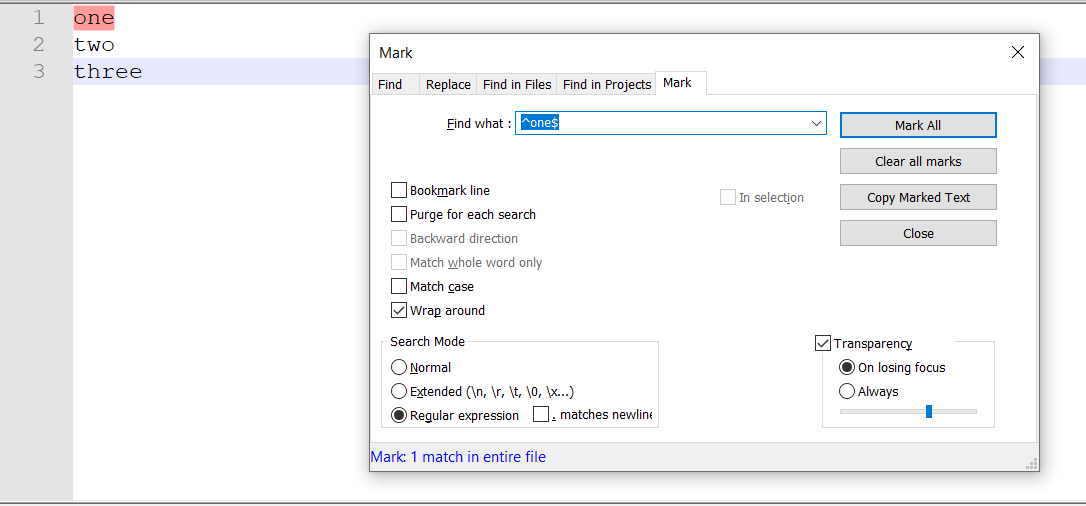
Plugins : LocationNavigate.dll mimeTools.dll NppConverter.dll NppExport.dllI have 3 lines in text window, I searched for one line and marked it. Then I selected the Bookmark -> “Remove Unmarked Lines” option to remove the unmarked lines, but surprisingly all the lines were removed. Note this is an example only, I am facing same problem with a text content of production error lines which I cannot share here.
3 lines with one marked using regex ^one$
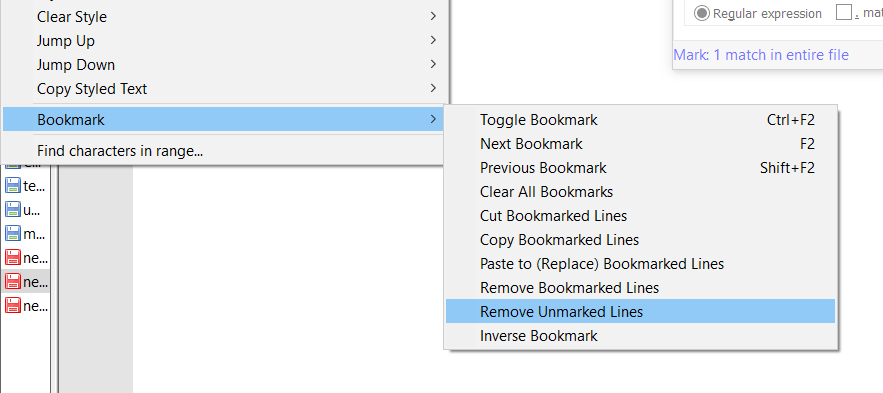
chose option to remove unmarked lines.
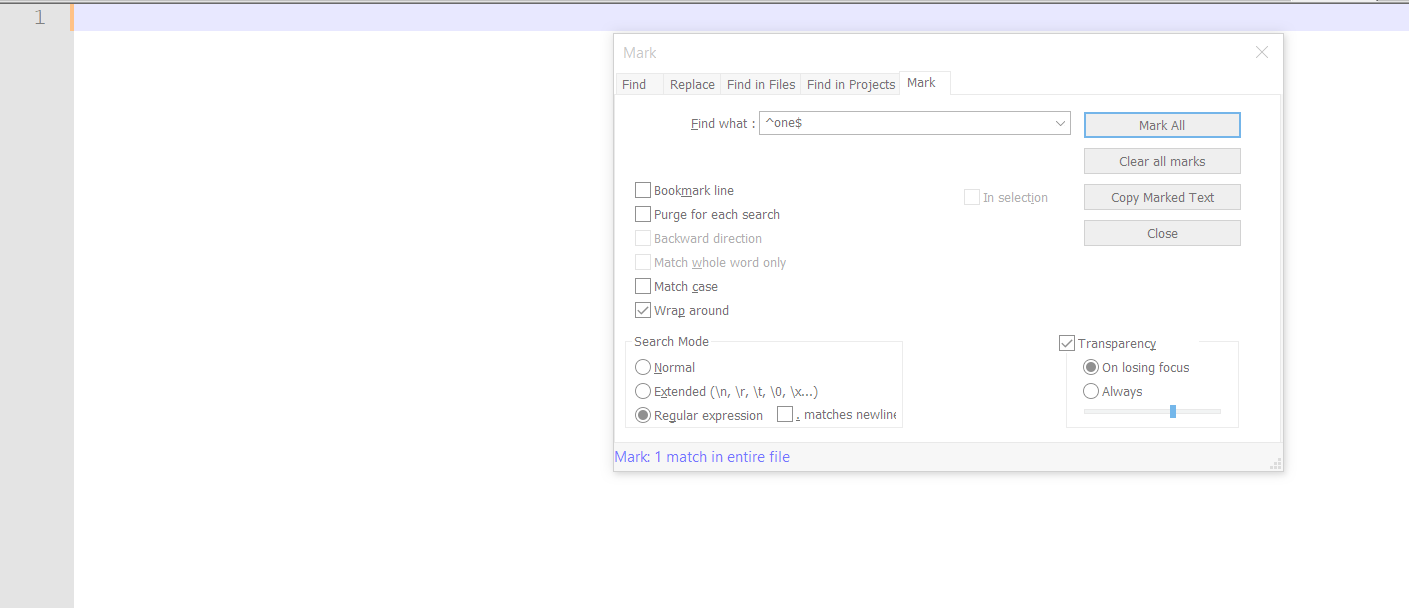
All lines are removed.
Could you please help to understand how to remove lines which are not marked?
Thanks,
Prem -
You have confused “Marks” with “Bookmarks” – they are similarly named, so it’s understandable.
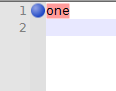
If you added the “Bookmark line” checkbox in the Mark Dialog, and Mark All, then it will add a circle ⚫ to the left of any lines that have a Mark (which is indicated by the change in color on the specific text); this ⚫ is the Bookmark.
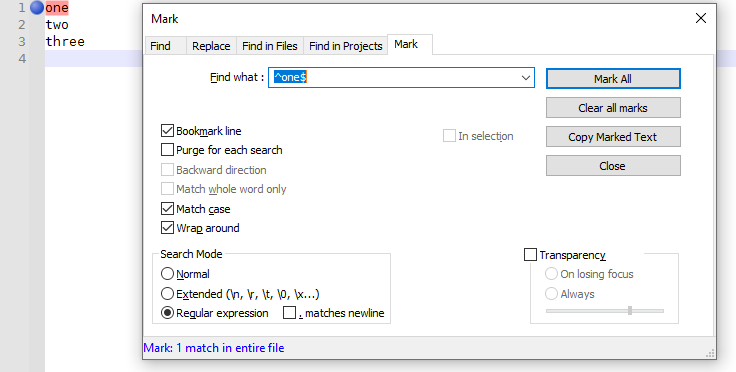
After adding those Bookmarks, now Search > Bookmark > Remove Unmarked Lines will keep the
oneline.
There’s a (relatively new) section in the online usermanual that compares Bookmarks vs Marks
-
great. Thank you for the quick reply.


Hello! It looks like you're interested in this conversation, but you don't have an account yet.
Getting fed up of having to scroll through the same posts each visit? When you register for an account, you'll always come back to exactly where you were before, and choose to be notified of new replies (either via email, or push notification). You'll also be able to save bookmarks and upvote posts to show your appreciation to other community members.
With your input, this post could be even better 💗
Register Login