How to copy as extended, eg CRLF to \r\n
-
I would like to copy some existing text to the clipboard in extended notation, so that I can paste it into the Find or Replace textbox ready for a search-and-replace in Extended mode.
-
You don’t need to do this.
If you select some text containing line-endings and press Ctrl+f, when the Find what box is autopopulated, it will contain the line-ending – you won’t see it, but the characters will be there. -
@alan-kilborn Thank you yes, that’s fine for finding the text. I should have expanded further on my question by adding “ready for editing to remove or enter other extended characters such as line endings and other text, and then replace.” I want text with the extended notation which I can edit.
Alternatively, I’d be happy with the newlines changed to regular expressions like ^ or $. -
@patrick-o-beirne said in How to copy as extended, eg CRLF to \r\n:
I want text with the extended notation which I can edit.
You’d need to use an external method for that, i.e., a script.
@patrick-o-beirne said in How to copy as extended, eg CRLF to \r\n:
I’d be happy with the newlines changed to regular expressions like ^ or $
That isn’t the same as having line-ending characters in the Find data.
-
@patrick-o-beirne said in How to copy as extended, eg CRLF to \r\n:
I want text with the extended notation which I can edit.
I’ve found a method for this, with 8.4.2 software, but it is definitely not specific to this version (just documenting which version I used):
- select some multi-line data
- press Ctrl+f to bring up the Find window
- select a Search mode of Normal
- run a Find All in Current Document search
Note that the Find what field now (post-search) contains text in “extended notation”, which may be copied elsewhere and edited. Note also that the Search mode has been changed to Extended.
Example:
Start with this text:
456
abc
123
def
Select text as follows:
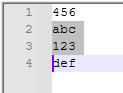
Press Ctrl+f. Set up this search (important – don’t change what was auto-populated into Find what):
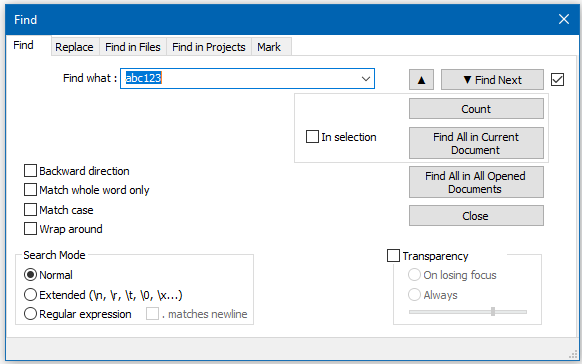
Press the Find All in Current Document button and see how the Find what box content has changed:
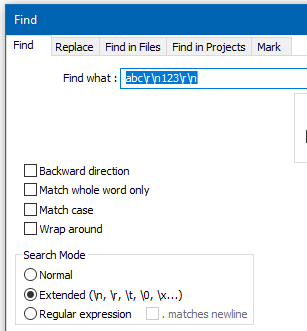
The Find what box data can now be copied elsewhere and edited, as it is now
abc\r\n123\r\n.Note also that the Search mode has been changed to Extended.
BUG:
Repeat the experiment, but this time change the Search mode to Regular expression and change one character in the Find what data to a
.before running the Find All in Current Document search: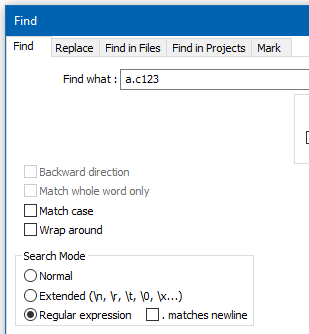
The result of the search: no matches.

There should be 1 match. :-(
This happens because Notepad++ changes my search from a Regular expression search to an Extended search, before the search happens. :-(
For more info, see https://github.com/notepad-plus-plus/notepad-plus-plus/issues/11847.


Hello! It looks like you're interested in this conversation, but you don't have an account yet.
Getting fed up of having to scroll through the same posts each visit? When you register for an account, you'll always come back to exactly where you were before, and choose to be notified of new replies (either via email, or push notification). You'll also be able to save bookmarks and upvote posts to show your appreciation to other community members.
With your input, this post could be even better 💗
Register Login