How to revert to single pane after compare
-
It soothes my soul to learn how to revert back to single pane after I use compare on few scripts on notepad++.
Not allowing me to do so and no direct option being made available or known to users is killing me.
Please DO NOT suggest closing the compared windows, its such a shitty and direct answer. I tried that and there are just too many tabs open to do so which are unsaved.
DO NOT suggest using arrow on pane in between as this doesnt solve the issue but just gets around it.
Please help.
-
@Vishnu-vardhan said in How to revert to single pane after compare:
It soothes my soul to learn how to revert back to single pane after I use compare on few scripts on notepad++.
Not allowing me to do so and no direct option being made available or known to users is killing me.
If you started with a single View, and had two files in that View, like:
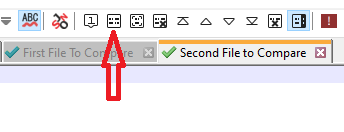
Then did Plugins > ComparePlus > Compare (or clicked the Compare button on the toolbar, which I pointed to with the red arrow), the ComparePlus plugin would split it into two views, like

If you want to go back to the original once you are done comparing, then you either use Plugins > ComparePlus > Clear Active Compares or the equivalent button (the one with the X on it, two to the right of the one where I drew the red arrow above), and it will go back to having no “Compare” highlighting and both be in the same view, like in my first screenshot.
Similarly, if you started with the two files in separate views, like the following:

Then the “Compare” action (1) will show

… and the "Clear Active Compares action (2) will go back to the original two-view version.
-
@PeterJones Thanks mate!


Hello! It looks like you're interested in this conversation, but you don't have an account yet.
Getting fed up of having to scroll through the same posts each visit? When you register for an account, you'll always come back to exactly where you were before, and choose to be notified of new replies (either via email, or push notification). You'll also be able to save bookmarks and upvote posts to show your appreciation to other community members.
With your input, this post could be even better 💗
Register Login