How to right mouse click File Open from current directory
-
Hi,
When I try to use the Right Mouse click File Open menu item i have to specify the directory.
For example if i have two files (File1.txt and File2.txt) in a directory and File1.txt has the following content then i can right mouse click the ‘/File2.txt’ and open it in a new tab
File1.txt:
…
./File2.txt
…The problem is that witht he project that I am on does not include the director so the File1.txt content looks more like
File1.txt
…
File2.txt
…When I try to right mouse click File Open the above it is not recognized as a possible file to open.
Can someone help me to allow for content liek ‘File2.txt’ to be recognized as a file in the current directory in Notepad++ ?
Bonus - I noticed that when i double click the ‘File2.txt’ only the ‘File2’ is highlighted. Does anyone know how to set Notepad ++ so that the entire filename ‘File2.txt’ is highlighted?
Thankyou
Andrew
-
Hello, @ady-klaj, and All,
Assuming for instance, that you have a file, named
Blablah.txt, in folderC:And let’s suppose that you have this line in a file :
xxxxx C:\Blablah.txt xxxxxI’ve added a second line of uppercase letters just to locate the present cursor position
xxxxx C:\Blablah.txt xxxxx
      ABCDEFGHIHKLMNO
Then :
-
If you right-click in the first line, on the context menu option
Open File, with caret on positionsC to K, it opensC:\Blablah.txtfile in Notepad++ -
If you right-click, in the first line, on the context menu option
Open File, with caret on positionsA,B, L, M, NorO, you get the error message The file you’re trying to open doesn’t exist.
Now, if the filename ends the line, as below :
xxxxx C:\Blablah.txt
      ABCDEFGHIHKLMNO
Then, it’s a bit different :
-
If you right-click in the first line, on the context menu option
Open File, with caret on positionsC to O, it opensC:\Blablah.txtfile in Notepad++ -
If you right-click, in the first line, on the context menu option
Open File, with caret on positionsAorB, you get the error message The file you’re trying to open doesn’t exist.
Now, a radical way to select a valid full pathname without bothering about caret location, would be :
-
Go to
Settings < Preferences > Delimiter > Word character list -
Select the option
Add your character as part of word -
Type in the
3characters.\:in the field -
Close the Preferences dialog
From now on, a right-click at any location of a valid pathname OR a double-click on any part of it, followed with the choice of the
Open fileoption, should open this file in Notepad++Best Regards,
guy038
-
-
@Andy-Klaj said:
Can someone help me to allow for content liek ‘File2.txt’ to be recognized as a file in the current directory in Notepad++ ?
What is your definition of “the current directory in Notepad++”?
-
@guy038 's posting hints that
Open Fileis a not-real-smart feature. Many files these days have spaces in them, their names I mean of course. How is THAT going to work with this feature? Likely not too well. -
Open File is a not-real-smart feature
Indeed. A little birdie once told me that there’s someone working on a PythonScript improvement of the open-file-under-cursor, which I beta tested. When I’m home, I’ll have to look through my test cases to see if the local-directory-file was covered; if it is, I may put in a request for accelerated release (and point that someone to this thread); if it’s not in there, I may add a feature request. (No, I do not have permission to publish it for that someone.)
-
Hello, @ady-klaj, @alan-kilborn, @peterjones and All,
Really, I’m unforgivable ! I should have tested a file name or a folder name containing spaces, too ;-)) For instance :
xxxxx C:\Bla blah.txt xxxxxIn that case, it’s even worse ! Whatever the location of the caret, in the full pathname, it does not work :-((
Finally, the correct way, in all cases, is to select all the pathname
C:\bla blah.txtand right-click on theOpen FileoptionActually, the context menu option should been named :
Open Selected Pathname or File;-))
Now, it would be hard to find a correct algorithm to get a pathname or file selected, only from current position of caret !
Indeed, let’s suppose the line, below, in a file, with rubbish
xxxxxtext and caret located between letterseandsof the test wordxxxxx Small test.txt xxxxxAnd let’s suppose that a file name, with its extension, should contain word characters, dots or spaces ( very basic rule ! )
Well, even if you scan text rightwards and leftwards, how to decide if the file name is :
-
Small test.txt -
xxxxx Small test.txt xxxxx
as you’ve included spaces as valid characters in filenames ?
So, all in all, the fact of selecting pathname/filename, before a right-click on the context menu option
Open File, seems rather pertinent !Cheers,
guy038
-
-
P PeterJones unlocked this topic on
-
@guy038 said:
I’m unforgivable ! I should have tested a file name or a folder name containing spaces, too
Bah, easy to forget filenames can have spaces, if you never use spaces yourself in your names.
Now, it would be hard to find a correct algorithm to get a pathname or file selected, only from current position of caret !
I think I’ve scripted a reasonable way.
Here’s a script called
OpenFilenameAtCaret.py:# -*- coding: utf-8 -*- from __future__ import print_function ######################################### # # OpenFilenameAtCaret.py (OFAC) # ######################################### # references: # https://community.notepad-plus-plus.org/topic/17169/how-to-right-mouse-click-file-open-from-current-directory # https://github.com/notepad-plus-plus/notepad-plus-plus/issues/14579 "[Feature Request] Opening a file within Notepad++ and jump to line" # possibly relevant: # https://community.notepad-plus-plus.org/topic/16597/how-to-open-a-path-in-windows-explorer # https://community.notepad-plus-plus.org/topic/17836/i-can-not-understand-what-file-opens-this-option # maybe see https://www.oreilly.com/library/view/regular-expressions-cookbook/9781449327453/ch08s18.html # for newbie info on PythonScripts, see https://community.notepad-plus-plus.org/topic/23039/faq-desk-how-to-install-and-run-a-script-in-pythonscript #------------------------------------------------------------------------------- from Npp import * import os from ctypes import (WinDLL) #------------------------------------------------------------------------------- def position_range_generator(pos1=None, pos2=None): if pos1 is None: pos1 = 0 if pos2 is None: pos2 = editor.getLength() working_pos = pos1 if pos1 == pos2: return elif pos1 < pos2: while working_pos < pos2: yield working_pos working_pos = editor.positionAfter(working_pos) else: while working_pos > pos2: yield working_pos working_pos = editor.positionBefore(working_pos) #------------------------------------------------------------------------------- def string_intersection(s1, s2): set1 = set(s1) set2 = set(s2) intersection = set1 & set2 return ''.join(sorted(intersection)) #------------------------------------------------------------------------------- def shift_held(): VK_SHIFT = 0x10 user32 = WinDLL('user32') return (user32.GetAsyncKeyState(VK_SHIFT) & 0x8000) != 0 def ctrl_held(): VK_CONTROL = 0x11 user32 = WinDLL('user32') return (user32.GetAsyncKeyState(VK_CONTROL) & 0x8000) != 0 #------------------------------------------------------------------------------- def shell_open(arg, parameters=None): # https://docs.microsoft.com/en-us/windows/win32/api/shellapi/nf-shellapi-shellexecutew SW_SHOW = 5 return ctypes.windll.Shell32.ShellExecuteW(None, 'open', arg, parameters, None, SW_SHOW) > 32 #------------------------------------------------------------------------------- class OFAC(object): def __init__(self): rect_sel_mode = editor.getSelectionMode() in [ SELECTIONMODE.RECTANGLE, SELECTIONMODE.THIN ] if rect_sel_mode or editor.getSelections() > 1: return # conditions not correct for running file_absolute_path = file_line_number = None (file_absolute_path, file_text_start_pos, file_text_end_pos) = self.abspath_to_file_at_caret() if file_absolute_path is not None: curr_line_end_pos = editor.getLineEndPosition(editor.lineFromPosition(editor.getCurrentPos())) line_number_match_pos_tup = editor.findText(FINDOPTION.REGEXP, file_text_end_pos, curr_line_end_pos, r'"?:\K\d+') if line_number_match_pos_tup is not None and line_number_match_pos_tup[0] - file_text_end_pos <= 2: file_line_number = int(editor.getTextRange(*line_number_match_pos_tup)) if file_absolute_path is not None: select_path_in_source_text = shift_held() and not ctrl_held() open_containing_folder = shift_held() and ctrl_held() if select_path_in_source_text: if file_text_start_pos != file_text_end_pos: editor.setSel(file_text_start_pos, file_text_end_pos) elif open_containing_folder: folder_absolute_path = os.path.dirname(file_absolute_path) if os.path.isdir(folder_absolute_path): shell_open('explorer', folder_absolute_path) else: if not isinstance(file_absolute_path, str): file_absolute_path = file_absolute_path.encode('utf-8') # python2 notepad.open(file_absolute_path) if file_line_number is not None: editor.gotoLine(file_line_number - 1) def abspath_to_file_at_caret(self): # initialize return values: rv__existing_absolute_path = None rv__pos_span_2tup = (0, 0) curr_pos = editor.getCurrentPos() curr_line_nbr = editor.lineFromPosition(curr_pos) line_start_pos = editor.positionFromLine(curr_line_nbr) line_end_pos = editor.getLineEndPosition(curr_line_nbr) # get the current tab's directory for partial-path matching: curr_dirname = os.path.dirname(notepad.getCurrentFilename()) illegal_filename_chars = '><"|?*\t' # there may be more but these are the definites illegal_filename_chars_single_char_regex = r'[><|?*\t]' # note: double-quote is NOT included # if text is selected, look at "exactly" what user has specified: if editor.getSelections() == 1 and not editor.getSelectionEmpty(): test_name = editor.getSelText() test_name = test_name.strip(' ' + '"' + illegal_filename_chars) # give user some leeway with possible "bad stuff" on either end of selection rv__existing_absolute_path = self.absolute_pathname_to_existing_file(test_name, curr_dirname) if rv__existing_absolute_path is not None: rv__pos_span_2tup = ( editor.getSelectionStart(), editor.getSelectionEnd() ) else: # find any illegal filename chars to the left and right of caret on current line; otherwise use start and end of current line positions ft_tup = editor.findText(FINDOPTION.REGEXP, curr_pos, line_start_pos, illegal_filename_chars_single_char_regex) # search backward toward start-of-line line_left_pos = ft_tup[1] if ft_tup else line_start_pos ft_tup = editor.findText(FINDOPTION.REGEXP, curr_pos, line_end_pos, illegal_filename_chars_single_char_regex) # search forward toward end-of-line line_right_pos = ft_tup[0] if ft_tup else line_end_pos # quickest possible method (look to either side of the caret for first whitespace or double-quotes to delimit, or consider the entire line): if rv__existing_absolute_path is None: for delimiting_regex in ( r'\s', '"' ): ft_tup_1 = editor.findText(FINDOPTION.REGEXP, curr_pos, line_left_pos, delimiting_regex) # search backward toward start-of-line ft_tup_2 = editor.findText(FINDOPTION.REGEXP, curr_pos, line_right_pos, delimiting_regex) # search forward toward end-of-line rv__pos_span_2tup = ( ft_tup_1[1] if ft_tup_1 is not None else line_left_pos, ft_tup_2[0] if ft_tup_2 is not None else line_right_pos ) if rv__pos_span_2tup[0] != rv__pos_span_2tup[1]: rv__existing_absolute_path = self.absolute_pathname_to_existing_file(editor.getTextRange(*rv__pos_span_2tup), curr_dirname) if rv__existing_absolute_path is not None: break # go on a l..o..n..g..e..r search: if rv__existing_absolute_path is None: for left_pos in position_range_generator(line_left_pos, curr_pos + 1): for right_pos in position_range_generator(line_right_pos, curr_pos): rv__pos_span_2tup = (left_pos, right_pos) test_name = editor.getTextRange(*rv__pos_span_2tup) if test_name[0] in ' ' + ':' + illegal_filename_chars: break # can't start with these characters; go get next potential starting char if test_name[-1] in r' :\/': continue # filenames don't reasonably end with space/colon/backslash/slash if len(string_intersection(test_name, illegal_filename_chars)) > 0: continue rv__existing_absolute_path = self.absolute_pathname_to_existing_file(test_name, curr_dirname) if rv__existing_absolute_path is not None: break # get out of inner for loop if rv__existing_absolute_path is not None: break # get out of outer for loop if rv__existing_absolute_path is None: rv__pos_span_2tup = (0, 0) return (rv__existing_absolute_path, rv__pos_span_2tup[0], rv__pos_span_2tup[1]) def absolute_pathname_to_existing_file(self, file_or_path_name_to_test, dir_for_partial_path=''): retval = None # return None if file not existing, otherwise return absolute path to it if isinstance(file_or_path_name_to_test, bytes): file_or_path_name_to_test = file_or_path_name_to_test.decode('utf-8') # python2 file_or_path_name_to_test = os.path.expandvars(file_or_path_name_to_test) if os.path.isfile(file_or_path_name_to_test): retval = os.path.abspath(file_or_path_name_to_test) else: if len(dir_for_partial_path) > 0: retval = os.path.abspath(os.path.join(dir_for_partial_path, file_or_path_name_to_test)) if not os.path.isfile(retval): retval = None return retval #------------------------------------------------------------------------------- if __name__ == '__main__': OFAC()How it works is that you put the caret somewhere in the text of the filename/path you want to open, then run the script (more on a better method to run the script, below).
The script will pick out the file from the context of the caret and open it into a new Notepad++ tab (or, if the file had previously been open in a tab, it will make that tab active).
The script will work on a full pathname in the text, or a partial path (e.g.
..\fubar.c) using the currently active filetab’s folder as the base folder.It can work with forward slashes in a path, e.g.
c:/folder1/folder2/foo.txtand even doubled backslashes, e.g.D:\\folder3\\bar.py.Additionally, if the filename in the text is followed by a colon (
:) and then an integer value, e.g.foo.txt:27, then the integer will be considered a line number, and the caret will be placed at the start of that line when the new filetab becomes active. This subfeature originates with a request HERE for that functionality.It’s in the comments of the script, but for emphasis: for newbie info on PythonScripts, see https://community.notepad-plus-plus.org/topic/23039/faq-desk-how-to-install-and-run-a-script-in-pythonscript
Now for a better way to run the script (than, presumably, running it from the menu):
So the default editor right-click context menu has this entry:
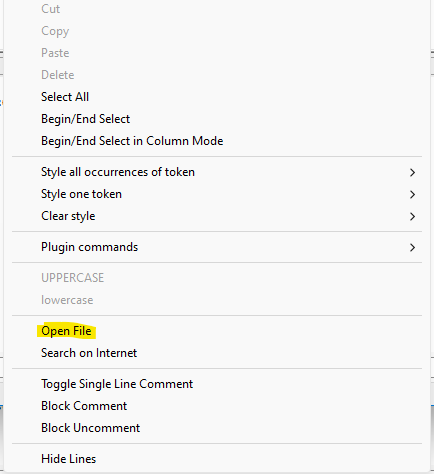
And that’s fine, but that is the Notepad++ version of the command, which, as discussed in this thread, a bit lame.
If we convert this entry into one that runs the script instead, we get improved functionality. As a bonus, we can also achieve some additional functionality:
- holding Shift while running from the right-click context menu allows quickly selecting the filename text
- holding Shift and Ctrl while running from the right-click context menu will open an Explorer window in the folder in which the file at the caret lives
The new context menu entry could look like this:
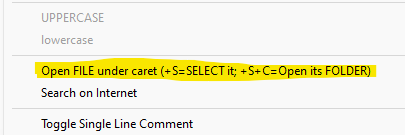
Notice that there is some reminder text there about adding in the Shift and Ctrl keys, in the form of
+S=and+S+C=.Here’s what to do to
contextMenu.xmlto achieve the above (for further detail, see the FAQ entry cited above):-
comment out the existing
Open Fileentry, i.e., make it look like this:<!-- <Item MenuEntryName="Edit" MenuItemName="Open File"/> --> -
add this line below it:
<Item PluginEntryName="Python Script" PluginCommandItemName="OpenFilenameAtCaret" ItemNameAs="Open FILE under caret (+S=SELECT it; +S+C=Open its FOLDER)"/>
-
 A Alan Kilborn referenced this topic on
-
I suppose I should have mentioned above that the script will work with filenames/paths that include spaces, whether or not the filename is wrapped in double-quotes (the typical way to refer to Windows names with embedded spaces.
Some additional examples of what will work (the
Icharacter is included to show a reasonable right-click/caret point):- I am some text with
c:\folder with spaceIs\file with spaces.txta filepath right in the middle of me - And of course wrapping in double quotes works
"c:\foldeIr with spaces\file with spaces.txt"too - Even without spaces you can have other text directly adjoining the name
|c:\teIst1\test2.txt| - Even other characters directly adjoining will work
c:\test3\tIest4.txtzzzz(openstest4.txt– presumingtest4.txtzzzz/test4.txtzzz/test4.txtzz/test4.txtzall don’t exist – if any did, they’d be opened beforetest4.txt)
- I am some text with


Hello! It looks like you're interested in this conversation, but you don't have an account yet.
Getting fed up of having to scroll through the same posts each visit? When you register for an account, you'll always come back to exactly where you were before, and choose to be notified of new replies (either via email, or push notification). You'll also be able to save bookmarks and upvote posts to show your appreciation to other community members.
With your input, this post could be even better 💗
Register Login