Disconnect on save with NPPFTP
-
I’ve tried to find a solution with no success so here I am.
I’ve got a new fresh windows 11 setup with Notepad ++ installed using the nppftp plugin to upload to an azure web app allowing editing etc.
When hitting ctrl+s, just save or save all it automatically disconnects, doesn’t save the file to the web app and disconnects from the ftp.
Below is the NPPFTP output window results -
Download of /site/application/views/quicksign.php succeeded, opening file.
-> Quit
Disconnected
-> QuitThanks in advance
-
It sounds like your site would want a “keepalive” option in the client… My guess is that the server had already disconnected, but NppFTP didn’t see the disconnect until you told it to try to save. As far as I have seen, NppFTP does not have a “keepalive” option.
You might check through the existing NppFTP issues, and if there isn’t a “keepalive” request already there, you might want to add it. Oh, there it is – if you could share the whole NppFTP output session in that NppFTP discussion, it might give the plugin author an idea of how to prevent the timeout/closing.
As a workaround (since the keepalive issue has been around for years, it might be a while before there’s a fix), you might want to do the sequence: connect, download the file to start editing; when you are ready to save, do a “refresh” (which I assume would also force NppFTP to see if there’s a connection still active) and if it disconnects on refresh, then immediately connect and hit Save in the Notepad++ editor pane while the connection is still active.
-
I’ve recently returned to using NppFTP and have noticed the same thing - it’s very annoying!
After finding the work-around I’ve described below, it leads me to believe that the problem (in my case) might be that the default cache location is not writable without admin privileges (which have recently been changed on my work PC due to a security breach).
I haven’t ‘upgraded’ to Windows 11 yet, so can’t say whether Notepad++ is trying to cache the files a privileged location, but it worked for me.I found that the problem went away when I assigned a (writeable) local path to the external path. I haven’t had any problem since.
I hope this helps.
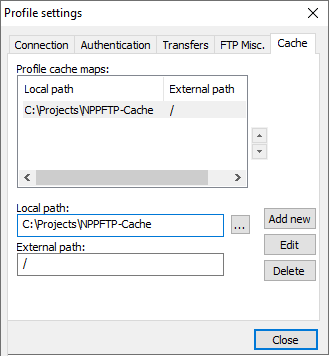
-
This post is deleted! -
@iChal2112 That worked. Thank you :).
I will add the steps in case anyone finds this post with google.
Click the settings icon in the notepad ++ ftp plugin, profile settings, click a profile you want to edit, cache, click the … button by add new button, set a local path I chose C:\Users\user_name\Downloads, set a external path I chose /, click the add new button
An odd thing to note. I am using Windows 11. I also have admin privileges on my computer but still needed to do this. Not sure why I was having trouble. This issue occurred on a red hat server. The red hat server has time out issues all the time.
I have zero problems on my sunos servers. I did not change my cache settings at all on my sunos servers.
Someone that is good with copilot pointed out another option is to use winscp with notepad ++. This required no setup. Just use winscp to open your remote file in notepad++. I have notepad ++ setup as my default text editor. Not sure if this is the case for all Linux/Unix servers but scp is more stable on the red hat server I am using.


Hello! It looks like you're interested in this conversation, but you don't have an account yet.
Getting fed up of having to scroll through the same posts each visit? When you register for an account, you'll always come back to exactly where you were before, and choose to be notified of new replies (either via email, or push notification). You'll also be able to save bookmarks and upvote posts to show your appreciation to other community members.
With your input, this post could be even better 💗
Register Login