How to add or install pork2sausage to Notepad++
-
I keep getting a message that pork2sausage is not installed.
I found a Github site, “https://github.com/npp-plugins/pork2sausage” from which pork2sausage could be downloaded. I don’t really understand how to use Github, but I was able to find a link that allowed me to download a zip, “pork2sausage-master.zip”. Now, I can’t find any instructions for how to add/install it to Notepad++.Any suggestions would be much appreciated.
Marc -
-
@Marc-Hankin said in How to add or install pork2sausage to Notepad++:
I keep getting a message that pork2sausage is not installed
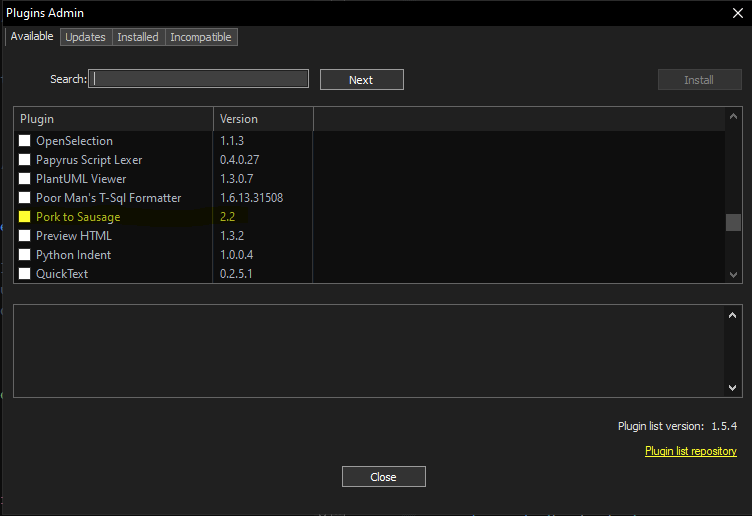
The real question is, what would be causing that message?
I’ve never seen a message that a particular plugin isn’t installed. Do you have another plugin that relies on the pork2sausage plugin? (Maybe Customize Toolbar tried to put a button on the toolbar from that plugin, or something?)
Now, I can’t find any instructions for how to add/install it to Notepad++
Notepad++'s ?-Menu has a link to the Online User Manual, which has a page called Extend Functionality With Plugins which has a section on how to Install using Plugins Admin followed by how to Install plugin manually. The “Plugins Admin” section describes what @Ekopalypse said; the “Install plugin manually” explains how to install it from the zipfile you downloaded.
-
@PeterJones said in How to add or install pork2sausage to Notepad++:
install it from the zipfile you downloaded
I guess this will not work because the TO wrote
a link that allowed me to download a zip, “pork2sausage-master.zip”
Thus, the downloaded file likely is a ZIP file containing the whole GitHub repository with all source code files which is not suitable for installing the plugin. For this purpose @Marc-Hankin you should click to the red marked link at the project’s GitHub site
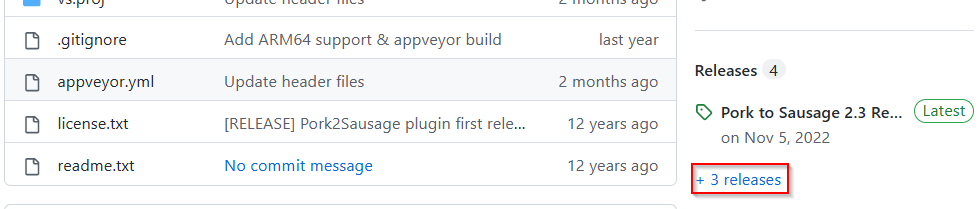
which will open the release section of the project’s site. There you will see the following:
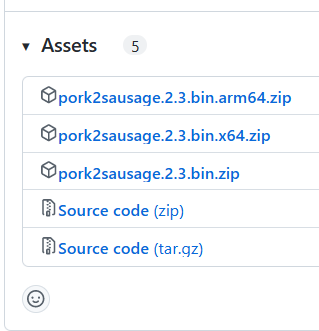
The first 3 files in that list are installable following the “Install plugin manually” section of the Notepad++ user manual. You should download the one that matches the CPU architecture of your computer and the bitness of your Windows operating system:
- arm64 -> CPU architecture ARM, operating system bitness doesn’t matter (no different bitnesses), choose this if you run a Microsoft Surface device
- x64 -> CPU architecture Intel x86 compatible with AMD64 extension, operating system bitness 64 bit, choose this if you run a PC with a 64 bit version of Windows
- no postfix -> CPU architecture Intel x86 compatible with or without AMD64 extension, operating system bitness 32 bit, choose this if you run a PC with a 32 bit version of Windows
To learn how to figure out the bitness of your Windows installation please search the internet with your prefered search engine.
-
 M Marc Hankin referenced this topic on



Hello! It looks like you're interested in this conversation, but you don't have an account yet.
Getting fed up of having to scroll through the same posts each visit? When you register for an account, you'll always come back to exactly where you were before, and choose to be notified of new replies (either via email, or push notification). You'll also be able to save bookmarks and upvote posts to show your appreciation to other community members.
With your input, this post could be even better 💗
Register Login