[New Plugin] MultiReplace
-
MultiReplace 6.1 is out and will land in Plugin Admin with the next Notepad++ release.
The focus of this release is Replace All in One Pass, running the whole list in a single left-to-right sweep instead of one full pass per entry, together with a reworked Find/Replace in Files and a handful of list and UI improvements. Several new options live under Plugins > MultiReplace > Settings.
Download: Latest build
Key Features & Improvements
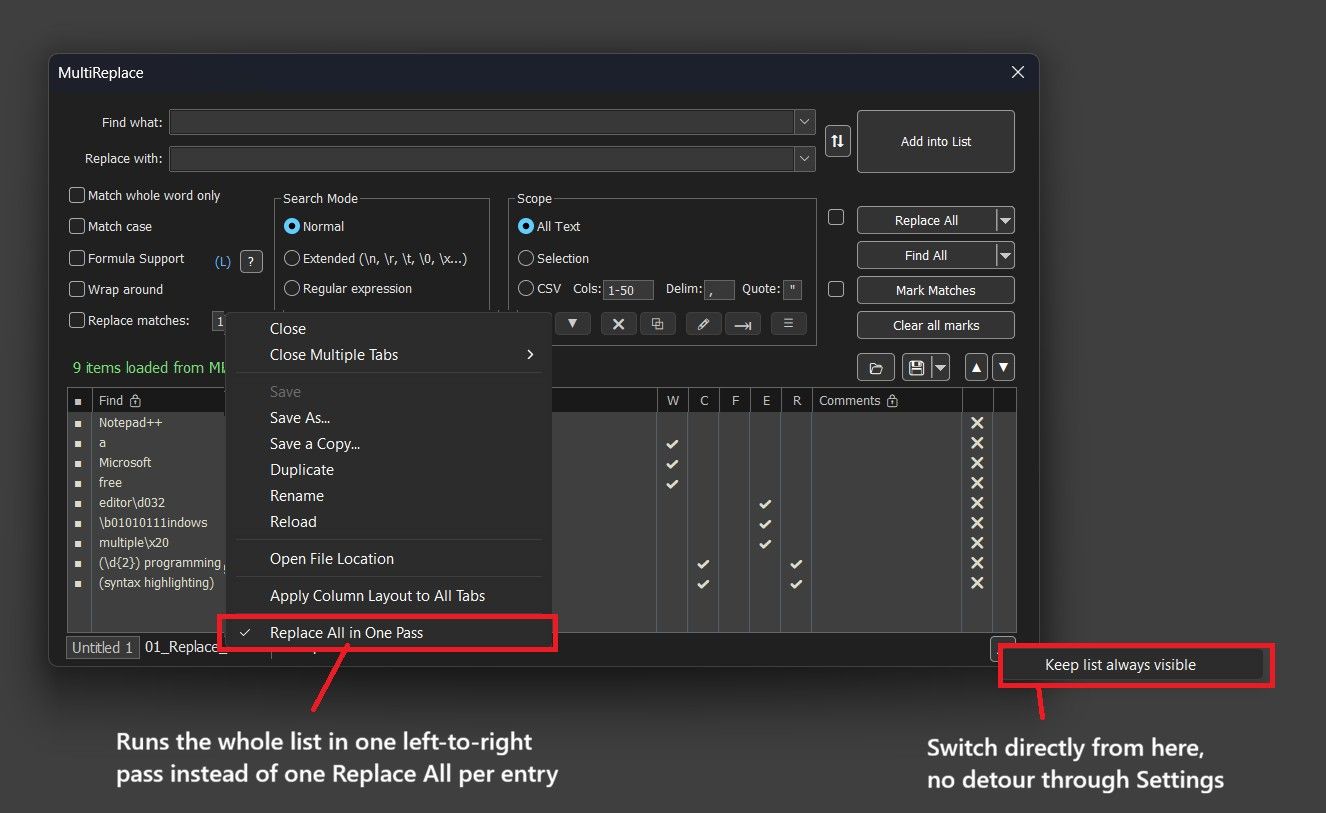
- Replace All in One Pass: Runs the whole list in a single pass instead of one full Replace All per entry, so results build on each other left to right. With
cat→doganddog→cat, sequential mode turns “cat dog” into “cat cat”, one pass turns it into “dog cat”. Much faster on large documents. Toggle per tab, right-click the list tab. - Use Open Documents: Find/Replace in Files can now work on files already open in Notepad++ as the live document, unsaved changes included, instead of the copy on disk. New checkbox in Settings.
- Skip Binary Files: New option for Find/Replace in Files (on by default), same detection as ripgrep and VS Code. Also adds UTF-16 detection without a BOM, and skipped files are always reported, broken down by reason.
- CSV Header Rows: Find/Replace now always searches header rows too. “Header rows to exclude” only protects sorting and duplicate detection.
- Collapse to File List: New Search Results dock option folding every search block down to just file names and hit counts. Ctrl/Shift-click works in the fold margin, same as Notepad++'s own Search Results panel.
- Library Mode: “Keep list always visible” can now be switched right from the Use List button’s context menu, no detour through Settings.
- Add New Row: Takes over the dialog’s current search options instead of starting all off. Find/Replace text still starts empty.
- Duplicate Row Reporting: A list row that exactly duplicates an earlier enabled one is skipped as before, but the status line now tells you how many rows were skipped.
Issues or suggestions: GitHub.
Happy replacing!
- Replace All in One Pass: Runs the whole list in a single pass instead of one full Replace All per entry, so results build on each other left to right. With
-
MultiReplace 6.2 is out and will land in Plugin Admin with the next Notepad++ release.
This is a big review and performance release: Find/Replace in Files is considerably faster and more robust, and the existing features were gone through once more, which led to a long list of fixes.
Download: Latest build
Key Features & Improvements
- Faster Find/Replace in Files: Files are now read on worker threads while the current one is searched. In a test with 48,500 files, a search dropped from 8.7 s to 6.0 s. The thread count follows the drive type and can be set with
LoadThreadsin the INI file. - Faster scan and results: Files that cannot contain a hit are ruled out right after reading, the folder scan was reworked, and large result sets appear much faster in the Search Results Window.
- Robust runs: Unreadable folders no longer end a scan; they are skipped and reported, for example
3 folder(s) unreadable. The panel is locked during a run (Cancel stays available), and a file that changed on disk after it was read ahead is read again, so nothing gets overwritten. - Safer Replace in Files: Files it cannot process safely are left unchanged and reported with the reason, for example
2 file(s) skipped: 1 too large, 1 not writable. “Not writable” is new, for example a file held open by another program. - Fixes from the review: Closing Notepad++ during a run no longer crashes. Find/Replace in Open Documents returns to the tab you started from and keeps its Flow Tabs alignment. With the CSV scope, each document uses its own columns. A hit in an unsaved tab (“new 1”) now jumps to that tab.
- Translations: Japanese and Traditional Chinese show hit and file counts in the right order, Chinese (Simplified) can copy and open paths from the Search Results Window again, and the progress text is translated.
All changes are in the release notes.
Issues or suggestions: GitHub
Happy replacing!
- Faster Find/Replace in Files: Files are now read on worker threads while the current one is searched. In a test with 48,500 files, a search dropped from 8.7 s to 6.0 s. The thread count follows the drive type and can be set with
-
Hello, @thomas-knoefel and All,
Again I made a comparison between the
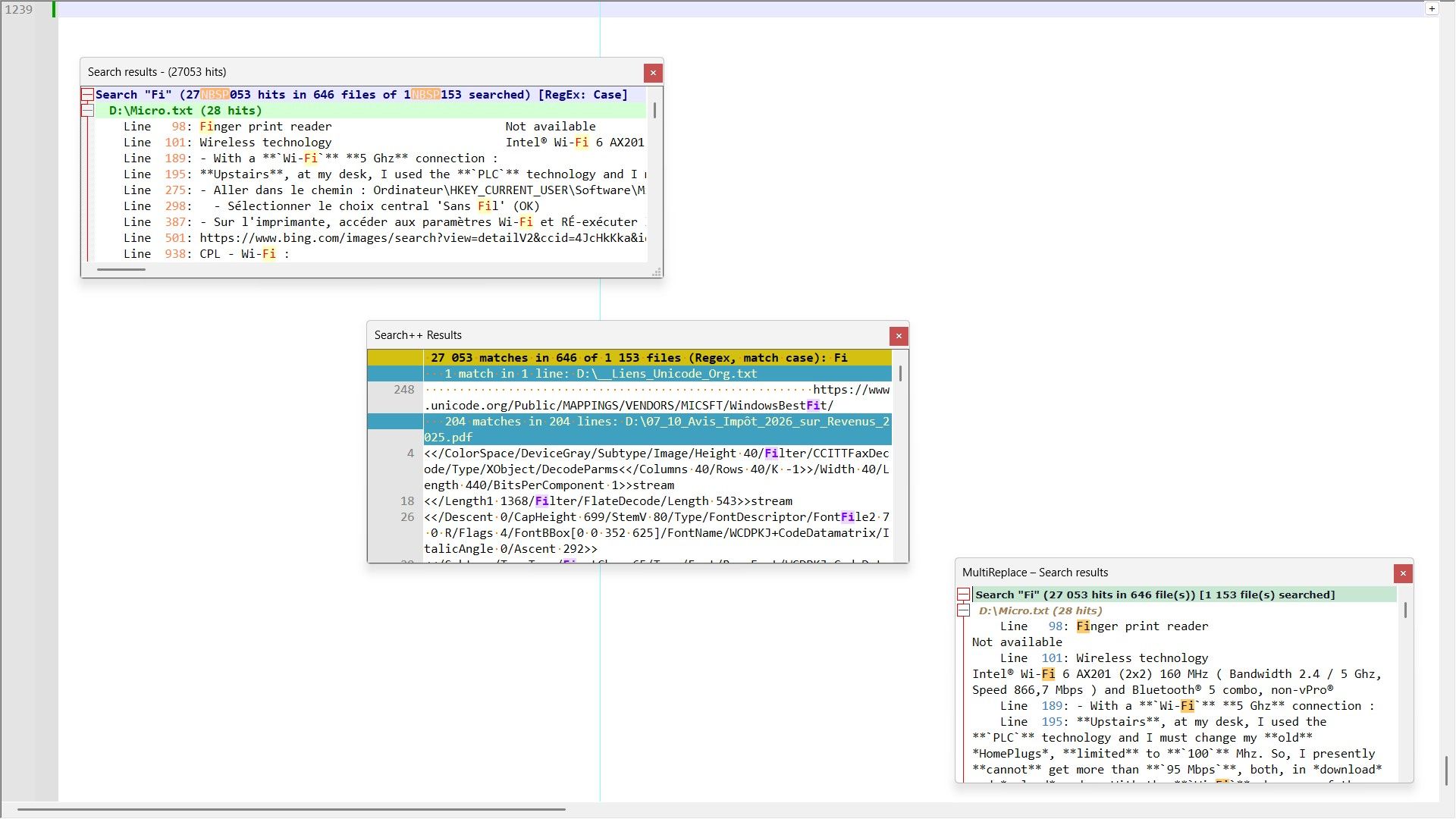
Notepad++ v8.9.8,Search++ v0.72andMultiReplace v6.2Search in Files feature against all files of myDUSB key.All the Search results panels return
27,053hits in646files of1,153searched, obtained in :-
1m 43sfor Notepad++ -
1m 13sfor MultiReplace -
2m 18sfor Search++
As previously, I unpluged my USB key, restarted my computer and repluged my key before any Search in Files action
Your list of improvements, in your latest relesase, are quite impressive ! And probably, my test does not exploit all the features of your plugin. I still need to carefully read your documentation !
Best Regards,
guy038
-
-
Hi @guy038,
thanks for testing again! In case you’re curious, here’s roughly what the new loading threads in 6.2 do.
As soon as the file list is known, a few worker threads start reading ahead: they open the files, read them, check for binary content and decode the text. The main thread takes the files in list order as soon as each one is ready, puts it into a hidden Scintilla document and searches it. So the hits and their order stay the same, but reading and searching now overlap.
On a USB stick MultiReplace uses four threads by default. With a cold cache, as in your test, most of the time goes into waiting for your USB key, and that is where it helps: up to four files are read at the same time, and the search runs while the next ones are still loading.
If you want to see what the threads bring on your key: with
LoadThreads=0in the[ReplaceInFiles]section of the INI file, every file is read on the main thread as before (see the README; it takes effect after restarting Notepad++). -
Hello, @thomas-knoefel and All,
Indeed, changing the line :
LoadThreads="auto"into this one :
LoadThreads=0within the
MultiReplace.inifile, the same list of files were found in2 m( instead of1 m 13 s)
Thus, I decided of an experiment, changing, on purpose, the
LoadThreadsline to :LoadThreads=8After restarting my computer and doing the test, the execution time was, this time,
1 m 28 s. However, verifying within theMultiReplace.inifile, I saw the line :LoadThreads="0"Is this the expected behavior, with the number
0as a string ?Best Regards,
guy038


Hello! It looks like you're interested in this conversation, but you don't have an account yet.
Getting fed up of having to scroll through the same posts each visit? When you register for an account, you'll always come back to exactly where you were before, and choose to be notified of new replies (either via email, or push notification). You'll also be able to save bookmarks and upvote posts to show your appreciation to other community members.
With your input, this post could be even better 💗
Register Login