[New Plugin] MultiReplace
-
This post is deleted! -
A new version of MultiReplace (v4.5.0.30) is ready and will be available with the next Notepad++ release. It can be dowloaded here.
The focus of this release is on expanding the search functionality and giving you more flexibility.
Implemented updates:
-
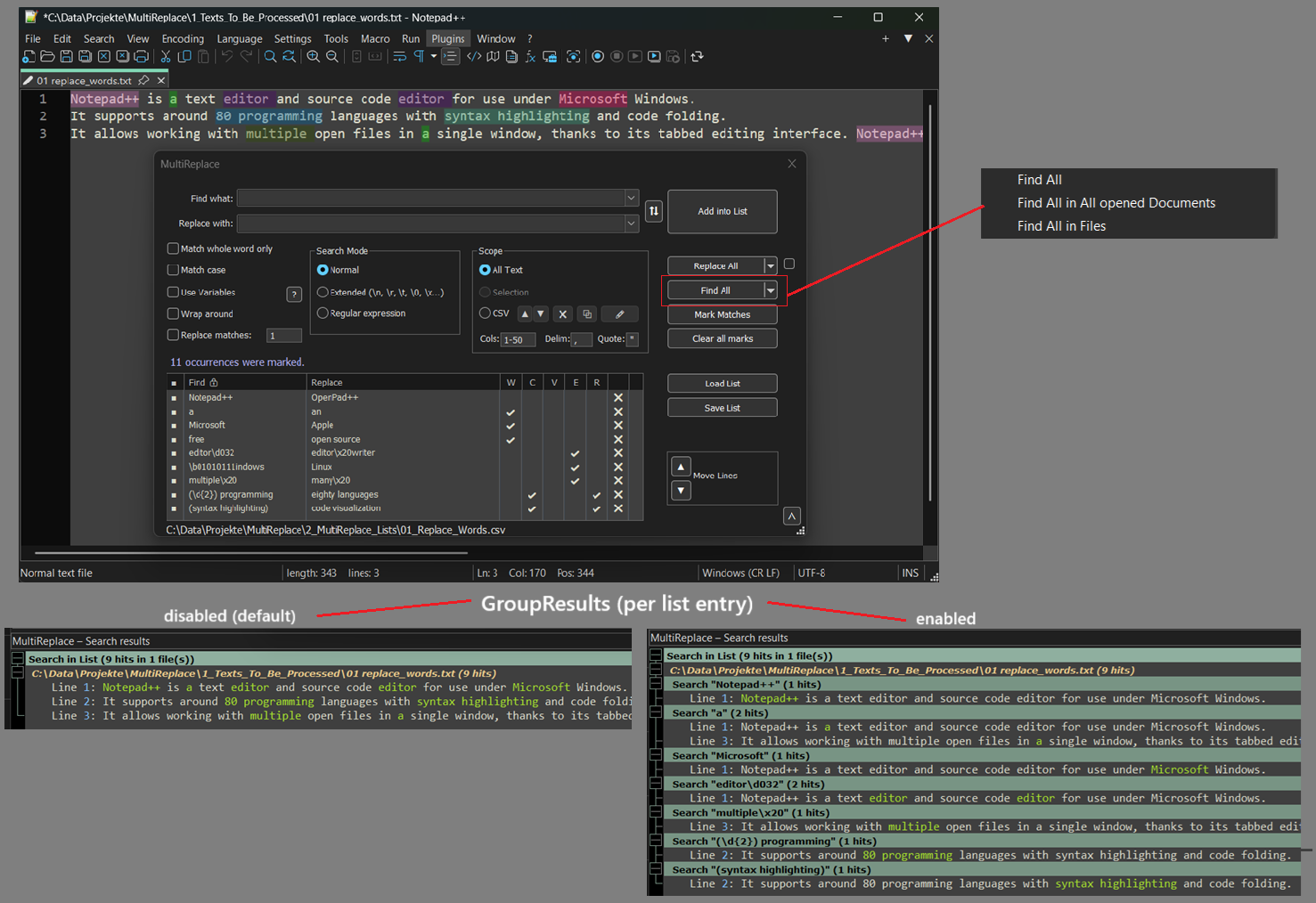
Find All: This is a new feature that lets you find all matches and see them in the search results window. It’s not limited to the current file – you can also search across all open documents or in entire folders.
-
GroupResults: To go with “Find All,” this new INI option lets you choose how your results are displayed. You can see them all mixed together in document order (the default), or neatly grouped by each list entry, which is great for getting a clear overview of complex searches.
-
lcmd: A new command for the “Use Variables” feature. It allows you to load your own custom helper functions from external files, which opens up a lot of possibilities for complex and reusable logic.
-
AllFromCursor: Another new INI setting that gives you more control. You can now choose to start “Find All”, “Replace All” and “Mark” operations from your current cursor position instead of from the top of the file.
Here is a visual take on the changes:
-
-
A new version of MultiReplace (v5.0.0.35) is ready and will be available with the next Notepad++ release. For early testing, it can already be downloaded here.
The focus of this release is on a new Settings Panel, improved Search Results visualization, and overall usability enhancements.
Key Features & Improvements
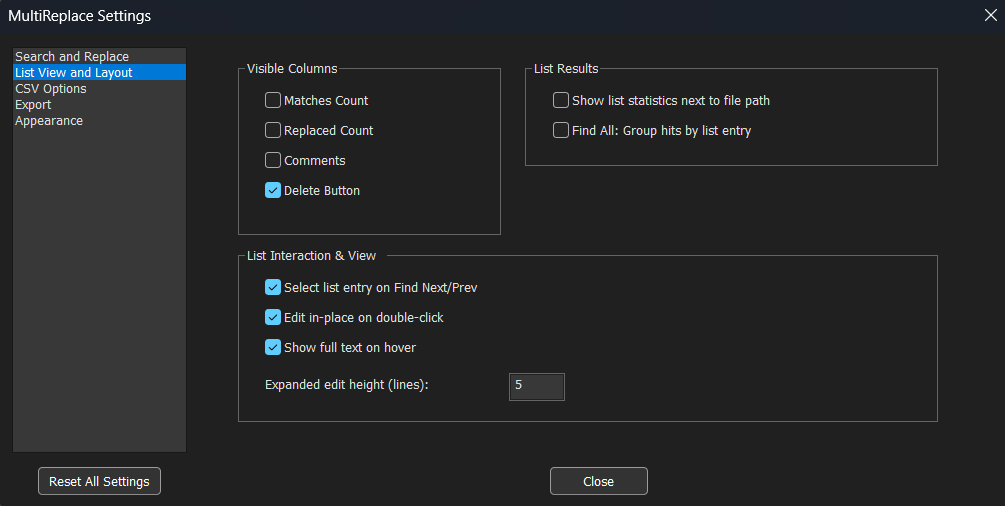
- Settings Panel: A comprehensive configuration dialog replaces manual INI file editing. All options are now organized into clear categories: Search & Replace, List View, CSV Options, Export, and Appearance.
- Refined Toolbar Icon: The icon has been updated to improve clarity.
- List Search Bar: Press Ctrl+F while focused on the replacement list to open a search bar. Quickly find entries in large lists by searching through the ‘Find’ and ‘Replace’ columns.
- Search Results Window Enhancements:
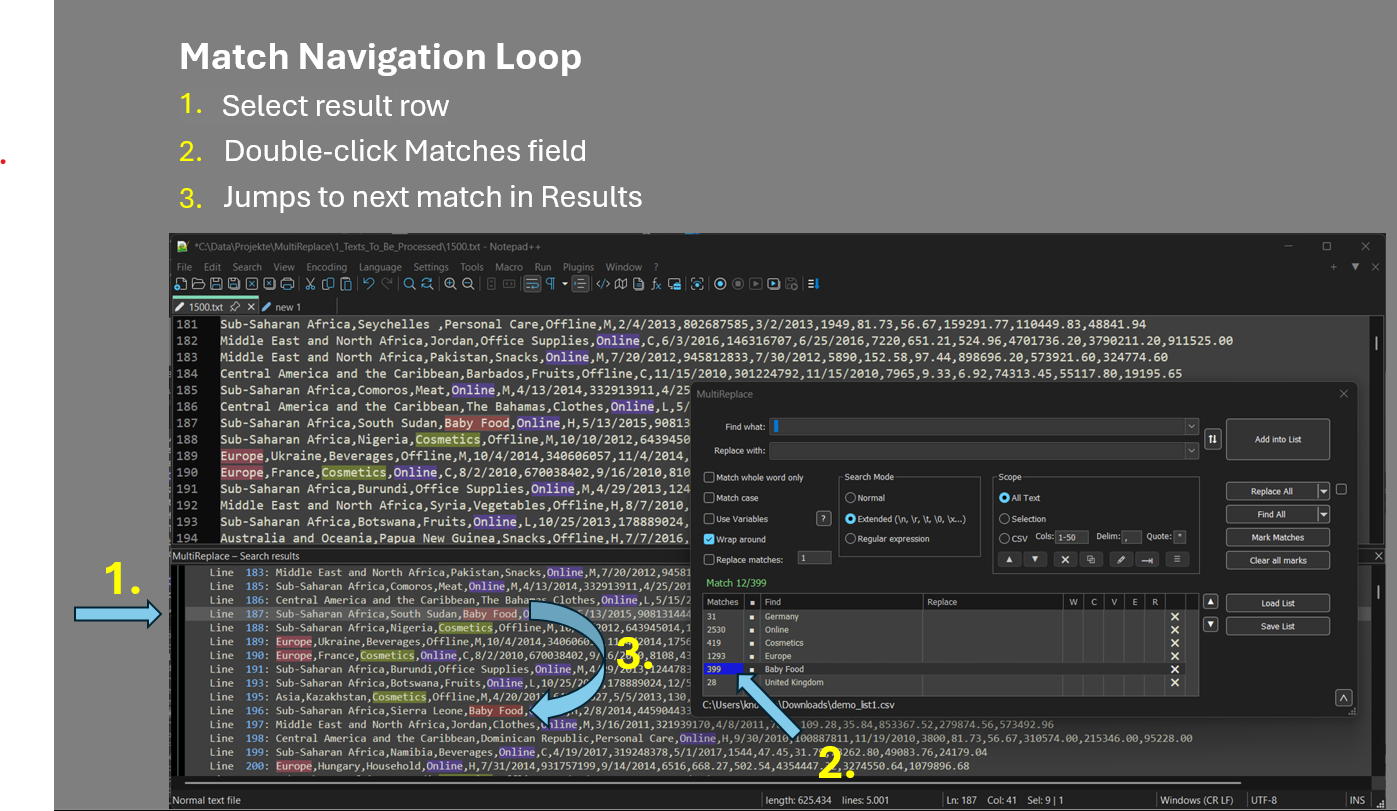
- Color-coded matches (up to 28 colors) for easy visual distinction per list entry.
- Double-click the Matches count to jump directly to the results.
- Duplicate Line Detection: Identify and mark duplicate CSV rows. Delete or inspect duplicates with optional bookmark navigation.
- Binary Escape Sequence: Extended mode now supports
\bNNNNNNNNfor binary values. tonum()Function: New helper to convert strings to numbers, supporting both dot and comma as decimal separators.- MATCH and CAP Variables: Now always return strings. Use
tonum(CAP1)for calculations. - Selection Mode: The ‘In Selection’ radio button no longer disables itself, enabling smoother repeated searches.
- Document Filtering for Open Docs: Find and Replace in Open Documents now supports wildcard-based filename filtering.
- Unified Filter Syntax: Filters now use semicolons (
;) as separators in both ‘Open Documents’ and ‘Find in Files’ modes. This enables filtering for filenames containing spaces. - Performance: Various optimizations for Replace All, Find All, and FlowTabs alignment on large files.
New Settings Panel with organized categories
Double-click the Matches count to quickly navigate through results
Enjoy!
-
MultiReplace 6.0 is out and will land in Plugin Admin with the next Notepad++ release.
The focus of this release is a second formula engine: ExprTk now sits alongside Lua for math, string and conditional replacements, joined by multi-list tabs, tandem mode, and a series of UI and workflow improvements. Several new options live under Plugins > MultiReplace > Settings.
Download: Latest build
Key Features & Improvements
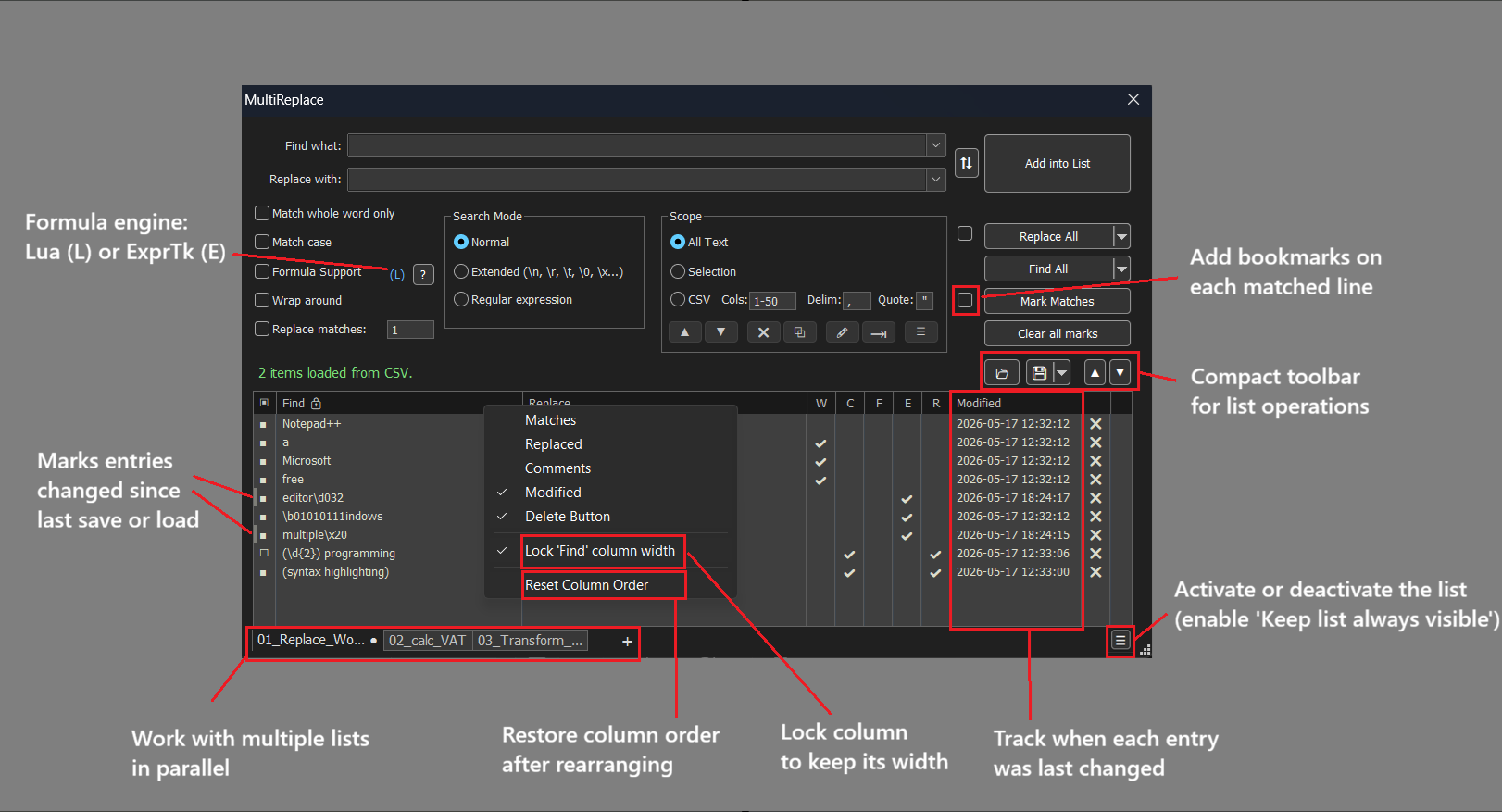
- New Formula Engine (ExprTk): A second engine alongside Lua for math, string and conditional replacements. Its standout is the built-in output formatter - a single declarative spec that turns any result into fixed decimals, hex/binary, padded and aligned fields, time durations or formatted dates, applied right where the value is produced. Switch per tab via the (L) / (E) indicator next to Formula Support. The ExprTk integration - the
(?=...)marker and the formula functions for reading captures and earlier results - follows the approach pioneered by @Coises in Columns++. Full syntax and examples are in the ExprTk formula reference. - List Tabs: Keep different replacement sets available across tabs. State is fully separate per tab.
- Tandem Mode: MR panel snaps to the Notepad++ window edge and follows it around. Toggle via the plugin menu.
- Reopen on Startup: Reopens MR automatically if it was open when you closed Notepad++. Opt-in via the plugin menu.
- Compact Toolbar: New top toolbar layout - more horizontal space for the list.
- Always Visible List: Keeps the list visible instead of collapsing when you toggle it off. Requires “Keep list always visible” enabled in Settings.
- Bookmark Matches: Sets a Notepad++ bookmark on every match line. Toggle via the new checkbox next to Mark Matches.
- Column Reorder & Lock: Drag column headers to rearrange. Right-click for “Lock column width” or “Reset Column Order”.
- Modified Timestamp Column: Optional column tracking the last edit per entry. A dirty-flag stripe on the left edge marks unsaved changes.
- Excel-Compatible CSV: Lists save in the standard CSV dialect used by spreadsheets - opens cleanly in Excel, edit there, load back without conversion.
Keyboard Shortcuts
Ctrl+Up/Down: Move selected rows up or down (auto-repeat)Ctrl+L: Toggle list visibility from anywhere in the panelAlt+Up/Down: Round-trip between input fields and a selected rowCtrl+Shift+ button click: Run from the input fields while the list stays openCtrl+Shift+H: Pull selected editor text into Find what (optionally auto-escaped for Regex/Extended mode)
Issues or suggestions: GitHub.
Happy replacing!
- New Formula Engine (ExprTk): A second engine alongside Lua for math, string and conditional replacements. Its standout is the built-in output formatter - a single declarative spec that turns any result into fixed decimals, hex/binary, padded and aligned fields, time durations or formatted dates, applied right where the value is produced. Switch per tab via the (L) / (E) indicator next to Formula Support. The ExprTk integration - the
-
Hello, @thomas-knoefel and All,
First, note that I use your last version
6.0.0.36!In this post, I did tests about the
Search in Filesfeature with the threeN++,SearchandMultiReplacefeatures.Globaly, they all give the same results with tiny differences regarding the
MultiReplaceplugin, which will require a follow-up inspection
Now, in my last post to @coises, I did similar tests and this time, the
MultiReplaceplugin give completely different results, compared to nativeN++andSearch++! Indeed, I got :-
27,081matches in841files of1,772, in2m 10s, withSearch++ -
27,081matches in841files of1,772, in1m 21s, withN++
But only :
18,767hits in726files in1m 05s, withMultiReplace
As I said, in @coises’s post, I first suspected your
File Search : Skip files larger thanoption, in Settings, to be enabled but it was not set !Here is a screenshot of the
MultiReplacedialog and of theSearch Resultspanel :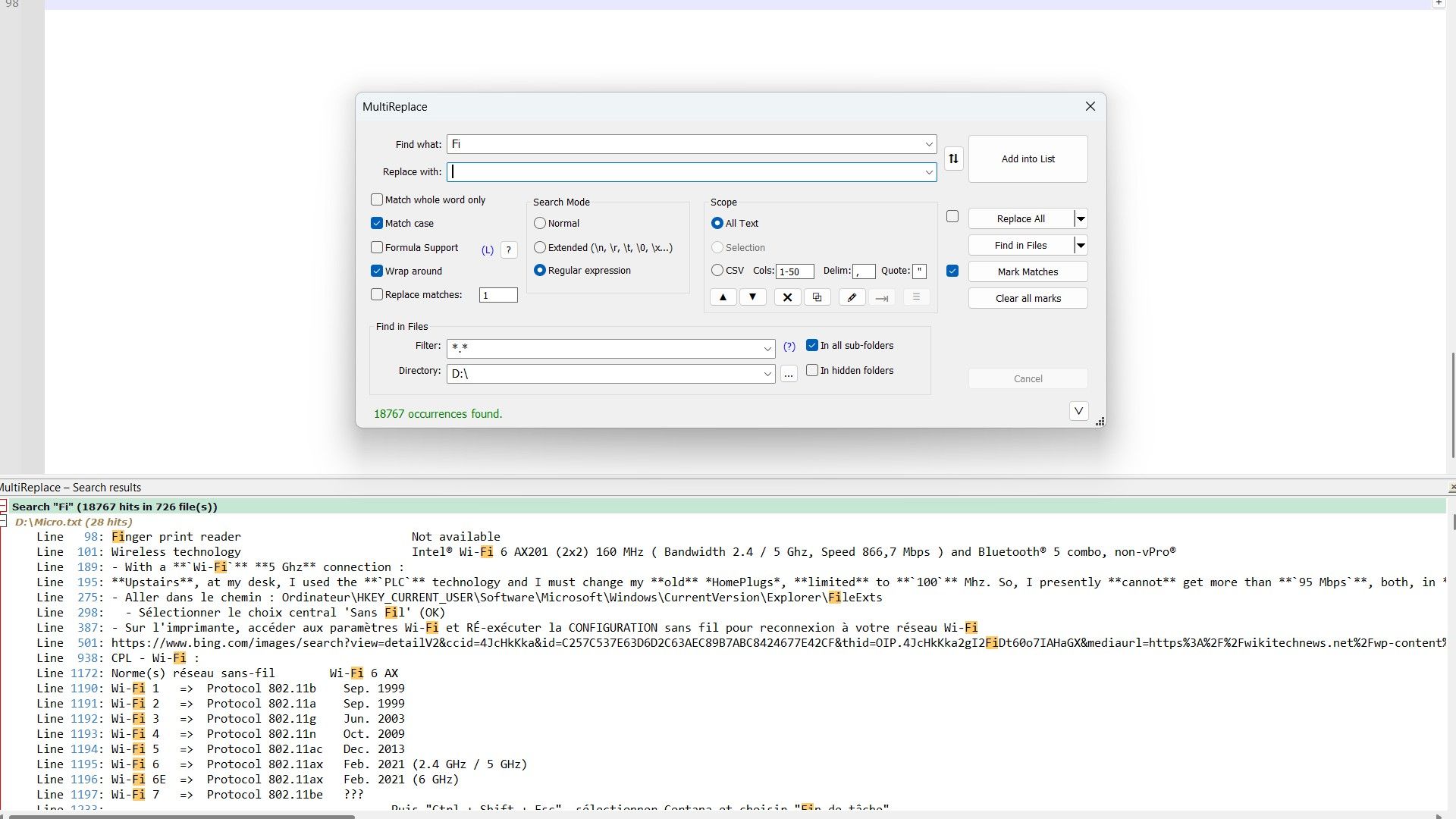
So, did I do something wrong ?
-
I also did a test on an other USB key where I put a simple subset of
7files, from myD:key, in aTestfolder -
I moved, within a command prompt, to that Test folder
-
I started N++ without a session and opened these
7files only -
I first ran the
Find in Filesoperation, with the Directory option =E:\Testand the Filter option =*.*=>83 hits in 3 files -
Then, I ran the similar
Find in Docsoperation =>372 hits in 7 files!
So, an obvious difference ! If necessary, I could send you the contents of this
Testfolder, for further tests !Best Regards,
guy038
-
-
Thanks for this thorough test, and no, you didn’t do anything wrong. Your investigation uncovered two separate behaviors in the code:
- Binary Files: MultiReplace “Find in Files” currently skips binary files, while native N++ searches every file it lists. That accounts for most of the gap in your USB drive numbers. I’ll look at how to make this configurable and more transparent.
- UTF-16 Bug: There is indeed a bug in how “Find in Files” handles UTF-16 encodings compared to “Find in Docs” and “Replace in Files”. This most likely explains the missing files in your smaller
Testfolder too.
Since the forum isn’t ideal for sharing files and tracking bug fixes, I have opened a GitHub issue for this here: https://github.com/daddel80/notepadpp-multireplace/issues/133
I would gladly take you up on your offer to share theE:\Testfolder contents so I can verify the fix against them. Could you please attach that folder as a zip or provide a link in the GitHub issue?Thanks again for your time and for helping to polish the next release candidate!
-
MultiReplace 6.1 is out and will land in Plugin Admin with the next Notepad++ release.
The focus of this release is Replace All in One Pass, running the whole list in a single left-to-right sweep instead of one full pass per entry, together with a reworked Find/Replace in Files and a handful of list and UI improvements. Several new options live under Plugins > MultiReplace > Settings.
Download: Latest build
Key Features & Improvements
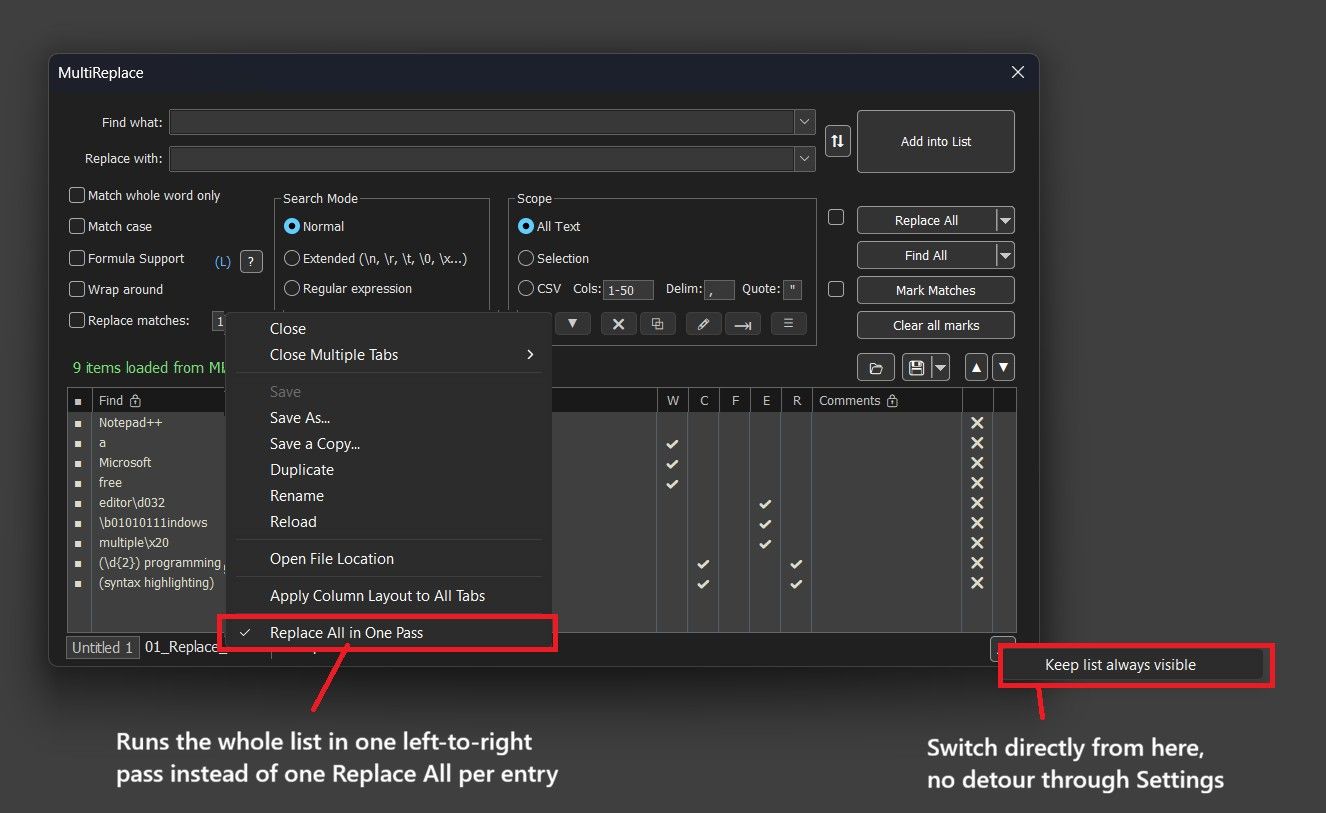
- Replace All in One Pass: Runs the whole list in a single pass instead of one full Replace All per entry, so results build on each other left to right. With
cat→doganddog→cat, sequential mode turns “cat dog” into “cat cat”, one pass turns it into “dog cat”. Much faster on large documents. Toggle per tab, right-click the list tab. - Use Open Documents: Find/Replace in Files can now work on files already open in Notepad++ as the live document, unsaved changes included, instead of the copy on disk. New checkbox in Settings.
- Skip Binary Files: New option for Find/Replace in Files (on by default), same detection as ripgrep and VS Code. Also adds UTF-16 detection without a BOM, and skipped files are always reported, broken down by reason.
- CSV Header Rows: Find/Replace now always searches header rows too. “Header rows to exclude” only protects sorting and duplicate detection.
- Collapse to File List: New Search Results dock option folding every search block down to just file names and hit counts. Ctrl/Shift-click works in the fold margin, same as Notepad++'s own Search Results panel.
- Library Mode: “Keep list always visible” can now be switched right from the Use List button’s context menu, no detour through Settings.
- Add New Row: Takes over the dialog’s current search options instead of starting all off. Find/Replace text still starts empty.
- Duplicate Row Reporting: A list row that exactly duplicates an earlier enabled one is skipped as before, but the status line now tells you how many rows were skipped.
Issues or suggestions: GitHub.
Happy replacing!
- Replace All in One Pass: Runs the whole list in a single pass instead of one full Replace All per entry, so results build on each other left to right. With
-
MultiReplace 6.2 is out and will land in Plugin Admin with the next Notepad++ release.
This is a big review and performance release: Find/Replace in Files is considerably faster and more robust, and the existing features were gone through once more, which led to a long list of fixes.
Download: Latest build
Key Features & Improvements
- Faster Find/Replace in Files: Files are now read on worker threads while the current one is searched. In a test with 48,500 files, a search dropped from 8.7 s to 6.0 s. The thread count follows the drive type and can be set with
LoadThreadsin the INI file. - Faster scan and results: Files that cannot contain a hit are ruled out right after reading, the folder scan was reworked, and large result sets appear much faster in the Search Results Window.
- Robust runs: Unreadable folders no longer end a scan; they are skipped and reported, for example
3 folder(s) unreadable. The panel is locked during a run (Cancel stays available), and a file that changed on disk after it was read ahead is read again, so nothing gets overwritten. - Safer Replace in Files: Files it cannot process safely are left unchanged and reported with the reason, for example
2 file(s) skipped: 1 too large, 1 not writable. “Not writable” is new, for example a file held open by another program. - Fixes from the review: Closing Notepad++ during a run no longer crashes. Find/Replace in Open Documents returns to the tab you started from and keeps its Flow Tabs alignment. With the CSV scope, each document uses its own columns. A hit in an unsaved tab (“new 1”) now jumps to that tab.
- Translations: Japanese and Traditional Chinese show hit and file counts in the right order, Chinese (Simplified) can copy and open paths from the Search Results Window again, and the progress text is translated.
All changes are in the release notes.
Issues or suggestions: GitHub
Happy replacing!
- Faster Find/Replace in Files: Files are now read on worker threads while the current one is searched. In a test with 48,500 files, a search dropped from 8.7 s to 6.0 s. The thread count follows the drive type and can be set with
-
Hello, @thomas-knoefel and All,
Again I made a comparison between the
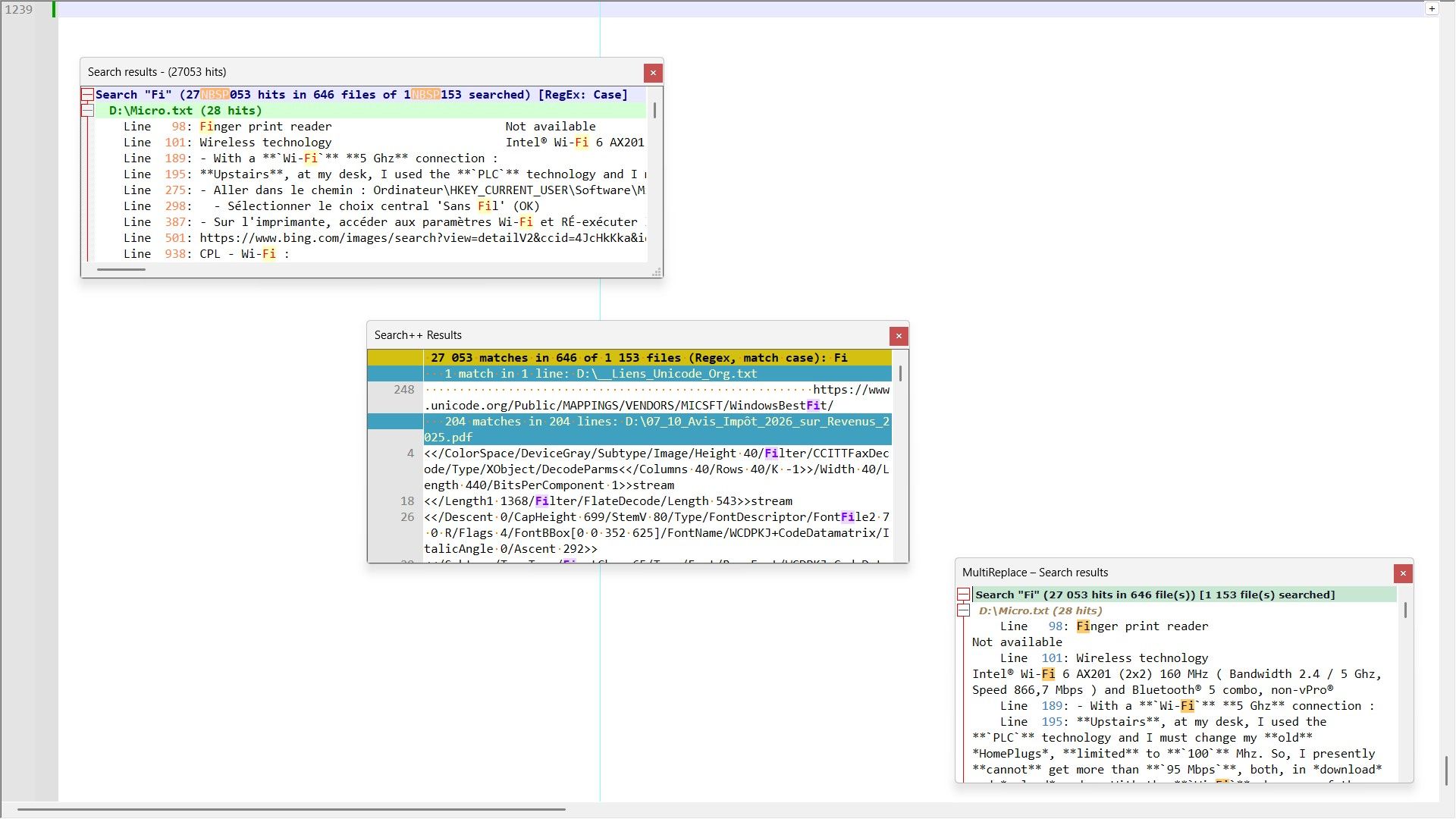
Notepad++ v8.9.8,Search++ v0.72andMultiReplace v6.2Search in Files feature against all files of myDUSB key.All the Search results panels return
27,053hits in646files of1,153searched, obtained in :-
1m 43sfor Notepad++ -
1m 13sfor MultiReplace -
2m 18sfor Search++
As previously, I unpluged my USB key, restarted my computer and repluged my key before any Search in Files action
Your list of improvements, in your latest relesase, are quite impressive ! And probably, my test does not exploit all the features of your plugin. I still need to carefully read your documentation !
Best Regards,
guy038
-
-
@guy038 Hi guy038,
thanks for testing again! In case you’re curious, here’s roughly what the new loading threads in 6.2 do.
As soon as the file list is known, a few worker threads start reading ahead: they open the files, read them, check for binary content and decode the text. The main thread takes the files in list order as soon as each one is ready, puts it into a hidden Scintilla document and searches it. So the hits and their order stay the same, but reading and searching now overlap.
On a USB stick MultiReplace uses four threads by default. With a cold cache, as in your test, most of the time goes into waiting for your USB key, and that is where it helps: up to four files are read at the same time, and the search runs while the next ones are still loading.
If you want to see what the threads bring on your key: with
LoadThreads=0in the[ReplaceInFiles]section of the INI file, every file is read on the main thread as before (see the README; it takes effect after restarting Notepad++).


Hello! It looks like you're interested in this conversation, but you don't have an account yet.
Getting fed up of having to scroll through the same posts each visit? When you register for an account, you'll always come back to exactly where you were before, and choose to be notified of new replies (either via email, or push notification). You'll also be able to save bookmarks and upvote posts to show your appreciation to other community members.
With your input, this post could be even better 💗
Register Login