Is There a Way to Prevent Pasted Text from Spreading Out with Rows of Spaces?
-
This has been bugging me for a long time. Is there a way to prevent Notepad++ from displaying rows of blank space when pasting text from IMDB? I tried all of the settings in the Find box, but nothing happened.
For example, https://www.imdb.com/name/nm0000078/ then click on ‘1 episode’ for Gunsmoke, highlight, and copy Gunsmoke
1 episode
1955
See what happens even here?
To remove the spaces easily, I have to either use DuckDuckGo’s search box or the Everything search program to get the result Gunsmoke 1 episode 1955.
Using those prevents the text from spreading out with rows of blank space. All I have to do is click in front of 1955, use the back button 4 times, click in front of 1 episode, then use the back button 5 times.
-
@Troglo37 said in Is There a Way to Prevent Pasted Text from Spreading Out with Rows of Spaces?:
This has been bugging me for a long time. Is there a way to prevent Notepad++ from displaying rows of blank space when pasting text from IMDB? I tried all of the settings in the Find box, but nothing happened.
For example, https://www.imdb.com/name/nm0000078/ then click on ‘1 episode’ for Gunsmoke, highlight, and copy Gunsmoke
1 episode
1955
See what happens even here?
Yes. When you copy that text from the webbrowser, the browser puts the string
Gunsmoke\n1 episode\n1955(with newline characters) into the CF_TEXT, CF_OEMTEXT, and CF_UNICODE slots of the Windows clipboard. Then when you paste in Notepad++ (or notepad.exe, or any other text editor which is requesting one of those text slots from the Windows clipboard), Notepad++ correctly pastes what’s there, honoring the newline settings to interpret the newline in the data that you are pasting, just like Notepad++ always does. (And, BTW, pasting that text into Windowsnotepad.exealso correctly puts the newline between the lines, because that is IN THE CLIPBOARD TEXT)Using those prevents the text from spreading out with rows of blank space. All I have to do is click in front of 1955, use the back button 4 times, click in front of 1 episode, then use the back button 5 times.
Notepad++ cannot know that you visually saw a single line in the rendered HTML browser, because all Notepad++ is told is that when it requests the CF_TEXT or similar, there’s a newline there, so it needs to handle that newline the same way it does every other newline in pasted data. To do anything else would break user expectation, and would be considered a crippling bug in the software.
And what you don’t understand is that, even to your browser, that’s not a single line of text. The word
Gunsmokeis in an H3 tag,1 episodeis inside an<li>tag, and1955is in a separate<li>tag. They are three independent pieces of data, which the stylesheet just happens to present as having the two LI elements on the same “line” when rendered. But when your browser puts that data in the clipboard, it separates them with newline symbols. It’s not Notepad++'s fault, and Noteopad++ cannot read your mind in what you “want” from the data: it assumes that since you’re pasting text, that you want to paste the exact text that’s in the CF_TEXT or equivalent slot in the clipboard, so that’s what it does.To save keystrokes to fix it, you can hold down the shift key, hit HOME then UP then UP, the
Ctrl+Jto join the lines.But the “problem” is not on Notepad++'s end. Notepad++ correctly pastes the data that is in the text portion of the Windows clipboard.
-
@PeterJones, I certainly wasn’t being critical of Notepad++ because of this. I’m just surprised to learn that it doesn’t have that feature.
I thought since the Everything search program and the DuckDuckGo search box prevent text from spreading out and keep it all in one line, it would be possible for it to be done in Notepad++, and there are several useful reasons to have that feature (some that I’m not aware of) that others would find useful.
I thought that with all of the functionality in this software, it would have a feature to ignore those codes. Something akin to Paste Special > Unformatted Text, More Options in LibreOffice Writer that could be done with a one-click feature.
-
@Troglo37 said in Is There a Way to Prevent Pasted Text from Spreading Out with Rows of Spaces?:
Something akin to Paste Special > Unformatted Text, More Options in LibreOffice Writer that could be done with a one-click feature.
Have you tried that feature in LibreOffice Writer, with the exact text that you did in Notepad++? Because, as I explained, the newlines are in the plain text version of the clipboard. When you do that exact Paste Special > Unformatted Text, LibreOffice Writer does exactly what Notepad++ does:
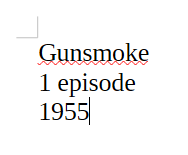
… or, in words: it pastes the text in, with the newlines, because that is unformatted text. Newlines aren’t “magic formatting” like HTML<LI>or<H3>are – they are an integral part of the unformatted plain text.“Paste Without Newlines” might be a reasonable feature to a tiny number of people (you, and a relative handful of others)… but Notepad++ doesn’t include it natively, because that’s not a feature that would have broad appeal. (And Notepad++'s normal paste is already the “paste unformatted text”, because that’s literally what pasting the CF_TEXT entry from the clipboard does; you have to use the Edit > Paste Special > Paste HTML/RTF Content actions to get it paste the “formatted” text, though it actually pastes the source code of the formatted text, ie, the raw HTML or RTF rich text, because Notepad++ is not a word processor, which is what LibreOffice Writer is.)
In theory, a plugin could be made specficially for “Paste Without Newlines”… but with just the one feature, that would be a waste of effort. Instead, it would be best as a script in PythonScript or LuaScript. I will probably even spend some time on implementing it in PythonScript today, depending on how much life interrupts.
-
@PeterJones said in Is There a Way to Prevent Pasted Text from Spreading Out with Rows of Spaces?:
implementing it in PythonScript today
Thankfully, I found an old script which did something related, which was easy to update.
# encoding=utf-8
"""in response to https://community.notepad-plus-plus.org/topic/27385/

This will paste the CF_TEXT plaintext from the clipboard, but will convert any series of newline characters into a single space before doing the paste.

Because this uses .insertText() instead of putting the modified text back into the clipboard and doing .paste(), it should avoid clobbering the clipboard.

(based on @alan-kilborn's clipboard script here:
<https://community.notepad-plus-plus.org/post/97132>)
"""
from Npp import *

try:
    editor3h  # third editor, hidden
except NameError:
    editor3h = notepad.createScintilla()

def get_clipboard_text_without_newlines():
    retval = ''
    editor3h.clearAll()
    editor3h.paste()
    if editor3h.getLength() > 0:
        editor3h.rereplace(r'[\r\n]+', ' ') # replace all newline seqeuences with a single space
        retval = editor3h.getText()
    return retval

editor.beginUndoAction()
editor.insertText(editor.getCurrentPos(), get_clipboard_text_without_newlines())
editor.endUndoAction()
This has been tested in the PythonScript 3 plugin. The PythonScript FAQ explains how to install PythonScript plugin, and how to run a script using PythonScript plugin, and even how to assign a keyboard shortcut to the script. Make sure you follow the instructions for PythonScript 3, not PythonScript 2 (as I have not tested under the older plugin syntax, though it will likely work there)
-
P PeterJones referenced this topic on
-
@PeterJones Sorry it took so long. I was dealing with a lot of issues. Washing machine, car, and several other things.
I tried installing Python v3.0.24 msi, and zip Full, but I don’t see it anywhere in the Plugins section. Initially, I installed 2.1. I uninstalled it and tried installing v3.0.24, but 2.1 is still there.
What am I doing wrong?
P.S. I didn’t try any of the v3.0.24 x64, PluginAdmin, Min, or TclTk.
-
I tried installing Python v3.0.24 msi, and zip Full, but I don’t see it anywhere in the Plugins section. Initially, I installed 2.1. I uninstalled it and tried installing v3.0.24, but 2.1 is still there.
What am I doing wrong?
Since you just gave a high-level description, rather than any actual data, it’s really hard to tell.
I uninstalled it and tried installing v3.0.24, but 2.1 is still there.
Then you didn’t uninstall it. Please note that under many conditions, the Plugins Admin uninstall button doesn’t work if Notepad++ has accessed the PythonScript plugin at all that run, because it’s loaded the DLL into memory, and thus cannot delete the file – so if you have any AT START, that virtually guarantees that uninstall button won’t work. (I believe there was an Issue or PR to try to make uinstall button more reliable, but I don’t remember whether that was implemented, or whether it was even feasible.) So, anyway, your best bet is to exit Notepad++ completely, and delete
C:\Program Files\Notepad++\plugins\PythonScript\.P.S. I didn’t try any of the v3.0.24 x64, PluginAdmin, Min, or TclTk.
You didn’t try the 64-bit version of PythonScript? The last time you shared Debug Info (and the time before that) you were using 64-bit Notepad++. So why would you try anything but 64-bit PythonScript. It is 100% guaranteed that it will not work if you try to use the 32-bit PythonScript with a 64-bit Notepad++.
If you ran the 32-bit MSI on a 64-bit OS, it would have tried to install the plugin into
C:\Program Files (x86)\Notepad++\Plugins\PythonScript, which, of course, couldn’t be seen if you are running the 64-bit Notepad++ executable atC:\Program Files\Notepad++\notepad++.exe.If you tried one of the zips, you didn’t say where you put it, or what the directory hierarchy would have been. But if you were still seeing PythonScript 2.1 in Notepad++, it means you didn’t put it in the right place. And I have no clue where you would have put it.
So the things you will need to do:
- Run Notepad++ as normal, and verify with Debug Info that you are using 64-bit, and that it is running from
c:\Program Files\Notepad++.- If you don’t get it working after these instructions, you must share your Debug Info, otherwise it will be impossible to give you better instructions.
- The rest of these instructions will assume normal installation directory, normal 64-bit Notepad++
- Exit Notepad+++ completely. No instances running.
- Go to
C:\Program Files\Notepad++\plugins\PythonScript\. If there’s anything in there, remove it (and the directory) - Grab
PythonScript_Full_3.0.24.0_x64_PluginAdmin.zip(I don’t use the MSI, so cannot give reliable instructions for that MSI installation method). Unzip it so that the following exist:C:\Program Files\Notepad++\plugins\PythonScript\PythonScript.dllC:\Program Files\Notepad++\plugins\PythonScript\python312.dllC:\Program Files\Notepad++\plugins\PythonScript\doc\C:\Program Files\Notepad++\plugins\PythonScript\lib\C:\Program Files\Notepad++\plugins\PythonScript\scripts\
If those aren’t all there, you didn’t unzip things correctly.
- Start Notepad++. It should show PythonScript in the Plugins menu, and Plugins > Python Script > About should show plugin version 3.0.24.0 with Python 3.12.0
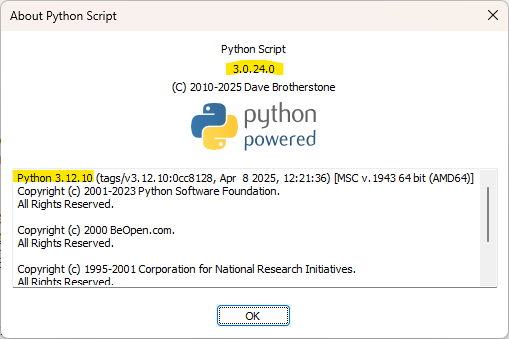
If it’s not working for you after following those instructions, you must share
- ?-menu’s Debug Info
dir "c:\Program Files\Notepad++"dir "c:\Program Files\Notepad++\Plugins"dir "c:\Program Files\Notepad++\Plugins\PythonScript"
- Run Notepad++ as normal, and verify with Debug Info that you are using 64-bit, and that it is running from
-
@PeterJones I’m having trouble correctly unzipping PythonScript_Full_3.0.24.0_x64_PluginAdmin.zip
I tried putting the zip file into the plugins folder via Plugins > Open Plugins Folder, but Windows won’t allow unzipping in that location.
I tried unzipping in my Compressed folder, then put all of the unzipped items into the Plugins Folder. That didn’t work either.
I checked, and I only see Python Script 2.1 in Plugins Admin. Strange, because I deleted those items.
-
You may need UAC / Admin permission to write to the Plugins directory.
If PythonScript 2.1 is still there, you didn’t delete the right directory.
I told you what information we would need to help you further, and you chose to not share it
Good luck.
-
@PeterJones Oops, I was so wrapped up in trying to make it work, I forgot!
I don’t see anything with Plugins in the Debug info.
Notepad++ v8.9.2 (64-bit)
Build time: Feb 13 2026 - 02:47:53
Scintilla/Lexilla included: 5.5.8/5.4.6
Boost Regex included: 1_90
pugixml included: 1.15
nlohmann JSON included: 3.12.0
Path: C:\Program Files\Notepad++\notepad++.exe
Command Line: “D:\D Drive Documents\Znew 2.tex”
Admin mode: OFF
Local Conf mode: OFF
Cloud Config: OFF
Periodic Backup: ON
Placeholders: OFF
Scintilla Rendering Mode: SC_TECHNOLOGY_DEFAULT (0)
Multi-instance Mode: monoInst
asNotepad: OFF
File Status Auto-Detection: cdEnabledNew (for current file/tab only)
Dark Mode: OFF
Display Info:
primary monitor: 3840x2160, scaling 175%
visible monitors count: 1
installed Display Class adapters:
0000: Description - NVIDIA GeForce RTX 2080 SUPER
0000: DriverVersion - 32.0.15.8157
OS Name: Windows 10 Home (64-bit)
OS Version: 22H2
OS Build: 19045.6466
Current ANSI codepage: 1252
Plugins:
mimeTools (3.1)
NppConverter (4.7)
NppExport (0.4)
_CustomizeToolbar (5.3) -
@Troglo37 said in Is There a Way to Prevent Pasted Text from Spreading Out with Rows of Spaces?:
@PeterJones Oops, I was so wrapped up in trying to make it work, I forgot!
I don’t see anything with Plugins in the Debug info.
What I see in the Debug Info is:
- It really is 64-bit Notepad++ in the normal installation directory, with normal AppData config and not running in Admin mode
- You do not have PythonScript 2.1 at this point
What I don’t see in your answer are any of the directory listings that my post requested. :-(
At this point, the steps I would take, if I were you and trying to get this working:
- Exit Notepad++
- Do the directory listing(s) that I suggested above, to see whether there’s a PythonScript directory and what’s in it
- Do the unzip described above, making sure to say yes to the UAC to allow you to put files in the protected directory (it may be that Windows is showing the UAC prompt, but it might not put it to the foreground – if you don’t see the prompt, check your taskbar for the UAC icon and click on it if it’s there)
- Do the directory listing(s) again, to make sure it correctly populated. If it didn’t, try again.
- Run Notepad++, and check for PythonScript. If it’s there, look at the About.
If it’s still not installed 3.0.24, you will need to show us the directory listings from 2 and 4, and any dialogs or error messages you see at any point in the instructions.
-
@PeterJones I’m confused about a couple of things.
- I’m not sure what you mean by supplying the following debug info. How do I do that? The only thing I know how to do is what I provided to you.
?-menu’s Debug Info
dir “c:\Program Files\Notepad++”
dir “c:\Program Files\Notepad++\Plugins”
dir “c:\Program Files\Notepad++\Plugins\PythonScript”- Please give exact instructions on how and where to extract the file. Should I extract the file to a folder, and then move the extracted contents to a particular location? Or should I put it in a particular location before extracting it?
P.S. I manually opened c:\Program Files\Notepad++. There are no Python files or folders in the Plugin folder.
-
@Troglo37 said in Is There a Way to Prevent Pasted Text from Spreading Out with Rows of Spaces?:
@PeterJones I’m confused about a couple of things.
I’m not sure what you mean by supplying the following debug info. How do I do that? The only thing I know how to do is what I provided to you.
?-menu’s Debug Info
Right. That was the Debug Info that was in your last post.
dir “c:\Program Files\Notepad++”
dir “c:\Program Files\Notepad++\Plugins”
dir “c:\Program Files\Notepad++\Plugins\PythonScript”Since that same syntax has been used for directory listings in the Microsoft OS command -line environment since the 80s (in DOS back then, and in cmd.exe in modern Windows), I assumed my meaning was obvious. Since it wasn’t, I will explain: Those are me asking for directory listings for each of those directories.
Please give exact instructions on how and where to extract the file.
Do you not know how to unzip a .zip in Windows? You right click, and choose to extract all. Easiest is to put it in a temporary directory to start. Then copy all the contents of that directory, and put it into
C:\Program Files\Notepad++\Plugins\PythonScript(which is the destination directory that I already told you about, above)After you have done that, the directory should contain the files and subdirectories I mentioned above.
If it doesn’t, give me something to work with: Screenshots, text dumps of directory listings, whatever you can do to give me real information, rather than vague responses.
-
@PeterJones I got it to work. I copied the files as instructed. However, there are a few things I need to know.
-
Should I delete python27.dll from the PythonScript folder? This time, I copied and pasted and followed the prompt to replace the existing files. Last time, I deleted everything before copying over the extracted files. Is that why it didn’t work?
-
How is the script enabled? The only way I can figure out how to make the script work is via the toolbar, Plugins > PythonScript > Run Previous Script (No New Lines)
-
Is this the only way to enable it? Is there a way to make it automatic? Or at least, an icon on the toolbar? I tried doing that via Plugins > PythonScript > Configuration, but to no avail.
-
Is it possible for the script to work without first pasting the IMDB text into the Find search box?
-
-
- Should I delete python27.dll from the PythonScript folder? This time, I copied and pasted and followed the prompt to replace the existing files. Last time, I deleted everything before copying over the extracted files. Is that why it didn’t work?
How could it be there? You literally said last time that the directory didn’t exist. If the directory didn’t exist, python27.dll cannot be in it already. If it did exist, you should have said it did exist.
- How is the script enabled? The only way I can figure out how to make the script work is via the toolbar, Plugins > PythonScript > Run Previous Script (No New Lines)
Plugins > PythonScript > Scripts>
No New Linesis the normal way to run the script.The script doesn’t magically replace the old paste behavior: you run the script instead of doing a normal paste.
- Is this the only way to enable it? Is there a way to make it automatic? Or at least, an icon on the toolbar? I tried doing that via Plugins > PythonScript > Configuration, but to no avail.
The FAQ explains how to add a shortcut and, IIRC, how to add a toolbar button.
- Is it possible for the script to work without first pasting the IMDB text into the Find search box?
The script has absolutely nothing to do with the Find box. I have no clue how you got the impression that it requires that.
-
@Troglo37 said in Is There a Way to Prevent Pasted Text from Spreading Out with Rows of Spaces?:
Is there a way to make it automatic?
If register a callback to respond to the notification
SC_MOD_INSERTCHECKthen it can be automated to change the text before insertion. This example code can be added to the userstartup.pyfile. Make sure the PythonScript configuration is set toATSTARTUP.import re def event_paste_single_line(args): SC_MOD_INSERTCHECK = 0x100000 if args['modificationType'] & SC_MOD_INSERTCHECK: text = args['text'] if ' episode\r\n ' in text: result = notepad.messageBox('Paste text as single line?', 'InsertCheck', MESSAGEBOXFLAGS.ICONQUESTION | MESSAGEBOXFLAGS.YESNO) if result == MESSAGEBOXFLAGS.RESULTNO: return text = re.sub(r'\s+', ' ', text) editor.changeInsertion(text) editor.callbackSync(event_paste_single_line, [SCINTILLANOTIFICATION.MODIFIED])I added a messagebox to allow a choice rather then being fully automatic with the text change.
-
@PeterJones said in Is There a Way to Prevent Pasted Text from Spreading Out with Rows of Spaces?:
- Should I delete python27.dll from the PythonScript folder? This time, I copied and pasted and followed the prompt to replace the existing files. Last time, I deleted everything before copying over the extracted files. Is that why it didn’t work?
How could it be there? You literally said last time that the directory didn’t exist. If the directory didn’t exist, python27.dll cannot be in it already. If it did exist, you should have said it did exist.
It didn’t exist at that time. I reinstalled 2.1 via Plugins Admin to restore the Python folder and pasted the extracted contents into it. Oh, and should I delete python27.dll?
- Is it possible for the script to work without first pasting the IMDB text into the Find search box?
The script has absolutely nothing to do with the Find box. I have no clue how you got the impression that it requires that.
I had the idea before my OP, when I posted about using the Find box, DuckDuckGo, and Everything.
I don’t see anywhere in the FAQ how to apply an icon to the script.
Also, what icon would I use? Is there a way to create, or import one if none are available? BTW, I have the Old Large Legacy Icons installed, and there aren’t any unused ones available under Plugins > Customize Toolbar
-
It didn’t exist at that time. I reinstalled 2.1 via Plugins Admin to restore the Python folder and pasted the extracted contents into it. Oh, and should I delete python27.dll?
I would ask WHY?!… But honestly, at this point, it doesn’t matter. It won’t be used, but you could delete the 2.7 dll since it’s completely wasted space
I don’t see anywhere in the FAQ how to apply an icon to the script.
At some point, you are going to have to take the initiative and look at the PythonScript plugin documentation. It explains how to add a script to the toolbar. -
@Troglo37 said in Is There a Way to Prevent Pasted Text from Spreading Out with Rows of Spaces?:
I don’t see anywhere in the FAQ how to apply an icon to the script.
Reading the manual yourself would be more beneficial. But, to help you:
- Plugins > Python Script > Configuration…
- Choose either Machine Scripts (if your script is in
c:\program files\notepad++\plugins\PythonScript\scriptshierarchy) or User Scripts (if your script is in%AppData%\Notepad++\plugins\Config\PythonScript\scriptshierarchy, where it should be for normal usage) - Click on your script
- The Add button above the Toolbar icons panel at the right should be available now; click Add, and the script will be added
- Click the script in that panel, and click Set Icon…, and navigate to whatever 32x32 BMP or ICO you want to use
- If you exit Notepad++ and run it again, that script will have an button on the toolbar, using whatever icon you chose (or the Python icon if you didn’t choose one)
Or, since you said,
there aren’t any unused ones available under Plugins > Customize Toolbar
If you prefer using the Customize Toolbar, you can. However, there’s probably confusion that you need cleared up. Customize Toolbar has two separate ways of customizing the toolbar
- It can manipulate the icon for tools that are already on the toolbar, or a few other builtin commands, using Plugins > Customize Toolbar > Customize Toolbar… interface, which you are likely familiar with
- I assume this is the one where you say, “there aren’t any unused ones available”. I cannot imagine that you’ve actually enabled another couple-dozen buttons from its list, so that there are no other “available toolbar buttons”, as that toolbar would be so full as to be unusable. On the other hand, that’s the only thing I imagine that you could mean by such a sentence.
- It can add an icon for other builtin or plugin tools using its Custom Buttons
- Use Plugins > Customize Toolbar > Custom Buttons to add a checkmark to that option. It will tell you that it will take effect the next time you start Notepad++.
- You can use Plugins > Customize Toolbar > Help - Custom Buttons to read more about the syntax of the file, though the file itself will have comments that help you set things up
- exit Notepad++
- open Notepad++
- File > Open
%AppData%\Notepad++\plugins\config\CustomizeToolbar.btn, which was created automatically when you checkmarked the option in the earlier step - Use something akin to the following
Plugins,Python Script,Scripts,No New Lines,*R:PN,*R:PN,*R:PN- That setup assumes you named your script
No New Lines, and that you want it to show up as a pseudo-icon with red background, with the text “PN” for “Paste: No New Lines”:
- If you actually want icons, put
NoNewLines.bmp,NoNewLines_light.ico, andNoNewLines_dark.icoin the same directory asCustomizeToolbar.btn
- That setup assumes you named your script
Important Things To Note
- To add to toolbar, pick one of the two methods – either use the PythonScript Configuration… dialog, or use the Customize Toolbar’s Custom Buttons feature. DON’T USE BOTH AT THE SAME TIME
- If you use the script I suggested, using a button makes sense. If you use the script @mpheath suggested, it just needs to be run ATSTARTUP, and you won’t need a button at all, because it will intercept the normal paste command.
-
@PeterJones said in Is There a Way to Prevent Pasted Text from Spreading Out with Rows of Spaces?:
Or, since you said,
there aren’t any unused ones available under Plugins > Customize Toolbar
- I assume this is the one where you say, "there aren't any unused ones available". I cannot imagine that you've _actually_ enabled another couple-dozen buttons from its list, so that there are no other "available toolbar buttons", as that toolbar would be so full as to be unusable. On the other hand, that's the only thing I imagine that you _could_ mean by such a sentence.Yes, all of the Old Large Legacy Icons are in the Current toolbar buttons box. After checking them, I decided that I might use all of them in the future.
Well, with all of that said, thanks for being patient and hanging in there through all of this. I have everything working, including adding a new icon to the toolbar. And thanks for the updated scripts.
I hope this thread serves many others.


Hello! It looks like you're interested in this conversation, but you don't have an account yet.
Getting fed up of having to scroll through the same posts each visit? When you register for an account, you'll always come back to exactly where you were before, and choose to be notified of new replies (either via email, or push notification). You'll also be able to save bookmarks and upvote posts to show your appreciation to other community members.
With your input, this post could be even better 💗
Register Login