V8.9.1 Cannot get all of UDL to load
-
I just got a new computer and I installed the latest Notepad++. However, after I load a couple of UDLs I have for a specific program, pcgen, the new styles do not appear to work, the keywords are still the same. I checked the UDL to make sure it was coded at all (I copied from github) and the keywords and stylers are set with different colors and such. However, the text within the notepad++ screen stays the same basic black, instead of the different colors within the ODL style.
It works on a previous computer that has been upgraded to the latest Notepad++ but it is a win10 machine and the new computer is to replace it.
Any help would be appreciated. -
@Jerry-D said in V8.9.1 Cannot get all of UDL to load:
However, after I load a couple of UDLs I have for a specific program, pcgen, the new styles do not appear to work, the keywords are still the same. I checked the UDL to make sure it was coded at all (I copied from github) and the keywords and stylers are set with different colors and such.
UDLs work just fine in v8.9.1.
However, the text within the notepad++ screen stays the same basic black, instead of the different colors within the ODL style.
Are you sure the UDL is active for the given file?
Does your status bar, in the lower left, say
Normal text file? Or does it say,User Defined language file - NameOfUDL? (If the status bar starts withLength, then you would need to widen your Notepad++ window to see the language field on the far left of the bar)

vs

vs

What order did you do things? Did you 1) load file, then 2) import the UDL definition, and 3) see that the file didn’t show up as the UDL? or did you 1) import the UDL definition, and 2) load the file, and 3) see that the file didn’t show up as the UDL?
Because if the file was already loaded before you imported the UDL into Notepad++, then the application does not do its file-extension check.
Also, confirm that the UDL definition includes the file extension (with no dot) in its definition, otherwise Notepad++ has no way of knowing you want that language for a given file (unless, of course, you manually select Language > NameOfUDL)
It works on a previous computer that has been upgraded to the latest Notepad++ but it is a win10 machine and the new computer is to replace it.
There have been no recent changes to the UDL implementation, so there should be no difference in behavior (UDL is not dependent on Win10 vs Win11… I’ve been using UDL successfully on Win11 for a year now).
Any help would be appreciated.
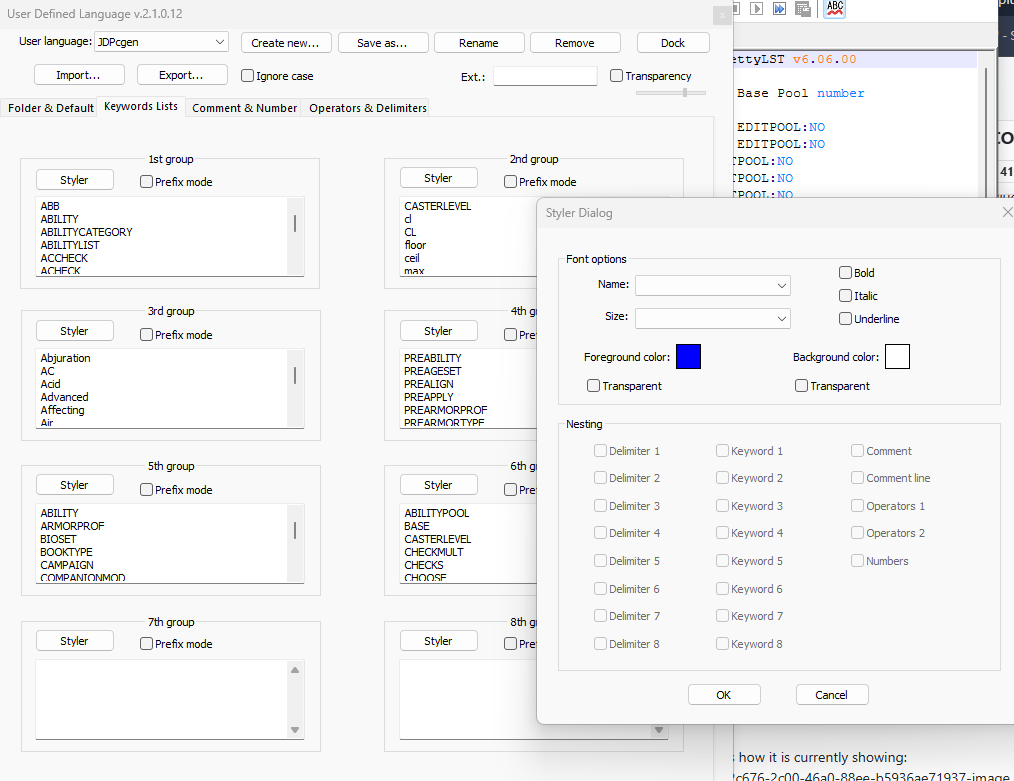
A screenshot of your Language menu, showing the UDL near the bottom of the list would be useful. As would a screenshot of the Language > User Defined Language > Define your language… dialog with your UDL active, (or at least enough of the dialog so that we can see the the Ext.: field), such as:

-
@PeterJones
Here are a few screenshots showing what I have.
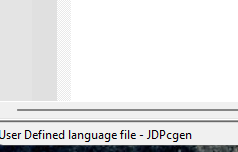
This is how it is currently showing:
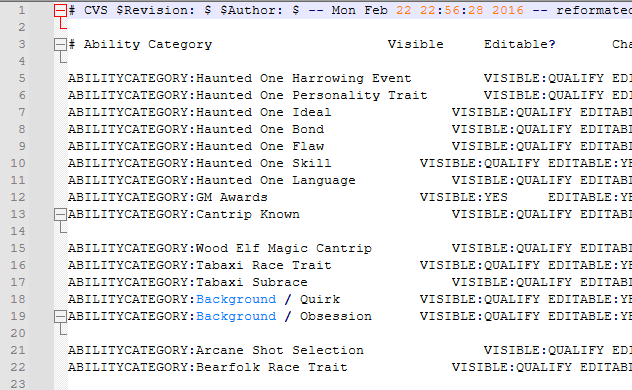
This is the UDL definition with the 1st group showing the styler:
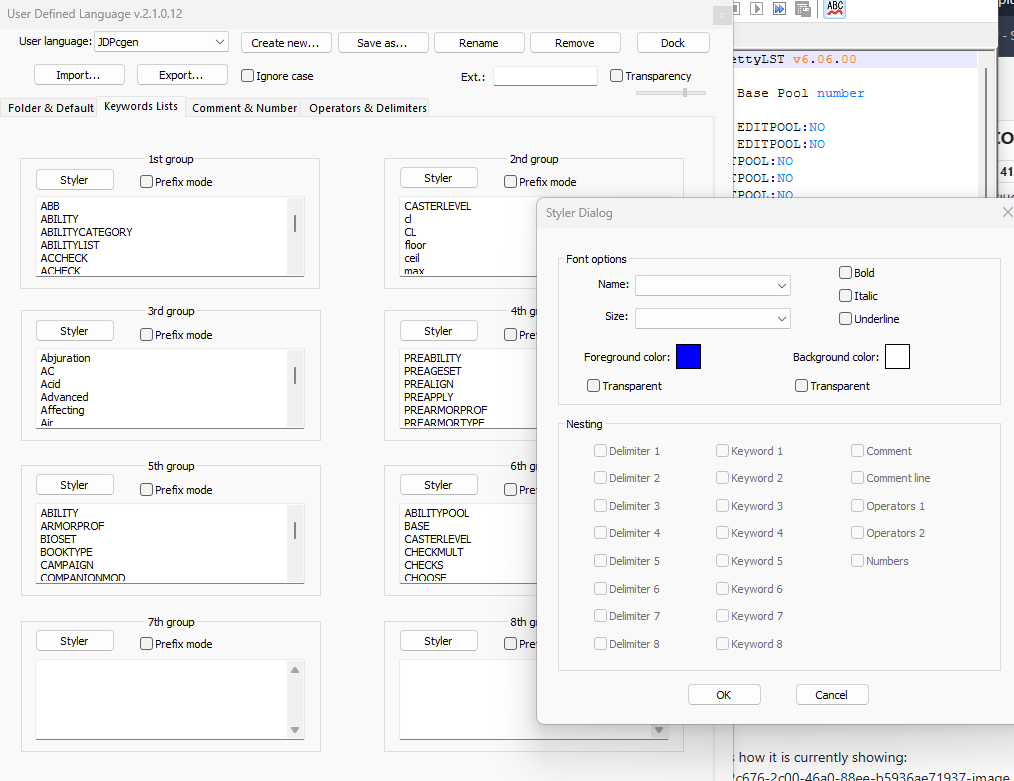
If you take a look, the word ABILITYCATEGORY should be in a blue, however in the previous screenshot, it is still a normal black.
It is taking SOME of the new UDL, but not all of it as you can see the word Background is in a light blue color.I have not had to indicate what extension for it to use, I just selected it and that’s the majority of what I use notepad++ for.
I have tried installing the xml, I have tried just copying the xml into the C:\Users\jagbe\AppData\Roaming\Notepad++\userDefineLangs folder. Neither has worked for me.
I’m really just wondering if there is some other setting I need to use to get the UDL to work. I don’t remember doing anything else other than what I have done already though.
-
@Jerry-D ,
You need to add
:to the Operators 1 list on Operators & Delimiter, so that the UDL text parser can see that the:isn’t meant to be part of the non-keyword stringABILITYCATEGORY:instead of the keyword stringABILITYCATEGORYHere’s replicating your issue (with a small example):
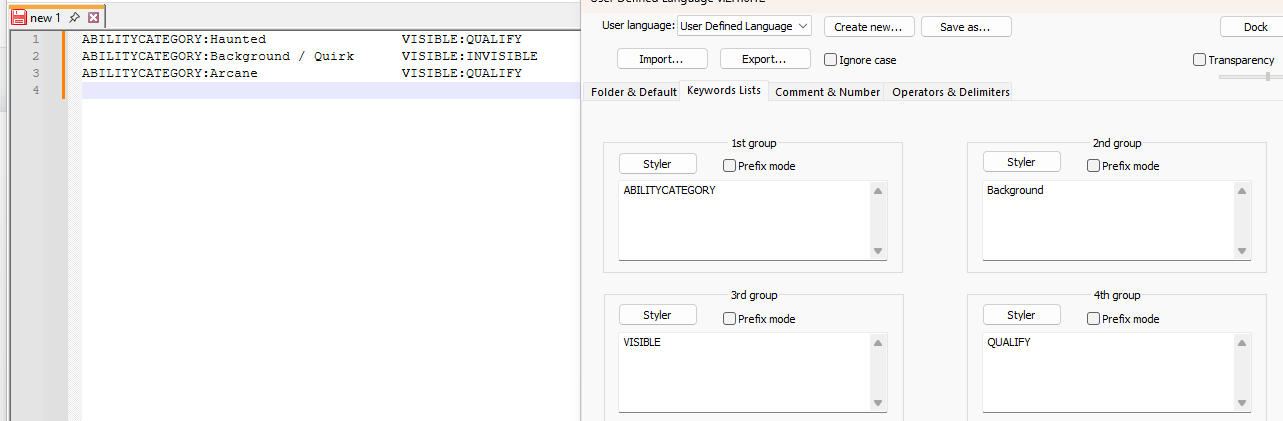
Note thatABILITYCATEGORY,Background,VISIBLE, andQUALIFYare all defined as keywords, but none are highlighted.Now edit Operators & Delimiter > Operators 1 list (with operator style set RED to make it obvious):
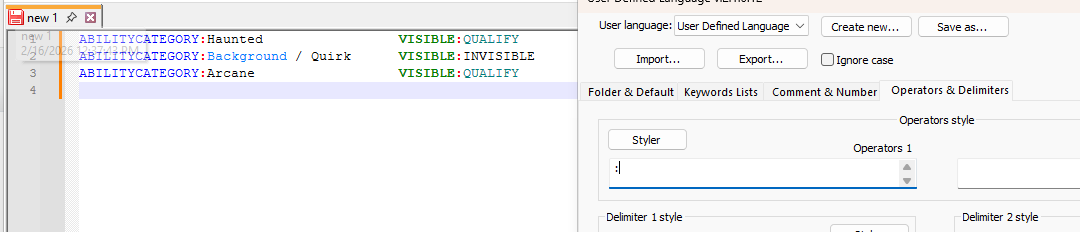
-
@PeterJones Thank you so much. It is looking MUCH better now.


Hello! It looks like you're interested in this conversation, but you don't have an account yet.
Getting fed up of having to scroll through the same posts each visit? When you register for an account, you'll always come back to exactly where you were before, and choose to be notified of new replies (either via email, or push notification). You'll also be able to save bookmarks and upvote posts to show your appreciation to other community members.
With your input, this post could be even better 💗
Register Login