Search++: A work in progress
-
Hi @guy038,
MultiReplace doesn’t use a regex engine of its own: its searches run through Notepad++'s Scintilla, i.e. through Notepad++'s Boost regex engine. So
^and$see the same line breaks as the native Find dialog, which with Boost also includes FF, NEL, LS and PS. That is intended: MultiReplace should always find the same matches as Notepad++ itself. -
@astewart77, @guy038 and anyone else who cares to comment:
As noted, I still didn’t get the Synchronize marks and bookmarks sub-menu right in version 0.7.1. I am interested if you have any preference among these three possibilities:
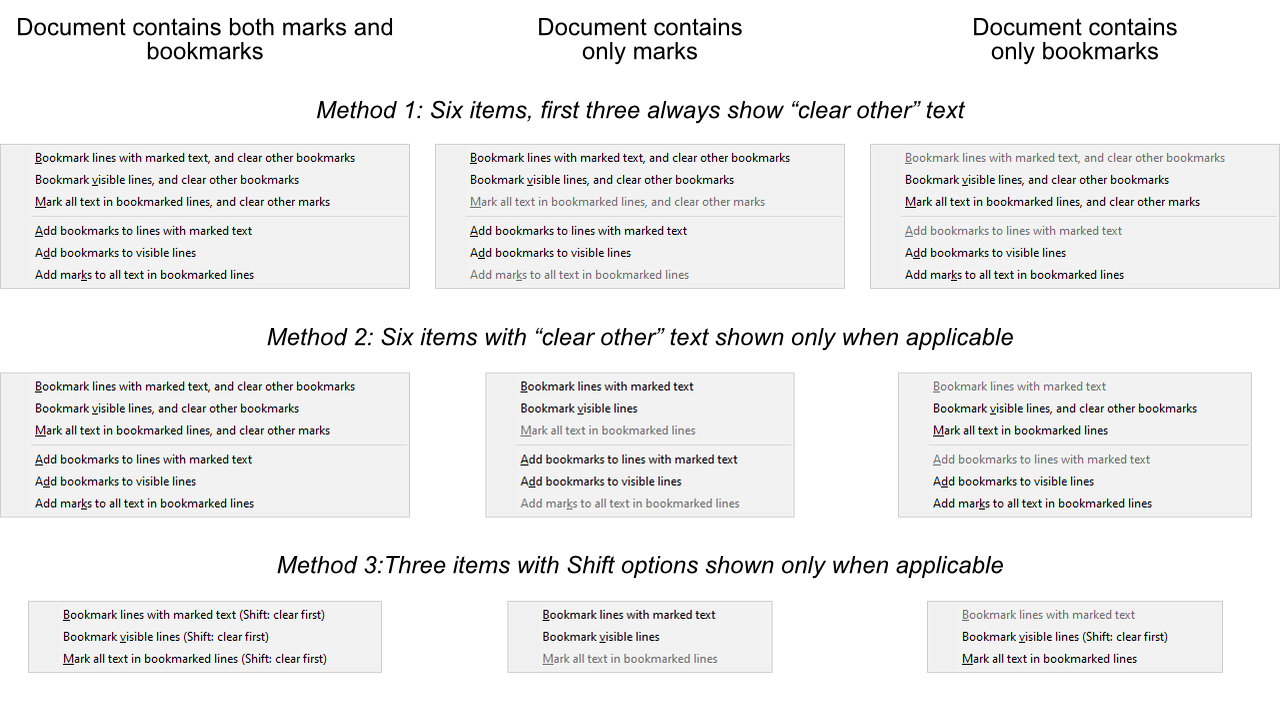
or if you would suggest anything else?
As elsewhere, right-click would be equivalent to Shift+click.
-
Hi, @coises, @astewart77 and All,
Ah,…, personally, I’m voting for the Methiod 3 as we are already used to the
Shiftbehaviour. In addition, it remains only three items in the menu which appears more clear !This is coherent with the
Mark selected text (Shift: clear first)andMark shown text (Shift: clear first)options, in theToolsmenu !Best Regards,
guy038
-
I also vote for Method 3.
Method 2 has too much text changing from use to use. For me, the only advantage to Method 1 is being a bit easier to automate with AutoHotkey.
-
C Coises referenced this topic on
-
Search++ version 0.7.2 is available:
-
Correct failure to find a zero-length match at the end of a file, selection or span of marked text when the previous match included last character of the file, selection or span of marked text.
-
Condense Tools | Synchronize sub-menu.
-
Implement Tools | Expand visible configure tool window.
-
Keep use of hidden lines in Search++ (almost) consistent with the way Notepad++ handles hidden lines and fold points. Hidden lines now show unhide margin markers. Hidden lines stay hidden after leaving and returning to a tab (except for the first and last line, which Search++ Hide all lines and implicit hide before Show commands hide, but Notepad++ native actions never do).
-
Stepwise searches, Select and Show commands, and clicking on a match in the results window now properly unfold collapsed sections when necessary to show a match.
Comments, criticisms, suggestions, bug reports and other observations are most welcome!
A little over a month ago I claimed:
I use Scintilla’s hidden lines feature directly. Notepad++ also uses that feature, but it doesn’t provide a way for plugins to use it through Notepad++, and it keeps internal status information that assumes only it is using hidden lines. There appears to be no way to make Notepad++ synchronize its own idea of which lines it thinks are hidden with the actual state of Scintilla. Various bizarre things happen because of this.
I was wrong about that. I didn’t read the Notepad++ code carefully enough and jumped to an incorrect conclusion.
I fixed a couple bugs in this release, but the main change in 0.7.2 is making hidden lines, particularly as used by the Show command, work consistently with the way Notepad++ uses them. Aside from any errors in my implementation, the one known, intentional discrepancy is that when Search++ hides all lines that includes the first and last line of the document. Notepad++ refuses to hide those. Under some circumstances, such as switching from a tab in which you’ve run a Show command to another tab and then switching back, Notepad++ will show the first and last line; at present I don’t attempt to override that.
Versions of Search++ prior to 0.7.2 failed to coordinate hidden lines properly with Notepad++ at all, so switching tabs would lose all information about what Search++ had hidden.
I also added more flexibility to Tools | Expand visible, which is primarily for showing context around matches after a Show command. You can now open a small tool window that lets you choose how many lines to show before and after in one step, and whether to show them around all visible blocks or only the block(s) containing the cursor or selection. This is a new feature, so observations about its clarity and usability are most welcome. It is described here in the help.
One known problem is that when double-clicking a match or other position in the Search++ results window opens a new tab (that is, the file wasn’t open in Notepad++ already), the document fails to scroll to show the match or position. Double-clicking a second time (now that the document is open) scrolls correctly. I think I understand why this is happening, but I have not yet devised a way to make it work as expected.
-
-
Search++ version 0.7.2 is available
Additional known bugs thus far:
Show only lines with shown text, and the Reset button in the Expand visible dialog, do not restore hidden line markers correctly. That’s a simple omission which will be fixed in the next release.
Some Search++ operations that affect hidden lines do not take into account the possibility that the hidden and shown lines and the markers in the margin that indicate hidden lines can fall out of sync. If the same file is opened in both views, Search++ affects hidden/visible lines only in the view which is active, but the markers are changed in both views.
In Scintilla, markers and fold points are properties of the document, but hidden lines and whether a given fold is expanded or contracted are properties of the view. Because Notepad++ uses markers to keep track of hidden lines and to implement the ability to show them again, there’s a bit of a conflict. In principle, it should be impossible to have lines shown in one view and not in the other, except when the only thing hiding lines is collapsed fold points.
As far as I can tell, Notepad++ doesn’t let you hide or show lines in one view of the document without the same thing happening in the other view, so long as you use only native Notepad++ commands. However, it’s useful to be able to have one view showing the entire document and another showing only lines of interest, and I don’t want to break that.
The extent of problems this might cause is not yet known. For now, expect surprises if you open the same document in both views and use any of the Search++ features that affect hidden lines.
-
This post is deleted! -
Hello, @coises and All,
Many thanks, @coises, for your new release. Sorry for the late reply — every Friday, since the beginning of fall, I’ve been going on hikes with a group of seniors !
You said :
Correct failure to find a zero-length match at the end of a file, selection or span of marked text when the previous match included last character of the file, selection or span of marked text.
I did verify, for example, that the regexes
^(?-s)((?!test).)*\R|\z,(?-s)^((?!test).)*$\R?and(?-s)^((?!test).)*(\R|\z)correctly detect the last empty line 10. Nice !
You said :
Condense Tools | Synchronize sub-menu.
To this purpose, here is a little test, using my example text, below, pasted in a new tab :
bla
blah
this is the test to do
bla
blah
test
bla
blah
Preamble :
-
Uncheck, if necessary, the
Bookmark lines when marking text (Shift: Configure)option in theToolsmenu -
Uncheck, if necessary, the
Default commands search within selectionsoption in theSettingsdialog -
Uncheck, if necessary, the
Default commands search within marked textoption in theSettingsdialog -
Uncheck, if necessary, the
Always unmark all text before Mark command. (Otherwise add to existing marked text).option in theSettingsdialog
Now :
-
1 Mark every
testword -
2 Mark every
blahword -
3 Then, manually, bookmark the lines
4and7containing the wordtest -
4 Choose the
Synchronize marks and bookmarksoption -
5 Finally, hit the
Shiftkey and click on theMark all text in bookmarked lines (Shift:clear first)
=> All the existing marked test is cleared first, then all text, in the two
bookmarkedlines, is marked, as shown below :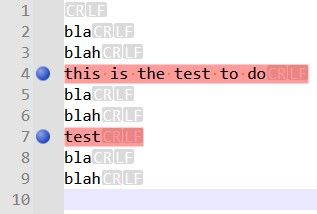
-
6 Now, use the
Remove marks from active documentdocument to clear all the marked text and click on the two blue bookmarks to clear them, as well -
7 Redo the steps from 1 to 4
-
8 Finally, simply click on the
Mark all text in bookmarked lines (Shift:clear first)
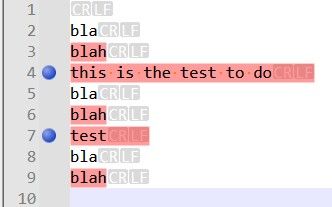
=> All the existing marked text is preserved, then all text, in the two bookmarked lines, is marked, as shown below :
You said :
Implement Tools | Expand visible configure tool window.
Bravo for your new configurable dialog via the
Expand visible 1:1 (Shift:configure)option, in theToolsmenu. Every click, possibly repeated, on buttonsExpand before,Expand afterandExpandact as expected !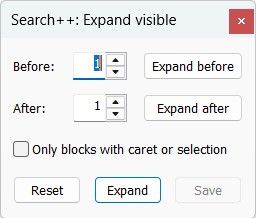
The button
Resetclears all these context lines and I suppose that thesavebutton ( not tested ) can remember special settings like : show me, by default3lines before andtwolines after !
You said :
Hidden lines now show unhide margin markers. Hidden lines stay hidden after leaving and returning to a tab (except for the first and last line,…
As an example, I chose to hide all lines containing the
the propertystring, with this exact case, in theICU.txtfile : I had the bottom messageShowing 13 matchesand, indeed, only13lines were visible. However :-
I did not see any unhide margin markers ???
-
While switching to another tab then switching back to the
ICU.txtdid show me allthe propertystrings but all the lines were visible and not the13lines containing thethe propertystring only ???
Best Regards,
guy038
Oh… I have not read your very last post yet. You said :
Show only lines with shown text, and the Reset button in the Expand visible dialog, do not restore hidden line markers correctly.
Personally, I did not notice this bug, even when clicking on the
Resetbutton during my test with theICU.txtfile, described above ? -
-
As an example, I chose to hide all lines containing the
the propertystring, with this exact case, in theICU.txtfile : I had the bottom messageShowing 13 matchesand, indeed, only13lines were visible. However :-
I did not see any unhide margin markers ???
-
While switching to another tab then switching back to the
ICU.txtdid show me allthe propertystrings but all the lines were visible and not the13lines containing thethe propertystring only ???
Thank you for all your tests! This surprised me (I’m assuming you meant Show and not hide all)… until it occurred to me that I might not have tested recently with Always hide all lines and remove Show style from text before Show command not checked. Sure enough, if that setting is not checked and no lines are hidden and you do a Show command, the hide markers in the margin are not established.
It’s a simple omission, similar to the one that causes the Show only lines with shown text bug, and it will also be fixed in the next release. I think the reason you didn’t notice the Show only lines with shown text bug was probably that markers weren’t set in the first place because of this bug, so there was nothing different.
The inside story is that when I started the work for the 0.7.2 release to use markers consistent with Notepad++ for hidden lines, I left the showing and hiding code alone and added a step at the end of commands that can affect hidden lines to remove existing markers and then add markers consistent with the current visibility of each line in the document. Then I gave more thought to how folding blocks and explicitly hidden lines interact, and realized that when the document contains both explicitly hidden lines and collapsed folding blocks, it is not possible to reconstruct the hidden line markers knowing only the current visibility of every line. (E.g., you can have a span of hidden lines within a collapsed folding block. When you expand the block, Notepad++ still keeps the lines you explicitly hid hidden.) So I switched to a method where I update the markers as lines are hidden or shown rather than reconstructing them at the end. The problem with that is that I missed some spots. :-(
-
-
I suppose that the save button ( not tested ) can remember special settings like : show me, by default 3 lines before and two lines after !
The Save button makes the Before, After and Only blocks with caret or selection settings apply to future Expand visible commands (without the Shift key or right click). It also makes the settings “stick” if you close the dialog and later open it again. (At present, there is no way to separate these functions. When opened, the dialog always shows the settings that apply to the Expand visible command without Shift or right click, not necessarily the (unsaved) settings when you last closed it.)
Since this dialog is new, it is very much open to change. I do want to keep it small, so it can be left open but moved out of the way when a user expects to use these functions repeatedly in a short period of time.
-
Hi, @coises,
First of all, sorry for the typo. I did mean :
As an example, I chose to show all lines containing the
the propertystring, with this exact case, in theICU.txtfile !
You’re perfectly right about the bug. It occurs only when the
Always hide all lines and remove Show style from text before Show commandoption, in theSettingsdialog is uncheckedAfter checking this option in the
Settingdialog, I could easily verify, with theICU.txtfile, that the13green markers were there, along with the13lines containing thethe propertystring
I also noted that, right after you just show these
13lines, clicking in the margin right below the line1183just displays the remaining lines of theICU.txtfile ! I think that behavior is normal because if you then click on the marker of the1183line, it then also displays all lines between lines1164and1183.Moreover, if after showing these
13lines, in theICU.txtfile, you switch to an other tab, then switch back to theICU.txtfile, this time, it also displays a triangular green marker in the last line2132of the file !
Finally, as you said, I could verify that the markers :
-
Were not restored at all after a click on the
Resetbutton which follows a click on theExpandbutton -
Were not completly restored after a click on the
Resetbutton which follows a click on theExpand beforeorExpand afterbutton -
Were correctly preserved if you immediately click on the
Resetbutton
However, the
Show only lines with shown textin theToolsdialog seem to work properly, even after switching tabs : lines to show and markers seem preserved !Best Regards,
guy038
-



Hello! It looks like you're interested in this conversation, but you don't have an account yet.
Getting fed up of having to scroll through the same posts each visit? When you register for an account, you'll always come back to exactly where you were before, and choose to be notified of new replies (either via email, or push notification). You'll also be able to save bookmarks and upvote posts to show your appreciation to other community members.
With your input, this post could be even better 💗
Register Login