Updated NP++ and now lost my previous notes
-
Hi,
So I just updated yesterday & now my notes aren’t the most recent ones & I’ve lost a lot of data.
I am positive I had auto save checked off & I had them saved to a specific folder (not the default).
If that wasn’t working, where can I find the previous saved notes?
Thanks
Notepad++ v8.9.6.4 (64-bit)
Build time: Jun 3 2026 - 23:47:49
Scintilla/Lexilla included: 5.6.2/5.4.9
Boost Regex included: 1_90
pugixml included: 1.15
nlohmann JSON included: 3.12.0
Path: C:\Program Files\Notepad++\notepad++.exe
Command Line:
Admin mode: ON
Local Conf mode: OFF
Cloud Config: OFF
WinGUp: present
disableNppAutoUpdate.xml: absent
Periodic Backup: ON
Placeholders: ON
Scintilla Rendering Mode: SC_TECHNOLOGY_DIRECTWRITE (1)
Multi-instance Mode: monoInst
asNotepad: OFF
File Status Auto-Detection: cdEnabledNew (for current file/tab only)
Dark Mode: OFF
Display Info:
primary monitor: 1920x1080, scaling 100%
visible monitors count: 1
installed Display Class adapters:
0000: Description - NVIDIA GeForce GT 710
0000: DriverVersion - 25.21.14.1917
0002: Description - Radeon RX 580 Series
0002: DriverVersion - 27.20.20913.2000
OS Name: Windows 7 Ultimate (64-bit)
OS Build: 7601.24546
Current ANSI codepage: 1252
Plugins:
AutoSave (2)
DSpellCheck (1.5)
mimeTools (3.1)
NppConverter (4.7)
NppExport (0.4) -
So I just updated yesterday & now my notes aren’t the most recent ones & I’ve lost a lot of data.
Bummer. To fully understand the rest of my reply, I highly recommend reading and understanding our Backup FAQ.
If your last run before the update was as Admin, it might not have saved your session file and/or backups in the expected manner, because of permission conflict. With modern Notepad++, you can edit protected files, and it will just ask Windows to ask you for UAC permission when you try to save, so you never have to run Notepad++ as admin for infrequent protected-file edits. (If you are frequently editing protected files, the frequent UAC might get annoying… but that would be the only situation under which I would ever even think about running Notepad++ as Admin in the modern era.)
I am positive I had auto save checked off & I had them saved to a specific folder (not the default).
There is no “auto save” option native to Notepad++. You’ll have to be more specific about the actual preference name, to give us a better understanding of how your Notepad++ is configured. (My original guess was that you meant you had “session snapshot and periodic backup” off, but see below…)
If that wasn’t working, where can I find the previous saved notes?
Your saved files are exactly where you saved them. If you don’t know where that is, no one here can search your computer for you.
As described in the FAQ, if you have “enable session snapshot and periodic backup” turned on , then the copies of files that have unsaved changes would be saved in
%AppData%\Notepad++\backup. If your session file was corrupted, maybe you’ll be lucky and your unsaved-file-snapshots will still be in that backup directory.Actually, you might want to try your
%AppData%\Notepad++\session.xml.inCaseOfCorruption.bakfile:- Exit Notepad++
- Windows Explorer, go to
%AppData%\Notepad++ - Rename
session.xmltosession.xml--keep - Copy
session.xml.inCaseOfCorruption.baktosession.xml - Run Notepad++
- → If it’s now showing the right copy of your files, great!
- If not, exit Notepad++, delete
session.xml, and renamesession.xml--keepback tosession.xml
If the session experiment didn’t work, then look in the
%AppData%\Notepad++\backupfolder, and open those files directly in Notepad++. If any of them are the most recent versions of your files, great, save them to the right location under the right name, and look into version control and/or external backup so you don’t lose important data again.(update: I added that procedure as a third section in the backup FAQ for easy reference going forward)
Admin mode: ON
Running with Admin mode will sometimes mess up saved preferences, etc. No one’s found a cause, but my theory is the different ways that Windows OS treats %AppData% (where the config files are stored) when you’re the normal user vs the admin user.
Periodic Backup: ON
This contradicts my guess as to what you meant when you said “auto save checked off”. My answers above do explain things to check, assuming that you had Periodic Backup turned on before your update, too.
-
Hi,
Unfortunately I don’t understand some of what you said.
I’m trying to find someone to help explain it to me. & to edit those files b/c I don’t want to screw things up & make it worse.
I have no idea if I was in admin mode when I updated.
Now I wish I hadn’t updated. I think I was avoiding it b/c I’m on Win 7, but someone told me you came out with the numbers that tell us how many search results there are, & then which number result we are on after we press “enter.” I need that so I got excited & updated. Unfortunately it’s not in the Ctrl F search window as I found out.
I think I learned years ago that you have to click on Ctrl S at least once to save each file, but I had them all saved at one point, otherwise they wouldn’t have been in that Notepad++ folder, so I have no idea what happened.
On another note, off & on since the update, I keep getting this error, & then there’s another question after this one which I forgot to take a SS of.
Also, when I click on Ctrl. F, most of the time it doesn’t highlight & place my cursor in the text field so I can type a new keyword. I had no problems with the other one.
Thanks for your help.
-
@ILoveSkilledCoders said:
Unfortunately I don’t understand some of what you said.I am sorry. I thought that explaining to go someplace in Windows explorer and rename files would be easy enough to understand. I cannot make it easier to understand than that.
I’m trying to find someone to help explain it to me. &
I don’t know what you didn’t understand, so I cannot explain more.
to edit those files b/c I don’t want to screw things up & make it worse.
I didn’t say to edit any files. I said to rename/copy files.
I have no idea if I was in admin mode when I updated.
That’s unfortunate.
… someone told me you came out with the numbers that tell us how many search results there are, … & then which number result we are on after we press “enter.” I need that so I got excited & updated. Unfortunately it’s not in the Ctrl F search window as I found out.
That’s with Search > Inremental Search which brings up the Incremental Search Bar at the bottom of the screen. That’s a simplified version of the search which has always been there, but recently the “live count” was added to the Incremental Search
I think I learned years ago that you have to click on Ctrl S at least once to save each file,
Each time you hit
Ctrl+Son a file, it saves it. That’s the only time that Notepad++ saves it to the given directory. If you only hitCtrl+Son each file once, then it only saved it once in that directory.The “session snapshot and periodic backup” feature of Notepad++ does not save the file to the normal location. It saves it to the backup directory which I referenced before.
In the future: If you want to automatically save your updated/edited files without hitting
Ctrl+Sor File > Save or the Save or Save All button on the toolbar, you would need to install and configure the AutoSave plugin, as described in the FAQ I linked you to. If you don’t want to install and configure that plugin, then you will have to learn to Save your files on your own.but I had them all saved at one point, otherwise they wouldn’t have been in that Notepad++ folder, so I have no idea what happened.
You saved them once, and only once. Never again. That’s what happened.
On another note, off & on since the update, I keep getting this error, & then there’s another question after this one which I forgot to take a SS of.
Just paste the image into your post: you don’t need to upload it to a service.
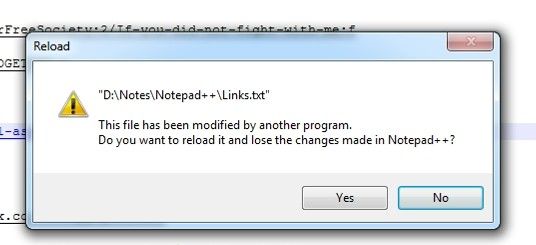
That means some other program had updated
Links.txtsince the time you opened it in Notepad++. Your choices are to say “YES”, which will read the copy from disk, and get rid of all your edits, or to say “NO” and overwrite whatever is on disk with what’s currently visible in Notepad++. Which choice is right depends on your computer, and we cannot tell you which is right for you to choose.Also, when I click on Ctrl. F, most of the time it doesn’t highlight & place my cursor in the text field so I can type a new keyword. I had no problems with the other one.
That’s controlled on Settings > Preferences > Searching, with the
Fill Find Field with Selected Textcheckbox and theMax Characters to Auto-Fill...number field.
Going back to your original problem: you have probably opened and closed Notepad++ too many times for my file-rename procedure to be of any help. So ignore that part for now.
Instead, you will need to open your Windows Explorer (
WinKey + E– I believe that worked even back in Win7 days), and then paste%AppData%\Notepad++\backupinto the Location Bar of the Explorer window. If your Win7 doesn’t show the explorer bar, then you will have to manually go toC:\users\<user name>\AppData\Roaming\Notepad++\backup\in Windows Explorer.In that directory, there may or may not be a bunch of files with names similar to
filename.ext@yyyy-mm-dd_hhmmss, wherefilename.extis the name of the real file, and theyyyy-mm-dd_hhmmssis a timestamp that Notepad++ used.If you have a bunch of those, you can copy those to some safe, temporary directory, and then open all those copies in Notepad++. Look through them, If any of them have the data you want for your real files, then save them to the correct filename in
D:\Notes\Notepad++. Close any of them you don’t want. Leave the ones open that you saved toD:\Notes\Notepad++.In the future, either use
Ctrl+S(or the menu or toolbar equivalent) to save the file when you’ve made an important change, or set up the AutoSave plugin to save your files for you.If you have difficulty setting up AutoSave after reading the FAQ, please let us know which step of the FAQ you are on and having difficulty with. But I’m not going to type step-by-step instructions for you here, because those instructions are already in the FAQ, and it would be a waste of everyone’s time for it to be typed again here.


Hello! It looks like you're interested in this conversation, but you don't have an account yet.
Getting fed up of having to scroll through the same posts each visit? When you register for an account, you'll always come back to exactly where you were before, and choose to be notified of new replies (either via email, or push notification). You'll also be able to save bookmarks and upvote posts to show your appreciation to other community members.
With your input, this post could be even better 💗
Register Login