Notepad++ v8.9.9 Release Candidate
-
@andrecool-68 @astewart77
The button position issue is fixed in the commit:
https://github.com/notepad-plus-plus/notepad-plus-plus/commit/14e27a6caa5a2f2a3dfcbc8594d792d255c4991dWhen I clicked it, the search bar disappeared and it required a restart to see it again. Clicking back to the bottom did not.
Do the options need to be spaced so far apart?Could you share your Debug Info (Menu
? > Debug Info...)? -
Still disappears after moving to the top, until restart.
I cannot replicate that. When I click the button, it immediately appears in the other location, without having to exit/restart Notepad++.
update: deleted most of my post after seeing @donho’s reply.
@andrecool-68 @astewart77
The button position issue is fixed in the commit: https://github.com/notepad-plus-plus/notepad-plus-plus/commit/14e27a6caa5a2f2a3dfcbc8594d792d255c4991dI can confirm that the artifact from the new build does improve the position:

-
@andrecool-68 @astewart77
The button position issue is fixed in the commit:
https://github.com/notepad-plus-plus/notepad-plus-plus/commit/14e27a6caa5a2f2a3dfcbc8594d792d255c4991dWhen I clicked it, the search bar disappeared and it required a restart to see it again. Clicking back to the bottom did not.
Do the options need to be spaced so far apart?Could you share your Debug Info (Menu
? > Debug Info...)?Notepad++ v8.9.8.1 (32-bit) Build time: Nov 2 2026 - 16:21:07 Scintilla/Lexilla included: 5.6.8/5.5.5 Boost Regex included: 1_92 pugixml included: 1.16 nlohmann JSON included: 3.12.0 Path: C:\Program Files (x86)\Notepad++\notepad++.exe Command Line: Admin mode: ON Local Conf mode: OFF Cloud Config: OFF WinGUp: present disableNppAutoUpdate.xml: absent Periodic Backup: OFF Placeholders: OFF Scintilla Rendering Mode: SC_TECHNOLOGY_DIRECTWRITE (1) Multi-instance Mode: monoInst asNotepad: OFF File Status Auto-Detection: cdEnabled4AllFiles Dark Mode: OFF Display Info: primary monitor: 1920x1200, scaling 100% visible monitors count: 2 installed Display Class adapters: 0000: Description - NVIDIA GeForce GTX 760 Ti OEM 0000: DriverVersion - 10.18.13.6839 0001: Description - Intel(R) HD Graphics 4600 0001: DriverVersion - 9.18.10.3234 0002: Description - NVIDIA GeForce GTX 760 0002: DriverVersion - 9.18.13.4752 OS Name: Windows 7 Home Premium (64-bit) OS Build: 7601.0 Current ANSI codepage: 1252 Plugins: ColumnsPlusPlus (1.3.3) ColumnTools (1.4.5.1) DSpellCheck (1.5) EnhanceAnyLexer (1.4.1) ExtSettings (1.3.1) GotoLineCol (2.4.5.1) HTMLTag_unicode (1.6.1) JSMinNPP (25.11.16) mimeTools (3.2) MultiReplace (6.0.0.36) NppConverter (4.7) NppEventExec (0.9) NppExec (0.8.11) NppExport (0.4) NppMenuSearch (0.9.7) RandomValuesNppPlugin (0.3) Search++ (0.7.2) SurroundSelection (1.4.1) Unicode Normalize (1.1) XBrackets (2.0.4) _CustomizeToolbar (5.3)With the new artifact, the button is easily visible, but a font size change from 8 to 9 still pushes the count status off the window.
1/11 - Reached end of page, continued from topis clipped for me at “1/11 - Reache”. My window is 140 columns wide.
Move to top still disappears.
-
1/11 - Reached end of page, continued from topMaybe it would be even better to remove the complete part >> - Reached end of page, continued from top <<
The numbers x/xx clearly indicate the position/match in the file, so the information of this string is redundant. Make it as short as needed is the characteristic of incremental search.
-
@PeterJones said:
I can confirm that the artifact from the new build does improve the position:It looks much better, but I am now asking myself, if it would be better to move the X button for close, and the up/down button to the right side of the incremental search bar. Normally the Close button is on right side of every window.
So, close button at most right position, up/down botton at position left next to close button
-
close button at most right position, up/down botton at position left next to close button
Personally, if I used that bar, that’s what I would prefer… But they would have to adjust with window width, not be at fixed positions
-
The button position issue is fixed in the commit:
https://github.com/notepad-plus-plus/notepad-plus-plus/commit/14e27a6caa5a2f2a3dfcbc8594d792d255c4991dIs it possible to get a link to the notepad++.exe file with the latest fixes?
-
The button position issue is fixed in the commit:
https://github.com/notepad-plus-plus/notepad-plus-plus/commit/14e27a6caa5a2f2a3dfcbc8594d792d255c4991dIs it possible to get a link to the notepad++.exe file with the latest fixes?
This is the CI Build for that commit. The artifacts (zipfiles of the exe) are at the bottom of that page.
-
Move to top still disappears.
Please remove all plugins and test again.
If it persists, then it could be an issue under Windows 7. -
Move to top still disappears.
Please remove all plugins and test again.
If it persists, then it could be an issue under Windows 7.It was a conflict with the NppMenuSearch plugin. It has a toolbar text widget that always sits at the right end of the toolbar and an option to lock the widget size. I should have noticed that the MenuSearch widget disappeared at the same time the Increment search bar disappeared. If it’s unlocked, everything works.
Ironically, I only started posting in this thread because NppMenuSearch couldn’t find any strings/labels for the new Increment preference.
-
FYI, RC2 is available:
https://github.com/donho/notepad-plus-plus/releases/tag/RC2 -
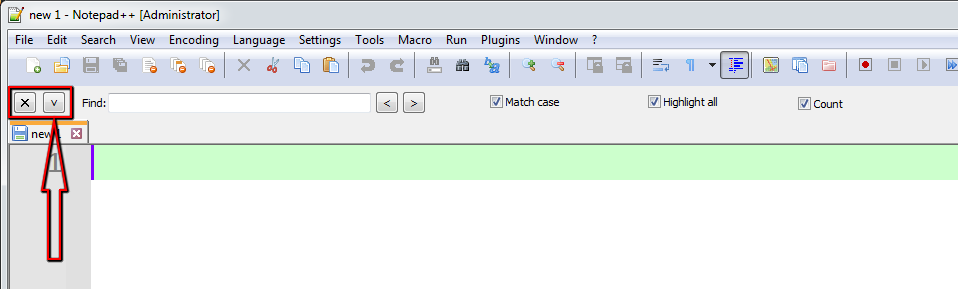
The new position of the up/down button is very inconvenient. (you constantly confuse it with the forward/backward search buttons)
The most convenient place for it is next to the button that closes this search panel. (that’s where it belongs!)
-
close button at most right position, up/down botton at position left next to close button
Personally, if I used that bar, that’s what I would prefer… But they would have to adjust with window width, not be at fixed positions
It’s quite complex to implement such idea.
The best I can do is what @andrecool-68 has suggested:A.
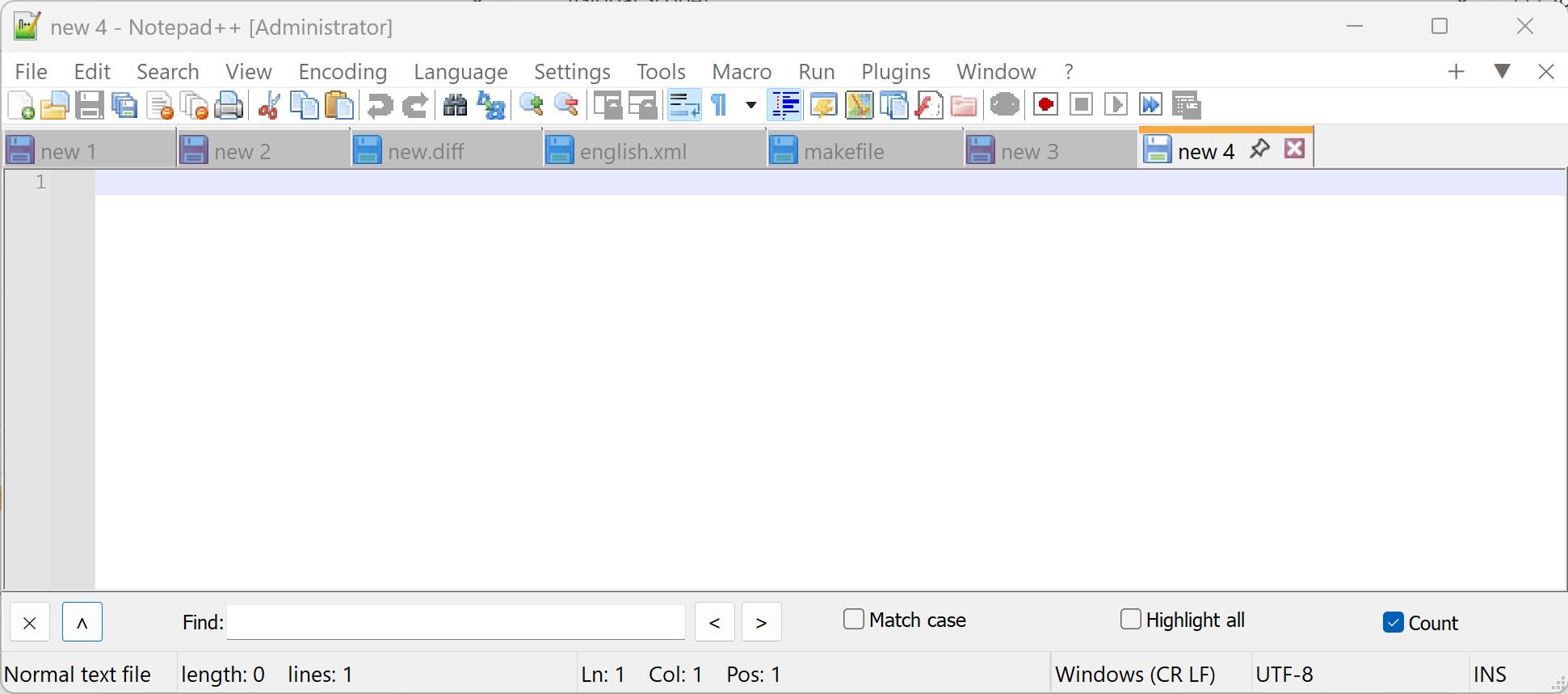
or we can keep the current one:
B.
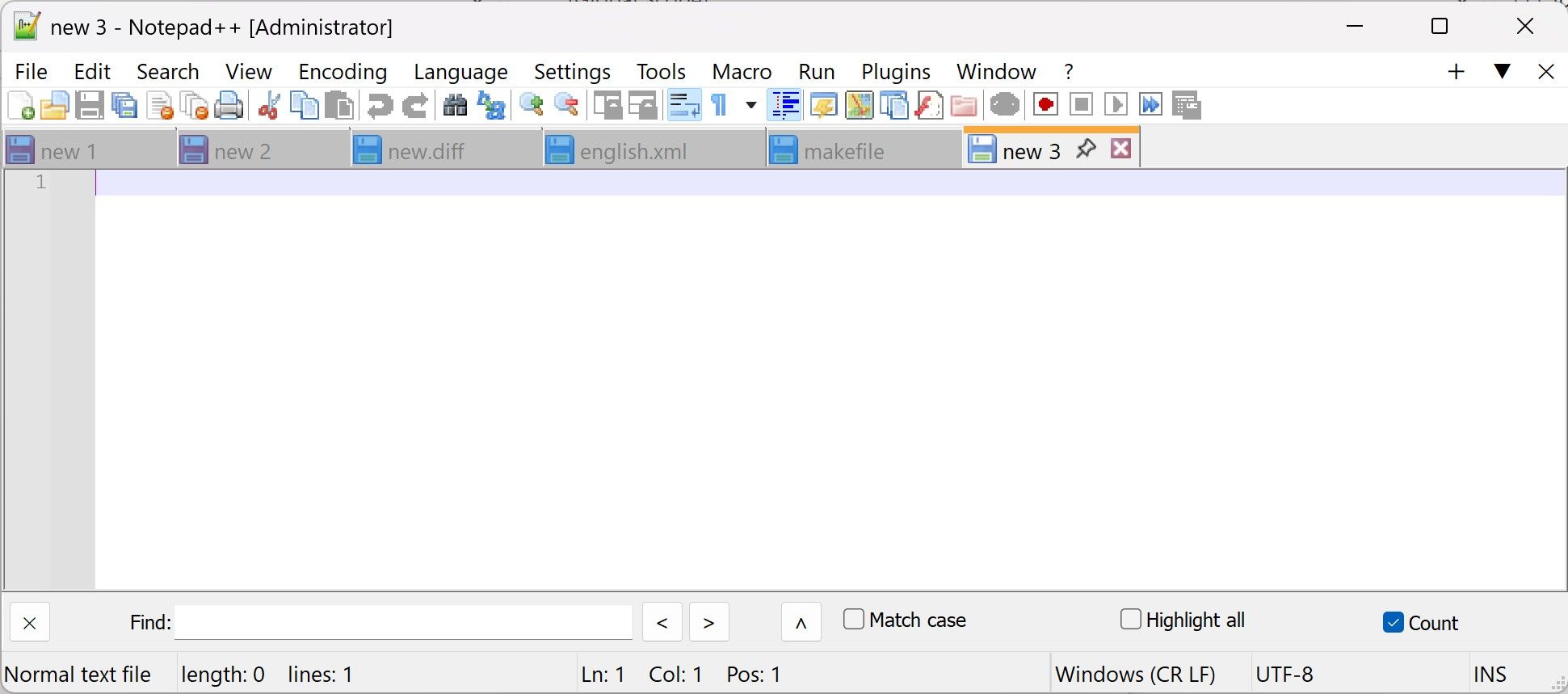
ppl are welcome to vote.
-
D. Users will probably strongly prefer one position or the other, not want to change it frequently. Put it in the Preferences instead of on the bar.
-
@Coises I think the idea of donho was to have either the A or B version implemented, not to have the possibility to switch
-
D. Users will probably strongly prefer one position or the other, not want to change it frequently. Put it in the Preferences instead of on the bar.
The advantage of the Up/Down arrow being on the bar itself, rather than as an option hidden in the dialog, is that users can discover/notice this new feture as soon as they use Incremental Search. Moreover, a simple arrow on the bar is easier to understand than a long explanatory sentence buried in another dialog.
-
-
@donho Is it possible to add a button (for the search bar) to clear the text field?
-
D donho unpinned this topic on
-
There is a regression in Notepad++ 8.9.9.
I saw it already in 8.9.8.1, but I could not pinpoint it at that time.I can reproduce it this way:
- Open file
- Edit file, don’t save it yet
- Use Compare plugin, diff since last save (Ctrl+Alt+D)
- Close the ‘Last Save’ window
-> Notepad++ is not responding
if I skip phase 4, there is no problem.
-
Hello, @tm8544 and All,
Did you try with the new release link : https://community.notepad-plus-plus.org/topic/27707/notepad-release-8.9.9
Personally, If I do your STR method, after closing the
change.log ** Last Savetab, ( your step 4 ), the compare process is simply cancelled and Notepad++ is still responding !?Notepad++ v8.9.9 (64-bit) Build time: Nov 6 2026 - 16:19:53 Scintilla/Lexilla included: 5.6.9/5.5.5 Boost Regex included: 1_92 pugixml included: 1.16 nlohmann JSON included: 3.12.0 Path: D:\899_x64\notepad++.exe Command Line: Admin mode: OFF Local Conf mode: ON Cloud Config: OFF WinGUp: present disableNppAutoUpdate.xml: present Periodic Backup: OFF Placeholders: OFF Scintilla Rendering Mode: SC_TECHNOLOGY_DIRECTWRITE (1) Multi-instance Mode: monoInst asNotepad: OFF File Status Auto-Detection: cdEnabled4CurrentFile Dark Mode: OFF Display Info: primary monitor: 1920x1080, scaling 125% visible monitors count: 1 installed Display Class adapters: 0001: Description - Intel(R) Iris(R) Xe Graphics 0001: DriverVersion - 32.0.101.7088 OS Name: Windows 11 Pro (64-bit) OS Version: 25H2 OS Build: 26200.7462 Current ANSI codepage: 1252 Plugins: MultiReplace (6.2.0.38) Search++ (0.8) ColumnsPlusPlus (1.3.3) ComparePlus (3) Compose (1.1.1) NppConverter (4.7) NppExport (0.4) mimeTools (3.2)Best Regards,
guy038





Hello! It looks like you're interested in this conversation, but you don't have an account yet.
Getting fed up of having to scroll through the same posts each visit? When you register for an account, you'll always come back to exactly where you were before, and choose to be notified of new replies (either via email, or push notification). You'll also be able to save bookmarks and upvote posts to show your appreciation to other community members.
With your input, this post could be even better 💗
Register Login