Community
    • Login

    Add the Icon to the toolbar
    Scheduled Pinned Locked Moved Help wanted · · · – – – · · ·
    32 Posts 4 Posters 15.3k Views
    Loading More Posts
    • Oldest to Newest
    • Newest to Oldest
    • Most Votes
    Reply
    • Reply as topic
    Log in to reply
    This topic has been deleted. Only users with topic management privileges can see it.
    • Thomas 2020T Offline
      Thomas 2020
      last edited by Thomas 2020

      And where are these plugins?
      And where can these plugins be downloaded?

      Alan KilbornA 1 Reply Last reply Reply Quote 0
      • Alan KilbornA Offline
        Alan Kilborn @Thomas 2020
        last edited by

        @Pan-Jan

        Well, the main way would be thru the Plugins menu in Notepad++.
        Choose Plugins Admin.

        Thomas 2020T 1 Reply Last reply Reply Quote 1
        • Thomas 2020T Offline
          Thomas 2020 @Alan Kilborn
          last edited by

          @Alan-Kilborn
          Schowek01.jpg
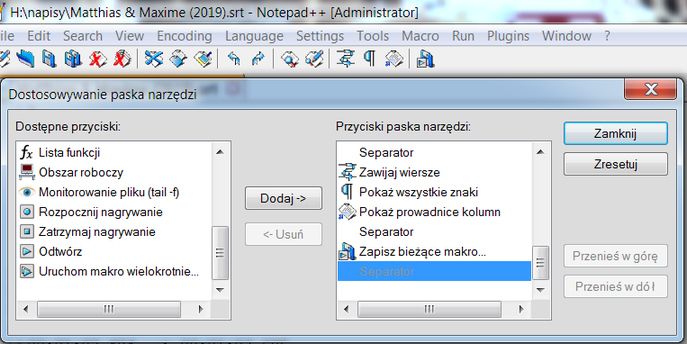
          There are only a few icons here, where are the rest?

          1 Reply Last reply Reply Quote 0
          • guy038G Offline
            guy038
            last edited by

            Hi, @pan-jan,

            I think that your toolbar’s icons are too big and hides the normal DSpellChek icon !

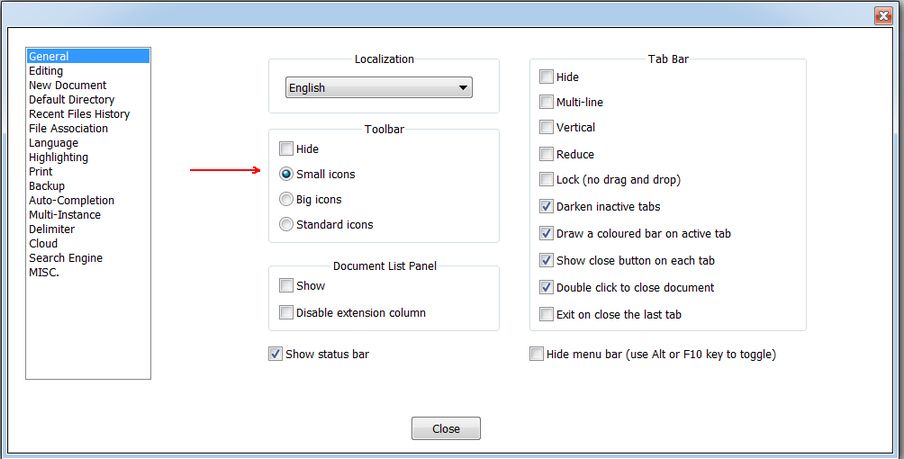
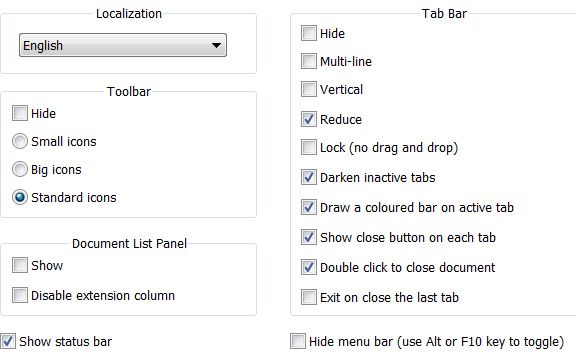
            So, go to Settings > Preferences...> General > Toolbar and select the Standard icons choice

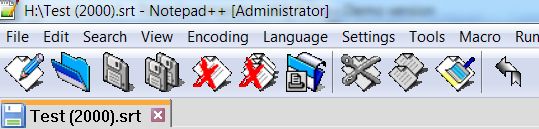
            => On the right of the toolbar, you shoul see the DSpellCheck icon to toggle the spelling process !

            Best Regards,

            guy038

            Thomas 2020T 1 Reply Last reply Reply Quote 0
            • Thomas 2020T Offline
              Thomas 2020 @guy038
              last edited by

              @guy038
              Now the icons are smaller and … nothing has changed
              Schowek01.jpg

              1 Reply Last reply Reply Quote 0
              • guy038G Offline
                guy038
                last edited by guy038

                Hello @pan-jan,

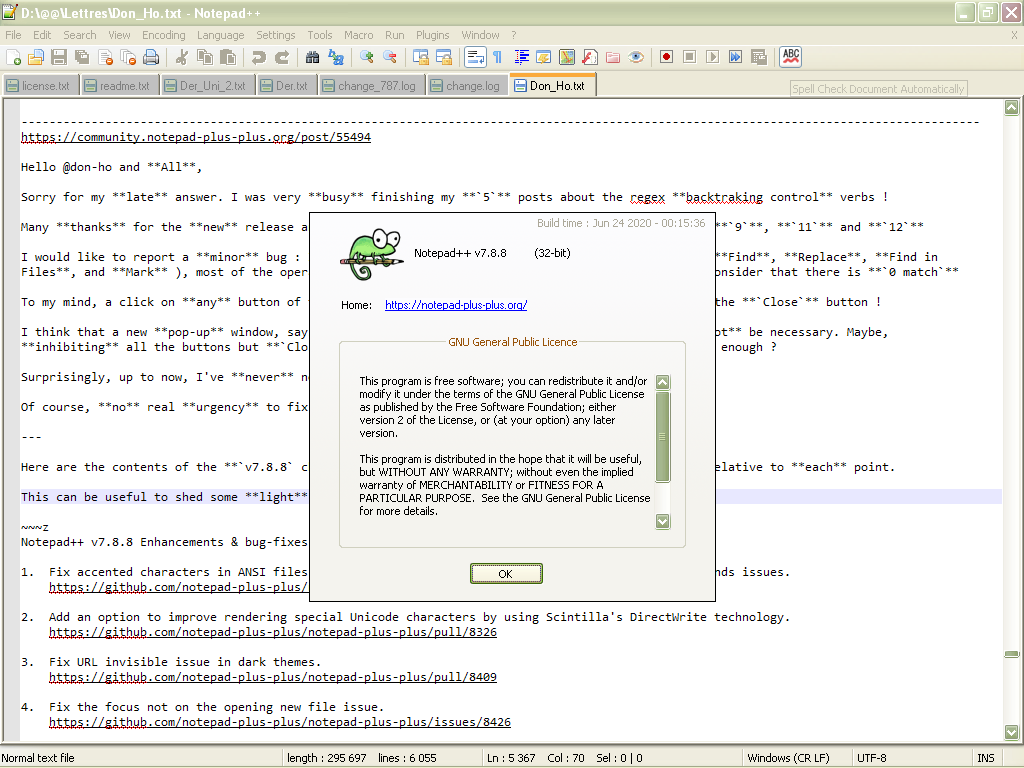
                Your standard icons are quite weird !

                See mine on the picture below and the DSpellCheck icon, on the right, with the ABC indication !
                cc2bfa21-c657-45a0-9958-2bc0881b3ae9-image.png


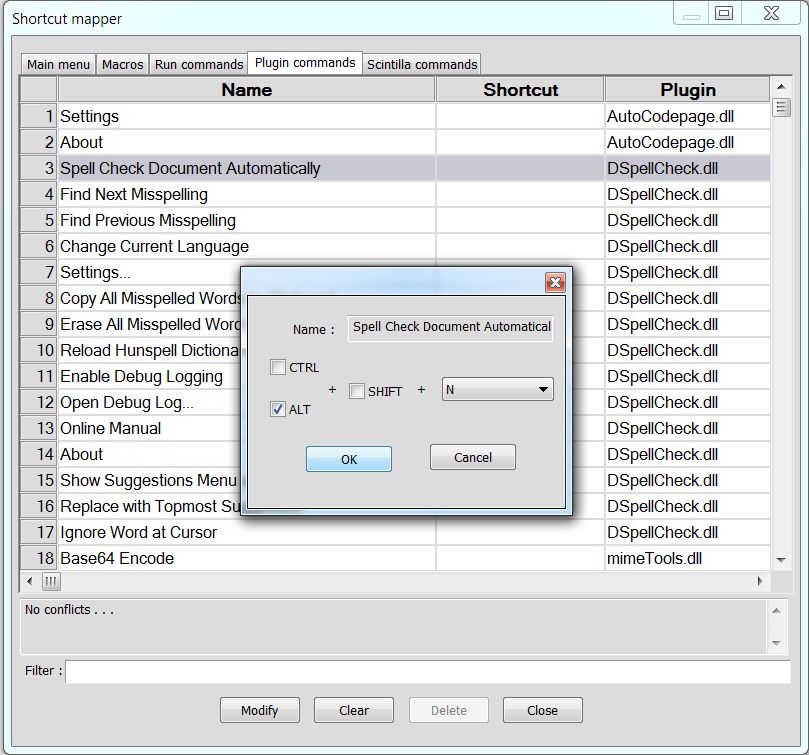
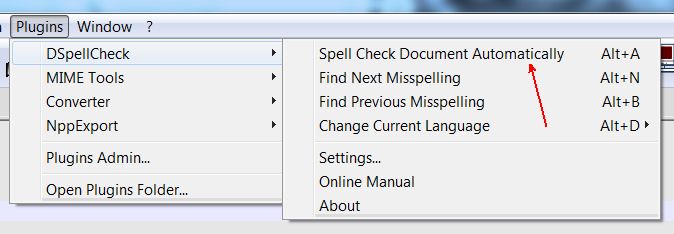
                You do not even need the Customize Toolbar plugin :-)) You may also create a shortcut to enable/disable spelling :

                • Go to Settings > Shortcut Mapper... > Plugins

                • Double-click on line Spell Check Document Automatically and choose your shortcut

                BR

                guy038

                Thomas 2020T 1 Reply Last reply Reply Quote 0
                • Thomas 2020T Offline
                  Thomas 2020 @guy038
                  last edited by

                  @guy038
                  Schowek02.jpg

                  Thomas 2020T 1 Reply Last reply Reply Quote 0
                  • Thomas 2020T Offline
                    Thomas 2020 @Thomas 2020
                    last edited by Thomas 2020

                    Schowek03.jpg

                    Next the same icons

                    1 Reply Last reply Reply Quote 0
                    • guy038G Offline
                      guy038
                      last edited by

                      Hi, @pan-jan,

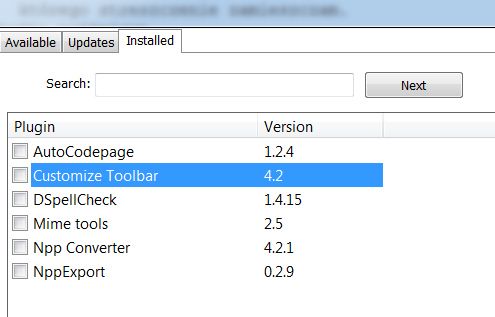
                      As you installed the Customize Toolbar plugin, I suppose that some icons are absent, by default. You’ll have to add some of them to your current toolbar !

                      Now, in Settings > Preferences...> General > Toolbar, under the box **Hide**, there 3 possibilities :

                      • Small icons

                      • Big icons

                      • Standard icons

                      Did you really select the Standard icons ?

                      BR

                      guy038

                      Thomas 2020T 1 Reply Last reply Reply Quote 0
                      • Thomas 2020T Offline
                        Thomas 2020 @guy038
                        last edited by

                        @guy038
                        Schowek04.jpg

                        Thomas 2020T 1 Reply Last reply Reply Quote 0
                        • Thomas 2020T Offline
                          Thomas 2020 @Thomas 2020
                          last edited by

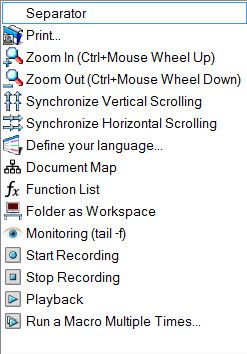
                          These are the icons I can choose from
                          Schowek05.jpg

                          1 Reply Last reply Reply Quote 0
                          • guy038G Offline
                            guy038
                            last edited by

                            @pan-jan,

                            Could you do a test, selecting the choice Standard icons ?

                            Then stop and restart Notepad++ => You should see all the plugin’s icons on the right of the toolbar !

                            BR

                            guy038

                            Thomas 2020T 1 Reply Last reply Reply Quote 0
                            • Thomas 2020T Offline
                              Thomas 2020 @guy038
                              last edited by

                              @guy038
                              This is it.
                              I have them all now.
                              Thank you very much.

                              Thomas 2020T 1 Reply Last reply Reply Quote 1
                              • Thomas 2020T Offline
                                Thomas 2020 @Thomas 2020
                                last edited by

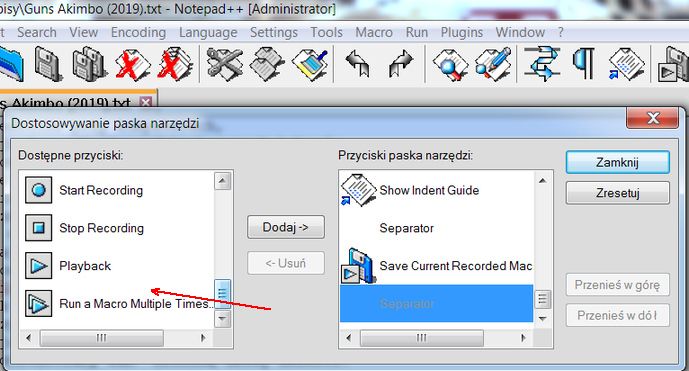
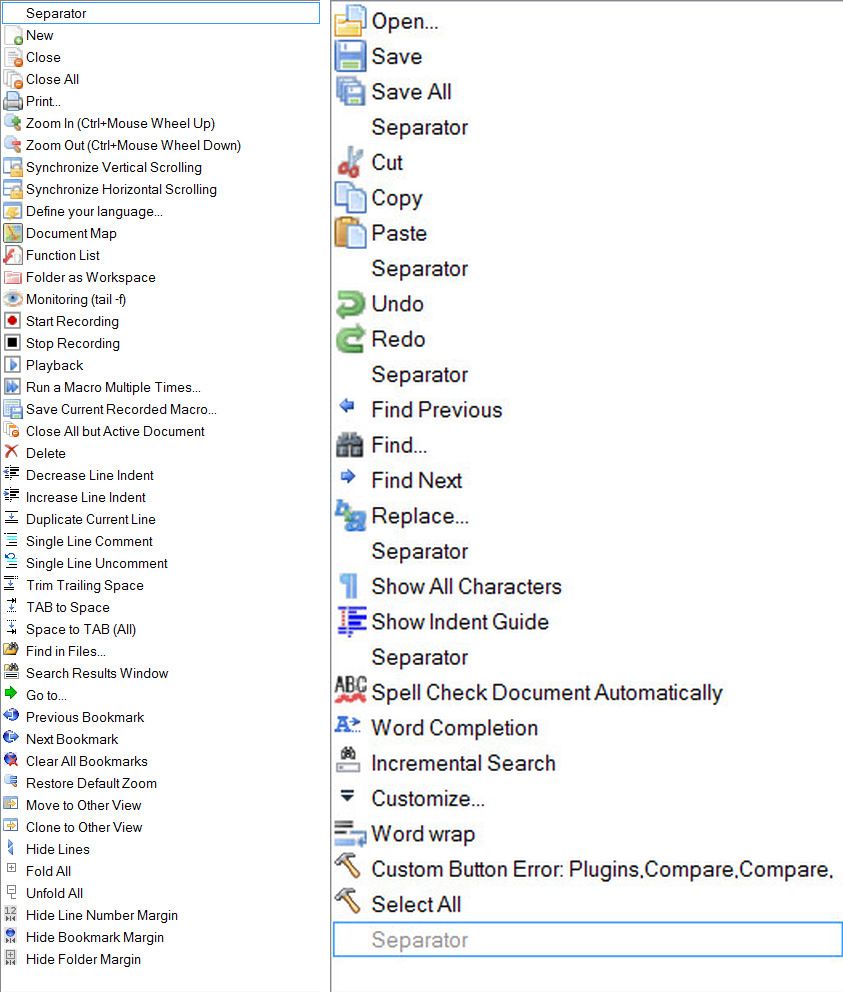
                                I would like to insert into the Toolbar an icon with …
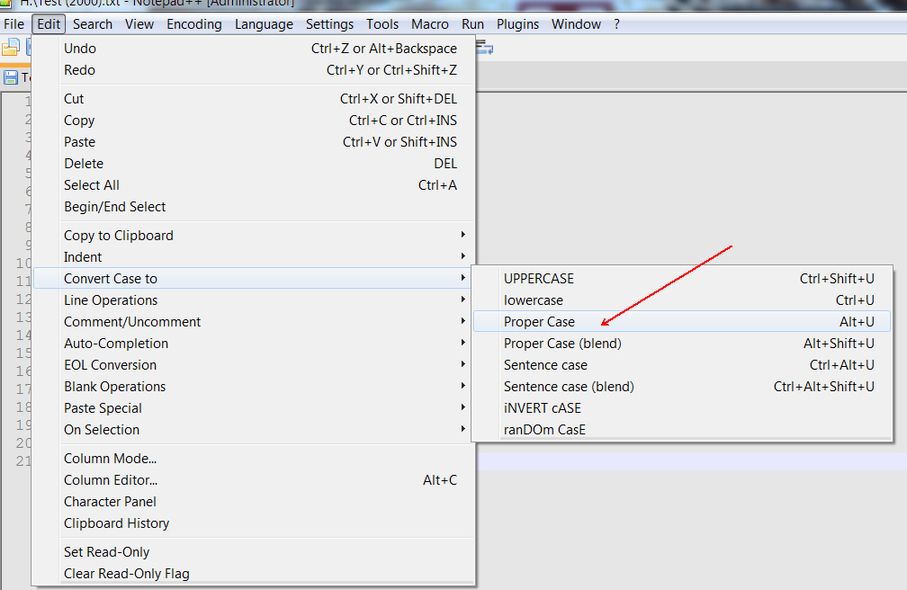
                                Schowek01.jpg

                                How to add icon to this bar …
                                if she’s not here.
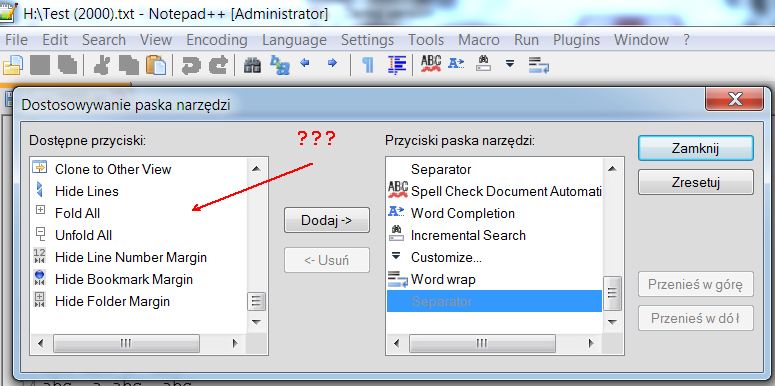
                                Schowek02.jpg

                                1 Reply Last reply Reply Quote 0
                                • guy038G Offline
                                  guy038
                                  last edited by guy038

                                  Hello @pan-jan and All,

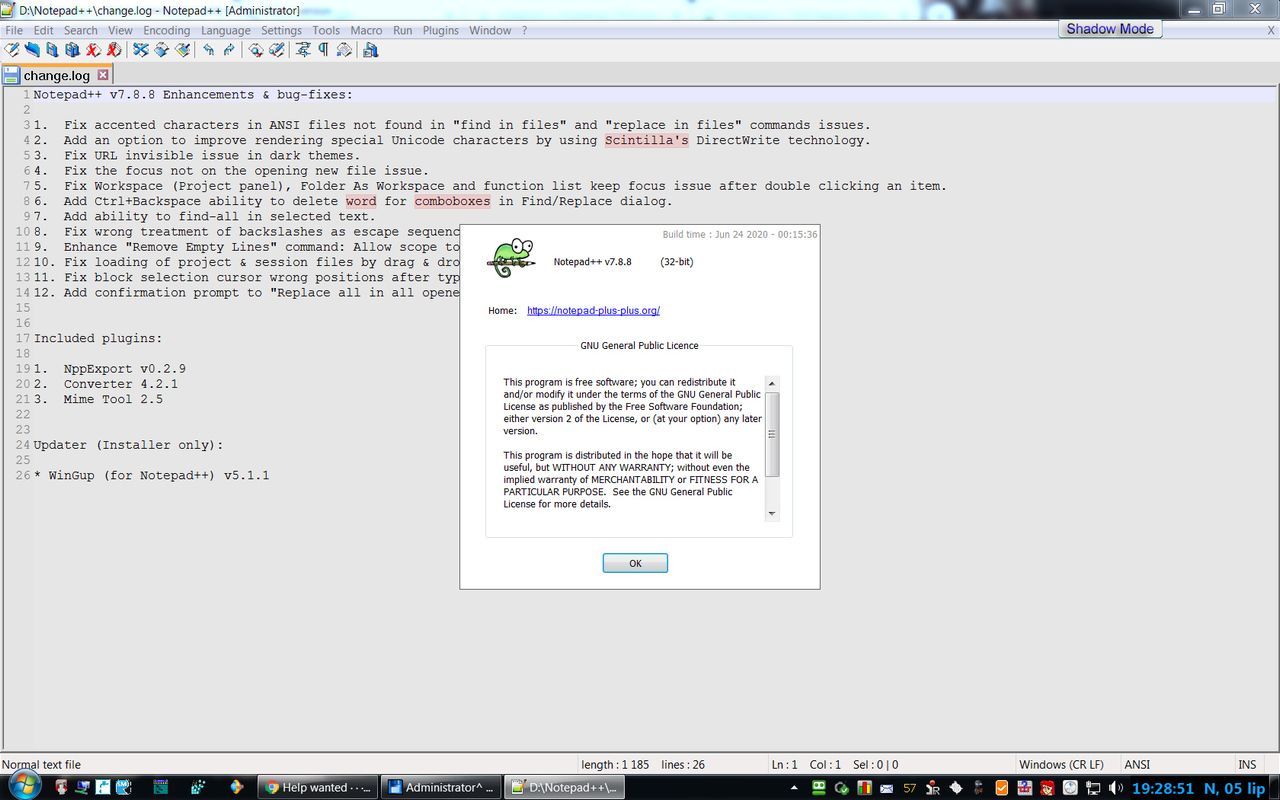
                                  I just installed the last Unicode 4.2.0.0 - x32 version of the Customize Toolbar plugin in N++ v7.8.8 from here :

                                  https://sourceforge.net/projects/npp-customize/files/Customize Toolbar v4.2/

                                  And, in the Customize Toolbar menu, I see two lines :

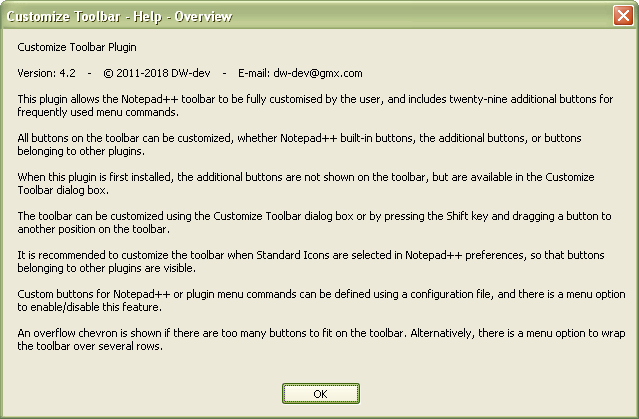
                                  • Help - Overview :

                                  4e4b96c5-b558-4832-9ad1-737c6ae1a7c3-image.png

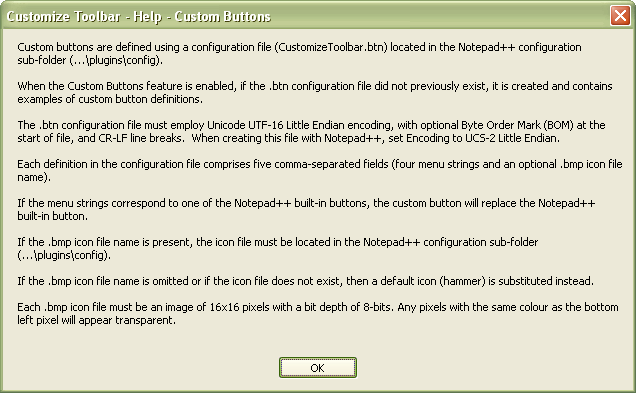
                                  • Help - Custom buttons :

                                  bf0919d6-09ea-4896-997e-5fe58c6c7a18-image.png


                                  Sorry, I do not have time, presently, to investigate further on, in this matter. However, if this help is not enough for you, you could ask the plugin’s author, by e-mail, for additional information !

                                  Best Regards,

                                  guy038

                                  Thomas 2020T 1 Reply Last reply Reply Quote 3
                                  • Thomas 2020T Offline
                                    Thomas 2020 @guy038
                                    last edited by

                                    @guy038
                                    Schowek01.jpg
                                    Schowek02.jpg

                                    Available buttons: Proper Case „Alt+U”… none
                                    Schowek.jpg

                                    Thomas 2020T 1 Reply Last reply Reply Quote 0
                                    • Thomas 2020T Offline
                                      Thomas 2020 @Thomas 2020
                                      last edited by

                                      No entry:
                                      Schowek03.jpg

                                      1 Reply Last reply Reply Quote 0
                                      • guy038G Offline
                                        guy038
                                        last edited by guy038

                                        Hi, @pan-jan and All,

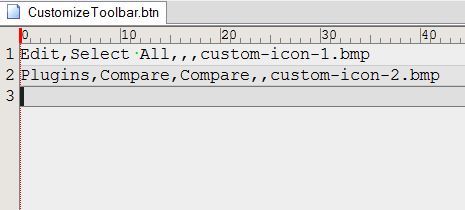
                                        • Change the contents of the CustomizeToolbar.btn as below :
                                        Edit,Select All,,,custom-icon-1.bmp
                                        Edit,Convert Case to,Proper Case,,custom-icon-2.bmp
                                        
                                        • Save the modifications of CustomizeToolbar.btn

                                        • Stop and restart N++

                                        • As you can see, the first default hammer icon is colorized and works ( Select All )

                                        • However the second hammer icon remains grayed and does not seem to work :-((

                                        After some tests, I realized that this second hammer becomes active ONLY IF you select a tab with a normal selection in its contents. In this case, hitting the second hammer icon does apply the Proper Case feature to the selection !

                                        Indeed, if you select Edit > Convert Case to, you can see that the sub-menu is all grayed, if no selection has been done, previously !

                                        So, refer to the plugin’s author for possible fixes. May be this wrong behavior depends on of Notepad++, itself !


                                        BTW, in the meanwhile, simply do your selection and use the default Alt + U shortcut ! Easier, isn’t it ?.

                                        Since decades, I don’t click, anymore, on the Toolbar buttons for Ctrl + C, Ctrl + V, Ctrl + A, Ctrl + Z, Ctrl + Y and so on…, preferring the shortcuts !!!

                                        Best Regards,

                                        guy038

                                        Thomas 2020T 1 Reply Last reply Reply Quote 1
                                        • Thomas 2020T Offline
                                          Thomas 2020 @guy038
                                          last edited by

                                          @guy038
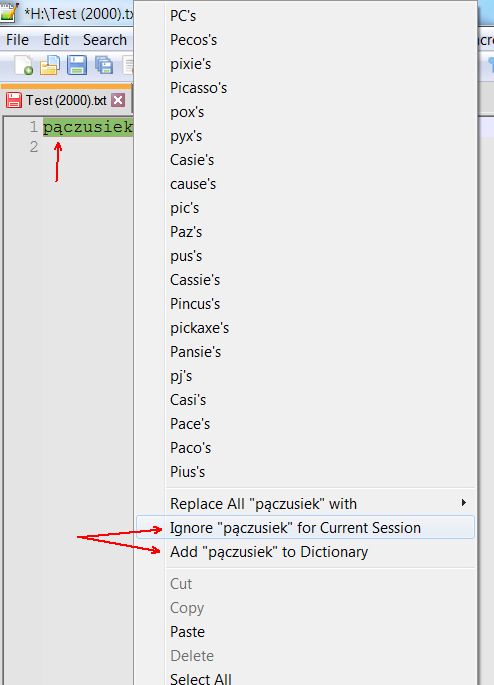
                                          I can’t add the word with the letter “ą” to the dictionary or for Current Session
                                          Schowek01.jpg

                                          1 Reply Last reply Reply Quote 0
                                          • guy038G Offline
                                            guy038
                                            last edited by

                                            Hello, @pan-jan and All,

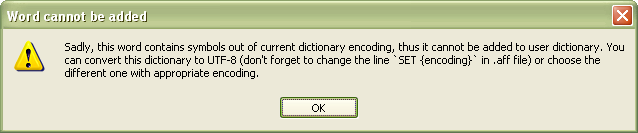
                                            Sorry for my late answer ! Initially, I did not see a good explanation ! One day, I realized that, may be, your dictionary file was probably ANSI encoded ! I verified my assertion and, indeed, it’s the cause of your problem !

                                            So, here is the road map :

                                            • Go to the folder ...\plugins\config\Hunspell

                                            • Back-up your lang.dic and lang.aff files ( One never knows ! )

                                            • Start Notepad++

                                            • Disable, temporarily, the DSpellCheck plugin

                                            • Open the two files lang.dic and lang.aff, from within N++

                                            • Change the first line of lang.aff with the command SET UTF-8

                                            • Verify, in the status bar, that its encoding is UTF-8 ( not UTF-8-BOM ! )

                                            • Save the modifications

                                            • Select the lang.dic tab ( Probably, this file is ANSI encoded )

                                            • Run the command Encoding > Convert to UTF-8 ( not convert to UTF-8-BOM ! )

                                            • After a little while, save the modifications of lang.dic

                                            • Now, close the two files lang.dic and lang.aff files

                                            • Enable, again, the DSpellCheck plugin

                                            => This time, if special words contain Unicode characters, with code-point over \x{00FF}, you should be able to add to the dictionary , in the lang.usr file


                                            Anyway, the method is self-explained in the dialog, below, and I suppose that you’ve found out the solution, by now !
                                            3350858c-61fb-4aef-8953-f8c87073b610-image.png

                                            Best Regards

                                            guy038

                                            1 Reply Last reply Reply Quote 1

                                            Hello! It looks like you're interested in this conversation, but you don't have an account yet.

                                            Getting fed up of having to scroll through the same posts each visit? When you register for an account, you'll always come back to exactly where you were before, and choose to be notified of new replies (either via email, or push notification). You'll also be able to save bookmarks and upvote posts to show your appreciation to other community members.

                                            With your input, this post could be even better 💗

                                            Register Login
                                            • First post
                                              Last post
                                            The Community of users of the Notepad++ text editor.
                                            Powered by NodeBB | Contributors