Copy column with macro
-
I have a column (in practice many screens long, for this question it is shortened to length 5):
cigar
rebut
sissy
humph
awake
and I want to copy the column, so that I get:
cigar  cigar
rebut  rebut
sissy  sissy
humph  humph
awake  awake
Method 1 (“by hand”): go to upper left corner; hold down alt; drag caret to bottom right corner; ctrl-c; go to top right; enter a few spaces; ctrl-v. This method is inconvenient for long columns because it requires the scrolling of many screens with the alt-key being held down.
On this forum I learned method 2. Click consecutively: ctrl-home; alt-left-mouse; Edit>Begin select; ctrl-end; alt-left-mouse; Edit>End select; ctrl-c. Followed by ctrl-v at the position wanted. While doing, this I observe that the entries in the column are selected, and that the EOL characters are not selected.
I want to capture method 2 in a macro, so I precede its steps by pushing the button “Start Recording”, go through the very same steps (incidentally, I observe that entries are selected without EOL chars), and end with pushing the button “End Recording”. When I now playback the macro, I see that the EOL characters are selected.
If I finally try to copy and paste the columns with EOL characters included, I get a mess (first entry goes into the correct position, remaining entries are appended to first column).
I would appreciate help and/or comments.
-
@paul-wormer
I’m afraid my question wasn’t clear, so here are two pictures for further clarification.1. When I am defining the macro, I see this:
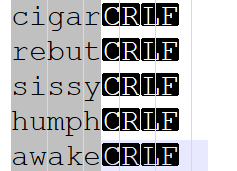
Hence, when I copy (ctrl-c) this selection, I copy lines without CRLF (eol chars). This is what I want.2. After I have executed the macro, I see this:
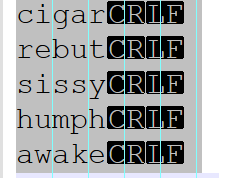
Hence, when I copy (ctrl-c) this selection, I copy lines with CRLF (eol chars). This is not what I want. -
I cannot tell what you’re doing wrong, but when I recorded Alan’s steps from this post, but used columns 1-5 instead of 5-22, it did exactly what I expected.
The resulting macro is
        <Macro name="22717" Ctrl="no" Alt="no" Shift="no" Key="0">
            <Action type="0" message="2316" wParam="0" lParam="0" sParam="" />
            <Action type="2" message="0" wParam="42020" lParam="0" sParam="" />
            <Action type="0" message="2318" wParam="0" lParam="0" sParam="" />
            <Action type="0" message="2428" wParam="0" lParam="0" sParam="" />
            <Action type="0" message="2429" wParam="0" lParam="0" sParam="" />
            <Action type="2" message="0" wParam="42020" lParam="0" sParam="" />
            <Action type="0" message="2178" wParam="0" lParam="0" sParam="" />
        </Macro>
(this does everything except the paste at the end: ctrl home, start select, ctrl end, make column mode, copy)
-
Doing a bit of digging into what @peterjones supplied…
From here:
https://github.com/notepad-plus-plus/notepad-plus-plus/blob/master/scintilla/include/Scintilla.hOne can see that 2428 and 2429 are the key things that get one into column mode in this macro; evidence:
#define SCI_CHARLEFTRECTEXTEND 2428
#define SCI_CHARRIGHTRECTEXTEND 2429
The “RECT” part of those is key as it plays to column select mode instead of stream select mode.
-
@alan-kilborn@peter-jones
Thank you for the hints. I will be away for a few days but after return I will read your answers in more detail. I’ll compare Alan’s recipe (from which I learned the procedure but I had forgotten the link) with my steps and l will look into my shortcuts.xml to see the result. -
@Alan-Kilborn @PETER-JONES
I’m back and looked first at Alan’s procedure from Januari 19, 2022. This is the post that I thought I remembered, but I see now that my memory failed me and that I did not follow the exact same steps. However, when I now copy them exactly, I encounter a peculiarity: my alt-shift-right gives the following popup: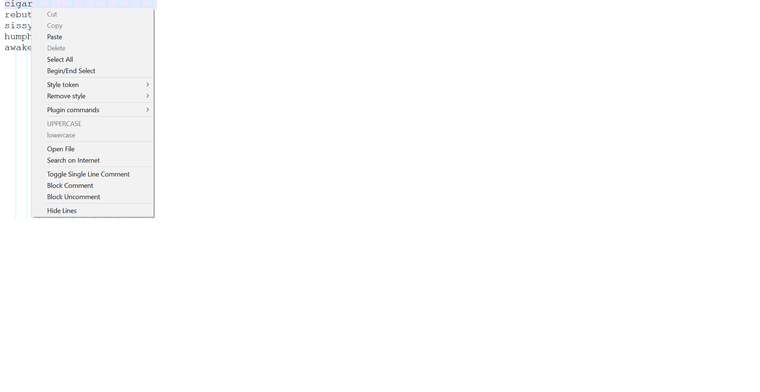
TheShortcut mapper>Scintilla commandsassigns alt-shift-right to: SCI_CHARRIGHTRECTEXTEND, which sounds okay and not like a popup of (part of) the Edit menu. As far as I’m aware, I did not fiddle around with any Npp keys, so that I have default settings. The debug info is:Notepad++ v8.3.3 (64-bit)
Build time : Mar 13 2022 - 17:20:02
Path : C:\Program Files\Notepad++\notepad++.exe
Command Line :
Admin mode : OFF
Local Conf mode : OFF
Cloud Config : OFF
OS Name : Windows 10 Home (64-bit)
OS Version : 2009
OS Build : 19043.1586
Current ANSI codepage : 1252
Plugins : ColumnTools.dll DSpellCheck.dll HexEditor.dll mimeTools.dll NppConverter.dll NppExport.dll PythonScript.dll -
@paul-wormer Correction: Alan’s post is from 2021 not 2022.
-
Something is going wrong with your recording – something getting in the way, or what have you. So just skip the recording, and use my pre-recorded macro instead: exit all instances of Notepad++, edit
shortcuts.xml(you can safely do it in a new instance of Notepad++, or in a separate editor), paste the macro I supplied in the macros-section, save, exit Notepad++ (or other editor). Run Notepad++, and a macro named “22717” will show up in your macro menu. That should do what you described you wanted (since it’s what I recorded when I did what you said you wanted)which sounds okay and not like a popup of (part of) the Edit menu
What you displayed is not “part of the Edit menu”, what you displayed was the Right Click Context Menu, which means Notepad++ saw a “right click” at some point while you were in the editor panel of Notepad++.
-
@peterjones Your macro works. Thank you.
-
@peterjones
My mistake was silly, yet other newbies may make it too:
I interpreted alt+shift-left as alt-shift-left-mouse and not as alt-shift-left-arrow. (And similarly for right). -
I could be wrong, but I don’t think any mouse action in the editing window will be macro-recorded – you have to do everything via keyboard.
Also, if I’m trying to express mouse actions here in a Community posting, I might do:
- Ctrl+click (= hold Ctrl while left-clicking the mouse)
- Alt+rclick (= hold Alt while right-clicking the mouse)
- Shift+ dclick (= hold Shift while double-clicking the left mouse button)



Hello! It looks like you're interested in this conversation, but you don't have an account yet.
Getting fed up of having to scroll through the same posts each visit? When you register for an account, you'll always come back to exactly where you were before, and choose to be notified of new replies (either via email, or push notification). You'll also be able to save bookmarks and upvote posts to show your appreciation to other community members.
With your input, this post could be even better 💗
Register Login