double click on a JSON file >> Notepad++ should (auto-) run the well JSON formating
-
Hi,
I have to handle a lot of JSON files. They are always “compressed”, without blanks and tabs. So far ok! With a double click (yes windows world), Notepad will be opened, file loaded (because I my setting file extension 2 linked application is to Notepad++) So far ok!
There are different JSON plugins available. With a shortcut (or via the menu) I can run a well formated JSON (with tabs, LF/CR, etc). So far ok!
I am looking for a option, that all new opened JSON files will directly (auto-) run the well formating of the JSON file.
Is this possible?
Thanks a lot in advance!Matthias.
-
To solve your issue you need support by some kind of scripting plugin, for example NppExec plugin and its companion NppEventExec.
- Install NppExec and NppEventExec plugins using Plugins Admin.
- After Notepad++ has been restarted navigate to
(menu) Plugins -> NppExec -> Execute NppExec Script - In the dialog popping up enter the following script:
npp_console keep
npp_menucommand Path/To your JSON formatting plugin's/menu entry
If your are using for example JSTool plugin to format your JSON files, line 2 of the script above has to be
npp_menucommand Plugins/JSTool/JSFormat. In case you are using JsonTools plugin, line 2 of the script above has to benpp_menucommand Plugins/JsonTools/Pretty-print current JSON file. Please note: The menu entry’s path is case sensitive and has to be localized. That means, if thePluginsmenu has another name in your Notepad++ UI language, you need to adapt the command accordingly.- Click button
Save. - In the small dialog popping up enter
AutoFormatJsonas name for the script. - Click button
Saveto close the saving dialog. - Click button
Cancelto close the script editing dialog. - Navigate to
(menu) Plugins -> NppEventExec -> Edit rules - In the toolbar at the left, click button
Add a new rule(mouse-hover over the buttons to get their tooltip texts). - In the toolbar at the left, click button
Edit the selected rule. - Create a new rule by entering the following data into the dialog popping up (Please note: The edit field
NppExec commandhas to contain the name of the NppExec script you saved in step 5. Edit fieldRegexhas to contain the following:(?i).*\.json):
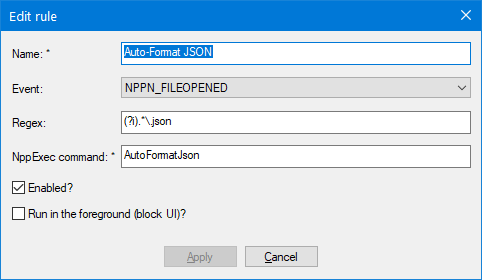
- Click button
Applyto close the rule editing dialog. - In plugin’s main dialog click button
Saveto save your changes. - Click button
Closeto close plugin’s main dialog.
Now you can load a JSON file and it should be pretty-printed automatically.


Hello! It looks like you're interested in this conversation, but you don't have an account yet.
Getting fed up of having to scroll through the same posts each visit? When you register for an account, you'll always come back to exactly where you were before, and choose to be notified of new replies (either via email, or push notification). You'll also be able to save bookmarks and upvote posts to show your appreciation to other community members.
With your input, this post could be even better 💗
Register Login