My Notepad++ can't read style correctly
-
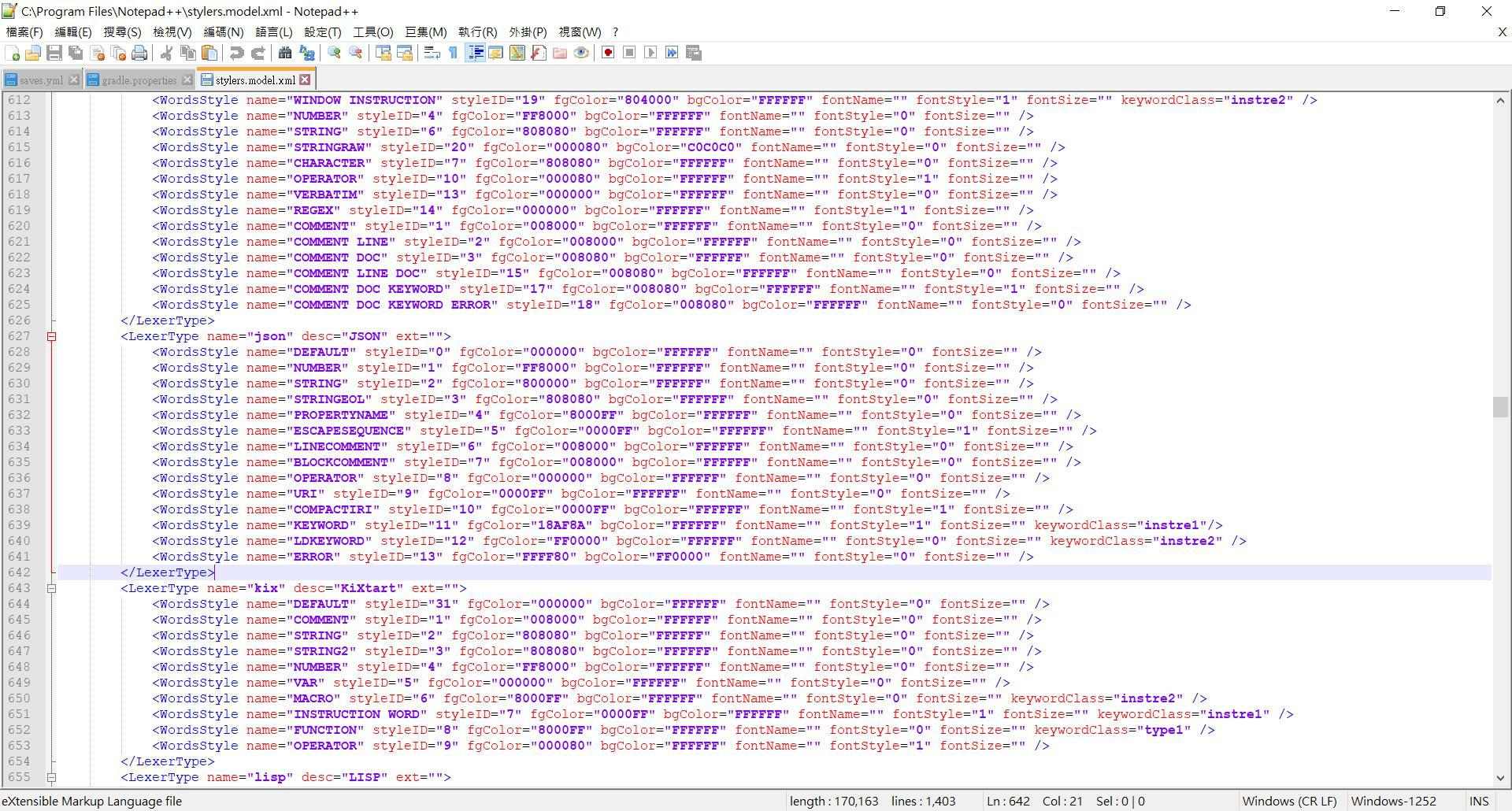
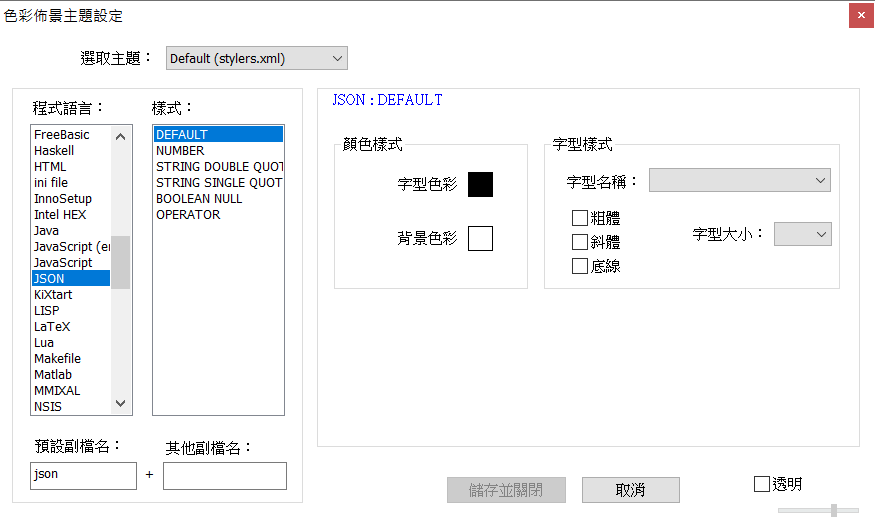
There’s several style in the stylers.model.xml file, but in the Style Configurator there’s just a few options for setting and when I open a file, the color style is not what that look like on other computer. (forgive my poor English, my native language is not English)
-
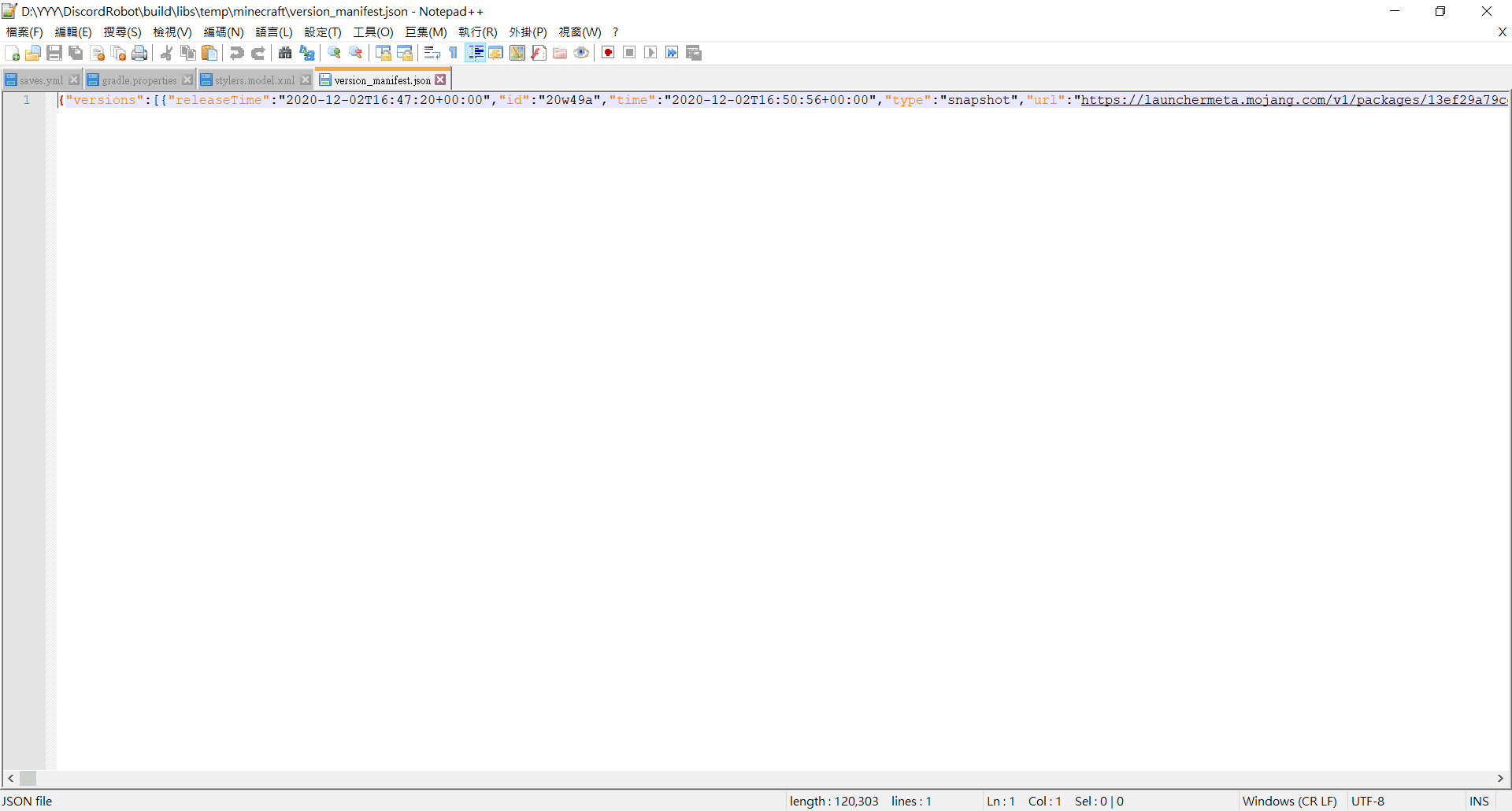
Your JSON is showing as styled, so Notepad++ is properly behaving as designed, and styling the JSON correctly.
However, I think what you’re commenting on is that
stylers.model.xmllists 14 different styles, but your Style Configurator only shows 6.That’s because a default installation of Notepad++ uses
%AppData%\Notepad++\stylers.xmlas the Style Configurator config file. Thestylers.model.xmlyou found in the Notepad++ program directory is what Notepad++ uses to re-create%AppData%\Notepad++\stylers.xmlif there isn’t one found. So, my guess is that you’ve updated Notepad++ on this computer, so that itsstylers.model.xmlis newer than your%AppData%\Notepad++\stylers.xml. If you opened%AppData%\Notepad++\stylers.xml(File | Open, and paste that string in), I believe it would only show the 6 styles that you can see.To fix this, you have two options:
- Delete and Re-create
stylers.xml:- WARNING: if you had customized any of your colors in the style configurator, this method will delete those customizations and you will have to redo them. I do not recommend this method if you want to keep your custom colors; try method#2 instead.
- Close all open Notepad++ windows
- Go to
%AppData%\Notepad++\and delete thestylers.xmlfile - Open Notepad++. It will re-create
%AppData%\Notepad++\stylers.xml - Style Configurator > JSON should show all 14 styles now.
- Manually merge the two
- WARNING: Do not change any Notepad++ settings until after step #6.
- Close all open Notepad++ windows.
- Open a single Notepad++ window.
- Open the files
stylers.model.xmlin one view, and%AppData%\Notepad++\stylers.xmlin the other - If you have the Compare plugin, you can compare the two files to find where differences are; otherwise, you can just manually compare the two, and copy rows from
stylers.model.xmltostylers.xmlthat were missing instylers.xml. - Close Notepad++ without changing any other settings
- Open Notepad++.
- Style Configurator > JSON should show all 14 styles now.
-–
PS: For more on%AppData%\Notepad++folder, see “FAQ Desk: What is%AppData%” - Delete and Re-create


Hello! It looks like you're interested in this conversation, but you don't have an account yet.
Getting fed up of having to scroll through the same posts each visit? When you register for an account, you'll always come back to exactly where you were before, and choose to be notified of new replies (either via email, or push notification). You'll also be able to save bookmarks and upvote posts to show your appreciation to other community members.
With your input, this post could be even better 💗
Register Login