[New Plugin] MultiReplace
-
IMHO the features of this plugin should be implemented directly into N++, maybe adding a further tab page to the current Search and Replace dialog to include the features of this plugin and its future evolution.
-
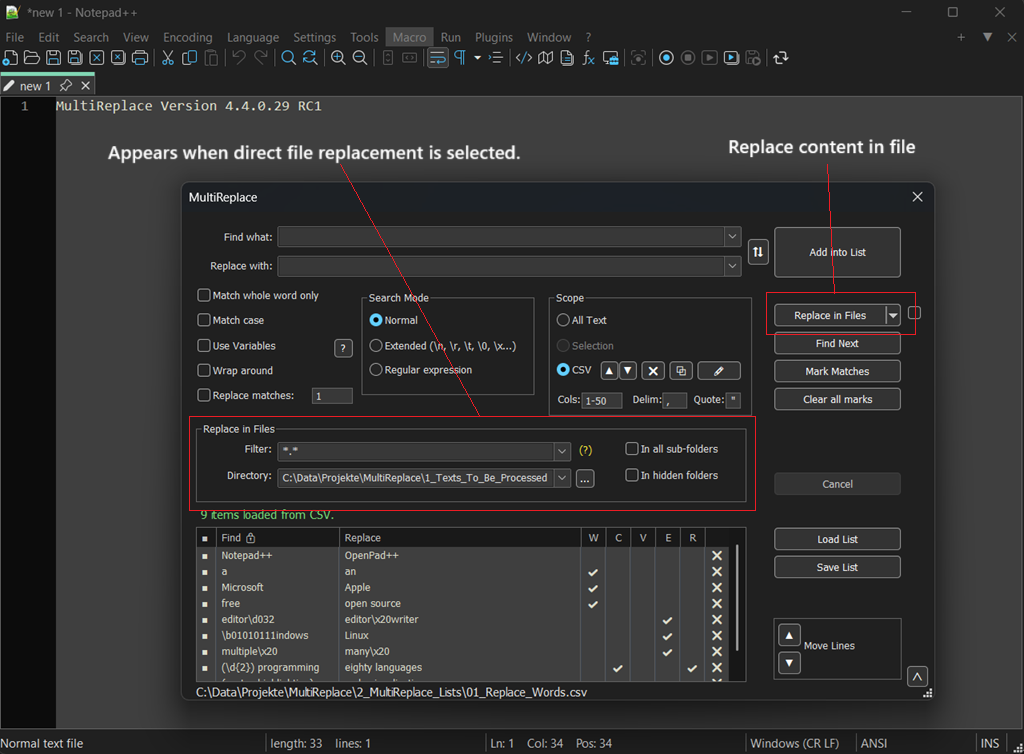
MultiReplace now also supports Replace in Files. This is another step toward a powerful feature when combined with the list entries. This feature supports all variables used in Use Variables, like
FNAMEandFPATH, as well as the CSV Scope option, so it is fully integrated.This is a Release Candidate available for testing – if it works for you, feel free to leave a like. If you run into any issues, please report them here.
- Download the ZIP file matching your system.
- Copy its contents into
C:\Program Files\Notepad++\plugins\MultiReplace. - Done!
Happy replacing!
-
A CTRL-Click on a tab would select it as part of a new scope for multi-documemt replacement.
A new feature very useful when you want to apply search/replace to a list of open documents but not all open documents
-
@Mit-Jean said in [New Plugin] MultiReplace:
A CTRL-Click on a tab would select it
This is not something the MultiReplace plugin has the power to do, as the idea messes with core Notepad++ functionality.
However, nothing is stopping the plugin author from creating some other mechanism within the plugin to do what you want. -
@Mit-Jean
A better solution would be to mark documents by pinning them. Unfortunately, Notepad++ does not provide an official API to detect whether a tab is pinned. -
@Thomas-Knoefel
Your idea of a plugin interface to determine if a tab is pinned seems very reasonable, so I created this GitHub issue to ask for such a feature. -
This post is deleted! -
A new version of MultiReplace (v4.5.0.30) is ready and will be available with the next Notepad++ release. It can be dowloaded here.
The focus of this release is on expanding the search functionality and giving you more flexibility.
Implemented updates:
-
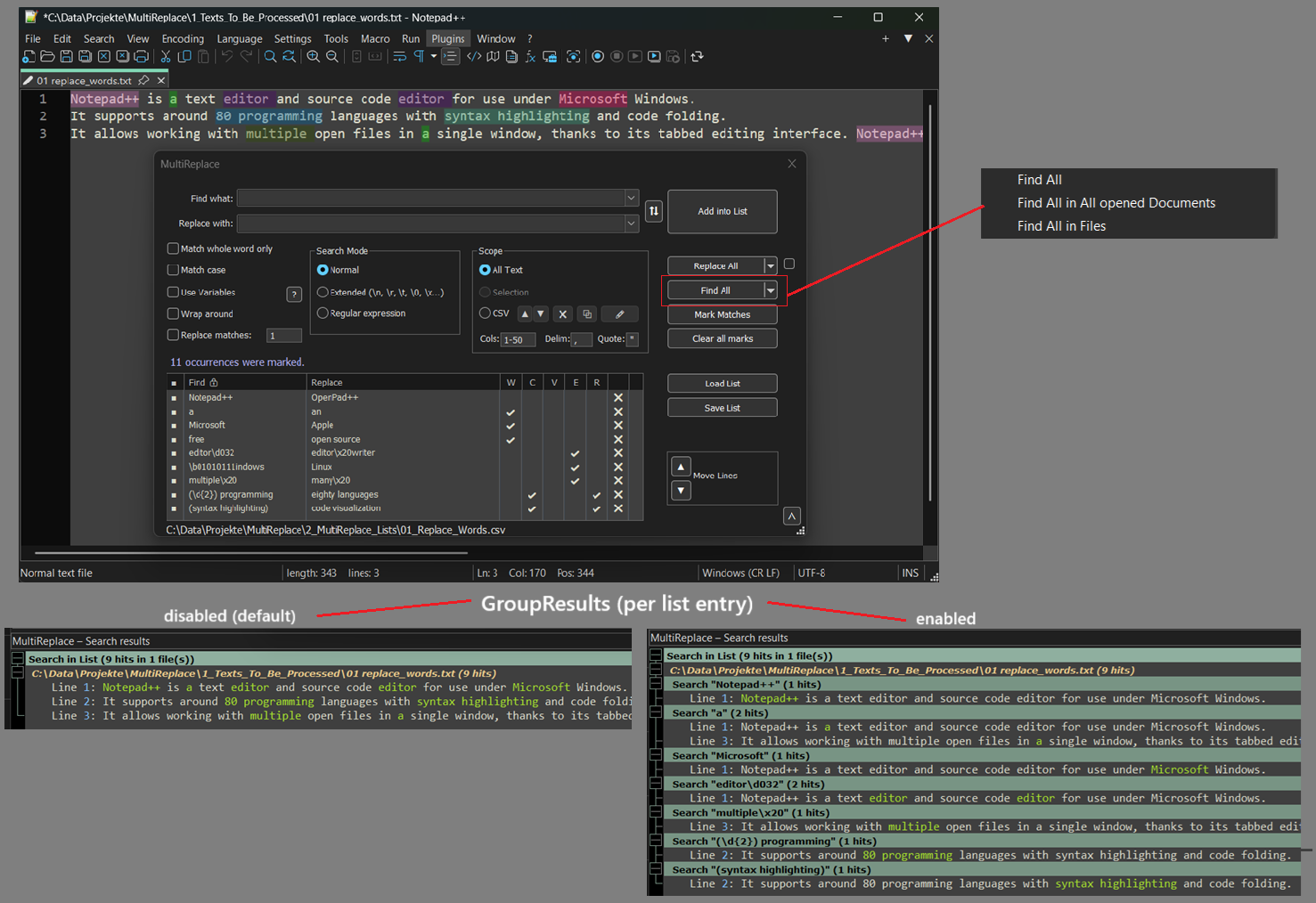
Find All: This is a new feature that lets you find all matches and see them in the search results window. It’s not limited to the current file – you can also search across all open documents or in entire folders.
-
GroupResults: To go with “Find All,” this new INI option lets you choose how your results are displayed. You can see them all mixed together in document order (the default), or neatly grouped by each list entry, which is great for getting a clear overview of complex searches.
-
lcmd: A new command for the “Use Variables” feature. It allows you to load your own custom helper functions from external files, which opens up a lot of possibilities for complex and reusable logic.
-
AllFromCursor: Another new INI setting that gives you more control. You can now choose to start “Find All”, “Replace All” and “Mark” operations from your current cursor position instead of from the top of the file.
Here is a visual take on the changes:
-
-
A new version of MultiReplace (v5.0.0.35) is ready and will be available with the next Notepad++ release. For early testing, it can already be downloaded here.
The focus of this release is on a new Settings Panel, improved Search Results visualization, and overall usability enhancements.
Key Features & Improvements
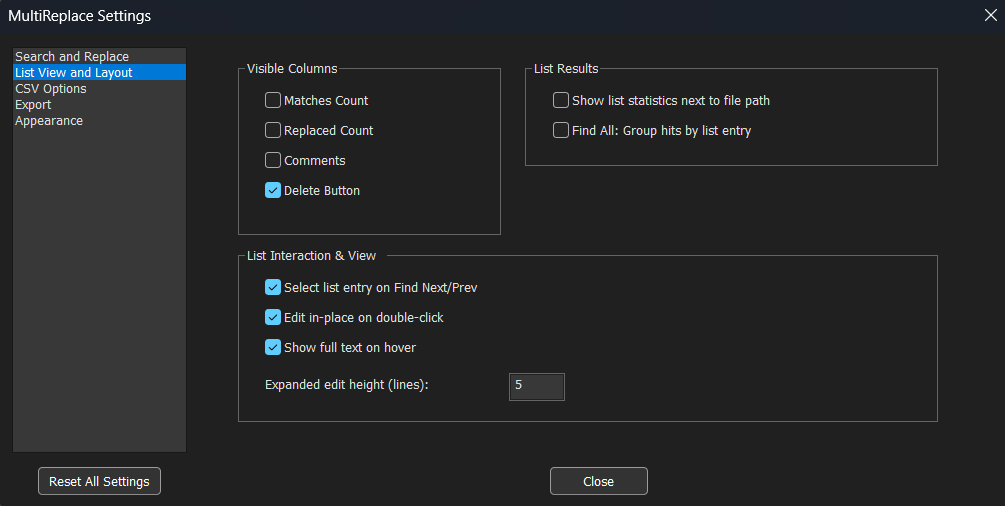
- Settings Panel: A comprehensive configuration dialog replaces manual INI file editing. All options are now organized into clear categories: Search & Replace, List View, CSV Options, Export, and Appearance.
- Refined Toolbar Icon: The icon has been updated to improve clarity.
- List Search Bar: Press Ctrl+F while focused on the replacement list to open a search bar. Quickly find entries in large lists by searching through the ‘Find’ and ‘Replace’ columns.
- Search Results Window Enhancements:
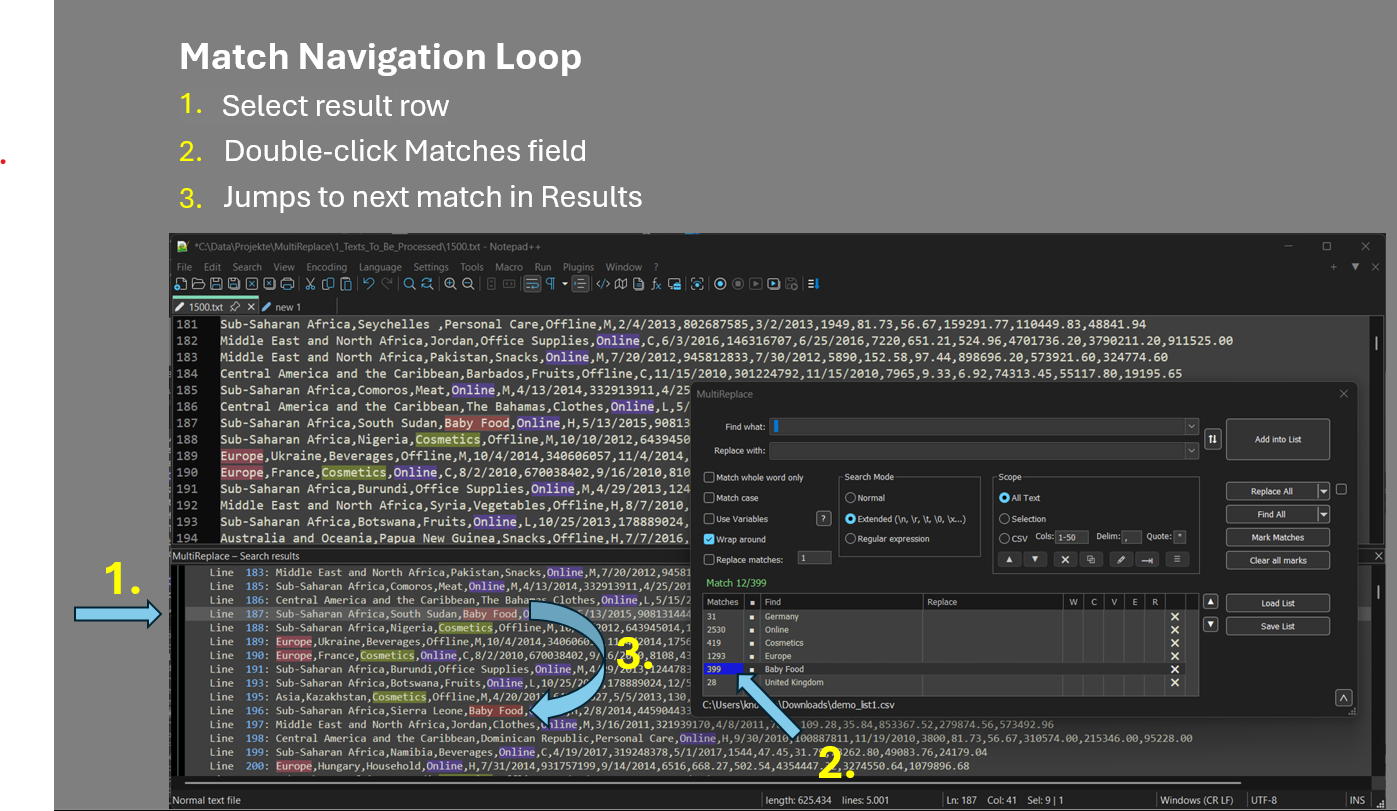
- Color-coded matches (up to 28 colors) for easy visual distinction per list entry.
- Double-click the Matches count to jump directly to the results.
- Duplicate Line Detection: Identify and mark duplicate CSV rows. Delete or inspect duplicates with optional bookmark navigation.
- Binary Escape Sequence: Extended mode now supports
\bNNNNNNNNfor binary values. tonum()Function: New helper to convert strings to numbers, supporting both dot and comma as decimal separators.- MATCH and CAP Variables: Now always return strings. Use
tonum(CAP1)for calculations. - Selection Mode: The ‘In Selection’ radio button no longer disables itself, enabling smoother repeated searches.
- Document Filtering for Open Docs: Find and Replace in Open Documents now supports wildcard-based filename filtering.
- Unified Filter Syntax: Filters now use semicolons (
;) as separators in both ‘Open Documents’ and ‘Find in Files’ modes. This enables filtering for filenames containing spaces. - Performance: Various optimizations for Replace All, Find All, and FlowTabs alignment on large files.
New Settings Panel with organized categories
Double-click the Matches count to quickly navigate through results
Enjoy!
-
MultiReplace 6.0 is out and will land in Plugin Admin with the next Notepad++ release.
The focus of this release is a second formula engine: ExprTk now sits alongside Lua for math, string and conditional replacements, joined by multi-list tabs, tandem mode, and a series of UI and workflow improvements. Several new options live under Plugins > MultiReplace > Settings.
Download: Latest build
Key Features & Improvements
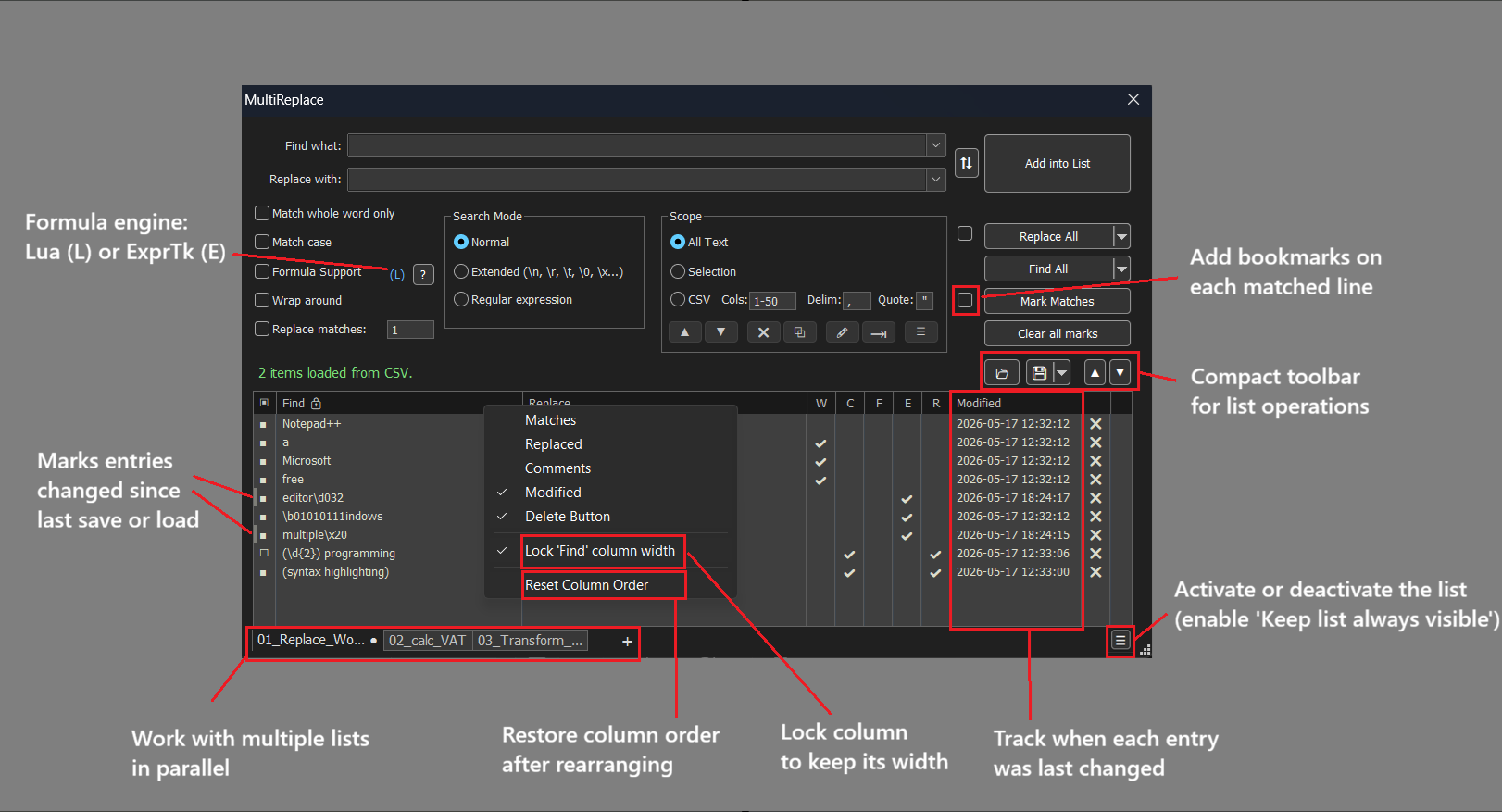
- New Formula Engine (ExprTk): A second engine alongside Lua for math, string and conditional replacements. Its standout is the built-in output formatter - a single declarative spec that turns any result into fixed decimals, hex/binary, padded and aligned fields, time durations or formatted dates, applied right where the value is produced. Switch per tab via the (L) / (E) indicator next to Formula Support. The ExprTk integration - the
(?=...)marker and the formula functions for reading captures and earlier results - follows the approach pioneered by @Coises in Columns++. Full syntax and examples are in the ExprTk formula reference. - List Tabs: Keep different replacement sets available across tabs. State is fully separate per tab.
- Tandem Mode: MR panel snaps to the Notepad++ window edge and follows it around. Toggle via the plugin menu.
- Reopen on Startup: Reopens MR automatically if it was open when you closed Notepad++. Opt-in via the plugin menu.
- Compact Toolbar: New top toolbar layout - more horizontal space for the list.
- Always Visible List: Keeps the list visible instead of collapsing when you toggle it off. Requires “Keep list always visible” enabled in Settings.
- Bookmark Matches: Sets a Notepad++ bookmark on every match line. Toggle via the new checkbox next to Mark Matches.
- Column Reorder & Lock: Drag column headers to rearrange. Right-click for “Lock column width” or “Reset Column Order”.
- Modified Timestamp Column: Optional column tracking the last edit per entry. A dirty-flag stripe on the left edge marks unsaved changes.
- Excel-Compatible CSV: Lists save in the standard CSV dialect used by spreadsheets - opens cleanly in Excel, edit there, load back without conversion.
Keyboard Shortcuts
Ctrl+Up/Down: Move selected rows up or down (auto-repeat)Ctrl+L: Toggle list visibility from anywhere in the panelAlt+Up/Down: Round-trip between input fields and a selected rowCtrl+Shift+ button click: Run from the input fields while the list stays openCtrl+Shift+H: Pull selected editor text into Find what (optionally auto-escaped for Regex/Extended mode)
Issues or suggestions: GitHub.
Happy replacing!
- New Formula Engine (ExprTk): A second engine alongside Lua for math, string and conditional replacements. Its standout is the built-in output formatter - a single declarative spec that turns any result into fixed decimals, hex/binary, padded and aligned fields, time durations or formatted dates, applied right where the value is produced. Switch per tab via the (L) / (E) indicator next to Formula Support. The ExprTk integration - the
-
Hello, @thomas-knoefel and All,
First, note that I use your last version
6.0.0.36!In this post, I did tests about the
Search in Filesfeature with the threeN++,SearchandMultiReplacefeatures.Globaly, they all give the same results with tiny differences regarding the
MultiReplaceplugin, which will require a follow-up inspection
Now, in my last post to @coises, I did similar tests and this time, the
MultiReplaceplugin give completely different results, compared to nativeN++andSearch++! Indeed, I got :-
27,081matches in841files of1,772, in2m 10s, withSearch++ -
27,081matches in841files of1,772, in1m 21s, withN++
But only :
18,767hits in726files in1m 05s, withMultiReplace
As I said, in @coises’s post, I first suspected your
File Search : Skip files larger thanoption, in Settings, to be enabled but it was not set !Here is a screenshot of the
MultiReplacedialog and of theSearch Resultspanel :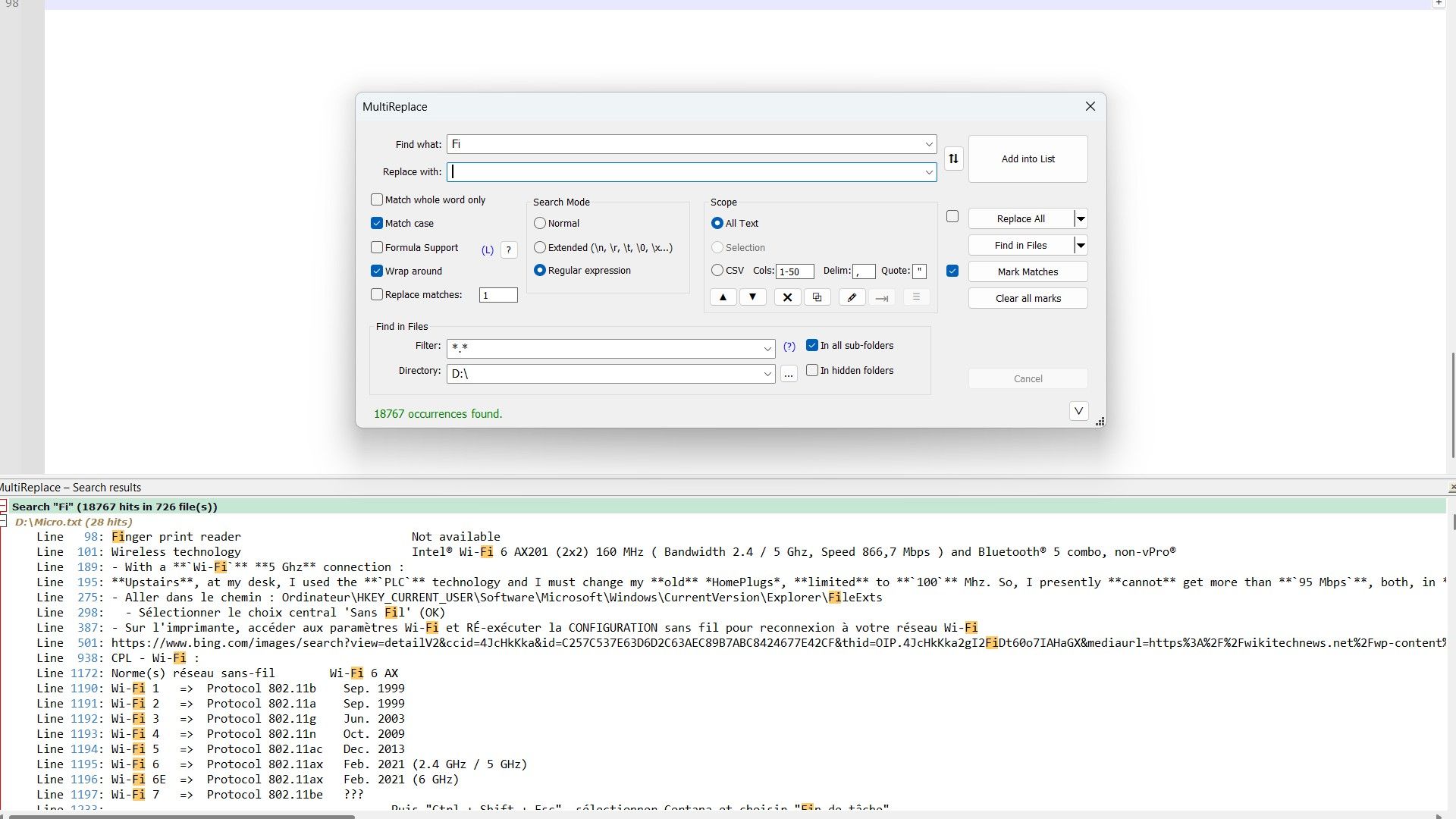
So, did I do something wrong ?
-
I also did a test on an other USB key where I put a simple subset of
7files, from myD:key, in aTestfolder -
I moved, within a command prompt, to that Test folder
-
I started N++ without a session and opened these
7files only -
I first ran the
Find in Filesoperation, with the Directory option =E:\Testand the Filter option =*.*=>83 hits in 3 files -
Then, I ran the similar
Find in Docsoperation =>372 hits in 7 files!
So, an obvious difference ! If necessary, I could send you the contents of this
Testfolder, for further tests !Best Regards,
guy038
-
-
Thanks for this thorough test, and no, you didn’t do anything wrong. Your investigation uncovered two separate behaviors in the code:
- Binary Files: MultiReplace “Find in Files” currently skips binary files, while native N++ searches every file it lists. That accounts for most of the gap in your USB drive numbers. I’ll look at how to make this configurable and more transparent.
- UTF-16 Bug: There is indeed a bug in how “Find in Files” handles UTF-16 encodings compared to “Find in Docs” and “Replace in Files”. This most likely explains the missing files in your smaller
Testfolder too.
Since the forum isn’t ideal for sharing files and tracking bug fixes, I have opened a GitHub issue for this here: https://github.com/daddel80/notepadpp-multireplace/issues/133
I would gladly take you up on your offer to share theE:\Testfolder contents so I can verify the fix against them. Could you please attach that folder as a zip or provide a link in the GitHub issue?Thanks again for your time and for helping to polish the next release candidate!
-
MultiReplace 6.1 is out and will land in Plugin Admin with the next Notepad++ release.
The focus of this release is Replace All in One Pass, running the whole list in a single left-to-right sweep instead of one full pass per entry, together with a reworked Find/Replace in Files and a handful of list and UI improvements. Several new options live under Plugins > MultiReplace > Settings.
Download: Latest build
Key Features & Improvements
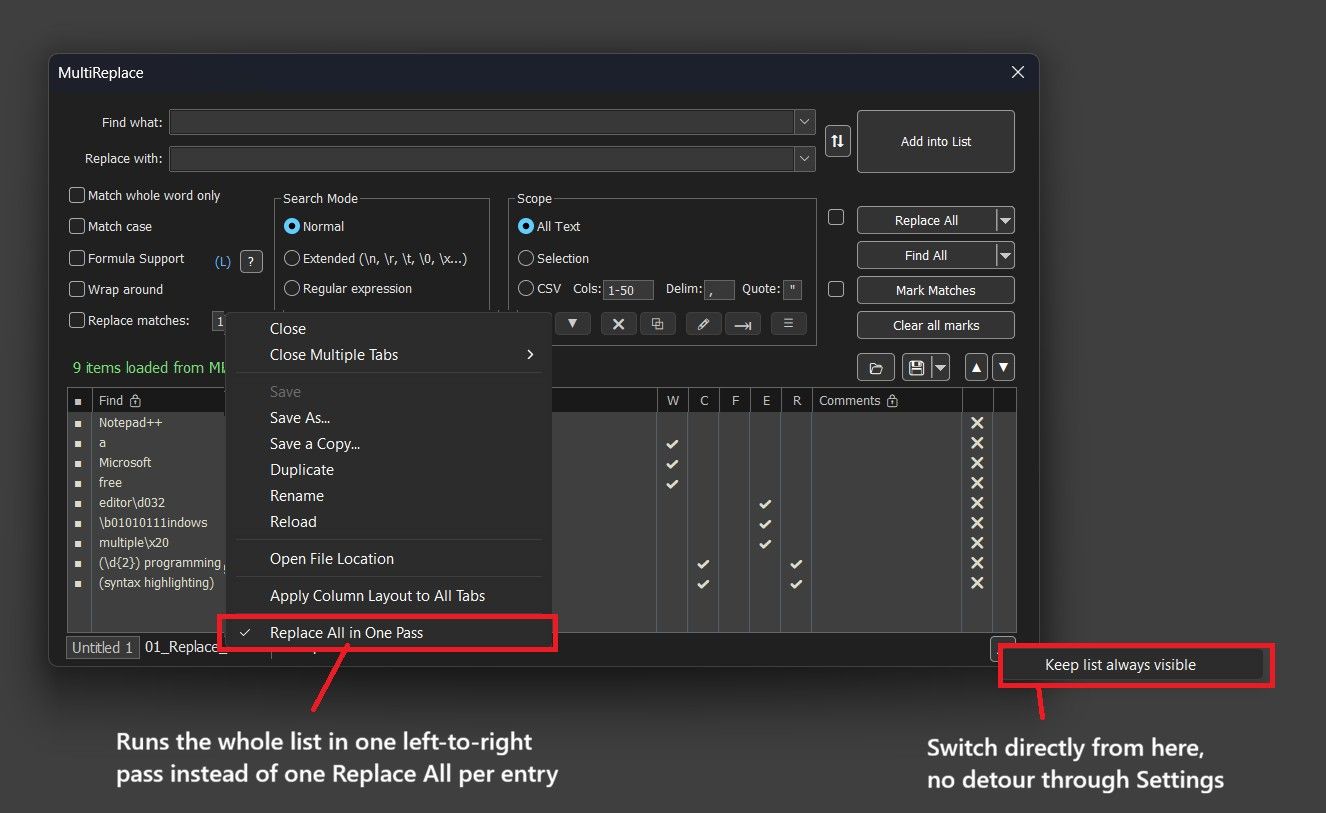
- Replace All in One Pass: Runs the whole list in a single pass instead of one full Replace All per entry, so results build on each other left to right. With
cat→doganddog→cat, sequential mode turns “cat dog” into “cat cat”, one pass turns it into “dog cat”. Much faster on large documents. Toggle per tab, right-click the list tab. - Use Open Documents: Find/Replace in Files can now work on files already open in Notepad++ as the live document, unsaved changes included, instead of the copy on disk. New checkbox in Settings.
- Skip Binary Files: New option for Find/Replace in Files (on by default), same detection as ripgrep and VS Code. Also adds UTF-16 detection without a BOM, and skipped files are always reported, broken down by reason.
- CSV Header Rows: Find/Replace now always searches header rows too. “Header rows to exclude” only protects sorting and duplicate detection.
- Collapse to File List: New Search Results dock option folding every search block down to just file names and hit counts. Ctrl/Shift-click works in the fold margin, same as Notepad++'s own Search Results panel.
- Library Mode: “Keep list always visible” can now be switched right from the Use List button’s context menu, no detour through Settings.
- Add New Row: Takes over the dialog’s current search options instead of starting all off. Find/Replace text still starts empty.
- Duplicate Row Reporting: A list row that exactly duplicates an earlier enabled one is skipped as before, but the status line now tells you how many rows were skipped.
Issues or suggestions: GitHub.
Happy replacing!
- Replace All in One Pass: Runs the whole list in a single pass instead of one full Replace All per entry, so results build on each other left to right. With






Hello! It looks like you're interested in this conversation, but you don't have an account yet.
Getting fed up of having to scroll through the same posts each visit? When you register for an account, you'll always come back to exactly where you were before, and choose to be notified of new replies (either via email, or push notification). You'll also be able to save bookmarks and upvote posts to show your appreciation to other community members.
With your input, this post could be even better 💗
Register Login