How to wrap selection by strings on both ends?
-
For document editing, I need to wrap the selected part of the text by special quotes (UNICODE characters that are used in Czech for quoting), like this:
„this is the text to be quoted“
Having this is the text to be quoted, I wan to select it, and to start something named do do the quoting. Say, I wan to name it as uv.
I remember from some editor (in the past, I do not remember the editor) that it could be done like
xxx #this is the text to be quoted#uv xxx
In other words, the text was marked by # (or something like that), the second one was followed by the name of the macro, and started by some hot-key.
Is anything like that possible in the Notepad++ editor?
Thanks,
Petr -
I am having a hard time understanding what you are asking for. If you are not a native English speaker, I would recommend writing what you want in your native language, and copy-pasting it into Google Translate rather than trying to do the translation yourself. It sounds like there are two things you want:
- Wrap the selected text in quotes
- Add a
#and then a name to the end of the selected text
How to wrap the selected text in quotes
Important: while doing steps 2-4, do not click in the text area of the Notepad++ window! If you do, your selection will change and that will become part of the macro.
- Go to
Macro->Start Recordingfrom the Notepad++ main menu bar - Go to
Search->Replace...from the main menu; the find/replace form will pop up. - Set the fields of the find/replace form as follows:
Find what:->(?s).*Replace with:->„${0}“Wrap around-> checkedSearch Mode->Regular expressionIn selection-> checked
- Hit the
Replacebutton - Go to
Macro->Stop Recordingfrom the Notepad++ main menu - Try selecting a different area of text and run
Macro->Playbackfrom the Notepad++ main menu, and make sure that the macro does what you want - Go to
Macro->Save Current Recorded Macrofrom the NPP main menu and save your macro with a name. You can also give this macro a keyboard shortcut for ease of use later.
How to add
#uvat the end of your selected text- Repeat steps 1-2 of the list above
- Set the fields of the find/replace form as follows:
Find what:->(?s).*Replace with:->${0}#uvWrap around-> checkedSearch Mode->Regular expressionIn selection-> checked
- Repeat steps 4-7 of the list above
Other notes
For more reading on macros, see the documentation here.
-
@Mark-Olson: Thanks. The first part works exactly as I wanted. Looking at the shortcuts.xml, I can see:
        <Macro name="uv" Ctrl="no" Alt="no" Shift="no" Key="0">
            <Action type="3" message="1700" wParam="0" lParam="0" sParam="" />
            <Action type="3" message="1601" wParam="0" lParam="0" sParam="(?s).*" />
            <Action type="3" message="1625" wParam="0" lParam="2" sParam="" />
            <Action type="3" message="1602" wParam="0" lParam="0" sParam="„${0}“" />
            <Action type="3" message="1702" wParam="0" lParam="896" sParam="" />
            <Action type="3" message="1701" wParam="0" lParam="1609" sParam="" />
        </Macro>
For explaining the second part. The other mentioned editor used the #quoting by hashes#macro_name to ge the same effect. Some shortcut was used to tell that the thing before is the macro name, and the special character is the delimiter (instead of making a selection). It may have been the JED editor that simulates Emacs (using a different inner language). The macros were easily edited, and you could use even more delimiters to wrap the parts, say, by more complex LaTeX macros with more arguments. I am not using it more than 20 years; so, I am not sure whether JED was the one.
-
@pepr, one minor comment on
„this is the text to be quoted“
I see that for the opening quote you used U+201E DOUBLE LOW-9 QUOTATION MARK. I expected you to use U+201F DOUBLE HIGH-REVERSED-9 QUOTATION MARK for the closing quote. Instead you used U+201C LEFT DOUBLE QUOTATION MARK.
The difference is
- „this is the text to be quoted‟ using U+201F
- „this is the text to be quoted“ using U+201C
If you intended to use U+201F then the line in your shortcuts.xml would look like
<Action type="3" message="1602" wParam="0" lParam="0" sParam="„${0}‟" />The second part that you desire likely could be done in Notepad++. @Mark-Olson already provided you with a hint on how to do it by showing you a search replace that takes the current selection and inserts a
„in front of it and appends a‟at the end of it.If instead you want to type
xxx #this is the text to be quoted#uv xxxYou then run this regular expression search/replace:
** Search:#([^#]+)#uv
Replace:„${1}‟**That will replace the
#...#uvstyle marks in your text with„...‟.If you want to be able to use several styles of quotes using
#xxor other things besides#uvthen it’s still possible though gets far messier do to it with a single search/replace. -
@mkupper: Well, the Czech typography uses the double quotes also known as 99 and 66 (because of the shape) — the 99 low, and 66 up. See the image cut from somewhere:
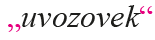
Thanks for the hint for using the regular expression with # as marks. I was not thinking about that possibility.
@anyone: The macro recording and playback in Notepad++ is fine for simple things, in my opinion. However, it is difficult to modify the macros (through editing shortcuts.xml). Is there any plugin that implements some alternative approach to the macros?
-
@pepr said in How to wrap selection by strings on both ends?:
Is there any plugin that implements some alternative approach to the macros?
There’s SCRIPTING.
-
@Alan-Kilborn: Thanks a lot! Being fluent with Python, I have installed the PythonScript, and I am learning first steps.



Hello! It looks like you're interested in this conversation, but you don't have an account yet.
Getting fed up of having to scroll through the same posts each visit? When you register for an account, you'll always come back to exactly where you were before, and choose to be notified of new replies (either via email, or push notification). You'll also be able to save bookmarks and upvote posts to show your appreciation to other community members.
With your input, this post could be even better 💗
Register Login