How can I pass a search term to Notepad++ via command?
-
Notepad++ doesn’t natively have a command-line-based search syntax. Sorry.
It has come up a few times before, like “How to start a search automatically” and “Find in Files from command line” (warning: toward the end of both of those, the discussion devolves because of a new direction someone took the conversation; focus on the earlier portions of those discussions).
Using a script in the PythonScript plugin to process the
-pluginMessagecould be used for such a thing. But I don’t know that anyone’s implemented it. It never made it to a full script in those previous discussions, because @alankilborn offered, but the OP actually made aVB.netscript for it in this post, so @alankilborn never published a PythonScript solution. Unfortunately, he’s not around as much anymore, but if he didn’t already write it, he’s not likely to.I don’t know of any plugins that have implemented a start-search-from-
-pluginMessage: it might make sense for the custom-search gurus – I was about to suggest @coises’s Columns++ … but as I was typing this reply, he posted about a new Search++, which is probably a better place for it: he might be willing to add-pluginMessageprocessing to trigger a search from the command-line.(If @Coises doesn’t seem interested, I might be willing to try to convert the
VB.netscript into a PythonScript solution… But some users have found it hard to get PythonScript solutions working, despite our FAQ which is supposed to help.) -
@PeterJones said in How can I pass a search term to Notepad++ via command?:
I don’t know of any plugins that have implemented a start-search-from–pluginMessage: it might make sense for the custom-search gurus – I was about to suggest @coises’s Columns++ … but as I was typing this reply, he posted about a new Search++, which is probably a better place for it: he might be willing to add -pluginMessage processing to trigger a search from the command-line.
(If @Coises doesn’t seem interested, I might be willing to try to convert the VB.net script into a PythonScript solution… But some users have found it hard to get PythonScript solutions working, despite our FAQ which is supposed to help.)
Offhand, it seems like it would make sense. However, my new plugin still has a lot of work to be done to refine its basic features and add major missing ones. This is a good idea; I’m just not likely to get to it anytime soon.
-
@PeterJones said in How can I pass a search term to Notepad++ via command?:
I might be willing to try to convert the VB.net script into a PythonScript solution
Here’s my first stab.
Instructions:
{these assume a normal installation of Notepad++, using %AppData%\Notepad++ for user configuration}
See PythonScript FAQ
- Create
%AppData%\Notepad++\plugins\PythonScript\scripts\commandlineSearch27482.py, from the contents below - Check for menu entry Plugins > Python Script > Scripts > startup (User)
- if it is listed,
Ctrl+clickon it to edit, and add the following to the end:import commandlineSearch27482 - if it isn’t listed, create
%AppData%\Notepad++\plugins\PythonScript\scripts\user.pyfrom the contents below - set Plugins > Python Script > Configuration… to Initialisation:
ATSTARTUP - exit and restart Notepad++
- if it is listed,
After doing that, the script should look for
notepad++ -pluginMessage="PythonScriptCommandlineSearch=term", and run a search fortermFor example,
notepad++ -pluginMessage="PythonScriptCommandlineSearch=BM_CLICK"was able to find
BM_CLICKinstance whencommandlineSearch27482.pyis in the editor, so I think it works, (it worked whether N++ was already running, or whether this call was the first launch)Caveat: For now, it won’t work with semicolon
;or double-quote"in the search term; if that is needed, I would need to add an escape sequence processing, which would make it more complicated. But as it is, it should handle >90% of desired standard searches…commandlineSearch27482.py:# encoding=utf-8 """in response to https://community.notepad-plus-plus.org/topic/27472/ (fixed URL) process -pluginMessage="PythonScriptCommandlineSearch=term" `term` must be a normal search term, not a regular expression; it currently cannot include semicolons `;` or double-quotes `"` """ ##### ------- ##### Instructions: ##### ##### {these assume a normal installation of Notepad++, using %AppData%\Notepad++ for user configuration} ##### ##### See [PythonScript FAQ](https://community.notepad-plus-plus.org/topic/23039/faq-how-to-install-and-run-a-script-in-pythonscript) ##### ##### - Create `%AppData%\Notepad++\plugins\PythonScript\scripts\commandlineSearch27482.py`, from the contents below ##### - Check for menu entry **Plugins > Python Script > Scripts > startup (User)** ##### - if it is listed, `Ctrl+click` on it to edit, and add the following to the end: ##### - if it isn't listed, create `%AppData%\Notepad++\plugins\PythonScript\scripts\user.py` from the contents below ##### - set **Plugins > Python Script > Configuration...** to **Initialisation: `ATSTARTUP`** ##### - exit and restart Notepad++ ##### ##### After doing that, the script should look for ##### `notepad++ -pluginMessage="PythonScriptCommandlineSearch=term"`, and run a search for `term` ##### ##### For now, it won't work with semicolon `;` or double-quote `"` in the search term; ##### if that is needed, I would need to add an escape sequence processing, which would make it more complicated. ##### ------- from Npp import notepad, console, NOTIFICATION, MENUCOMMAND import ctypes import sys import re import ctypes from ctypes.wintypes import HWND, UINT, WPARAM, LPARAM, HMODULE, LPCWSTR, LPCSTR, LPVOID def usePluginMessageString27482(s): m = re.search(r'PythonScriptCommandlineSearch=([^;"]+)', s) t = m.group(1) # Define the functions and constants needed FindWindow = ctypes.windll.user32.FindWindowW FindWindow.argtypes = [LPCWSTR, LPCWSTR] FindWindow.restype = HWND FindWindowEx = ctypes.windll.user32.FindWindowExW FindWindowEx.argtypes = [HWND, HWND, LPCWSTR, LPCWSTR] FindWindowEx.restype = HWND SendMessage = ctypes.windll.user32.SendMessageW SendMessage.argtypes = [HWND, UINT, WPARAM, LPARAM] SendMessage.restype = LPARAM SendMessageStr = ctypes.windll.user32.SendMessageW SendMessageStr.argtypes = [HWND, UINT, WPARAM, LPCWSTR] SendMessageStr.restype = LPARAM SendDlgItemMessage = ctypes.windll.user32.SendDlgItemMessageW SendDlgItemMessage.argtypes = [HWND, UINT, UINT, WPARAM, LPARAM] SendDlgItemMessage.restype = LPARAM WM_SETTEXT = 0x000C BM_CLICK = 0x00F5 # see https://community.notepad-plus-plus.org/post/59785 for VB.net inspiration notepad.menuCommand(MENUCOMMAND.SEARCH_FIND) hFindWnd = FindWindow("#32770", "Find") hComboBx = FindWindowEx(hFindWnd, 0, "ComboBox", None) if hFindWnd else 0 hFindStr = FindWindowEx(hComboBx, 0, "Edit", None) if hComboBx else 0 SendMessageStr(hFindStr, WM_SETTEXT, 0, t) # set search mode: hNormBtn = FindWindowEx(hFindWnd, 0, "Button", "&Normal") if hNormBtn: SendMessageStr(hNormBtn, BM_CLICK, 0, None) # start search hFindBtn = FindWindowEx(hFindWnd, 0, "Button", "Find Next") #console.write(f"FindWindows: FIND={hFindWnd:08X} ComboBox={hComboBx:08X} FindNext:{hFindBtn:08X}\n") if hFindBtn: SendMessageStr(hFindBtn, BM_CLICK, 0, None) # TODO: I'd like to try SendDlgItemMessageW(hFindWnd, ctrlID, BM_CLICK, 0, 0), to avoid having to search for the "Find Next" button # but using the 1625 from search macros, I couldn't get it to change Search Mode, so just manually click the buttons for now def getStringFromNotification27482(args): code = args['code'] if 'code' in args else None idFrom = args['idFrom'] if 'idFrom' in args else None hwndFrom = args['hwndFrom'] if 'hwndFrom' in args else None #console.write(f"notification(code:{code}, idFrom:{idFrom}, hwndFrom:{hwndFrom}) received\n") if idFrom is None: return s = ctypes.wstring_at(idFrom) #console.write(f"\tAdditional Info: str=\"{s}\"\n") usePluginMessageString27482(s) def getStringFromCommandLine27482(): for token in sys.argv: if len(token)>15 and token[0:15]=="-pluginMessage=": s = token[15:] #console.write(f"TODO: process {token} => \"{s}\"\n") usePluginMessageString27482(s) notepad.callback(getStringFromNotification27482, [NOTIFICATION.CMDLINEPLUGINMSG]) console.write("Registered getStringFromNotification27482 callback for CMDLINEPLUGINMSG\n") getStringFromCommandLine27482()startup.py: if you need to create it, use the followingfrom Npp import * import sys console.write("Start of user startup.py\n") # add scripts folder to the path #d = notepad.getPluginConfigDir() + r'\PythonScript\Scripts\nppCommunity' #if not d in sys.path: # sys.path.append(d) # updated to https://community.notepad-plus-plus.org/topic/22299/convenience-technique-when-organizing-pythonscripts-into-folders import os for (root, dirs, files) in os.walk(notepad.getPluginConfigDir() + r'\PythonScript\scripts', topdown=False): if root not in sys.path: sys.path.append(root) import commandlineSearch27482 - Create
-
@PeterJones said:
…so @alankilborn never published a PythonScript solution. Unfortunately, he’s not around as much anymore
I’m definitely “around”, but more of a lurker these days. :-)
-
@PeterJones said in How can I pass a search term to Notepad++ via command?:
commandlineSearch27482
just noticed that this is actually topic/27472, not 27482… but I’m not going to change all my comments and variable names at this point. Well, maybe the comment with the URL.
-
@PeterJones
Thank you very much for taking the time, I really appreciate that!I was able to implement everything so far.
I wanted to ask whether you wrote the script so that the search is executed automatically (i.e., the “Find next” button is pressed automatically) or if it only fills the search field with the “term”?
For me, the term is only inserted, and I have to trigger the search manually (I’m not a programmer – please excuse my lack of scripting knowledge).
-
For me, it clicks the Find Next. It worked with 100% of my tests. Are you using English localization (so the button is literally
Find Next) or are you in a different localization?And do you have the single button, like

or the two buttons with arrows?

Because it’s looking for exact button text when trying to figure out what to click; if it cannot find a button called
Find Next, then it won’t be able to press it. So if there’s anything different from a default setup, my script will likely not work for you. -
@PeterJones said:
So if there’s anything different from a default setup, my script will likely not work for you.
But surely it isn’t difficult for @Native2904 to edit any necessary text string content in the script, even if “not a programmer”.
Saying “…my script will likely not work for you” seems rather dead-endish…
-
@Alan-Kilborn said in How can I pass a search term to Notepad++ via command?:
Saying “…my script will likely not work for you” seems rather dead-endish…
You’re right. I should have said, “my script will likely not work for you as is” or “… without edits”.
Putting in the exact text of that button is what’s essential for @Native2904 … but if it’s got an underlined character, it needs to be remembered to put the & before that characater in the string.
So yes, @Native2904, if you can put in the text of your Find Next button, and it makes it work, great. If not, take a screenshot of the Find dialog, and paste it in your reply. (Also grab ?-menu’s Debug Info)
(this is why I’ve mostly stopped doing PythonScript solutions for people… the ultra-slow back-and-forth makes it hard to get things working for them)
-
@PeterJones
I only modified her script in such a way that I changed all the names that were different according to the pattern:hFindBtn = FindWindowEx(hFindWnd, 0, "Button", None)Debug Info
Notepad++ v8.9.3 (64-bit) Build time: Mar 20 2026 - 00:44:25 Scintilla/Lexilla included: 5.6.0/5.4.7 Boost Regex included: 1_90 pugixml included: 1.15 nlohmann JSON included: 3.12.0 Path: C:\tcmd\Tools\Notepad++\notepad++.exe Command Line: C:\tcmd\wincmd.ini -pluginMessage="PythonScriptCommandlineSearch=UseLongNames" Admin mode: OFF Local Conf mode: ON Cloud Config: OFF WinGUp: present disableNppAutoUpdate.xml: present Periodic Backup: ON Placeholders: OFF Scintilla Rendering Mode: SC_TECHNOLOGY_DIRECTWRITE (1) Multi-instance Mode: monoInst asNotepad: OFF File Status Auto-Detection: cdEnabledNew (for current file/tab only) Dark Mode: OFF Display Info: primary monitor: 1920x1080, scaling 125% visible monitors count: 1 installed Display Class adapters: 0001: Description - Intel(R) HD Graphics 520 0001: DriverVersion - 31.0.101.2111 OS Name: Windows 11 Pro (64-bit) OS Version: 24H2 OS Build: 26100.8037 Current ANSI codepage: 1252 Plugins: ComparePlugin (2.0.2) DSpellCheck (1.5) Explorer (1.9.9) HTMLTag (1.5.2) JSMinNPP (1.2503) LanguageHelp (1.7.5) Linter (0.1) MarkdownViewerPlusPlus (0.8.2) mimeTools (3.1) NppConverter (4.7) NppExport (0.4) NppJavaPlugin (0.4.1) NPPJSONViewer (2.1.1) PreviewHTML (1.3.3.2) PythonScript (2.1) Remove Duplicate Lines (1.3) -
Sorry, but in the GIF, Notepad** is already set to English; it was actually running in German until now.
I first need to get used to the editor’s rules as a new user.
I can no longer edit my first reply with the debug log.
I would like to correct myself: it’s only that one entry I changed. -
@Native2904 said in How can I pass a search term to Notepad++ via command?:
Sorry, but in the GIF, Notepad** is already set to English; it was actually running in German until now.
Most likely, you’re just missing the & to indicate the underlines.
But assuming it’s the default German localization, I should be able to figure out what needs to be done, and post the edited version of the script.
-
updated script:
# encoding=utf-8
"""in response to https://community.notepad-plus-plus.org/topic/27472/
(fixed URL to Topic)

process -pluginMessage="PythonScriptCommandlineSearch=term"

`term` must be a normal search term, not a regular expression; it currently cannot include semicolons `;` or double-quotes `"`

updated version for German localization
"""
#####   -------
#####   Instructions:
#####
#####   {these assume a normal installation of Notepad++, using %AppData%\Notepad++ for user configuration}
#####
#####   See [PythonScript FAQ](https://community.notepad-plus-plus.org/topic/23039/faq-how-to-install-and-run-a-script-in-pythonscript)
#####
#####   - Create `%AppData%\Notepad++\plugins\PythonScript\scripts\commandlineSearch27472.py`, from the contents below
#####   - Check for menu entry **Plugins > Python Script > Scripts > startup (User)**
#####       - if it is listed, `Ctrl+click` on it to edit, and add the following to the end:
#####       - if it isn't listed, create `%AppData%\Notepad++\plugins\PythonScript\scripts\user.py` from the contents below
#####       - set **Plugins > Python Script > Configuration...** to **Initialisation: `ATSTARTUP`**
#####       - exit and restart Notepad++
#####
#####   After doing that, the script should look for
#####   `notepad++ -pluginMessage="PythonScriptCommandlineSearch=term"`, and run a search for `term`
#####
#####   For now, it won't work with semicolon `;` or double-quote `"` in the search term;
#####       if that is needed, I would need to add an escape sequence processing, which would make it more complicated.
#####   -------


from Npp import notepad, console, NOTIFICATION, MENUCOMMAND
import ctypes
import sys
import re
import time

import ctypes
from ctypes.wintypes import HWND, UINT, WPARAM, LPARAM, HMODULE, LPCWSTR, LPCSTR, LPVOID

def usePluginMessageString27472de(s):
    m = re.search(r'PythonScriptCommandlineSearch=([^;"]+)', s)
    t = m.group(1)

    # Define the functions and constants needed
    FindWindow = ctypes.windll.user32.FindWindowW
    FindWindow.argtypes = [LPCWSTR, LPCWSTR]
    FindWindow.restype  = HWND

    FindWindowEx = ctypes.windll.user32.FindWindowExW
    FindWindowEx.argtypes = [HWND, HWND, LPCWSTR, LPCWSTR]
    FindWindowEx.restype  = HWND

    SendMessage = ctypes.windll.user32.SendMessageW
    SendMessage.argtypes = [HWND, UINT, WPARAM, LPARAM]
    SendMessage.restype  = LPARAM

    SendMessageStr = ctypes.windll.user32.SendMessageW
    SendMessageStr.argtypes = [HWND, UINT, WPARAM, LPCWSTR]
    SendMessageStr.restype  = LPARAM

    SendDlgItemMessage = ctypes.windll.user32.SendDlgItemMessageW
    SendDlgItemMessage.argtypes = [HWND, UINT, UINT, WPARAM, LPARAM]
    SendDlgItemMessage.restype = LPARAM

    WM_SETTEXT = 0x000C
    BM_CLICK = 0x00F5

    # see https://community.notepad-plus-plus.org/post/59785 for VB.net inspiration
    notepad.menuCommand(MENUCOMMAND.SEARCH_FIND)
    hFindWnd = None
    # try 10 times
    for i in range(10):
        hFindWnd = FindWindow("#32770", "Find")
        if not hFindWnd:
            hFindWnd = FindWindow("#32770", "Suchen")
        if not hFindWnd:
            hFindWnd = FindWindow("#32770", "Suchen und ersetzen")
        if hFindWnd:
            break
        time.sleep(0.2) # wait for the Find window to appear

    hComboBx = FindWindowEx(hFindWnd, 0, "ComboBox", None) if hFindWnd else 0
    hFindStr = FindWindowEx(hComboBx, 0, "Edit", None) if hComboBx else 0
    SendMessageStr(hFindStr, WM_SETTEXT, 0, t)

    # set search mode:
    hNormBtn = None
    for i in range(10):
        hNormBtn = FindWindowEx(hFindWnd, 0, "Button", "Norma&l")
        if hNormBtn:
            break
        time.sleep(0.2)
    if hNormBtn:
        SendMessageStr(hNormBtn, BM_CLICK, 0, None)

    # start search
    hFindBtn = None
    for i in range(10):
        hFindBtn = FindWindowEx(hFindWnd, 0, "Button", "Näch&stes finden")
        if hNormBtn:
            break
        time.sleep(0.2)
    console.write(f"FindWindows: FIND={hFindWnd:08X} ComboBox={hComboBx:08X} FindNext:{hFindBtn:08X}\n")
    if hFindBtn:
        SendMessageStr(hFindBtn, BM_CLICK, 0, None)

    # TODO: I'd like to try SendDlgItemMessageW(hFindWnd, ctrlID, BM_CLICK, 0, 0), to avoid having to search for the "Find Next" button
    #   but using the 1625 from search macros, I couldn't get it to change Search Mode, so just manually click the buttons for now

def getStringFromNotification27472de(args):
    code = args['code'] if 'code' in args else None
    idFrom = args['idFrom'] if 'idFrom' in args else None
    hwndFrom = args['hwndFrom'] if 'hwndFrom' in args else None
    #console.write(f"notification(code:{code}, idFrom:{idFrom}, hwndFrom:{hwndFrom}) received\n")
    if idFrom is None: return
    s = ctypes.wstring_at(idFrom)
    #console.write(f"\tAdditional Info: str=\"{s}\"\n")
    usePluginMessageString27472de(s)

def getStringFromCommandLine27472de():
    for token in sys.argv:
        if len(token)>15 and token[0:15]=="-pluginMessage=":
            s = token[15:]
            #console.write(f"TODO: process {token} => \"{s}\"\n")
            usePluginMessageString27472de(s)

notepad.callback(getStringFromNotification27472de, [NOTIFICATION.CMDLINEPLUGINMSG])
console.write("Registered getStringFromNotification27472de callback for CMDLINEPLUGINMSG\n")
getStringFromCommandLine27472de()
When I have localization=
Deutsch, I get:
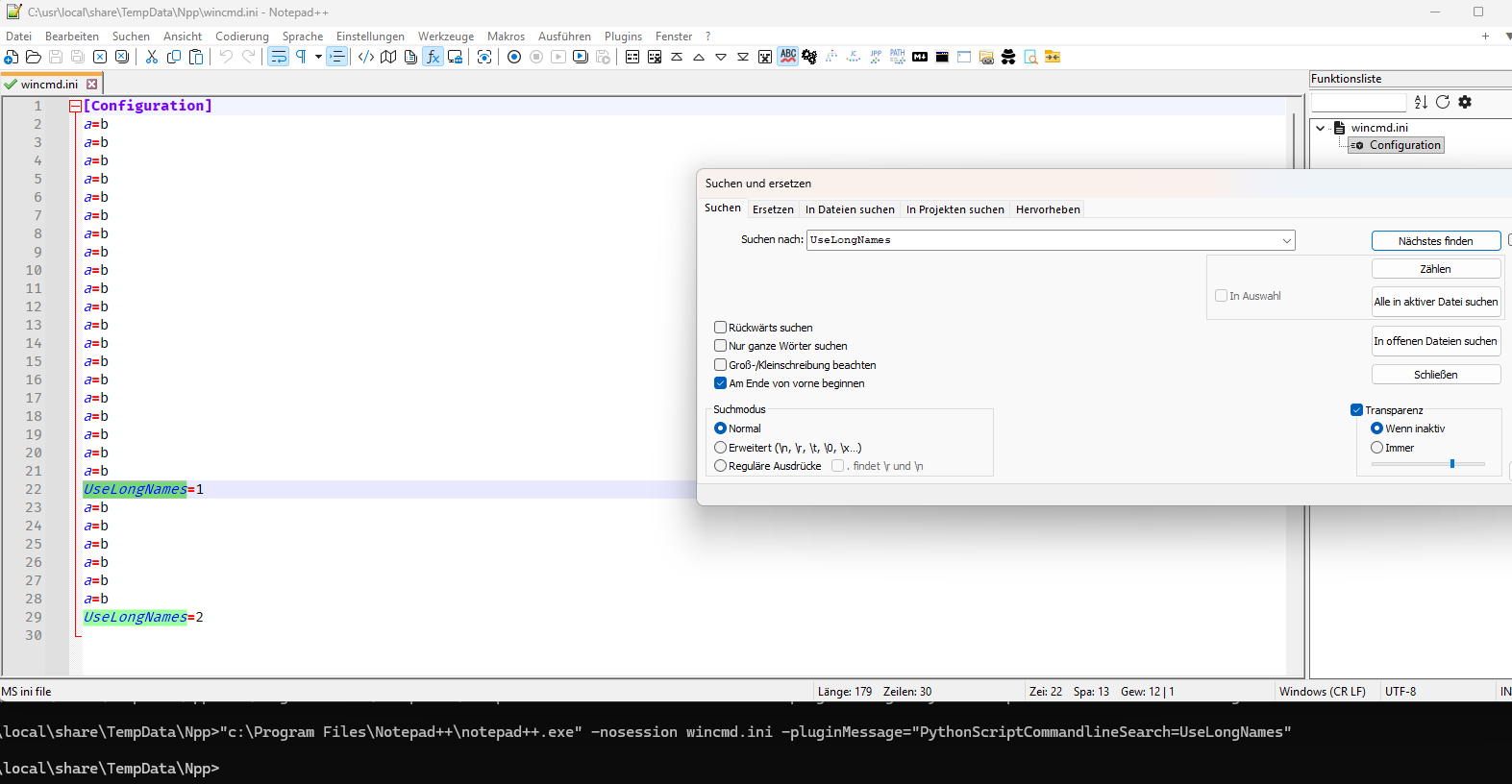
The changes I made: I fixed the variable/function naming; I updated the window/button strings per german.xml localization file, and I added a wait-loop so if it takes a second or two for the FIND dialog to appear, it will try again rather than give up.
-
P PeterJones referenced this topic on
-
Thank you many times!
-
This post is deleted!


Hello! It looks like you're interested in this conversation, but you don't have an account yet.
Getting fed up of having to scroll through the same posts each visit? When you register for an account, you'll always come back to exactly where you were before, and choose to be notified of new replies (either via email, or push notification). You'll also be able to save bookmarks and upvote posts to show your appreciation to other community members.
With your input, this post could be even better 💗
Register Login