Multi selection and multi edit
-
I most certainly did NOT say that! :-)
Sorry that I misunderstood you sentence. What you say is that it is a priority to upgrade to a new Scintilla version rather than tinker with the current version. I agree.
Yes BetterMultiSelection works very well. But the mulit clipboard and the Ctrl+D would make it perfekt.
Here the example again. I just figured out how to embedd the GIF.
-
@bitagoras said:
What you say is that it is a priority to upgrade to a new Scintilla version rather than tinker with the current version
I didn’t say THAT either (I don’t know WHAT if any Scintilla-based decisions are being made, or how they are made), but I agree as well. :-)
I just figured out how to embedd the GIF.
I don’t see the embedded GIF. But it is OK since it is available via the earlier link you posted.
-
-
I can see the animated gif. It may be that Scott’s connection is being filtered from seeing s2.gifyu.com – I know that my employer blocks many file-sharing sites; fortunately, imgur is not one of them (amazingly enough), so I can upload to and see embedded images from imgur, which is quite helpful here.
-
Hi, @bitagoras, and All,
I found out a work-around to simulate the behavior of your animated
gifpicture !I suppose
3hypotheses :-
The
Multi-Editingfeature is enabled ( Settings > Preferences… > Editing > Multi-Editing settings ) -
The
BetterMultiSelectionplugin is installed and enabled -
The
Ctrl+ Dshortcut is assigned to the Scintilla functionSCI_SELECTION DUPLICATE( and not toSCI_LINEDUPLICATE! )
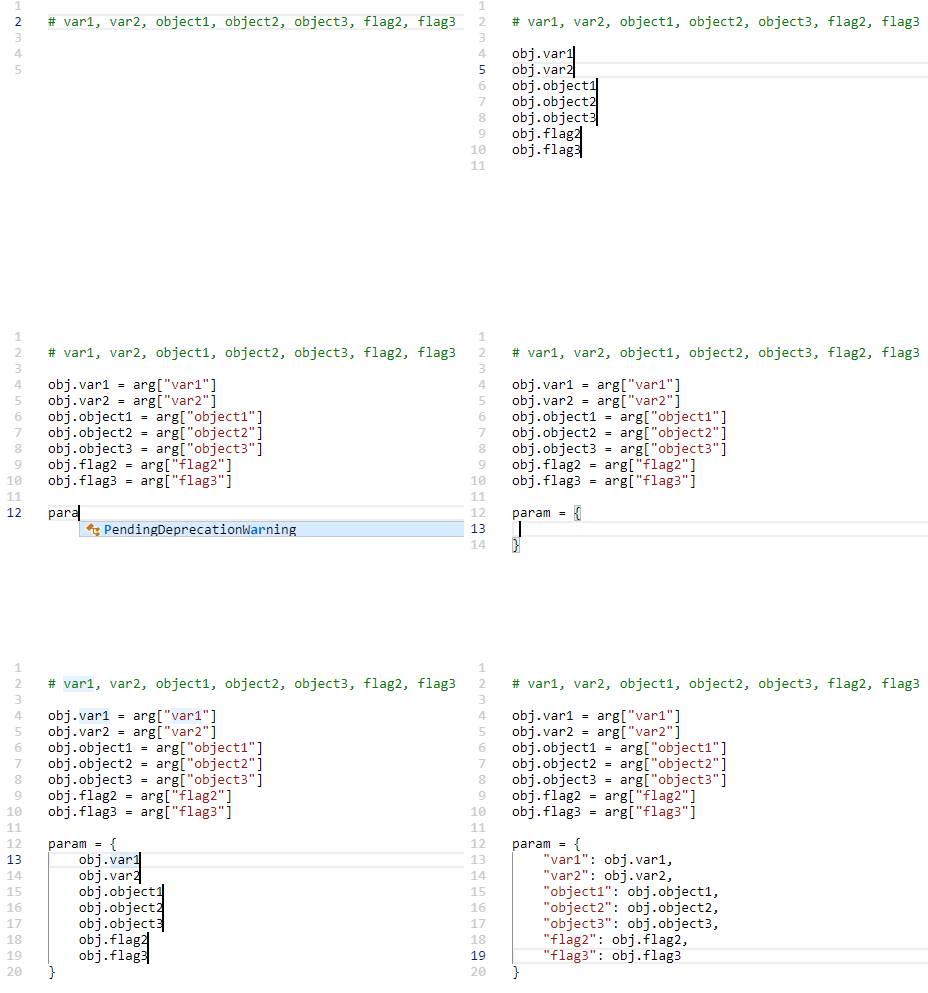
So, assuming this sample test, below , in a new tab :
var1, var2, object1, object2, object3, flag2, flag3-
Place the cursor right before the string
var1( without theCtrlkey pressed ) -
Holding down a
Ctrlkey, left click, right in front of all the other strings, in order to get a total of7cursors !
Now :
-
Backspace * 2 -
Enter
You should get a
7- lines selection, below :var1 var2 object1 object2 object3 flag2 flag3Note that the
SPnotation, below, represents a hit on the Space bar-
Type obj.
-
Shift + End -
Ctrl + D -
Right -
Type
SP=SParg[" -
Shift + End -
Ctrl + D -
Right -
Type "]
SP#SPDefinitionSPofSP -
Esc
You obtain the following text :
obj.var1 = arg["var1"] # Definition of var1
obj.var2 = arg["var2"] # Definition of var2
obj.object1 = arg["object1"] # Definition of object1
obj.object2 = arg["object2"] # Definition of object2
obj.object3 = arg["object3"] # Definition of object3
obj.flag2 = arg["flag2"] # Definition of flag2
obj.flag3 = arg["flag3"] # Definition of flag3
Now, regarding the second block, we start, again, with the following text :
var1, var2, object1, object2, object3, flag2, flag3-
Place the cursor right before the string
var1( without theCtrlkey pressed ) -
Holding down a
Ctrlkey, left click, right in front of all the other strings, in order to get a total of7cursors
Then :
-
Backspace * 2 -
Enter
Again , you’ll obtain the
7- lines selection, below :var1 var2 object1 object2 object3 flag2 flag3Now :
-
Tab -
Type "
-
Shift + End -
Ctrl + D -
Right -
Type ":
SPobj. -
End -
Type ,
-
Esc
And… you get the expected text, with a leading tabulation :
	"var1": obj.var1,
	"var2": obj.var2,
	"object1": obj.object1,
	"object2": obj.object2,
	"object3": obj.object3,
	"flag2": obj.flag2,
	"flag3": obj.flag3,
Cheers,
guy038
-
-
I don’t know HOW I missed @dali 's plugin for this long! I have to admit whenever I saw someone doing multiline work I was extremely jealous and tempted to try the VS Code waters. @guy038, what is your CTRL-D mapped to? CTRL-D is mapped to “Duplicate Current Line” for me. When I follow your instructions, I just get duplicate lines. If I try to copy and paste, the paste is just all of the selections globbed together. I can’t seem to duplicate just the selection (like it does in the gif on github). This is what I get when I follow your instructions:
"var1": obj., "var1 "var2": obj., "var2 "object1": obj., "object1 "object2": obj., "object2 "object3": obj., "object3 "flag2": obj., "flag2 "flag3": obj., "flag3 -
Ohh you rascals! I went into the shortcut mapper and under the Scintilla commands tab there was an unassigned “SCI_SELECTIONDUPLICATE”. I assigned that to
Ctrl + Det voila! (as Guy would say)!Christmas came early this year! Now I’m not the only kid on the block that can’t mulitedit! Thank you @dail and @guy038 for bringing this plugin to my attention!
-
Hello, @cipher-1024, and All,
Yes, as you found it out yourself, my
Ctrl+Dshortcut is assigned to the Scintilla functionSCI_SELECTIONDUPLICATE( and not toSCI_LINEDUPLICATE! )So, I updated my previous post to add this statement to the hypotheses block !
Cheers,
guy038
-
Thanks Guy. I must have changed the default ages ago because I don’t remember doing it. Also a big thank you again to @dail. Now I don’t have to be all like this.
-
For your information: The newest version of the plugin “BetterMultiSelection” is now capable to do copy and paste on multiple cursors (as I used it in the VSCode animation above).
There is now only the one missing important feature to make multi editing as fast as in VSCode: the ctrl+D select function. Scintilla seems to support this feature as well, but it’s not available in Notepad++ for keyboard shortcut:
SCI_MULTIPLESELECTADDNEXT (in VSCode bound to ctrl-d)
SCI_MULTIPLESELECTADDEACH (in VSCode bound to shift-ctrl-l)What ctrl-d does:
It selects the next occurence of the current selection as added multiselection. You can use it to very quickly rename variables. In Notepad++ you have to use the mouse, which is much slower, or the replace function. In VSCode there is also a “skip next occurence” (ctrl-k) and “undo last selection” (ctrl-u) which makes it very versatile. -
@bitagoras said in Multi selection and multi edit:
SCI_MULTIPLESELECTADDNEXT
Added this feature request.
-
About to one year ago we had a conversation about this topic here in the forum, have a look at this thread.
The essentials of the discussion:
- You can already use these features using a scripting plugin.
In the following I provide the code for the NppExec plugin.
Command SCI_MULTIPLESELECTADDNEXT (with the help of @Ekopalypse):
sci_sendmsg SCI_SETSEARCHFLAGS SCFIND_WHOLEWORD
sci_sendmsg 2690  // SCI_TARGETWHOLEDOCUMENT
sci_sendmsg 2688  // SCI_MULTIPLESELECTADDNEXT
Command SCI_MULTIPLESELECTADDEACH (generously provided by @Ekopalypse):
sci_sendmsg SCI_SETSEARCHFLAGS SCFIND_WHOLEWORD sci_sendmsg 2690 // SCI_TARGETWHOLEDOCUMENT sci_sendmsg SCI_GETSELECTIONEMPTY if $(MSG_RESULT) == 1 then sci_sendmsg 2688 // SCI_MULTIPLESELECTADDNEXT sci_sendmsg 2689 // SCI_MULTIPLESELECTADDEACH- As these commands are not supported in Notepad++ versions older than v7.7, it is possible to emulate them using a scripting plugin. In the following I provide the Lua code (can be used in conjunction with the LuaScript plugin) to do this:
Command SCI_MULTIPLESELECTADDNEXT (provided by @dail):
-- =============================================================================
-- Add menu entry to select next occurence of word under or next to cursor or
-- already selected word
-- =============================================================================

npp.AddShortcut("Selection Add Next", "", function()
  -- From SciTEBase.cxx
  local flags = SCFIND_WHOLEWORD -- can use 0

  editor:SetTargetRange(0, editor.TextLength)
  editor.SearchFlags = flags

  -- From Editor.cxx
  if editor.SelectionEmpty or not editor.MultipleSelection then
    local startWord = editor:WordStartPosition(editor.CurrentPos, true)
    local endWord   = editor:WordEndPosition(startWord, true)

    editor:SetSelection(startWord, endWord)
  else
    local i = editor.MainSelection
    local s = editor:textrange(editor.SelectionNStart[i], editor.SelectionNEnd[i])
    local searchRanges = {{editor.SelectionNEnd[i], editor.TargetEnd}, {editor.TargetStart, editor.SelectionNStart[i]}}

    for _, range in pairs(searchRanges) do
      editor:SetTargetRange(range[1], range[2])

      if editor:SearchInTarget(s) ~= -1 then
        editor:AddSelection(editor.TargetStart, editor.TargetEnd)

        -- To scroll main selection in sight
        editor:ScrollRange(editor.TargetStart, editor.TargetEnd)

        break
      end
    end
  end

  -- To turn on Notepad++ multi select markers
  editor:LineScroll(0, 1)
  editor:LineScroll(0, -1)
end)
Command SCI_MULTIPLESELECTADDEACH (devolped by myself by extending above script):
-- ============================================================================= -- Add menu entry to select all occurences of word under or next to cursor or -- already selected word -- ============================================================================= npp.AddShortcut("Selection Add All", "", function() local flags = SCFIND_WHOLEWORD -- can use 0 local startWord = -1 local endWord = -1 local s = "" editor.SearchFlags = flags if editor.SelectionEmpty or not editor.MultipleSelection then startWord = editor:WordStartPosition(editor.CurrentPos, true) endWord = editor:WordEndPosition(startWord, true) editor:SetSelection(startWord, endWord) else local i = editor.MainSelection startWord = editor.SelectionNStart[i] endWord = editor.SelectionNEnd[i] end s = editor:textrange(startWord, endWord) while true do editor:SetTargetRange(0, editor.TextLength) local i = editor.MainSelection local searchRanges = {{editor.SelectionNEnd[i], editor.TargetEnd}, {editor.TargetStart, editor.SelectionNStart[i]}} local itemFound = false for _, range in pairs(searchRanges) do editor:SetTargetRange(range[1], range[2]) if editor:SearchInTarget(s) ~= -1 then editor:AddSelection(editor.TargetStart, editor.TargetEnd) itemFound = true break end end if editor.TargetStart == startWord and editor.TargetEnd == endWord or not itemFound then break end end -- To turn on Notepad++ multi select markers editor:LineScroll(0, 1) editor:LineScroll(0, -1) end) -
@dinkumoil : Ok thank you, I was not aware. But I still would appreaciate if the two functions would be added to list of scintilla comands at the keyboard shortcuts. Should not be to difficult.
-
@bitagoras
I just have updated the FR with my test.
A simple keyboard binding does not work but the solution is
similar easy. -
Here is my entire solution (copy from this Github Issue) with NppExec which gives Notepad++ all the multi editing functionality from VSCode. The only difference is that there are two different shortcuts each for addNext and for skip.
addNext (Ctrl-D):
NPP_CONSOLE 0
sci_sendmsg 2690  // SCI_TARGETWHOLEDOCUMENT
sci_sendmsg SCI_SETSEARCHFLAGS 0
sci_sendmsg 2688  // SCI_MULTIPLESELECTADDNEXT
addNextWholeWord (Shift-Ctrl-D):
NPP_CONSOLE 0
sci_sendmsg 2690  // SCI_TARGETWHOLEDOCUMENT
sci_sendmsg SCI_SETSEARCHFLAGS SCFIND_WHOLEWORD
sci_sendmsg 2688  // SCI_MULTIPLESELECTADDNEXT
addEach (Shift-Ctrl-L):
NPP_CONSOLE 0
sci_sendmsg 2690  // SCI_TARGETWHOLEDOCUMENT
sci_sendmsg SCI_GETSELECTIONEMPTY
if $(MSG_RESULT) == 1 then
  sci_sendmsg SCI_SETSEARCHFLAGS SCFIND_WHOLEWORD
else
  sci_sendmsg SCI_SETSEARCHFLAGS 0
endif
sci_sendmsg 2689  // SCI_MULTIPLESELECTADDEACH
sci_sendmsg 2689  // SCI_MULTIPLESELECTADDEACH
undoAddNext (Ctrl-U):
NPP_CONSOLE 0
sci_sendmsg SCI_GETSELECTIONS
set n ~ $(MSG_RESULT) - 1
sci_sendmsg SCI_DROPSELECTIONN $(n)
skip (Alt-Ctrl-D):
NPP_CONSOLE 0
sci_sendmsg SCI_SETSEARCHFLAGS SCFIND_NONE
sci_sendmsg 2688  // SCI_MULTIPLESELECTADDNEXT
sci_sendmsg SCI_GETSELECTIONS
set n ~ $(MSG_RESULT) - 2
sci_sendmsg SCI_DROPSELECTIONN $(n)
skipWholeWord (Alt-Shift-Ctrl-D):
NPP_CONSOLE 0 sci_sendmsg SCI_SETSEARCHFLAGS SCFIND_NONE sci_sendmsg 2688 // SCI_MULTIPLESELECTADDNEXT sci_sendmsg SCI_GETSELECTIONS set n ~ $(MSG_RESULT) - 2 sci_sendmsg SCI_DROPSELECTIONN $(n) -
Hello
I’m new to this but I’m interested in having the functionality to select similar strings in a document and be able to do multiple editing
how can i add this functionality to notepad ++? -
Perhaps the simplest way would be to add the NppExec plugin to your Notepad++ and used the scripts by @bitagoras directly above?
-
yes i was watching
I already installed the NppExec script to the notepad++
but now the problem is how do I add the scripts by @bitagoras to the notepad ++? -
It feels a bit like spoon-feeding, but…
- Select Plugins from the N++ menus
- Select NppExec
- Select Execute (default key assignment is F6)
- Paste in ONE of the short “scripts” above in the Execute… box that appears
- Optionally (but recommended) test run it by pressing the OK button
- Press F6 again; “script” from before was retained and shows in the box
- Press Save… , give it a name (suggested above the “scripts” above), press OK
- Assign a keycombo (again; suggested ones are above the “scripts” above)
-
@michaelfernandez98 said:
but now the problem is how do I add the scripts by @bitagoras to the notepad ++?
@Alan-Kilborn replied:
…
Assign a keycombo (again; suggested ones are above the “scripts” above)If saving and naming a script wasn’t obvious, then assigning a keycombo is going to be less intuitive. Just saying. ;-)
@michaelfernandez98,
Once you have one or more scripts named and saved as Alan described, then go to Plugins > NppExec > Advanced Options. In the lower left, use the Associated Script pulldown to select the script; click Add/Modify button to add it to the list of Menu Items in the upper left; note whether or not ☑ Place in the Macros Submenu is enabled (you will need this later). Repeat as necessary for all of the above scripts. When you hit OK to apply those changes, a popup will tell you that you should restart Notepad++: save any open files, then restart Notepad++.After the restart, then either the Macros menu (if the checkbox was enabled) or the Plugins > NppExec submenu (if the checkbox was disabled) will list your new NppExec scripts.
To assign a keycombo to each, go to Macros > Modify Shortcut/Delete Macro (or, equivalently, Settings > Shortcut Mapper), and go to the Plugin Commands tab. Filter by
NppExecand scroll down until you see the new script names. Click on the script you want a keycombo for, hit Modify, and pick the appropriate combination of Ctrl, Alt, Shift, and the selected key. Repeat the Modify procedure for all the scripts that you want a keycombo for.








Hello! It looks like you're interested in this conversation, but you don't have an account yet.
Getting fed up of having to scroll through the same posts each visit? When you register for an account, you'll always come back to exactly where you were before, and choose to be notified of new replies (either via email, or push notification). You'll also be able to save bookmarks and upvote posts to show your appreciation to other community members.
With your input, this post could be even better 💗
Register Login