How to replace two separate lines.
-
Trying to Find and Replace two separate lines in a code. I don’t know how to get notepad to recognize this.
G1 Z10
G0 Z92
to
G1 Z10
G0 Z38.Could anyone help me with this? Thanks
-
@Brent-Ficker
Have you tried just copy-paste the respective blocks to go into “find what” and “replace with” boxes of the Find and Replace dialog? -
P PeterJones moved this topic from Notepad++ & Plugin Development on
-
@Victorel-Petrovich
Yes, l tried that and it ignored the second line and only showed the G1 Z10. -
@Victorel-Petrovich said in How to replace two separate lines.:
Have you tried just copy-paste …
Have you? Because that doesn’t work for me. I just tried, both in an older (v8.4.6 portable) and in a newer copy (8.8.4 installed) and in the newest (v8.8,5 portable), and none did what you claim. I cannot recall it ever working where pasting multi-line works like that (or at least, it hasn’t for a long time)
Instead, if I copy from
G1toZ92in that two-line file, and paste it into the FIND or REPLACE fields, it just lists theG1 Z10, without including the second line, and if I do the search, it really only matches a single line, not both lines.If I highlight
G1toZ92, then doCtrl+Hto bring up replacement, it populates with what looks like the two lines smooshed together (but the CRLF newline is really invisible there):
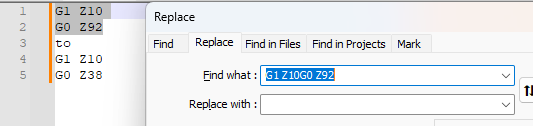
So @Brent-Ficker could follow the idea behind that:
- Highlight the replacement version (
G1toZ38) Ctrl+Hto populate the FIND WHAT in the Replace dialog with the smooshed version- click the
 to move it to the REPLACE WITH
 - highlight the search version (
G1toZ92) andCtrl+Hagain, to bring it into the FIND WHAT:
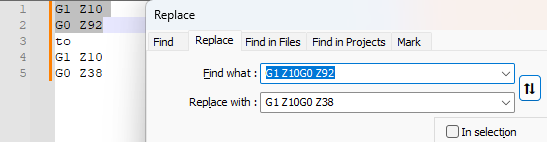
- Now Replace or Replace All will do the two-line replacement…
… But I wouldn’t recommend that, because you cannot actually see what you’re doing, and if you try editing it, you will likely lose that invisible newline in the fields.
Instead, use Search Mode = Regular Expression, and use the
\r\nnomenclature for doing the CRLF line ending. So FIND WHAT =G1 Z10\r\nG0 Z92and REPLACE WITH =G1 Z10\r\nG0 Z38
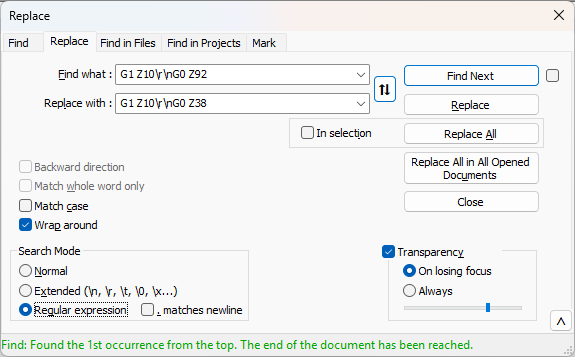
That allows @Brent-Ficker to customize the search and replacement for any such replacement, even if they don’t have a copy of the replacement text already in the document.
- Highlight the replacement version (
-
@Brent-Ficker @PeterJones
yes I have tried what I have suggested and worked with no problems. And I’ve been doing such things since I ever learned about find & replace…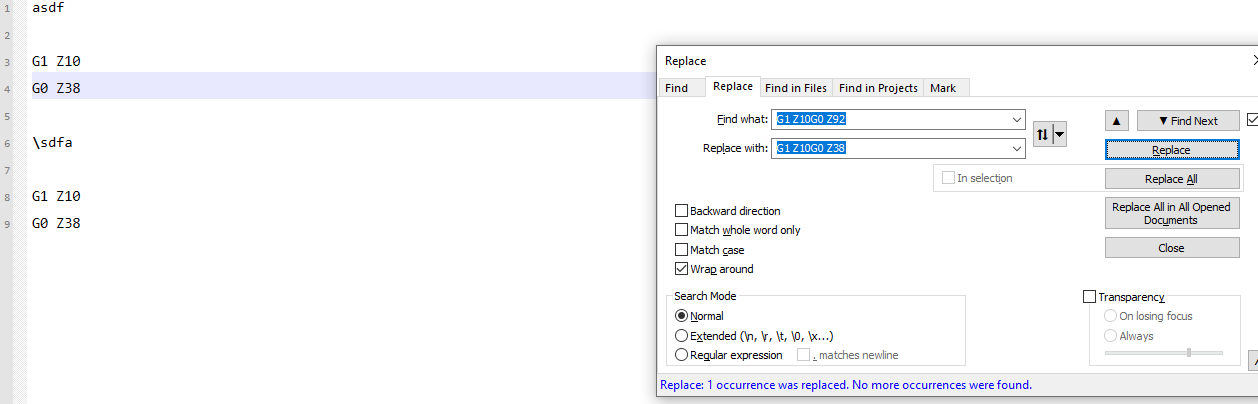
-
@Victorel-Petrovich said in How to replace two separate lines.:
yes I have tried what I have suggested and worked with no problems.
Like I said, copy (
Ctrl+C) from the text and paste (Ctrl+V) into FIND WHAT does not do that for me. And it didn’t for @Brent-Ficker, either. What version of Notepad++ are you using?And, as i said, even if that did work, it’s not the best method, especially for the replacement, since you don’t always have a copy of the “text I want” to easily grab for copy/paste. Learning how to specify the
\r\nin regular expression or extended mode syntax, to get the windows CRLF line endings, is much better for long-term and for crafting replacements that don’t rely on having text you can copy/paste the replacement from. -
:) you are not lucky, eh?
…
It looks like the reason it works for me is that I’m using theLFEOL, notCR LFas typical in Windows.Cheers
P.S. @Brent-Ficker if you’re not familiar at all with regex, the “Extended” mode setting would work for this particular problem too, to gently introduce you to such things.

Hello! It looks like you're interested in this conversation, but you don't have an account yet.
Getting fed up of having to scroll through the same posts each visit? When you register for an account, you'll always come back to exactly where you were before, and choose to be notified of new replies (either via email, or push notification). You'll also be able to save bookmarks and upvote posts to show your appreciation to other community members.
With your input, this post could be even better 💗
Register Login