Your JSON is showing as styled, so Notepad++ is properly behaving as designed, and styling the JSON correctly.
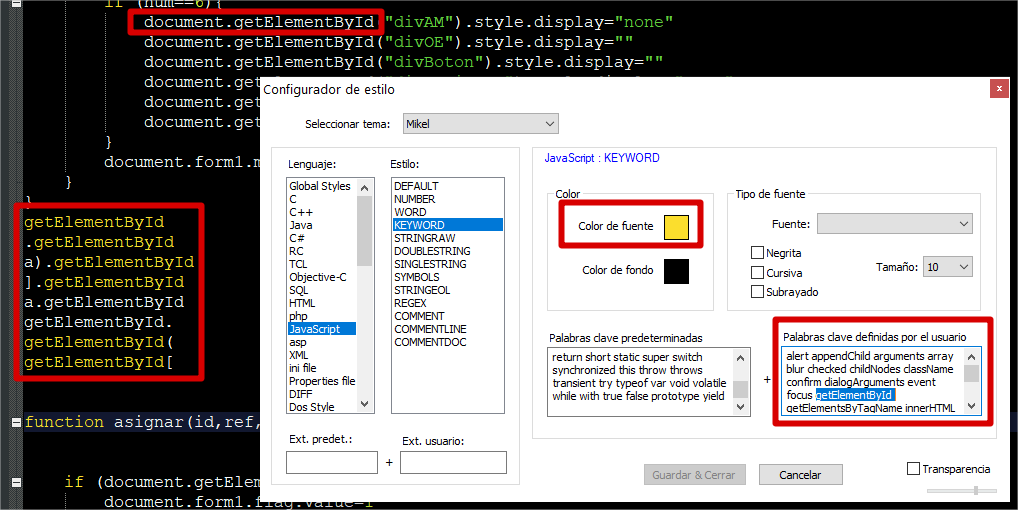
However, I think what you’re commenting on is that stylers.model.xml lists 14 different styles, but your Style Configurator only shows 6.
That’s because a default installation of Notepad++ uses %AppData%\Notepad++\stylers.xml as the Style Configurator config file. The stylers.model.xml you found in the Notepad++ program directory is what Notepad++ uses to re-create %AppData%\Notepad++\stylers.xml if there isn’t one found. So, my guess is that you’ve updated Notepad++ on this computer, so that its stylers.model.xml is newer than your %AppData%\Notepad++\stylers.xml. If you opened %AppData%\Notepad++\stylers.xml (File | Open, and paste that string in), I believe it would only show the 6 styles that you can see.
To fix this, you have two options:
Delete and Re-create stylers.xml: WARNING: if you had customized any of your colors in the style configurator, this method will delete those customizations and you will have to redo them. I do not recommend this method if you want to keep your custom colors; try method#2 instead. Close all open Notepad++ windows Go to %AppData%\Notepad++\ and delete the stylers.xml file Open Notepad++. It will re-create %AppData%\Notepad++\stylers.xml Style Configurator > JSON should show all 14 styles now. Manually merge the two WARNING: Do not change any Notepad++ settings until after step #6. Close all open Notepad++ windows. Open a single Notepad++ window. Open the files stylers.model.xml in one view, and %AppData%\Notepad++\stylers.xml in the other If you have the Compare plugin, you can compare the two files to find where differences are; otherwise, you can just manually compare the two, and copy rows from stylers.model.xml to stylers.xml that were missing in stylers.xml. Close Notepad++ without changing any other settings Open Notepad++. Style Configurator > JSON should show all 14 styles now.—
PS: For more on %AppData%\Notepad++ folder, see “FAQ Desk: What is %AppData%”